
How to update your help articles after every product release
Use the Handoff feature to identify product changes from GitHub commits and receive proposed documentation updates for relevant help articles.
Keeping your help documentation up-to-date with product changes is essential for providing accurate support to your users. This guide will show you how to use the Handoff feature to identify and update help articles after your development team releases new features or updates.

Getting Started
-
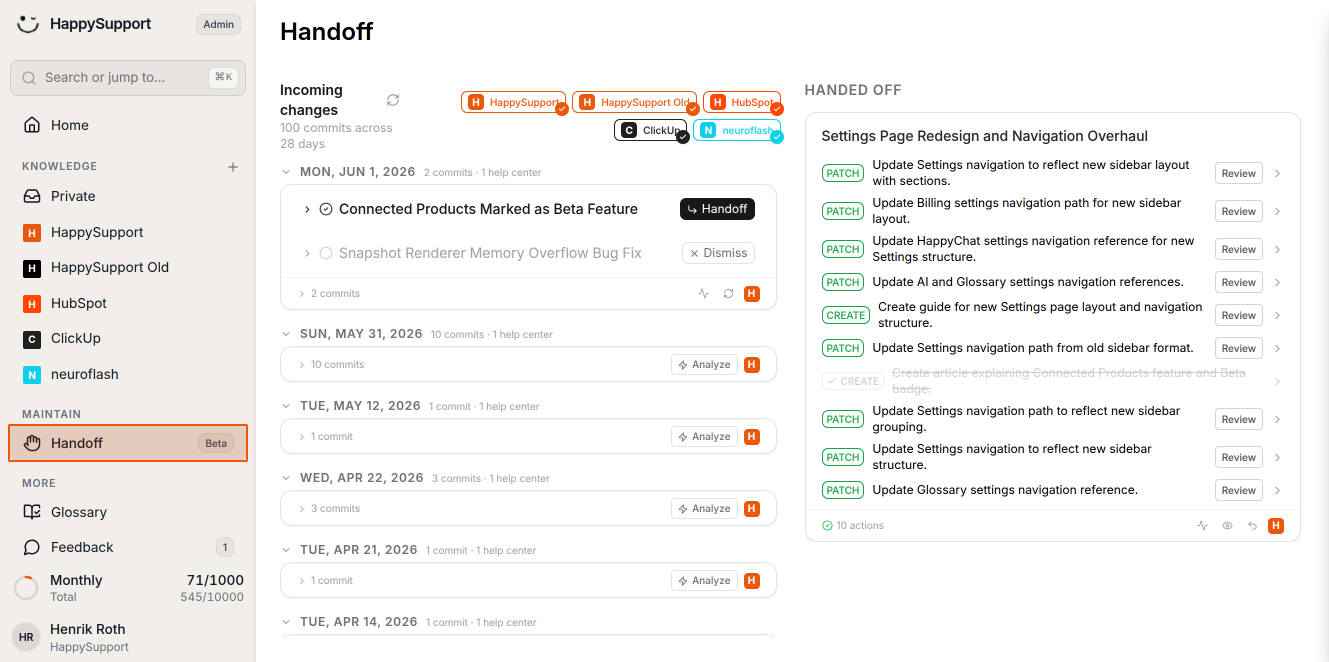
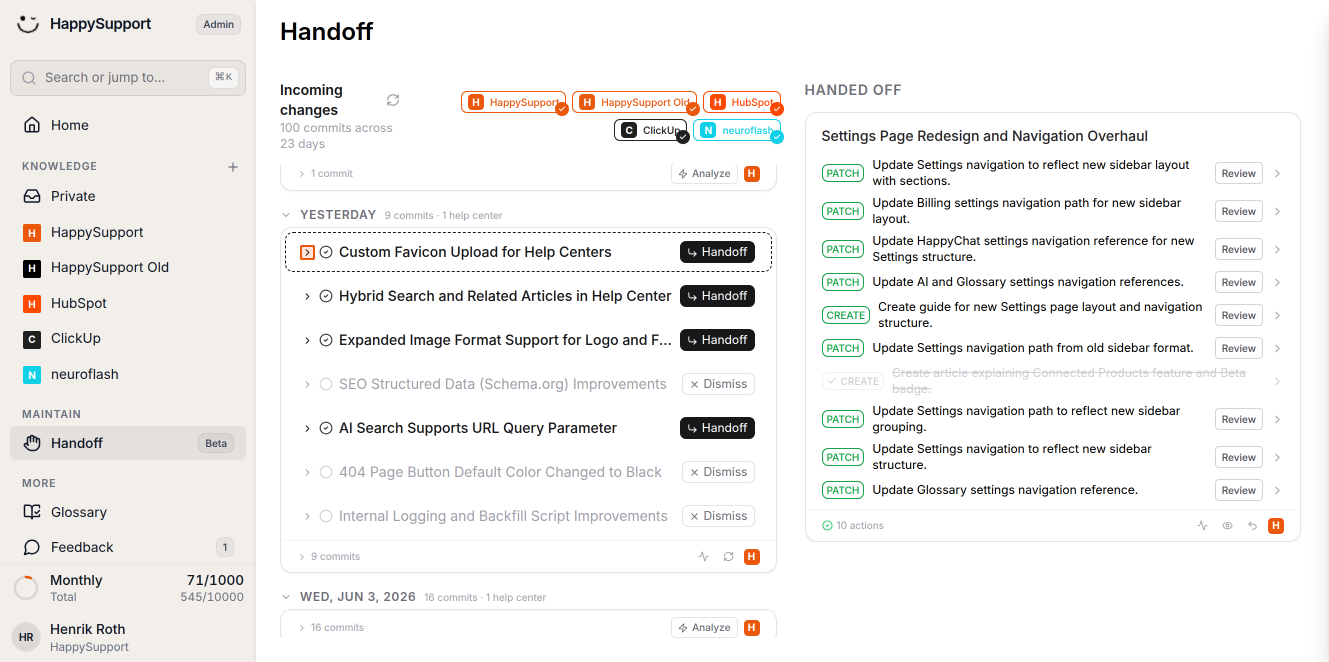
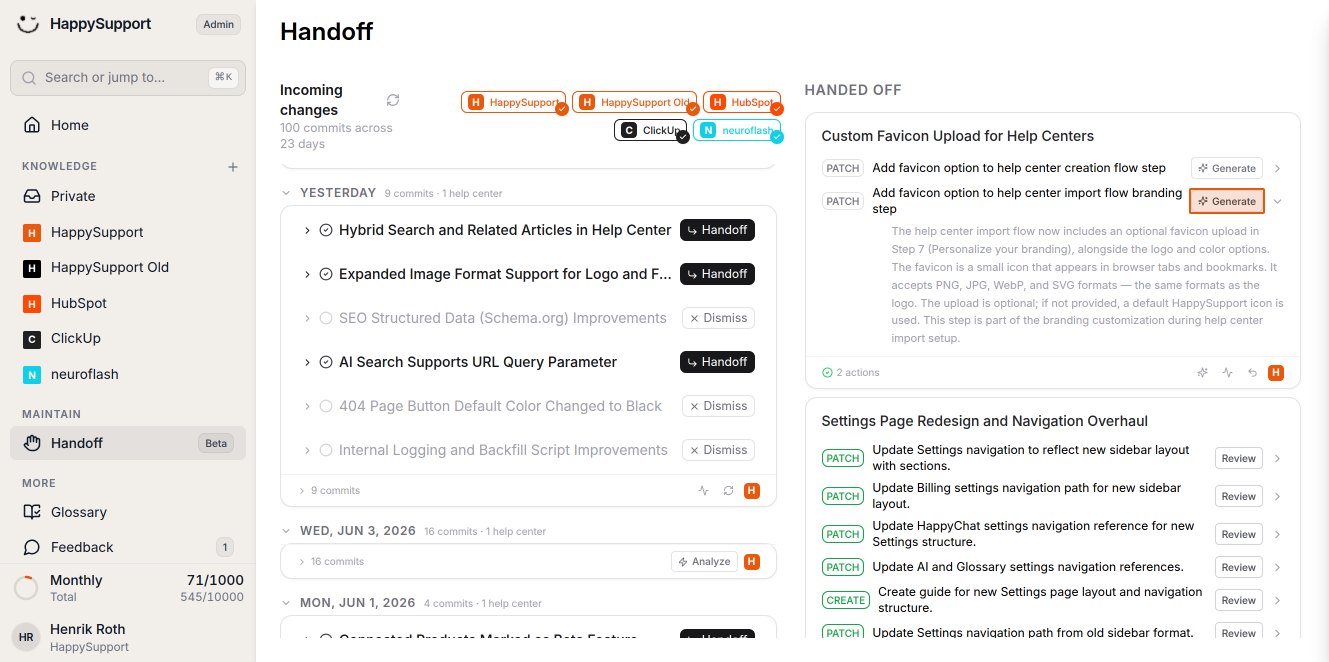
Navigate to the Handoff section
Click on "Handoff" in the left navigation sidebar under the Maintain section. This will open the Handoff page where you can see all incoming changes from your development team. -
Select your Help Center
Click on the Help Center badge (like "HappySupport") in the handoff flow at the top of the page. Each Help Center can be connected to one GitHub repository or branch. You can select all Help Centers or specific ones to see their incoming changes.
Analyzing Changes
-
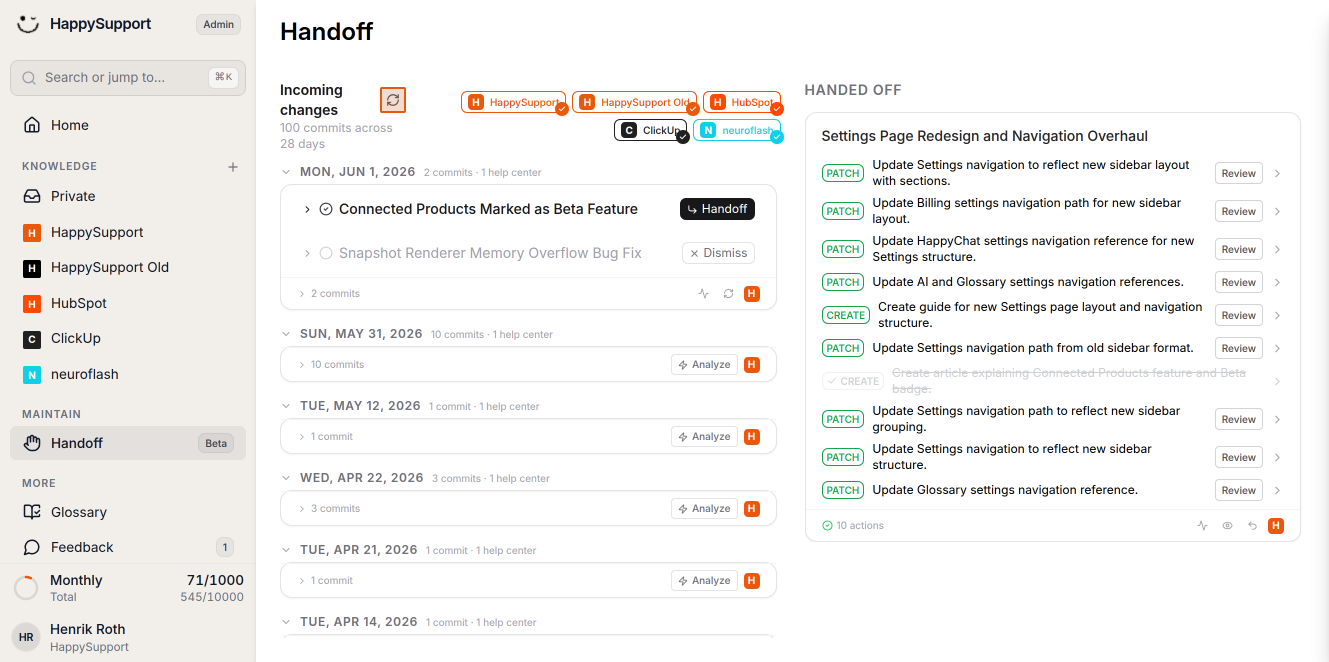
Fetch new commits
Click "Refresh" to pull the latest commits from your connected GitHub or GitLab repository. This also fetches any commits added to days you've already analyzed. The commits are organized by date, showing you all recent changes that might affect your documentation. -
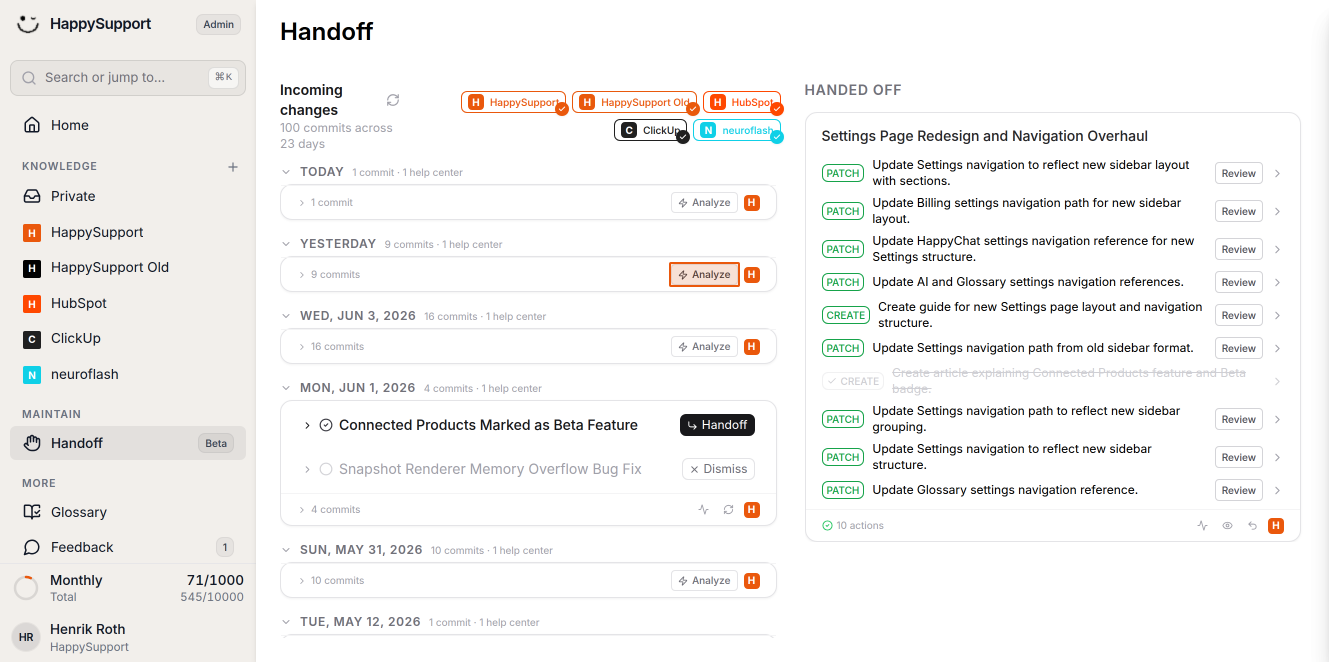
Analyze relevant commits
Click the "Analyze" button next to a commit group. A row labeled "not analyzed yet" means no commits for that day have been reviewed. A row labeled something like "3 commits since the last analysis" means new commits arrived after your previous analysis. Click "Analyze" on the returned row to process those commits before proceeding to handoff and review. -
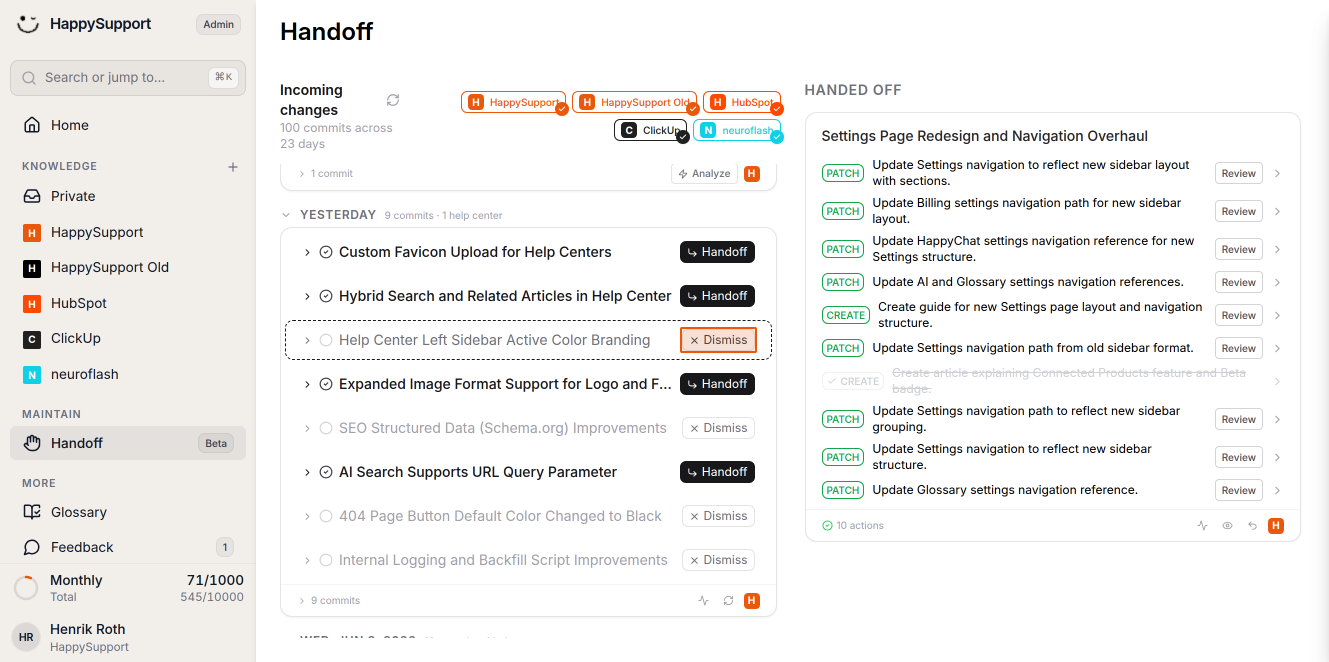
Dismiss irrelevant changes
Some commits won't affect your documentation, such as CSS color changes. Click "Dismiss" on these items to remove them from your queue.
Processing Documentation Updates
-
Handoff relevant changes
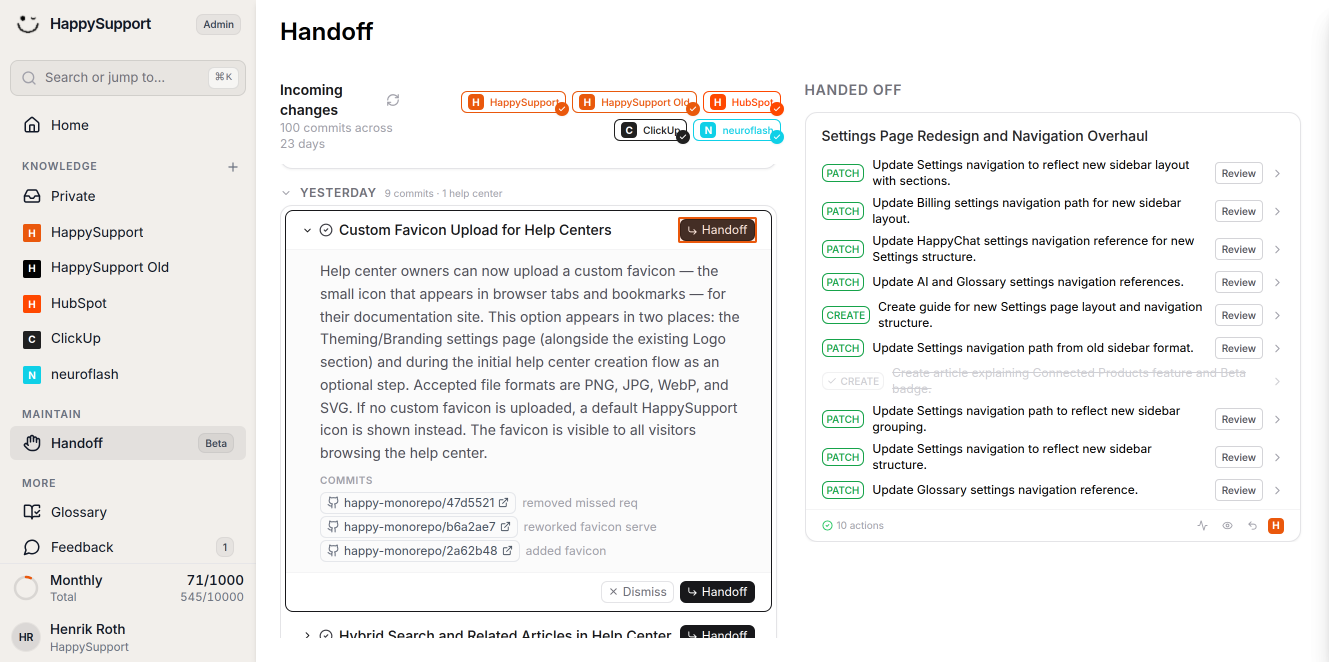
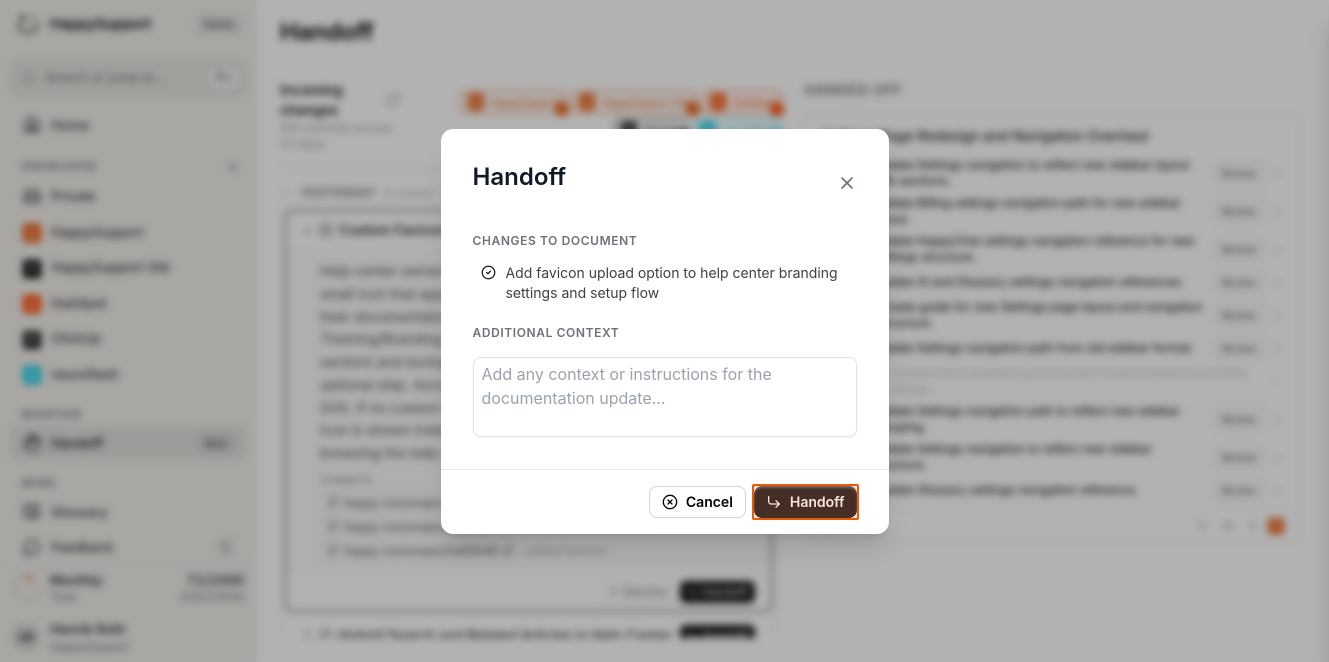
For commits that affect your documentation, click the "Handoff" button. This opens a modal where you can add additional context or instructions for the documentation update if needed.
-
Confirm the handoff
Click the "Handoff" button in the modal to confirm. The system will analyze your existing documentation, searching for every article that mentions the changed feature. -
Review proposed updates
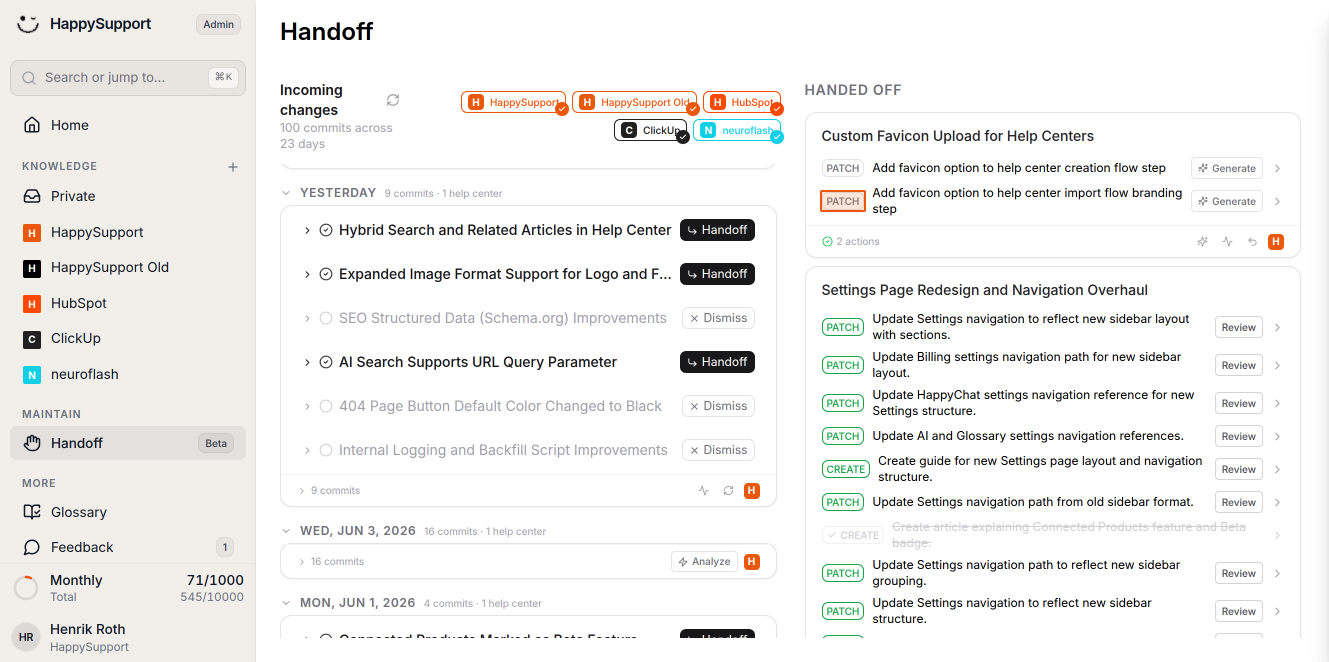
The system identifies whether you need to update existing articles, create new ones, or delete outdated support articles. Each item is tagged as PATCH (update), CREATE (new), or DELETE based on the required action. -
Generate content suggestions
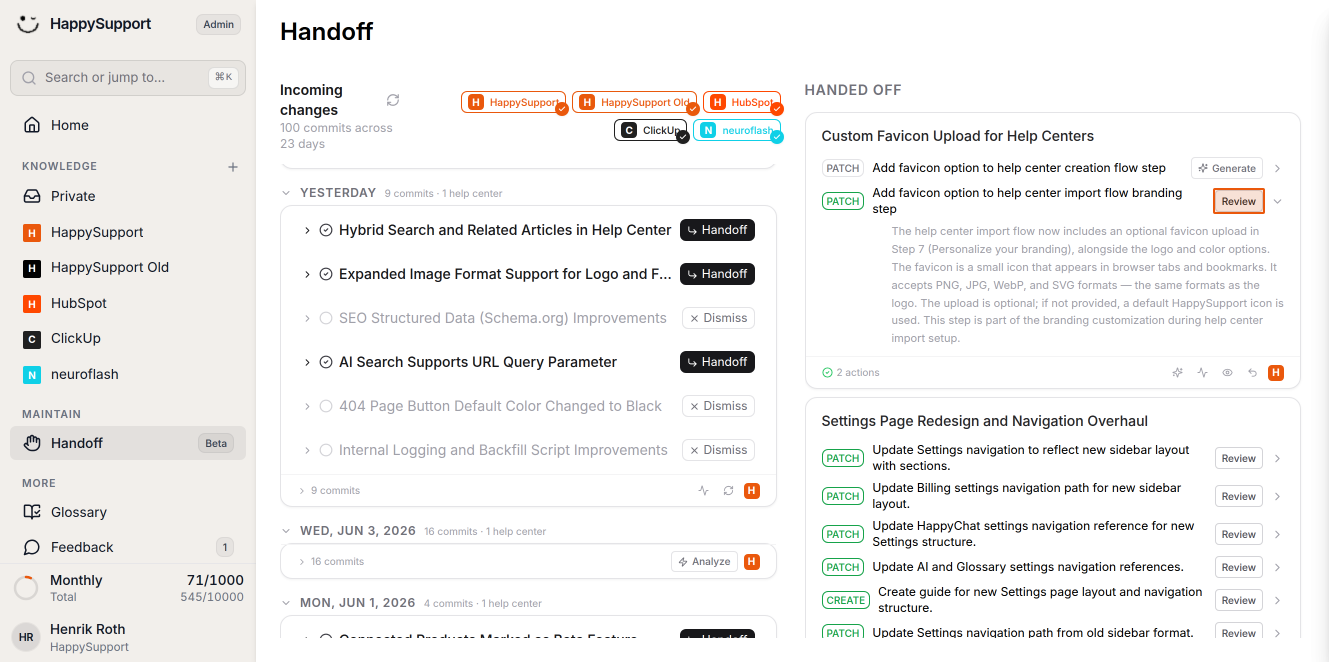
Click "Generate" next to any item (1 item = article task) to see proposed changes. The system will suggest specific edits to your articles based on the product changes.
-
Review and accept changes
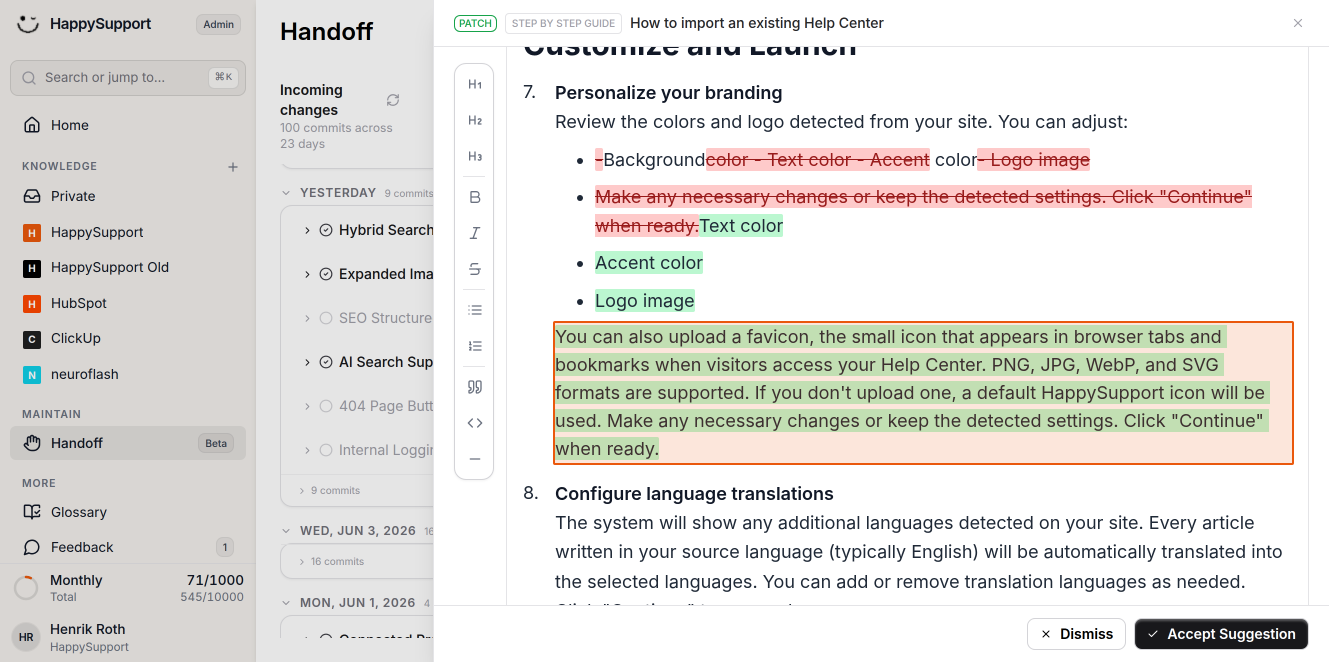
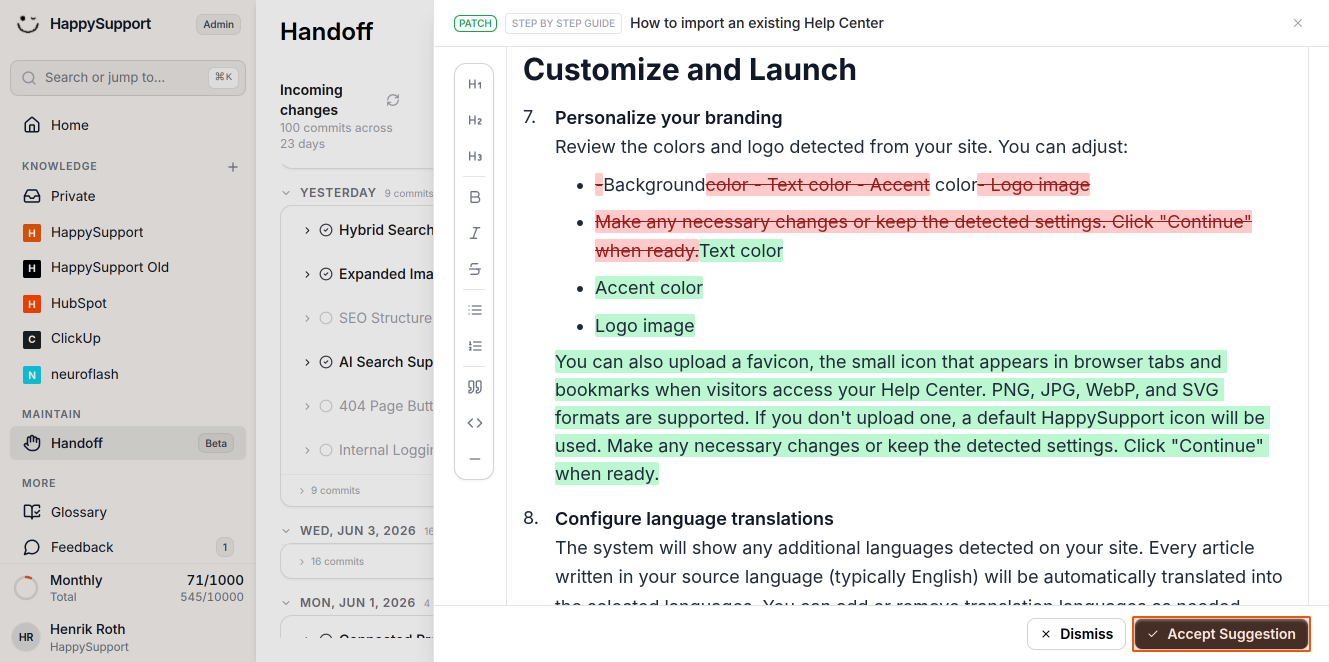
Click "Review" to see the suggested edits in detail. The system shows removed text in strikethrough and new additions in green highlighting. For example, it might add a new paragraph about uploading a favicon with supported image formats.
-
Apply the suggestions
Click "Accept Suggestion" to apply the changes to your help article. The system will update your documentation with the new information.
-
Complete additional updates
Continue accepting suggestions for the affected article to ensure your entire Help Center reflects the latest product changes.
After completing these steps, your help documentation will be updated to match the latest product release, ensuring your users always have accurate and current information.
 Powered by happysupport.ai