
How to publish a new article
Publish articles in HappySupport using the Publish button, copy public URLs from the Live status dropdown, and move them between sections.
Articles in HappySupport have three publish states: Published (visible to readers), Internal (available to AI Search and the Content API but hidden from readers), and Draft (unpublished). This guide walks you through publishing articles publicly or internally, copying the public URL, and unpublishing when needed.

Publishing your article
-
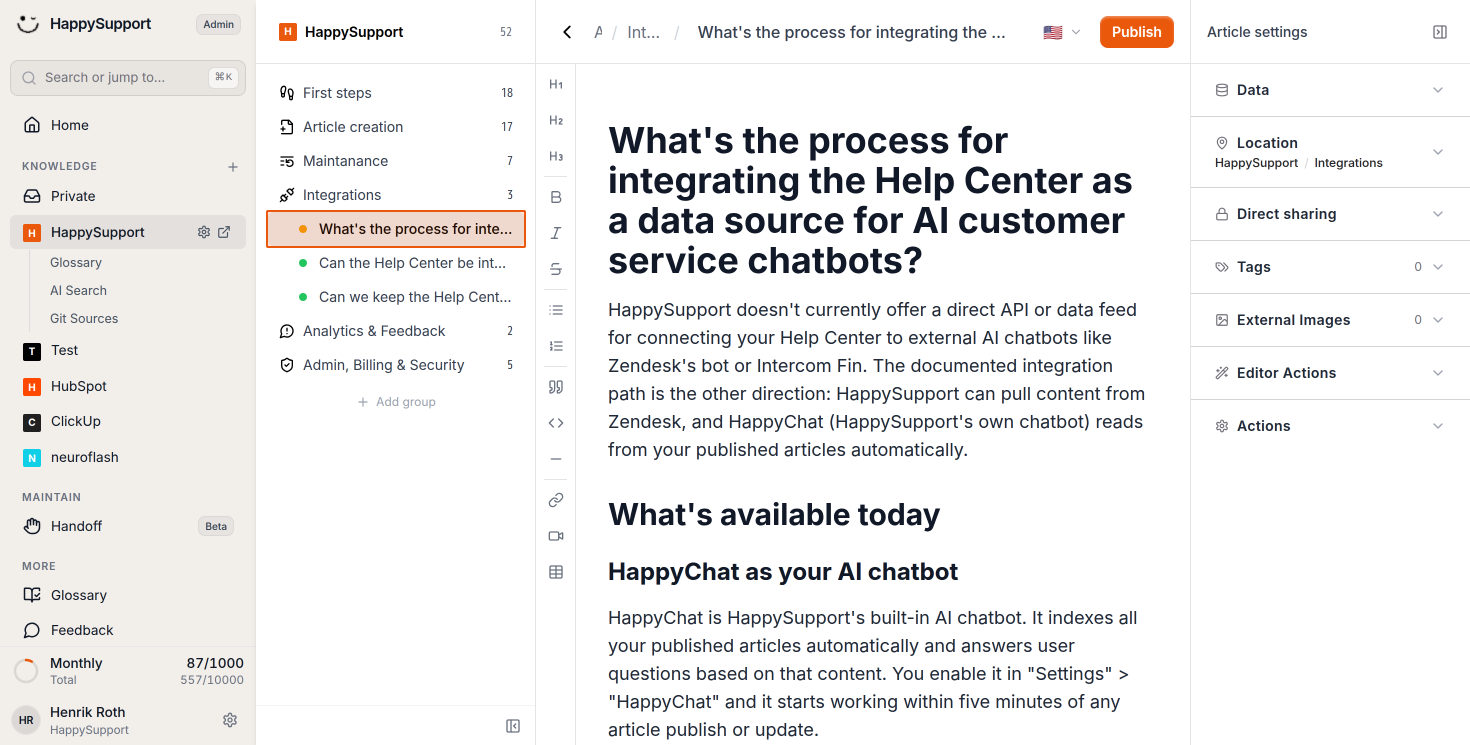
Select the article you want to publish
Navigate to your article in the content tree on the left side of the interface. Click on the article title to open it in the editor. The article will appear in the main editing area with its full title and content visible. -
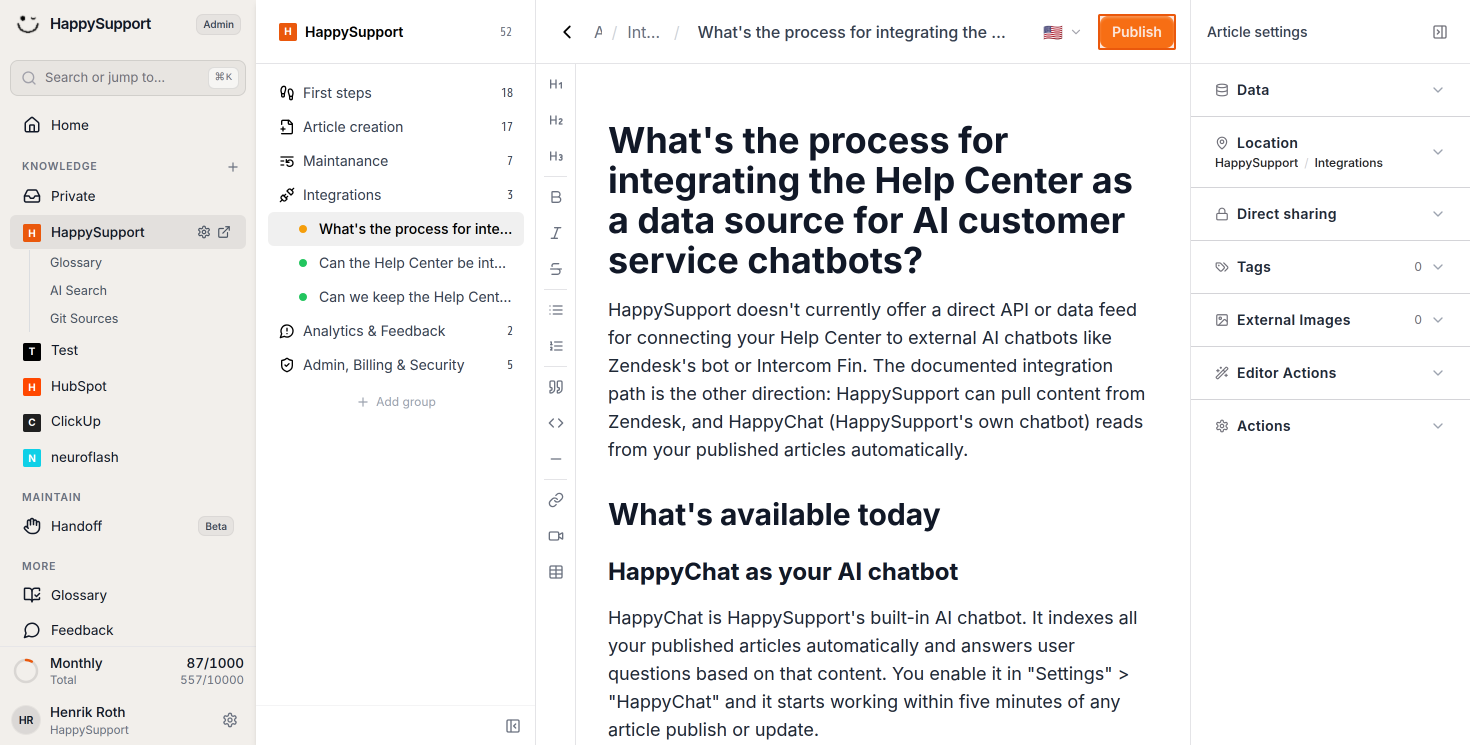
Publish the article publicly
Once your article is ready, click the orange "Publish" button located in the top bar of the editor, near the upper-right area of the screen. This publishes the article so readers can access it in your knowledge base. After publishing, the button will change to show a "Live" status with a green indicator dot.
Managing published articles
-
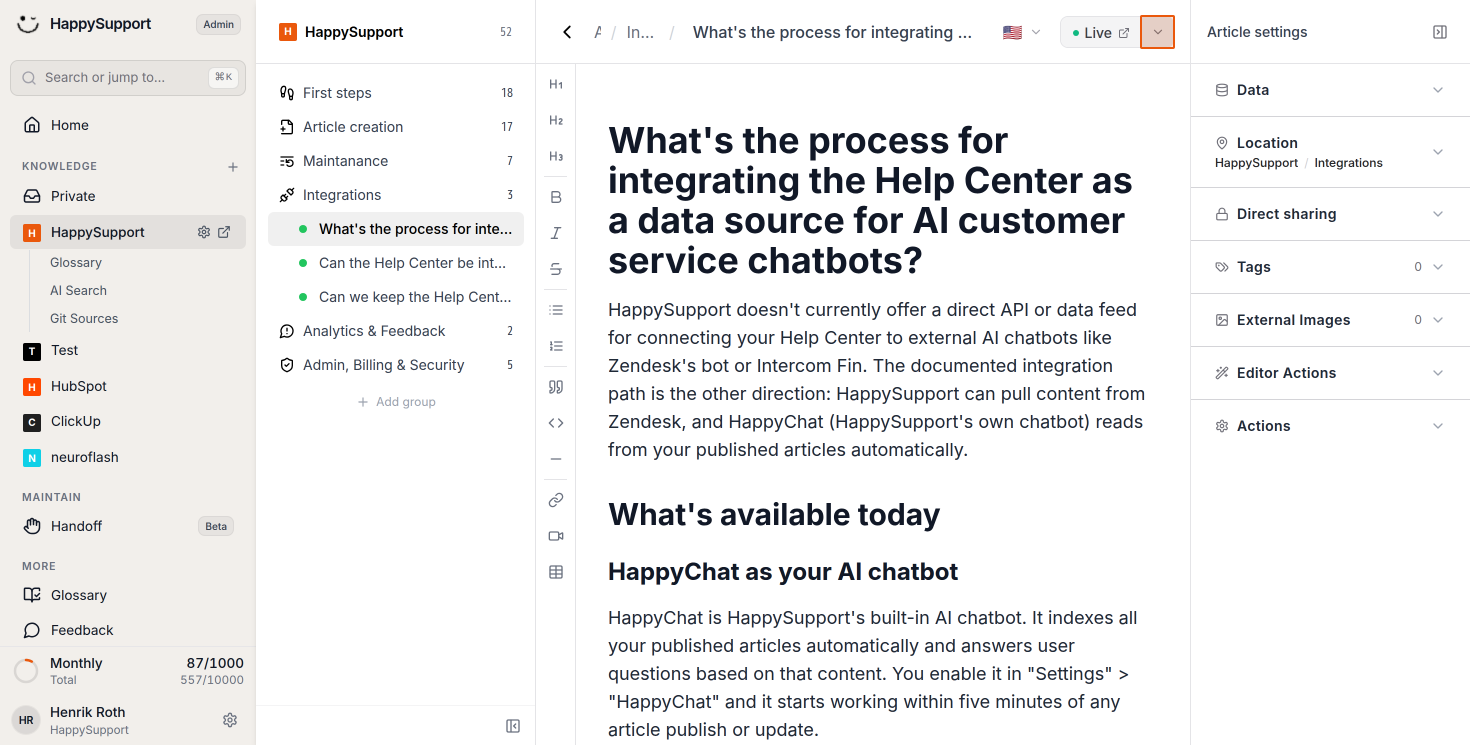
Access the publication options
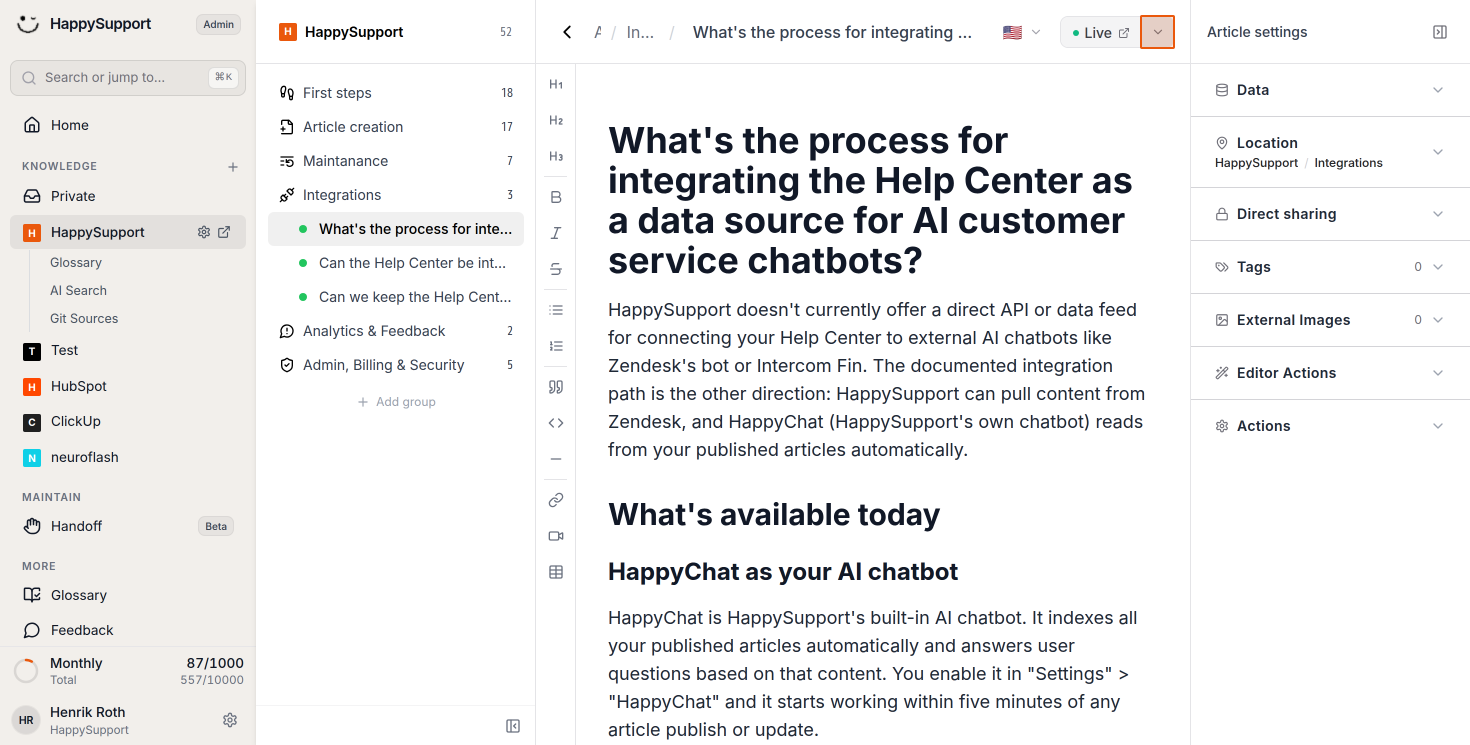
Click on the dropdown arrow next to the Live status button to reveal additional options for your published article. -
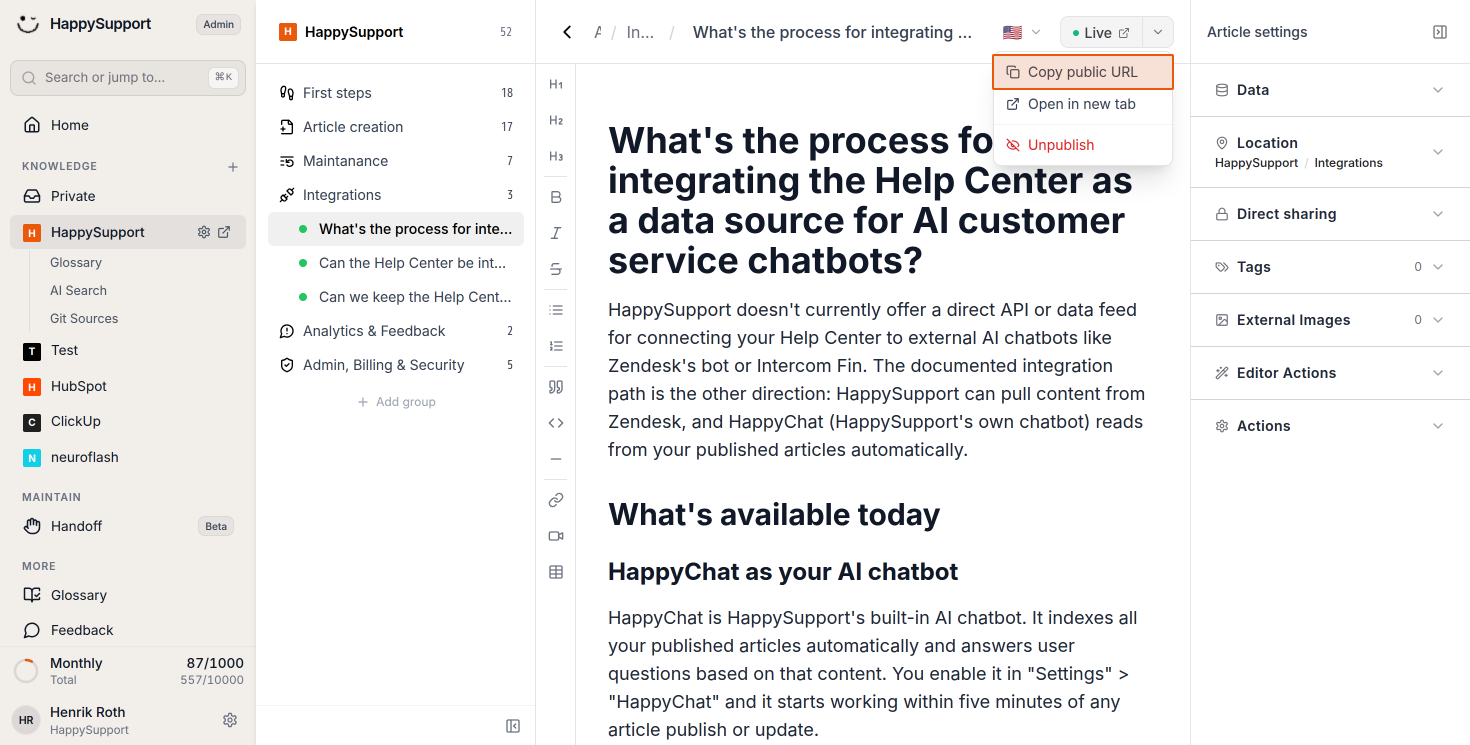
Copy the public URL
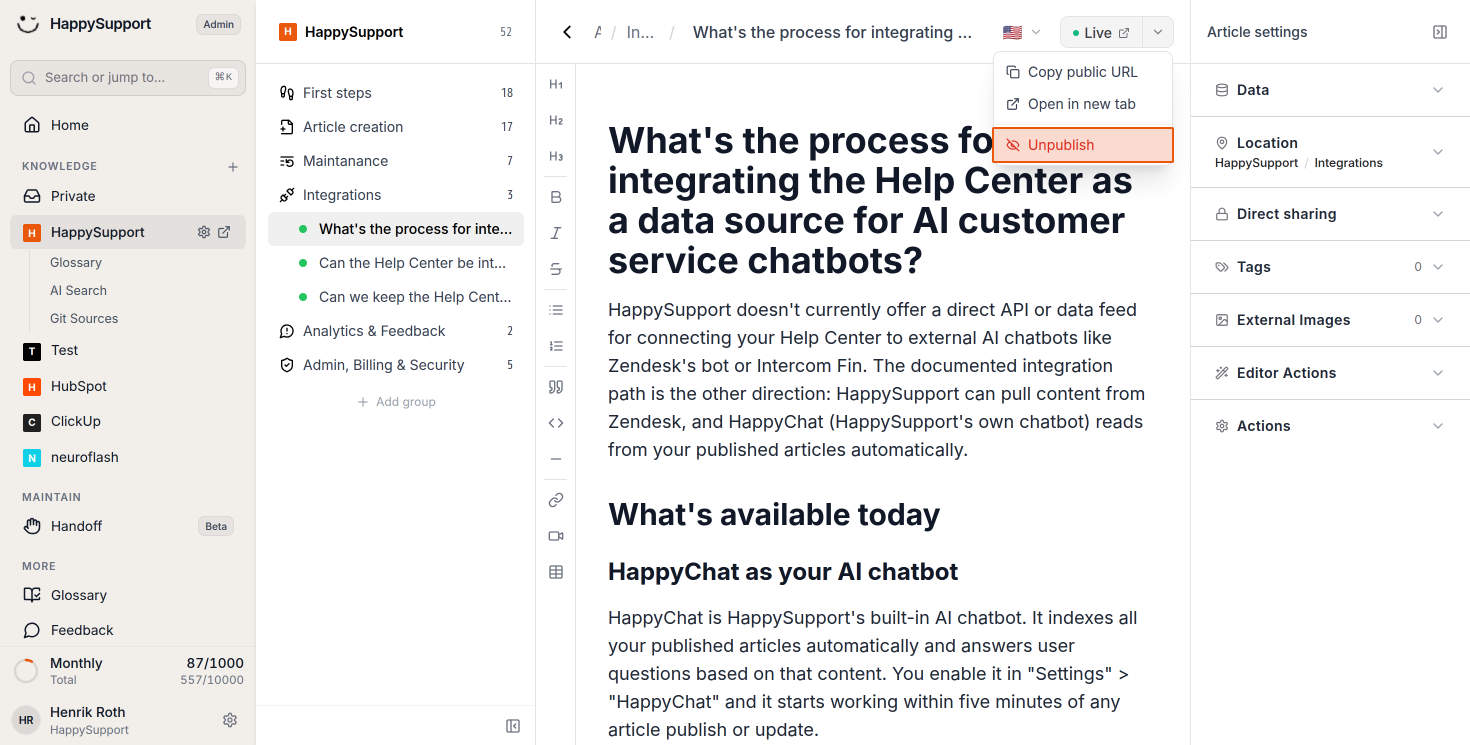
From the dropdown menu, select Copy public URL to copy the link to your clipboard. You can share this URL with users who need direct access to the article. -
Unpublish an article
To remove an article from public view, click the dropdown arrow next to the Live button again, then select Unpublish from the menu. The unpublish option appears in red text to indicate this action will change the article's status.
Organizing articles in your knowledge base
- Change the article location
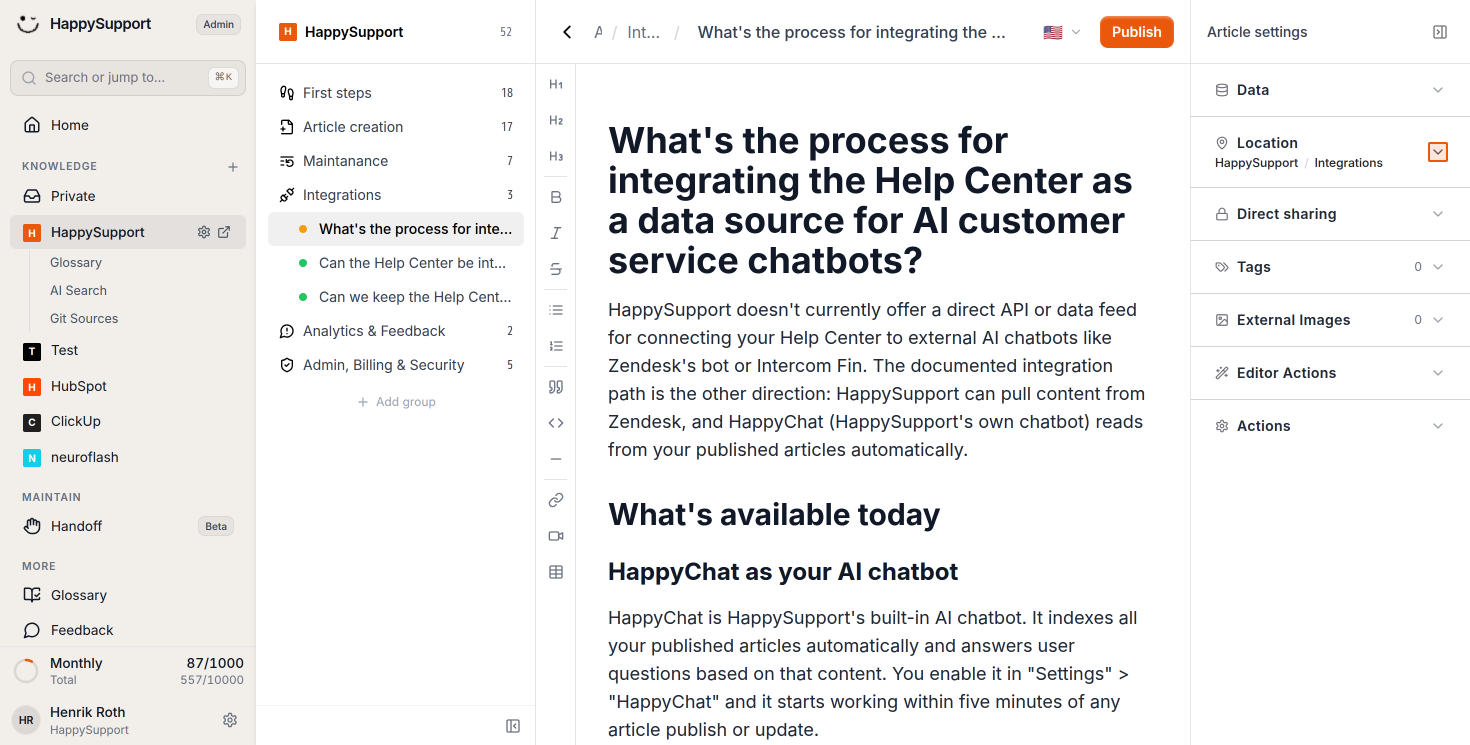
To move an article to a different section of your knowledge base, click on the "Location" setting in the Article settings panel on the right side of the screen.
-
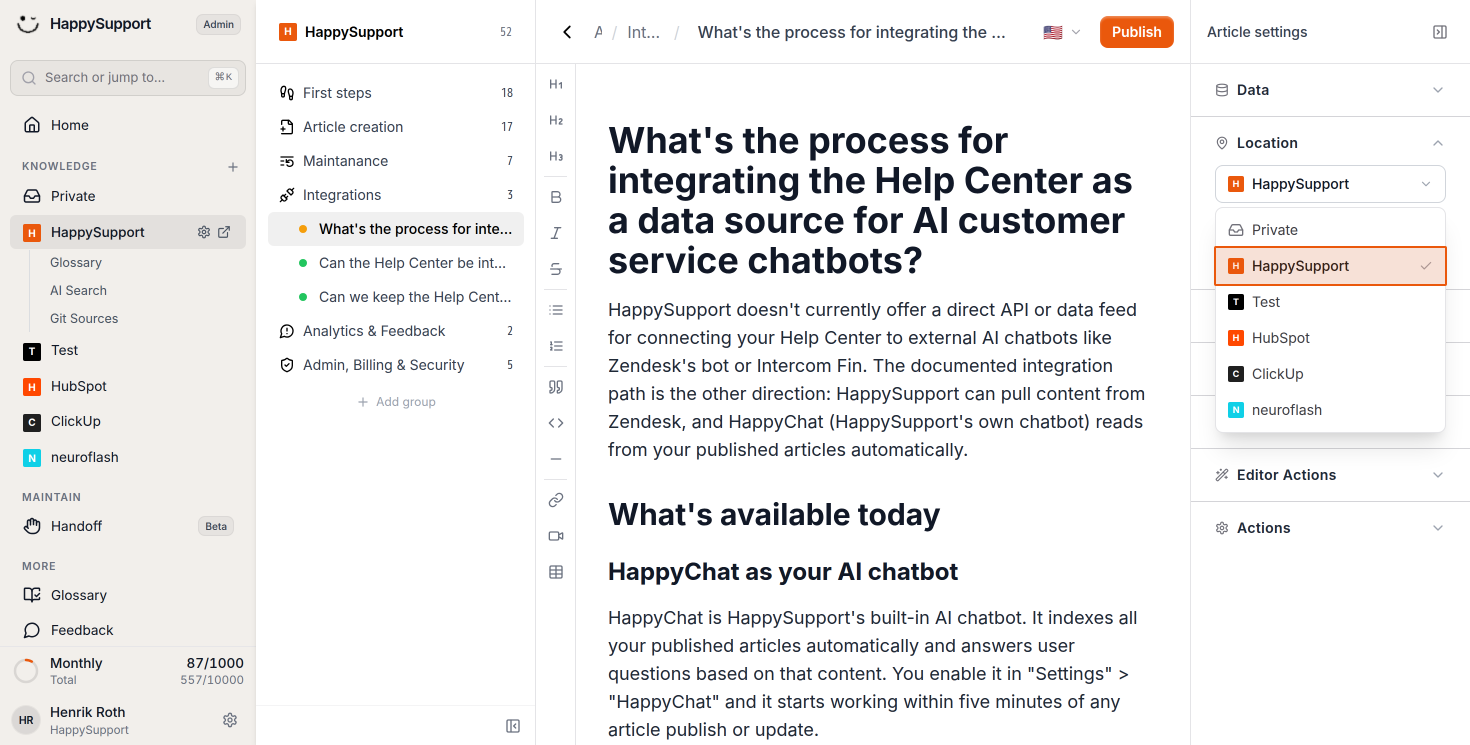
Select the knowledge base
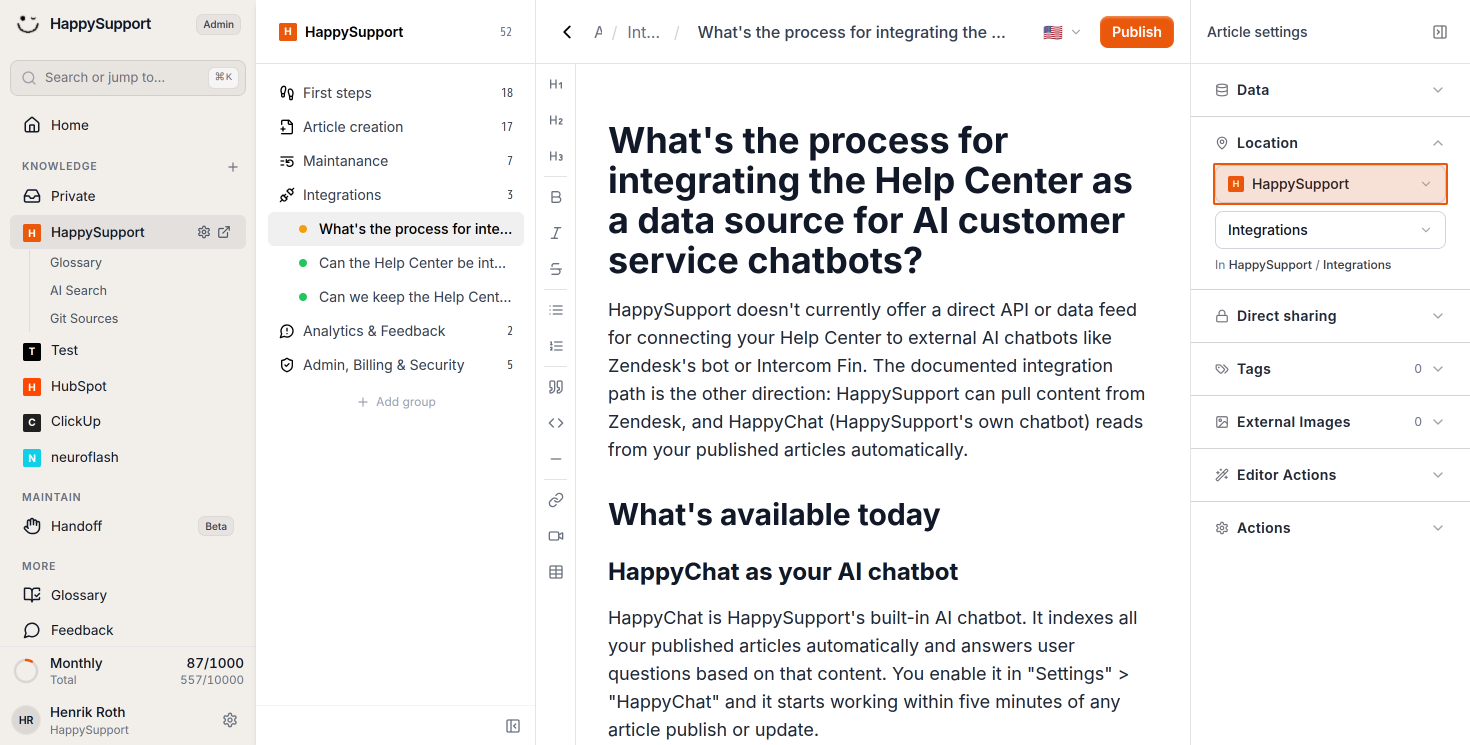
In the Location section, click on the first dropdown field showing your current knowledge base (such as HappySupport). This opens a list of available knowledge bases where you can place your article. -
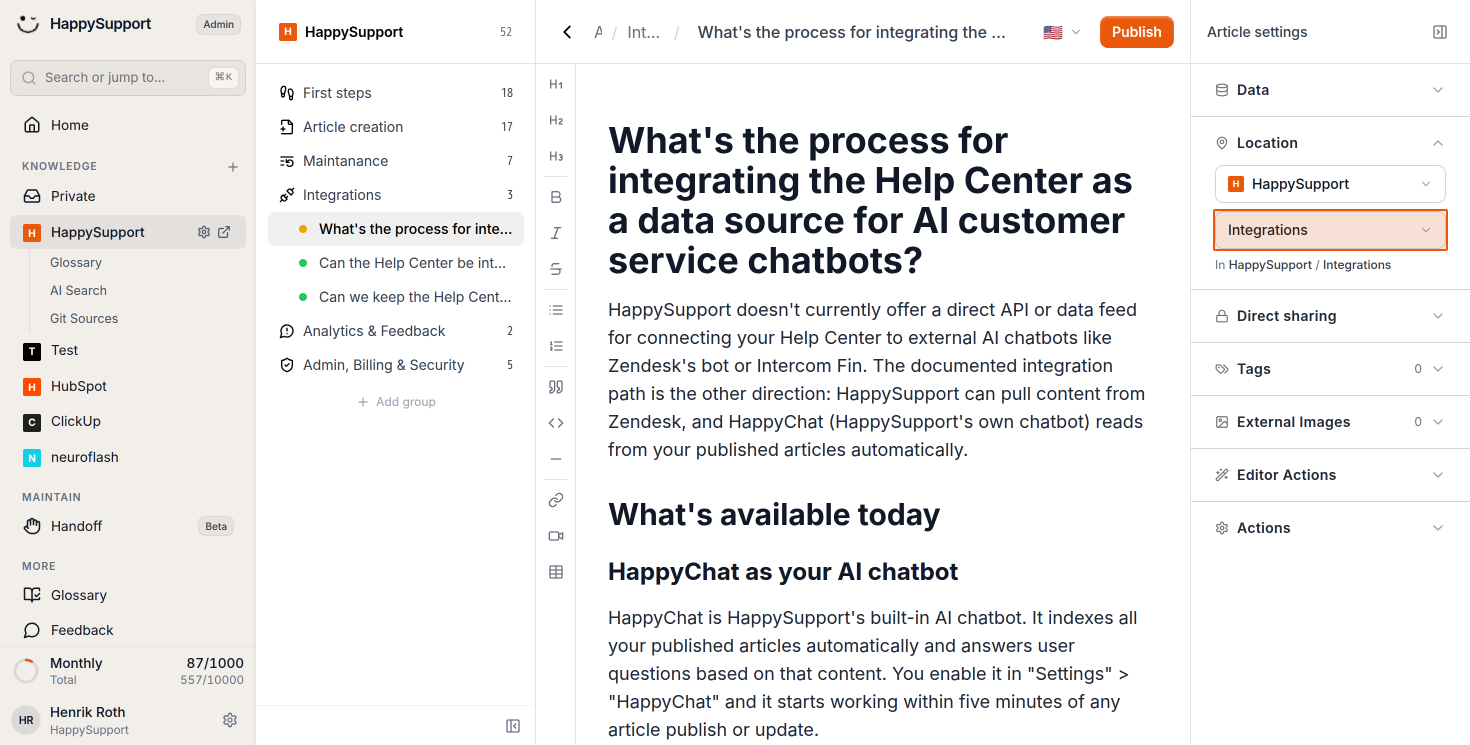
Choose the destination folder
After selecting the knowledge base, click on the second dropdown field to choose the specific folder or category where your article should appear, such as Integrations, First steps, or Article creation.
After completing these steps, your article will be successfully published and organized in your knowledge base. Users can access it through the public URL or by navigating to its location within your help center structure.
 Powered by happysupport.ai