
How to auto-update screenshots with product connection
Connect your product to HappySupport via Settings to automatically regenerate and update screenshots in help articles when your UI changes.
Connecting your product to HappySupport allows the system to automatically update screenshots whenever your UI changes. This integration logs into your application and regenerates visual content to keep your help documentation current.

Setting up product connection
-
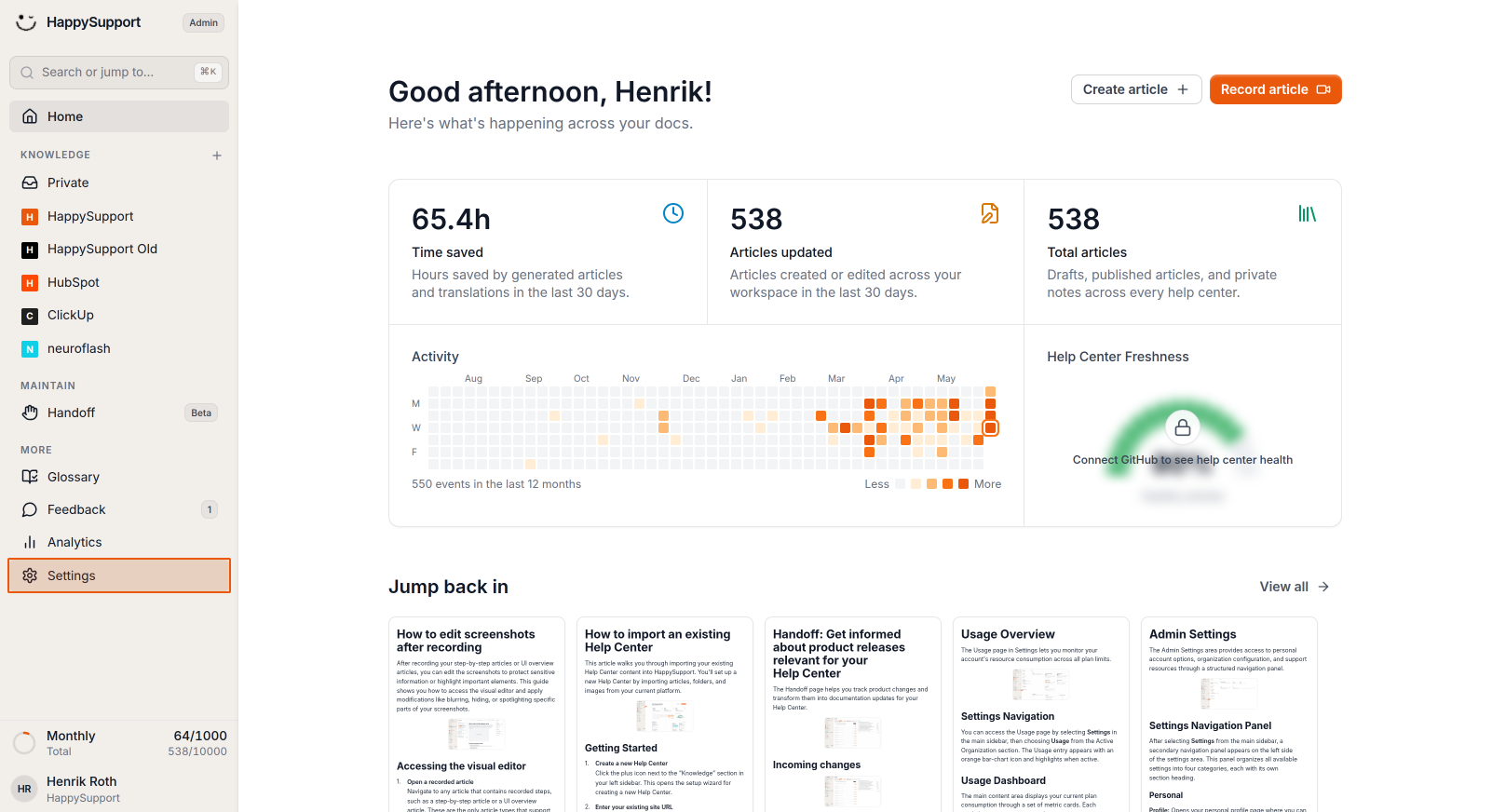
Navigate to Settings
Click on Settings in the left sidebar of your HappySupport admin dashboard. -
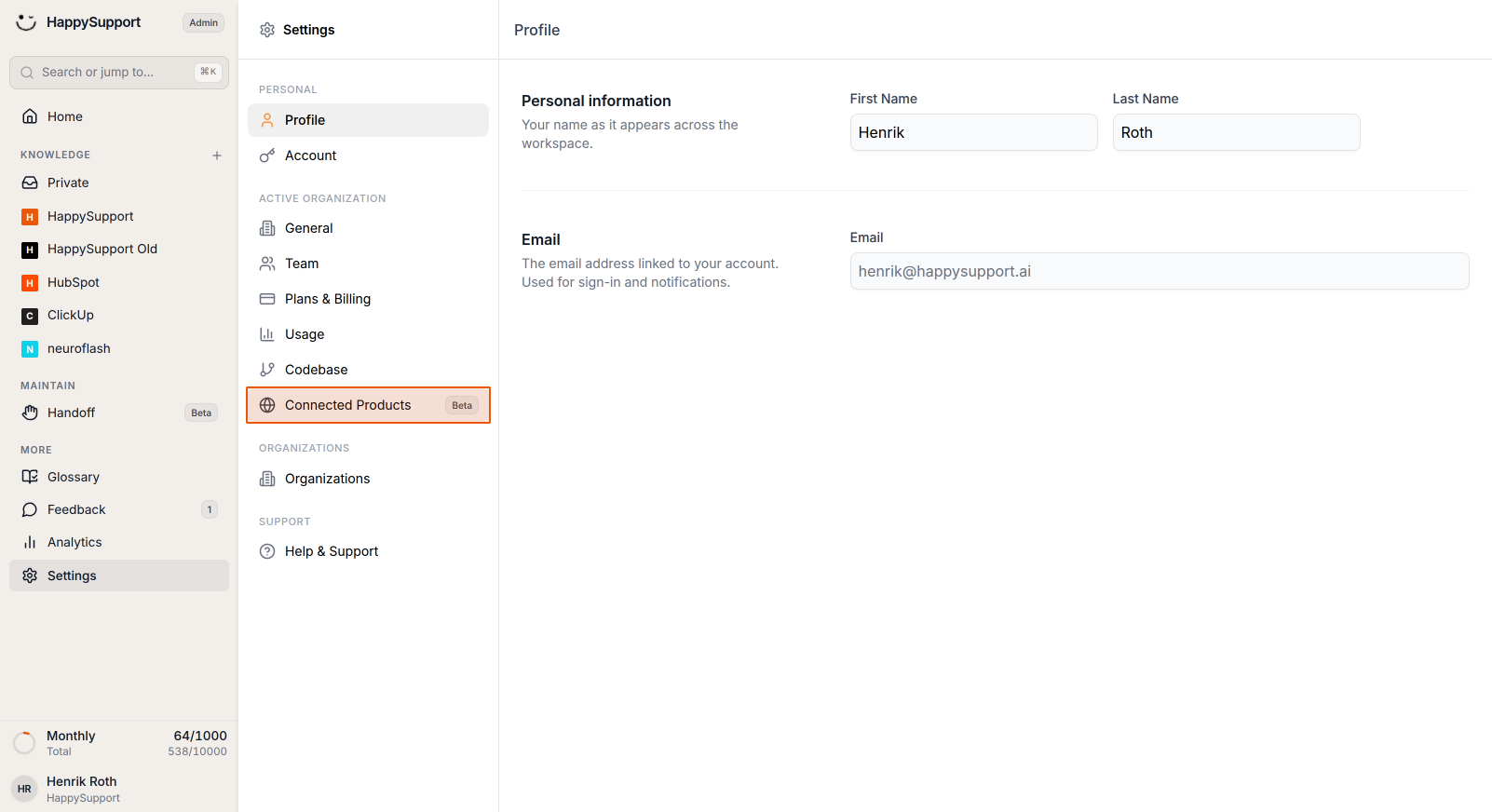
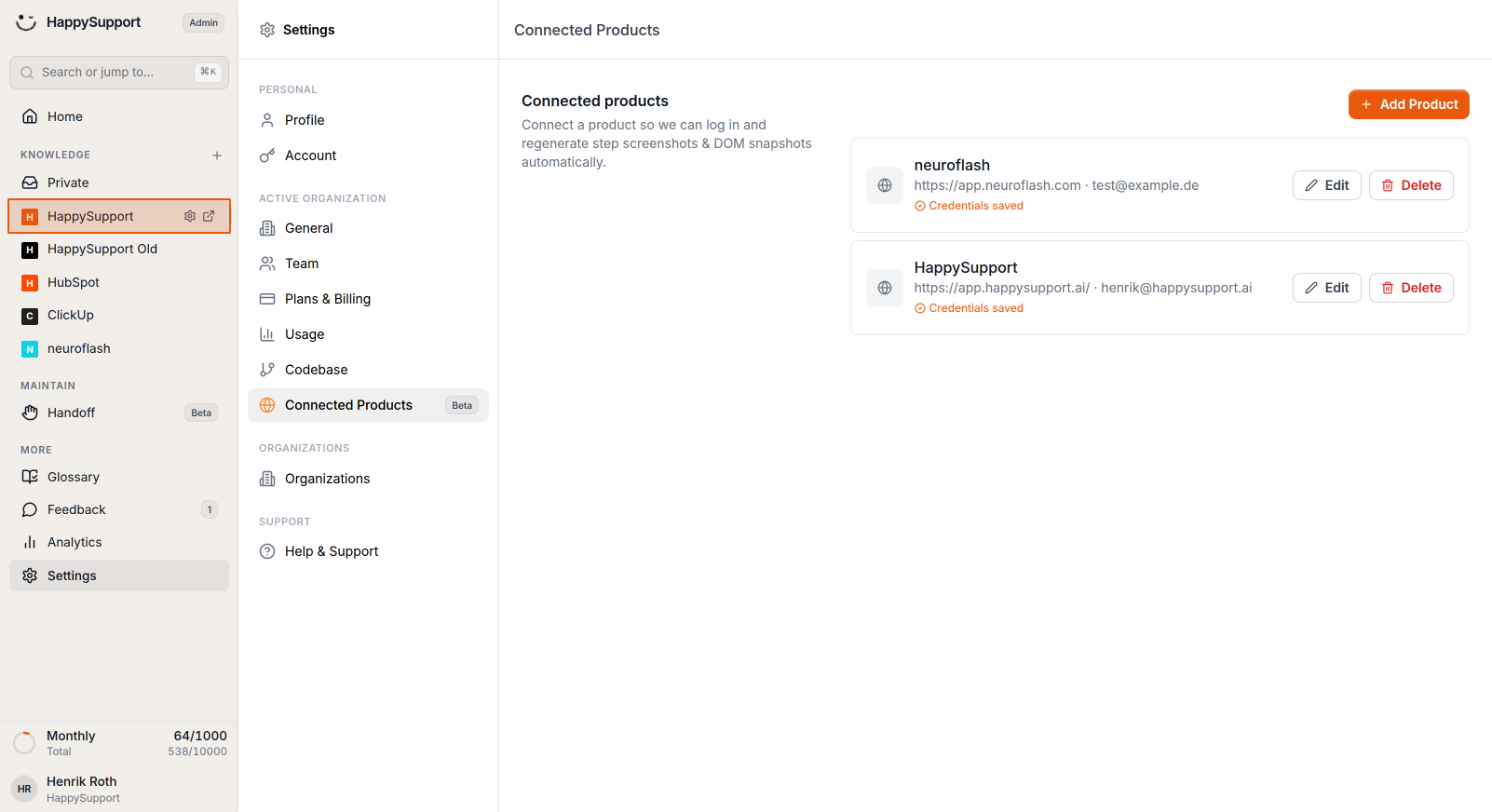
Access Connected Products
Select Connected Products from the settings menu to view your product connections. -
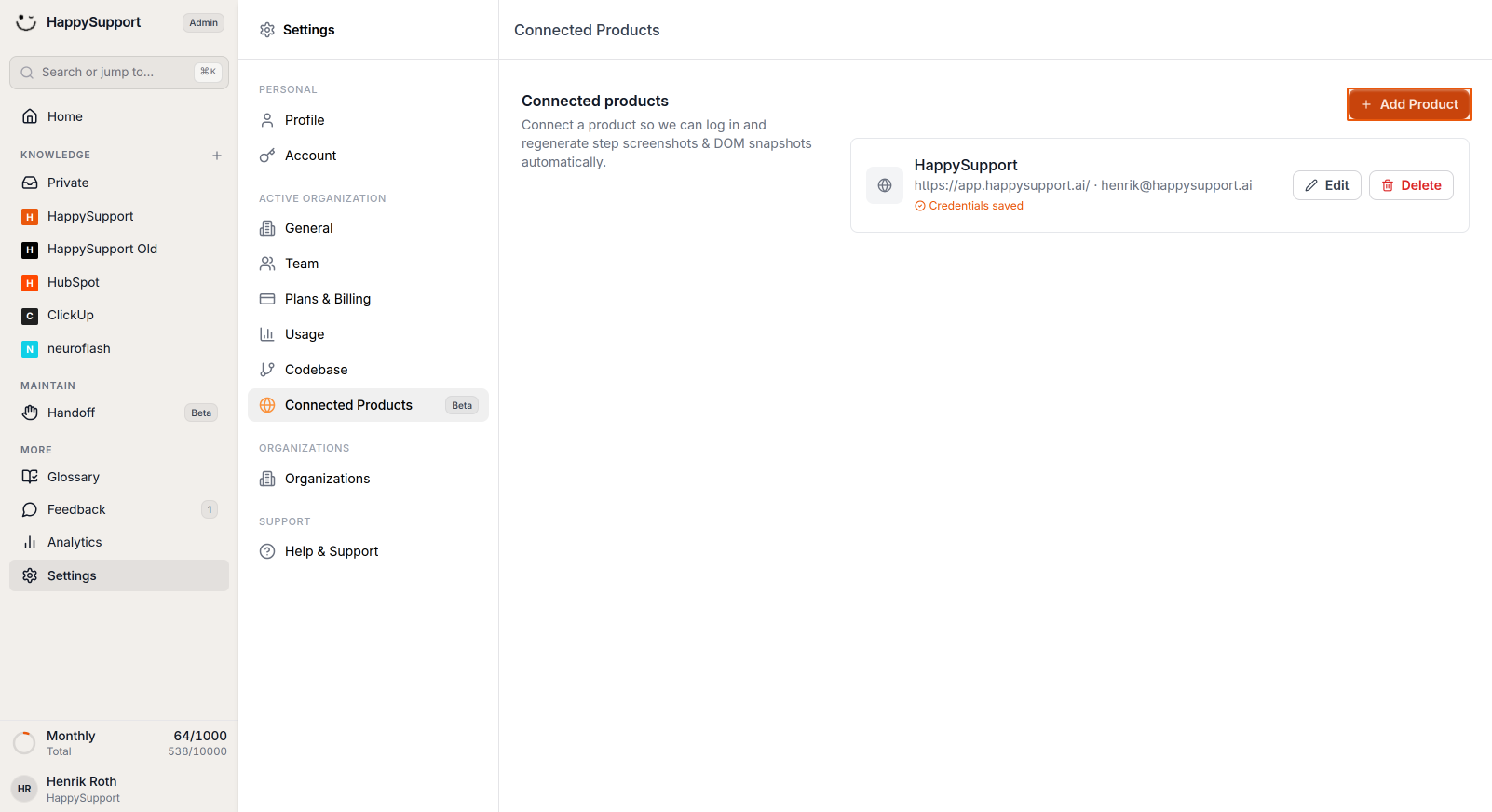
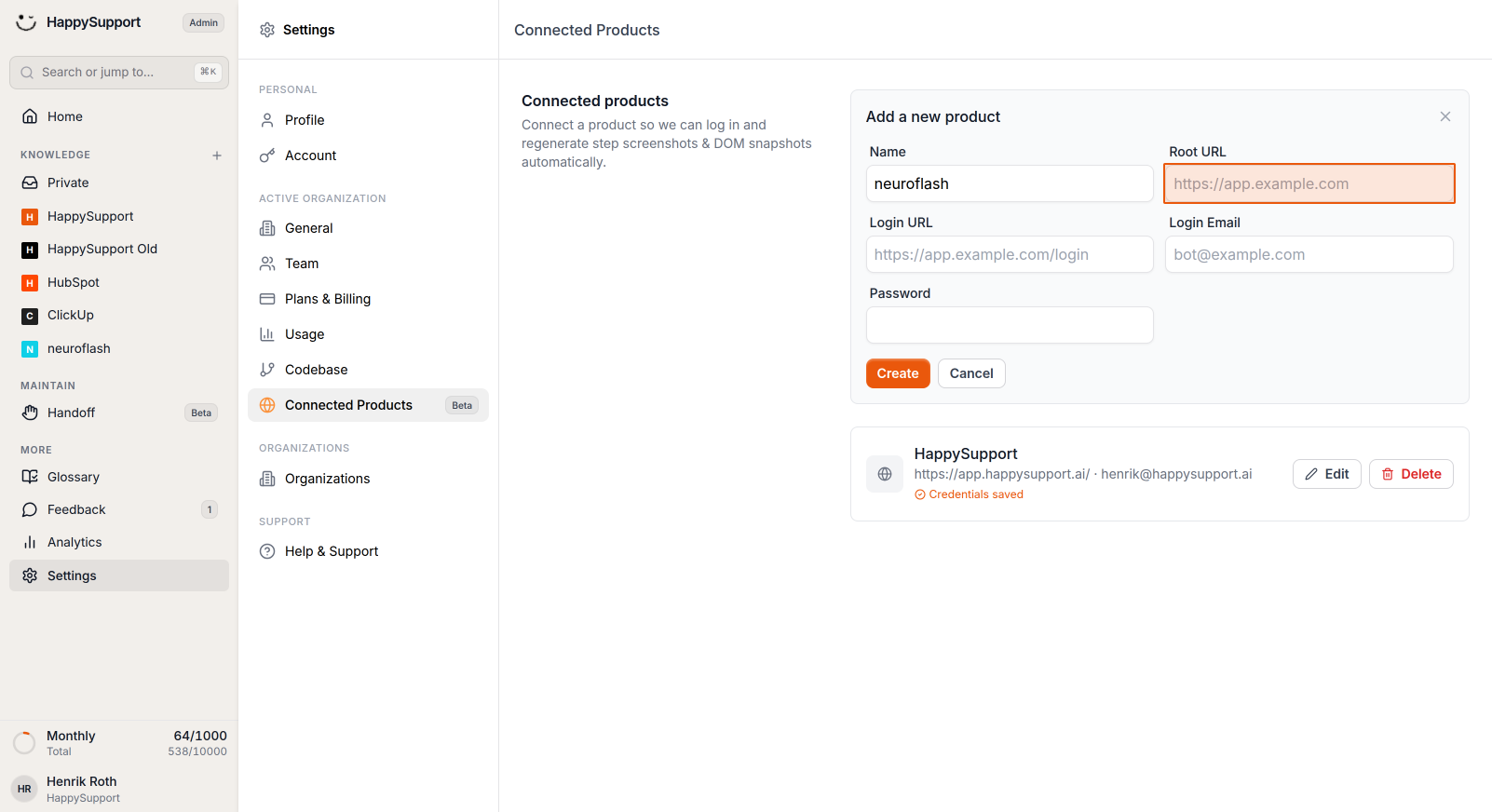
Add a new product
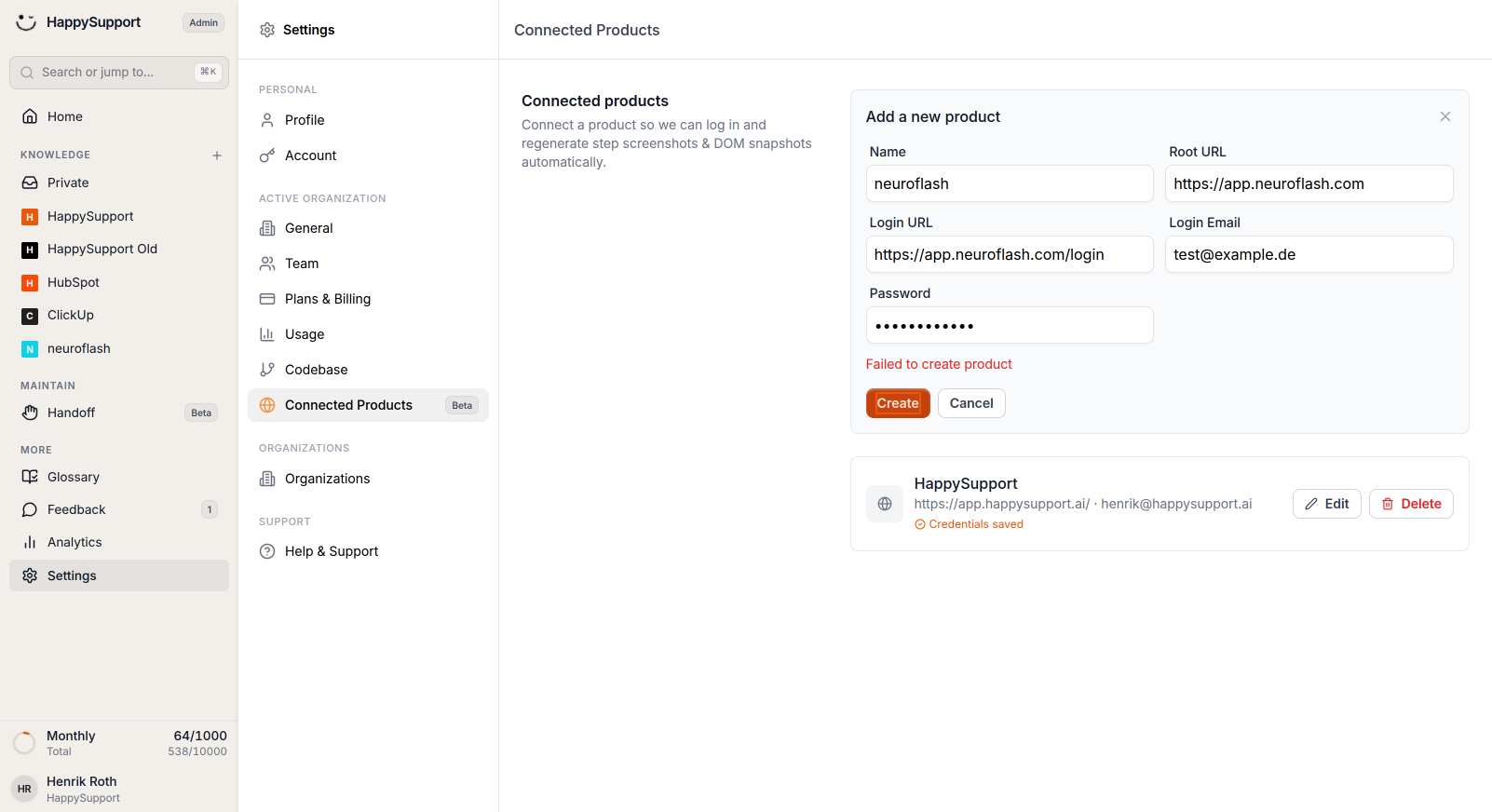
Click the Add Product button in the upper-right area of the Connected Products page to save the credentials for logging into your app. -
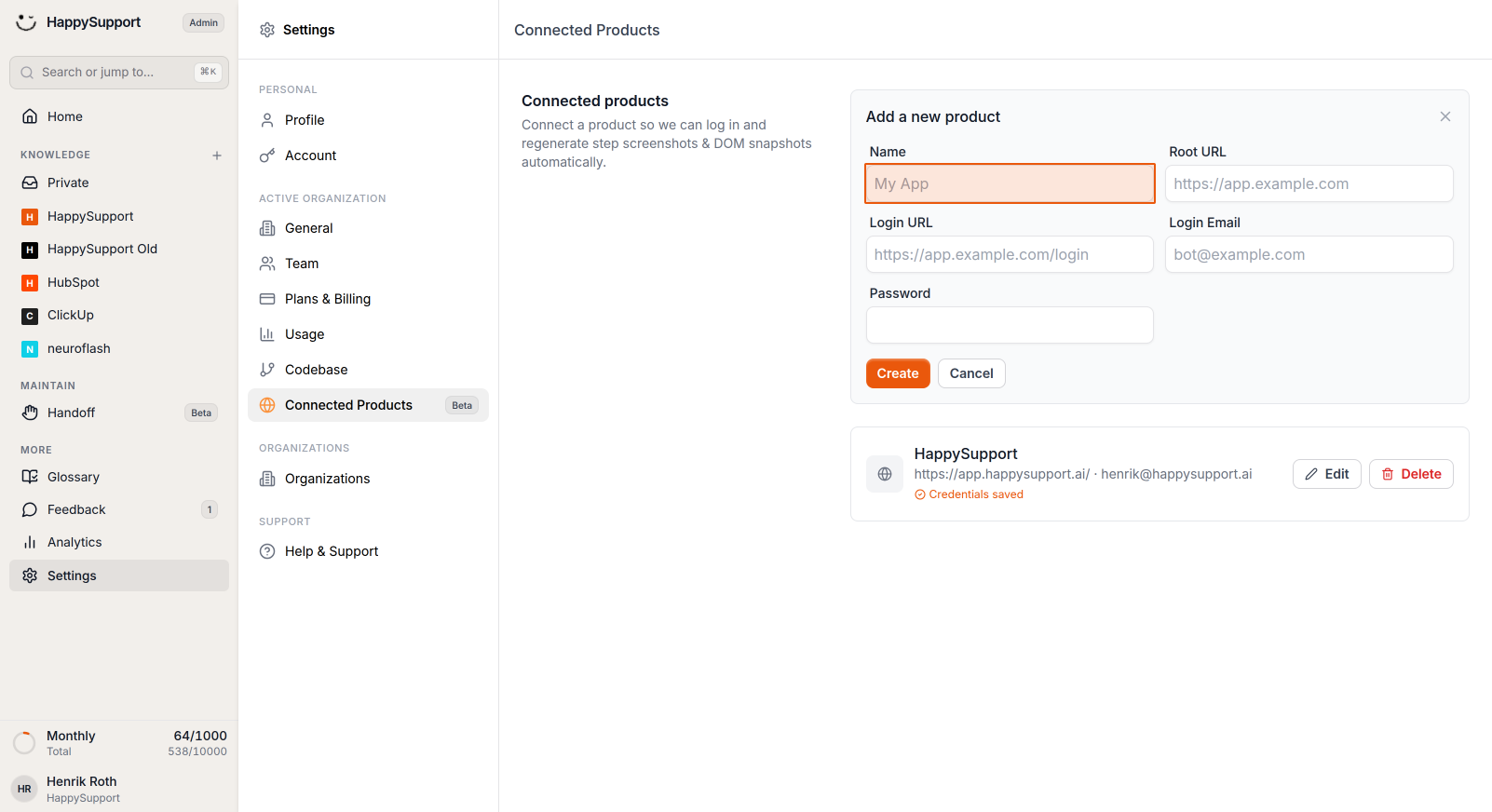
Configure product details
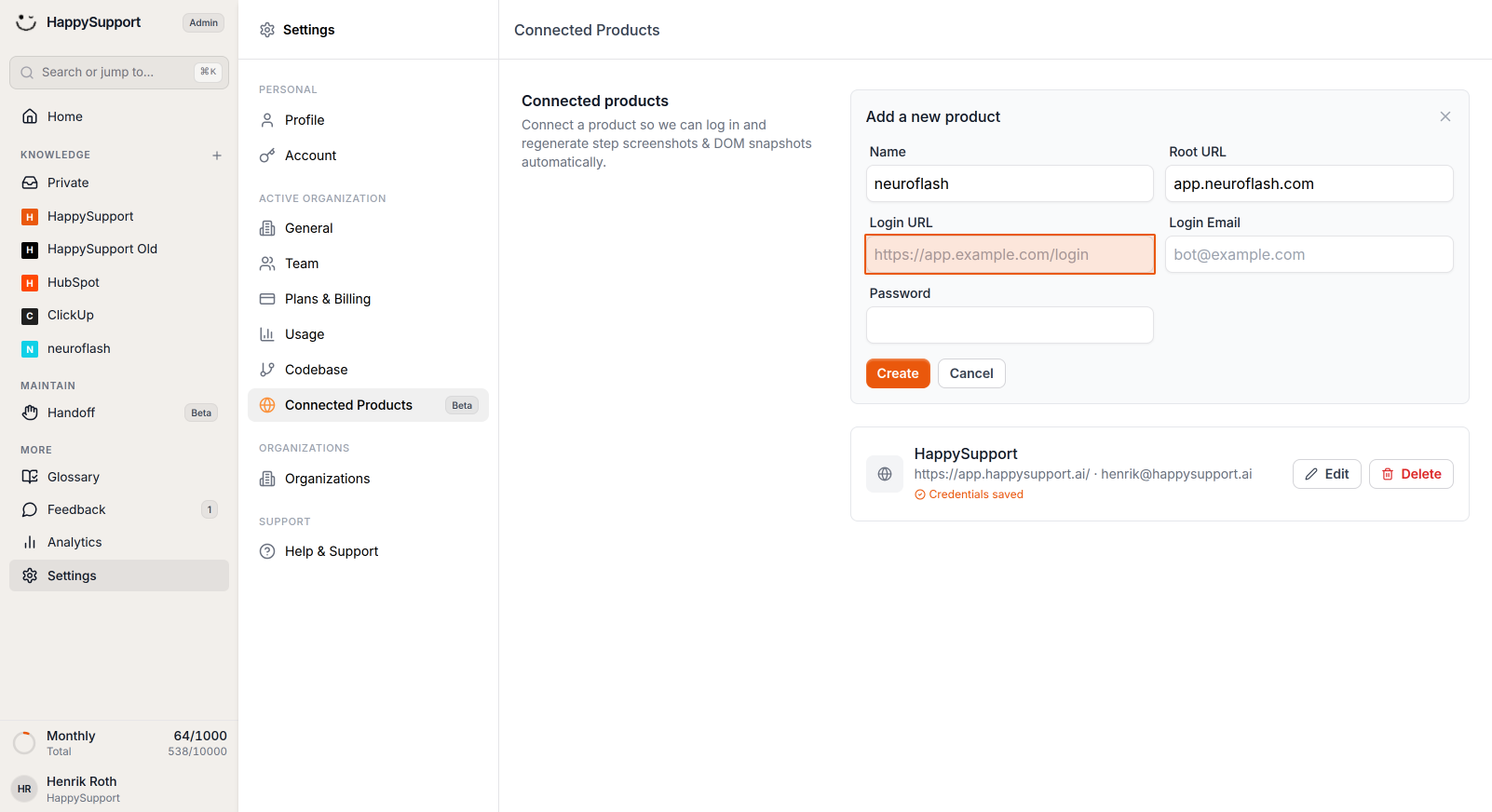
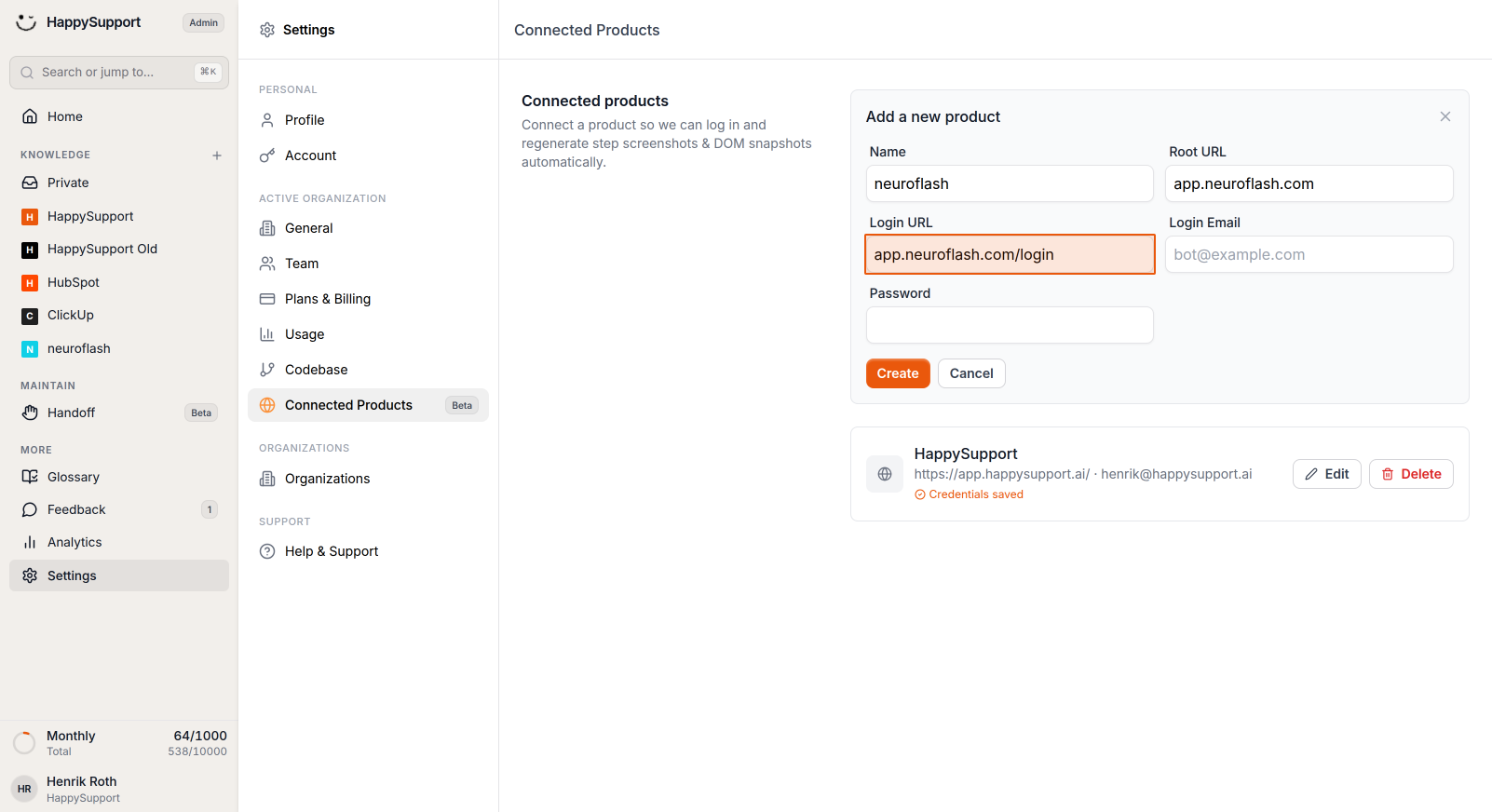
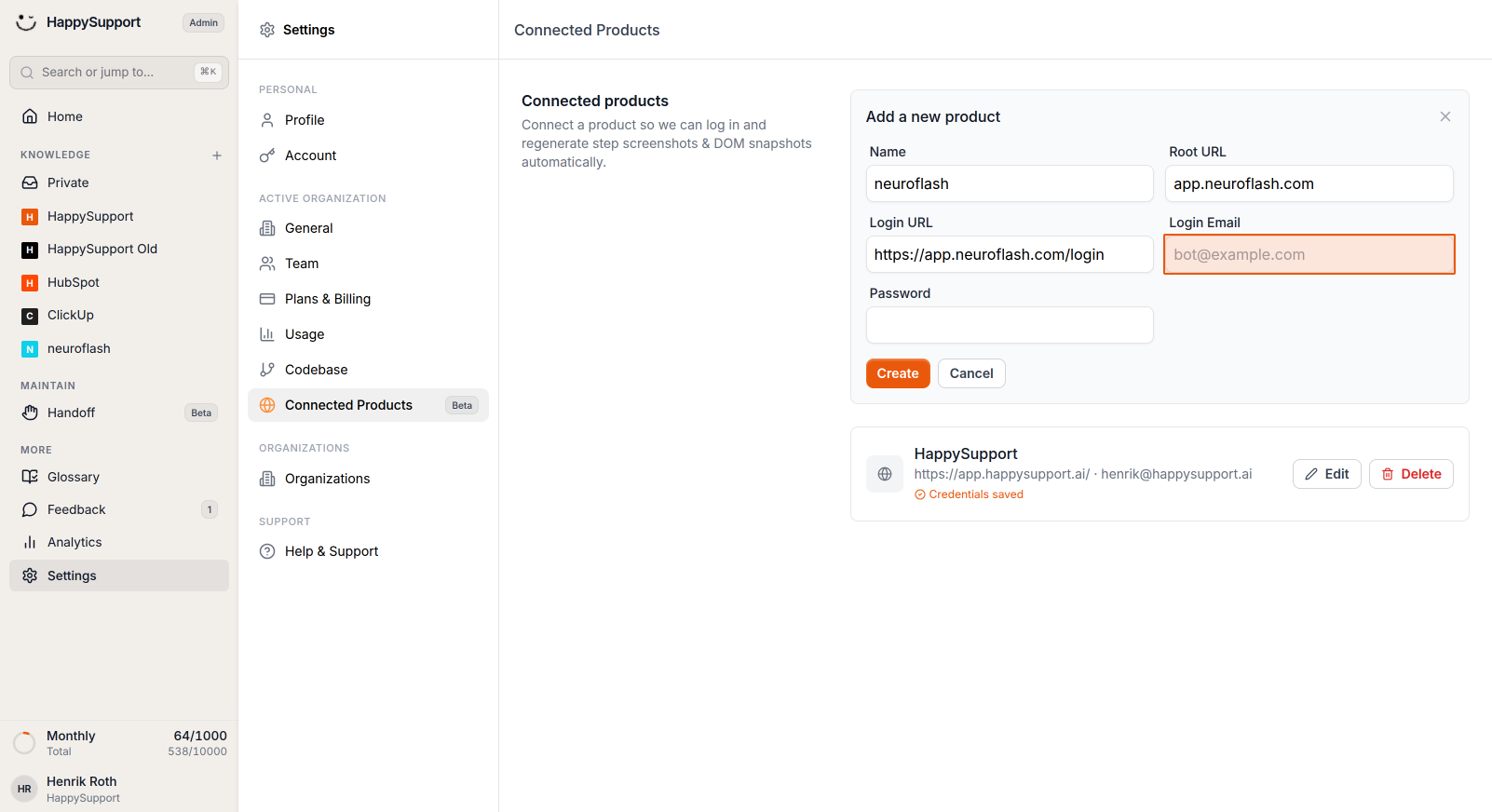
Fill in the following information about your product:- Name: Enter your app name
- Root URL: The main URL of your application
- Login URL: The login page URL where authentication happens
- Login Email: The email address for automated login
- Password: The password for the login account
-
Create the connection
Click the Create button to establish the connection with your product.
Regenerating screenshots
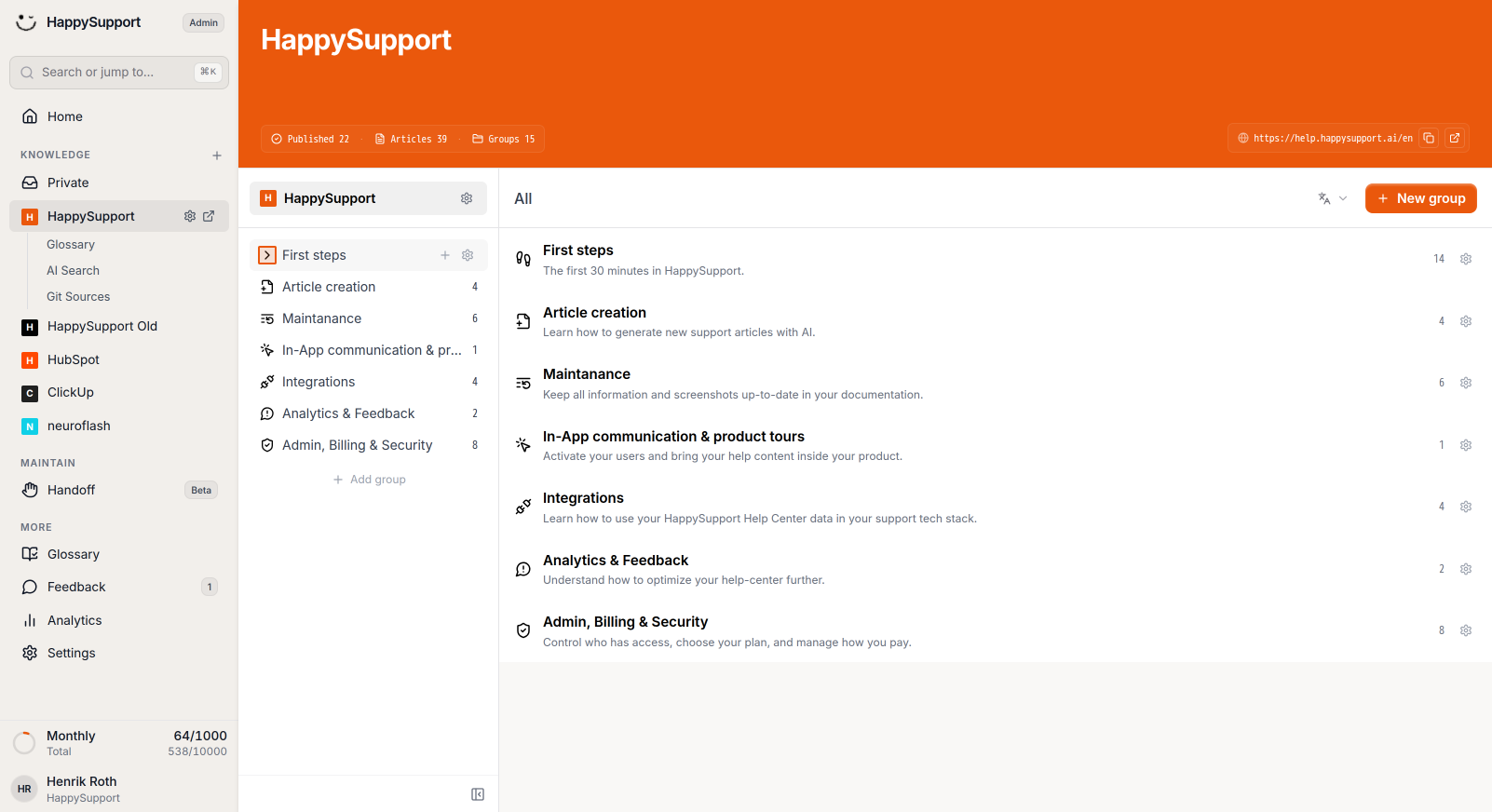
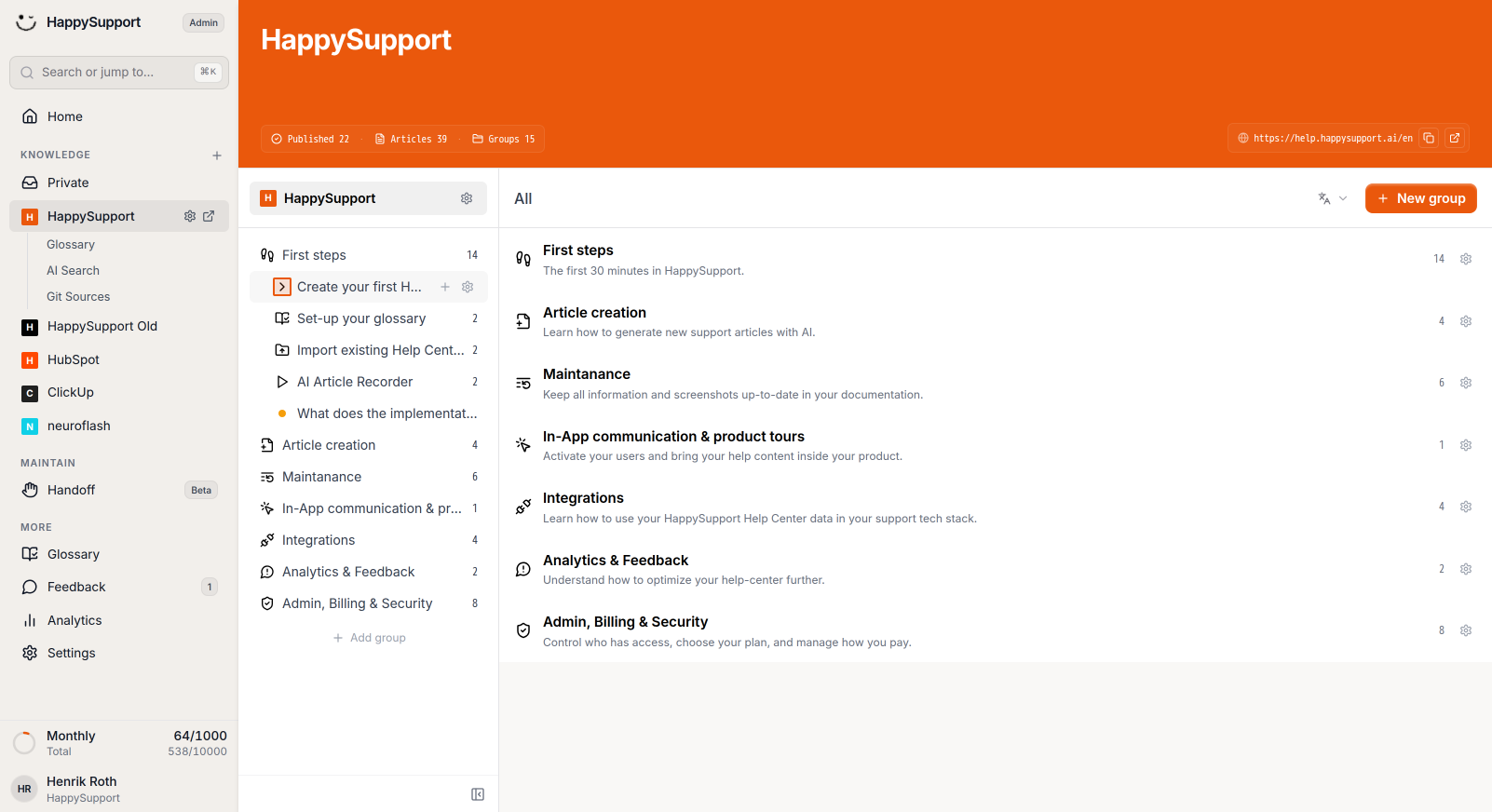
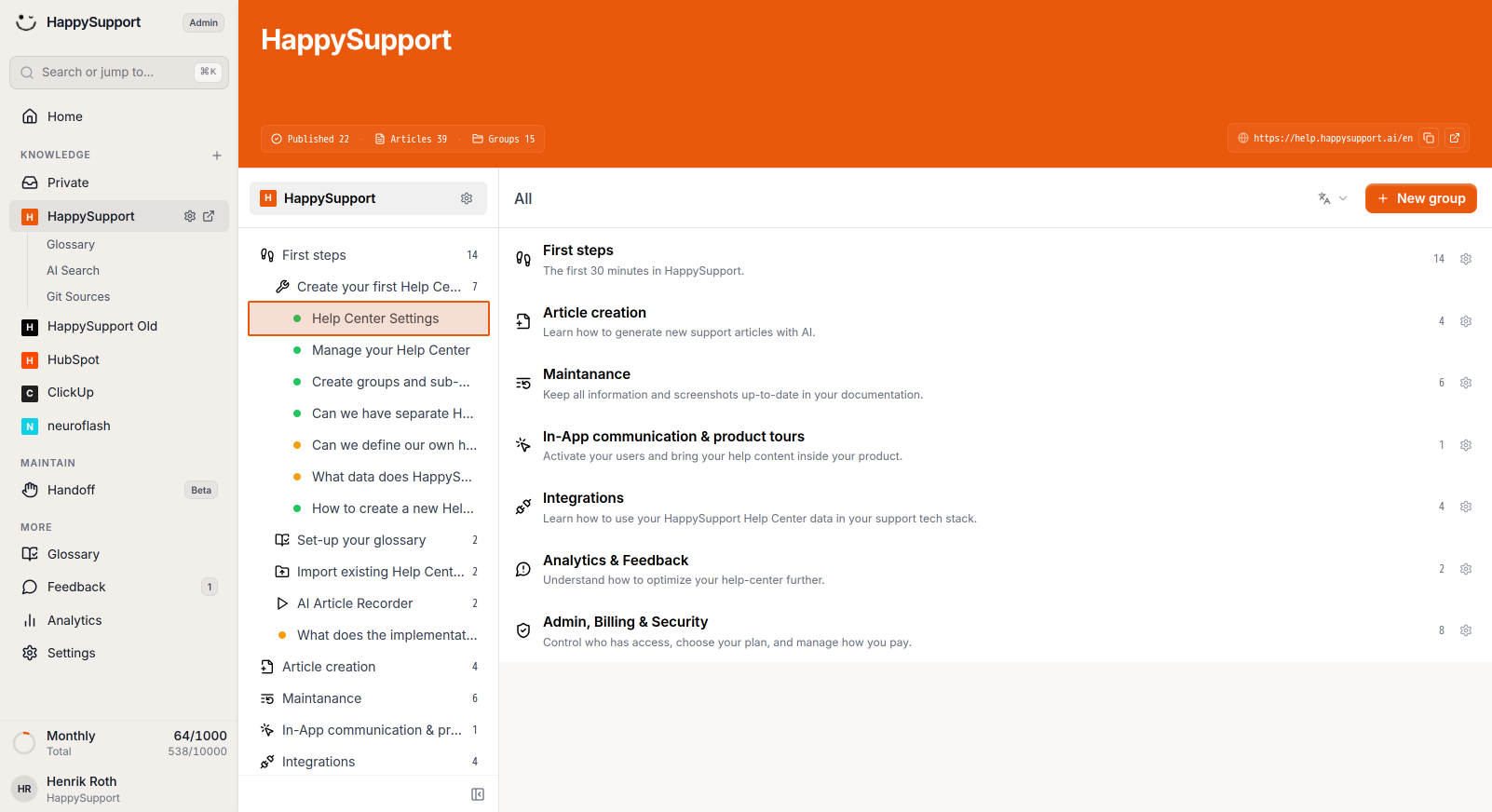
- Open your Help Center
Navigate to your Help Center in the HappySupport workspace and open an article that contains UI screenshots.
-
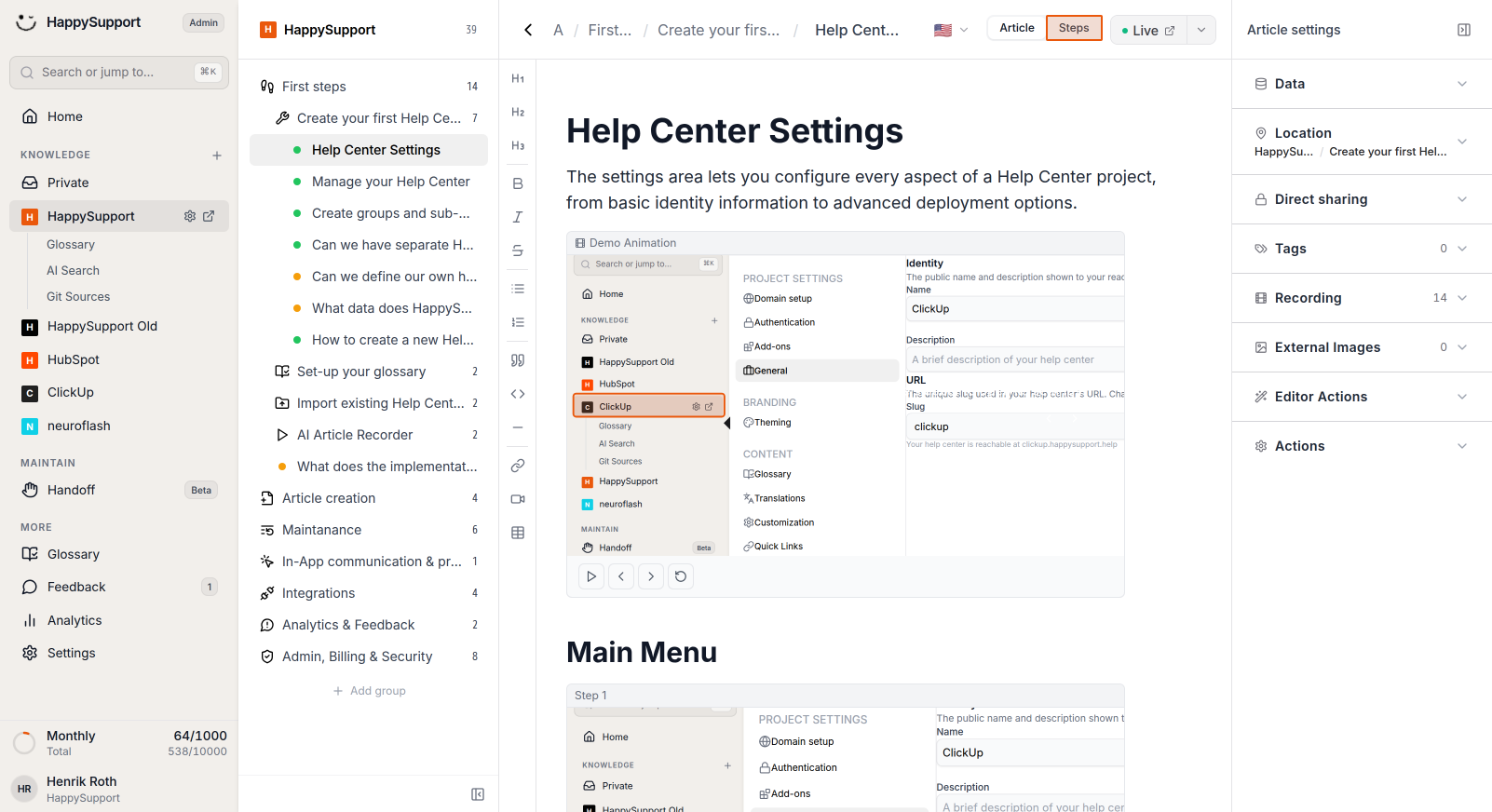
Switch to Steps view
Click on the Steps tab in the article editor to access step-specific settings. -
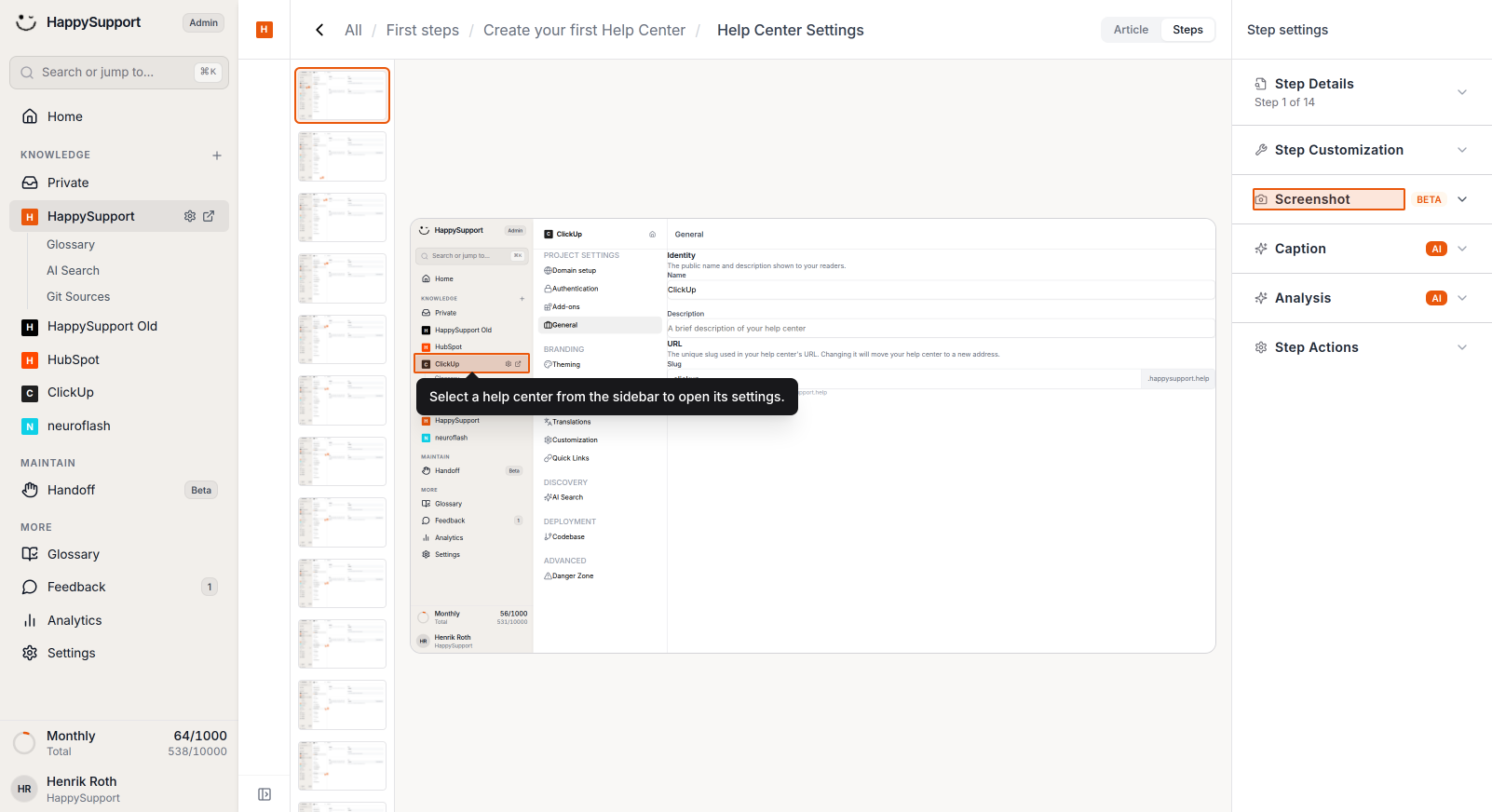
Access screenshot options
In the Step settings panel on the right, click on Screenshot to expand the screenshot management options.
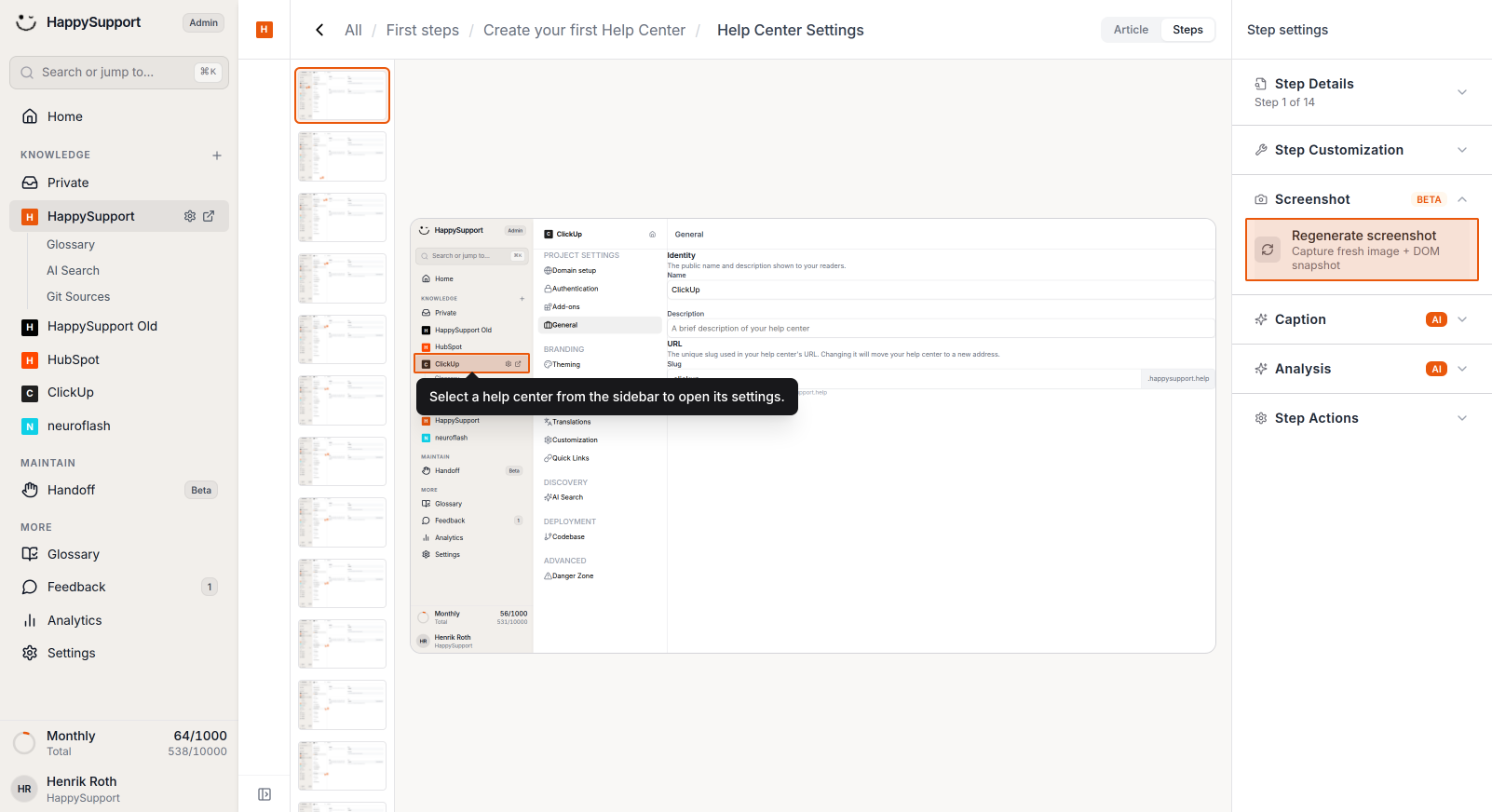
- Regenerate the screenshot
Click on Regenerate screenshot to capture a fresh image and DOM and CSS selectors. The system will log into your connected account and navigate to the appropriate page to capture an updated screenshot.
After completing these steps, your product will be connected to HappySupport, enabling automatic screenshot updates whenever your UI changes. This ensures your help documentation always reflects the current state of your application interface.
 Powered by happysupport.ai