
How to create a new Help Center
Create a new Help Center in HappySupport by importing site details, configuring permissions, and setting language preferences.
This article guides you through creating a new Help Center in HappySupport. By following these steps, you'll set up a branded help center with your company's colors, configure access permissions, and customize the tone of your content.

Getting Started
-
Create a new Help Center
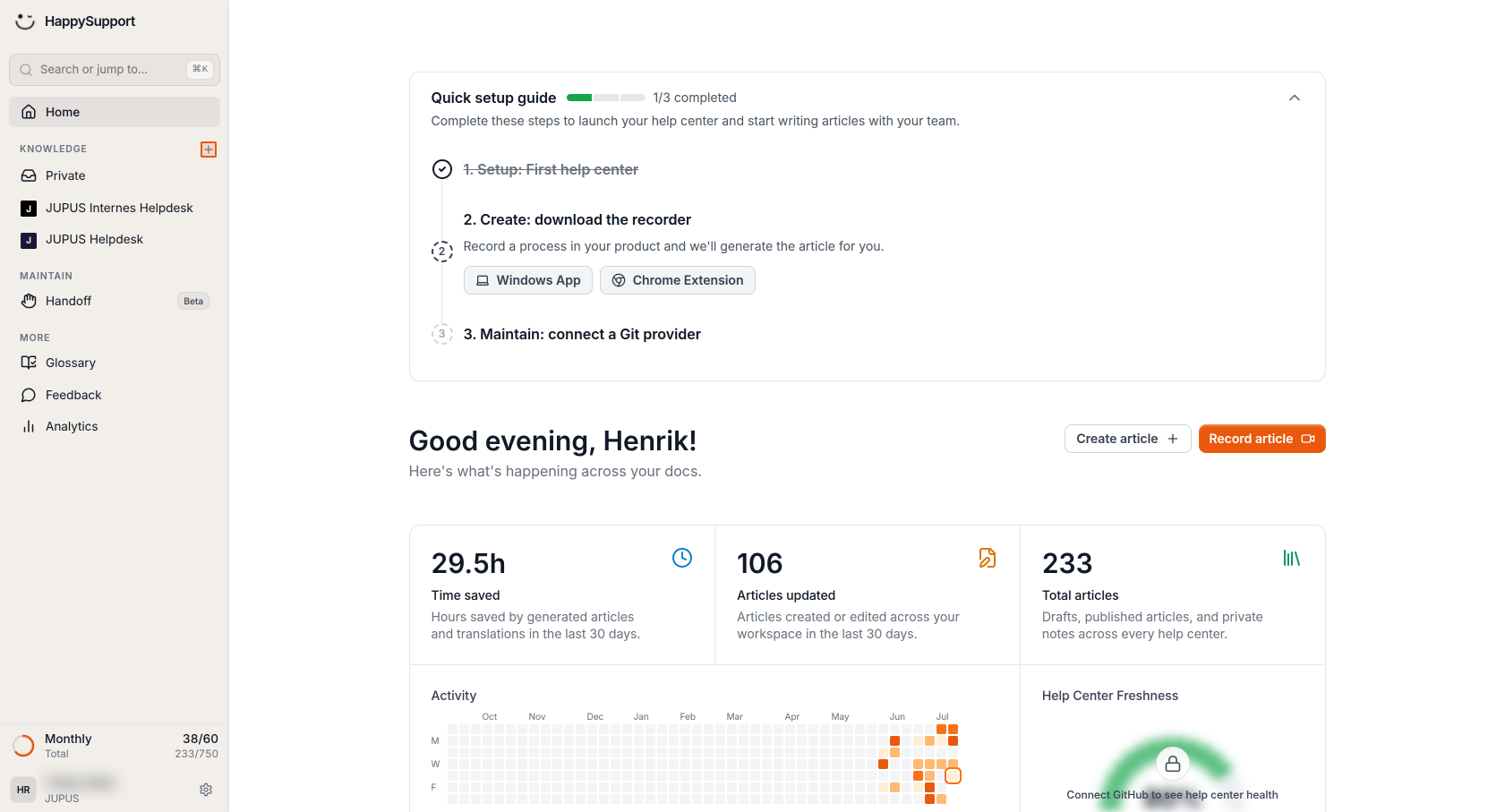
Click the plus (+) button next to the Knowledge section in the left sidebar of your HappySupport admin dashboard.
-
Import your existing site information
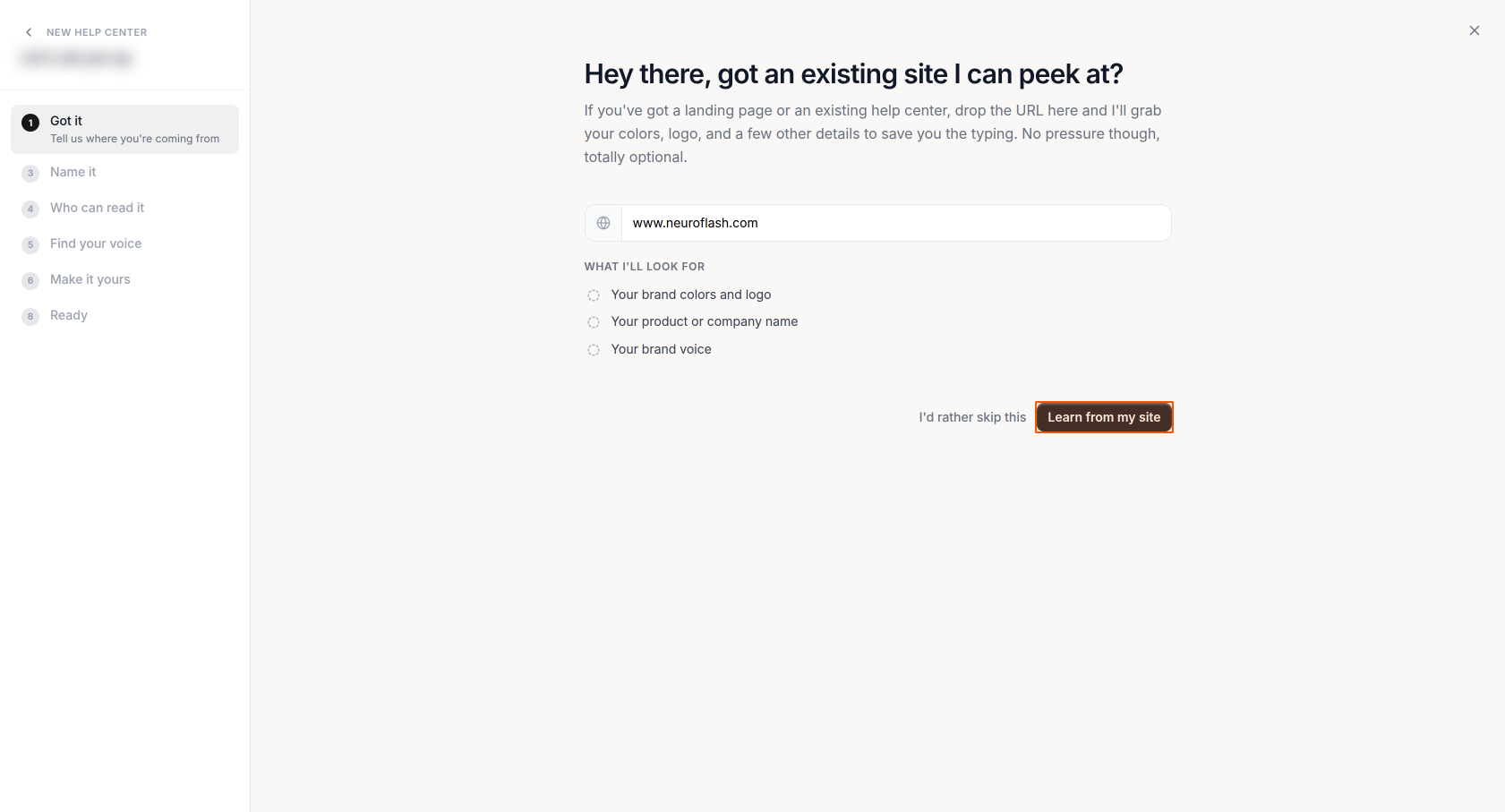
Enter your website URL or URL from your existing Help Center in the URL field, then click "Learn from my site". This allows the system to automatically detect your brand colors, logo, and other details from your existing website. If you prefer to skip this step, click "I'd rather skip this" instead. In this case you need to set-up the settings manually yourself.
Basic Configuration
-
Confirm your Help Center name
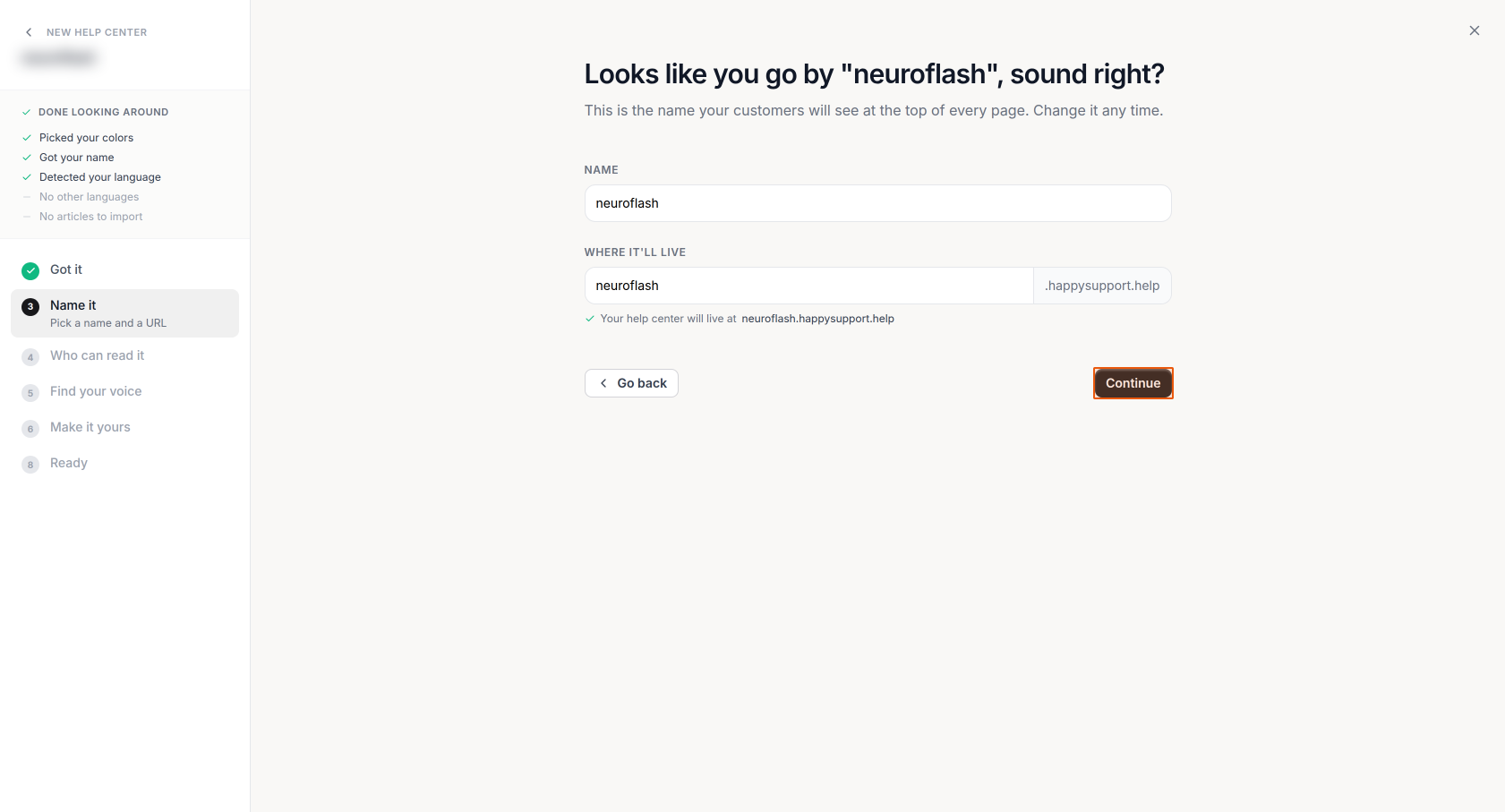
Review the detected name for your Help Center. The system will suggest a name based on your website. This name will appear at the top of every page in your Help Center. The URL will be automatically generated as [yourname].happysupport.help. Click "Continue" to proceed.
-
Set access permissions
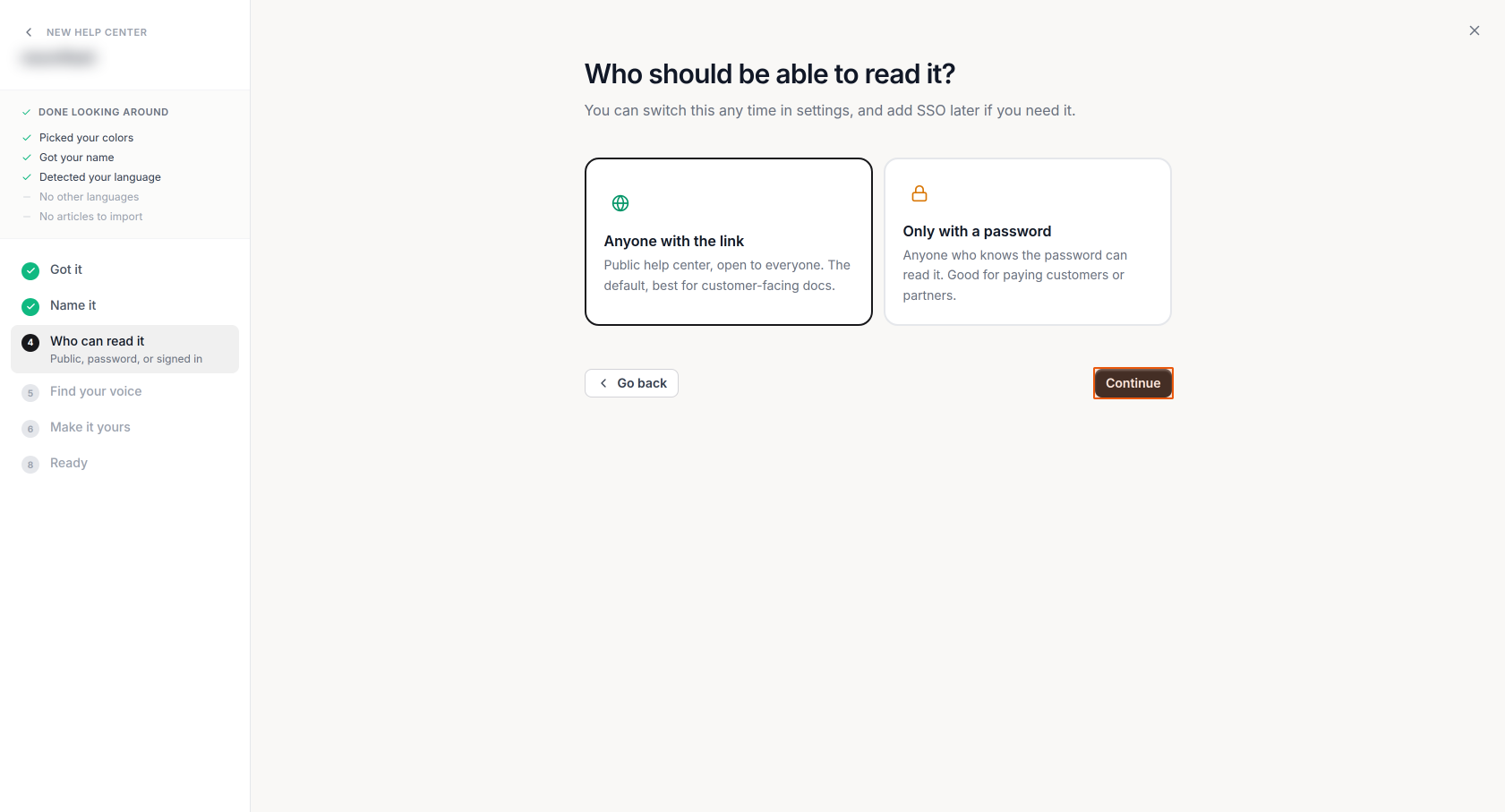
Choose who can access your Help Center:- Anyone with the link: Creates a public Help Center that's open to everyone. This is best for customer-facing documentation.
- Only with a password: Restricts access to people who know the password.
Select your preferred option and click "Continue".
Customization
-
Configure language and tone
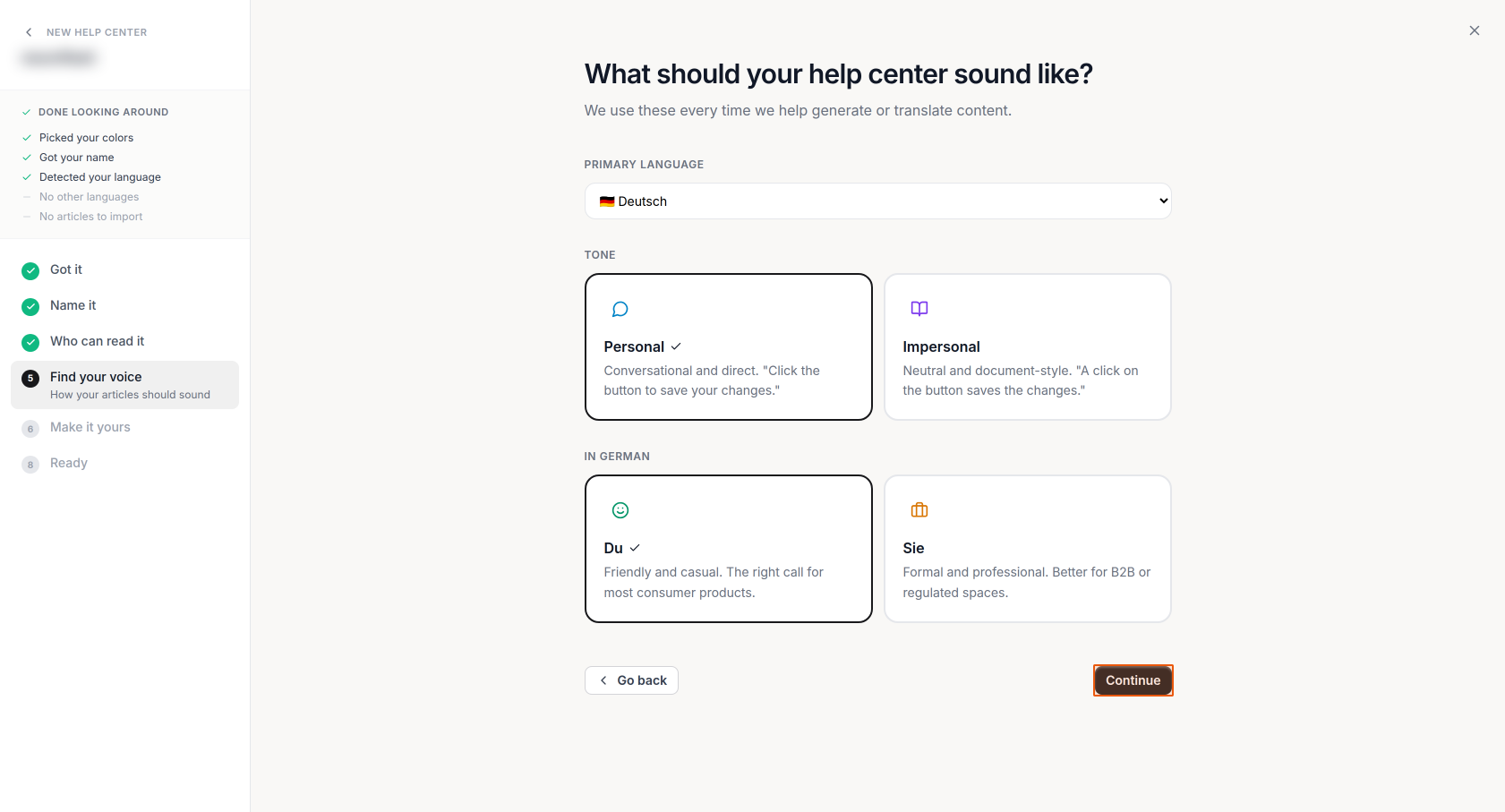
Set how your Help Center content should sound:- Select your primary language from the dropdown. We do not recommend to change the primary language after you have created your first article.
- Choose your tone:
- Personal: Creates a conversational and direct style
- Impersonal: Uses a more formal approach
- For German language users, select between:
- Du: Friendly and casual tone
- Sie: Formal and professional tone
Click "Continue" after making your selections.
-
Customize branding
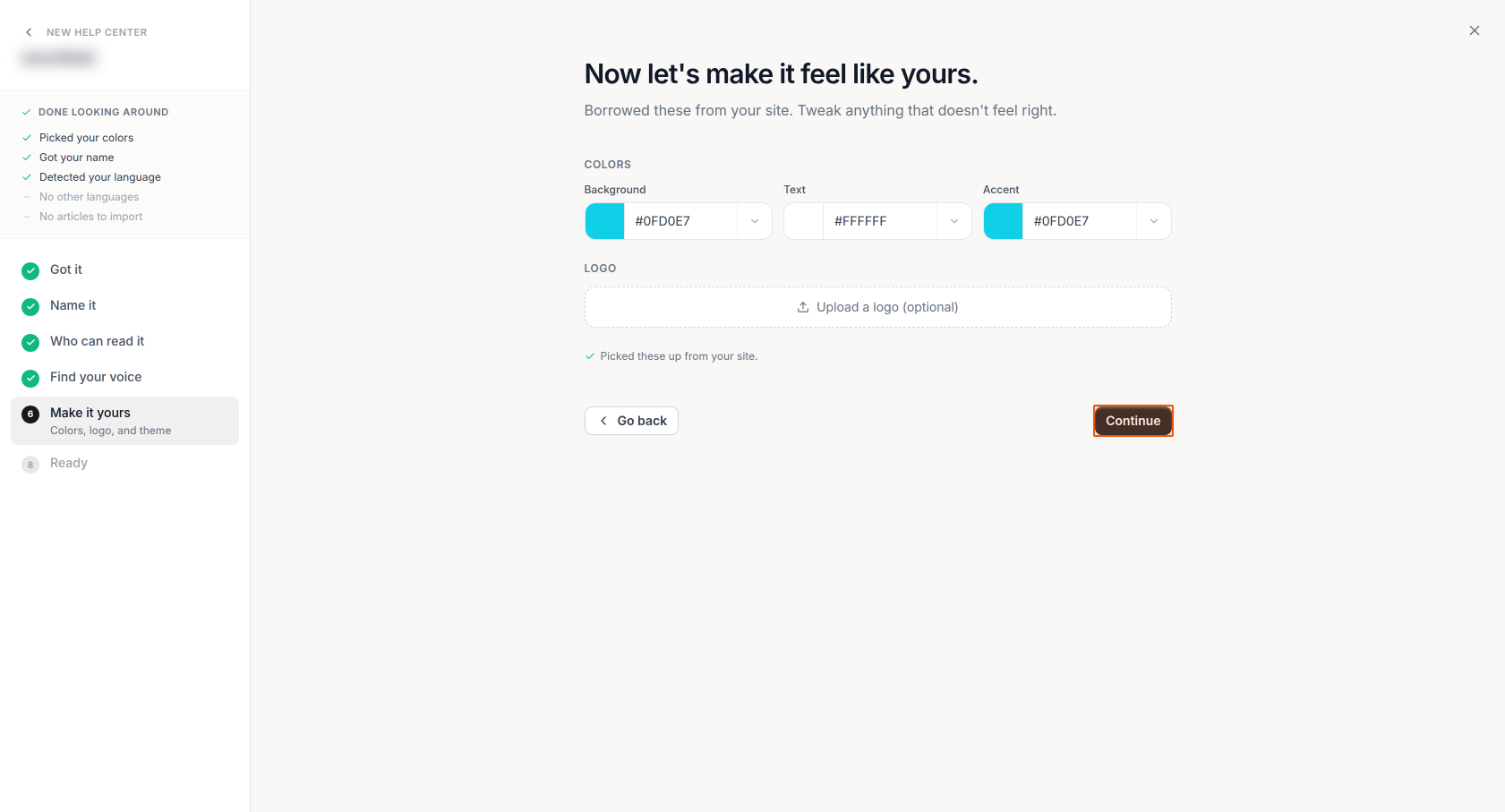
Review and adjust your Help Center's visual identity:-
The system will display the colors detected from your website (Background, Text, and Accent colors)
-
To add a logo, click the "Upload a logo (optional)" field
-
You can also upload a favicon (optional), the small icon that appears in browser tabs and bookmarks. The same file formats are supported as the logo: PNG, JPG, WebP, and SVG. If you don't upload one, a default HappySupport icon will be used.
-
Adjust any colors by clicking on the hex values if needed
Click "Continue" when you're satisfied with the appearance.
-
Final Review
-
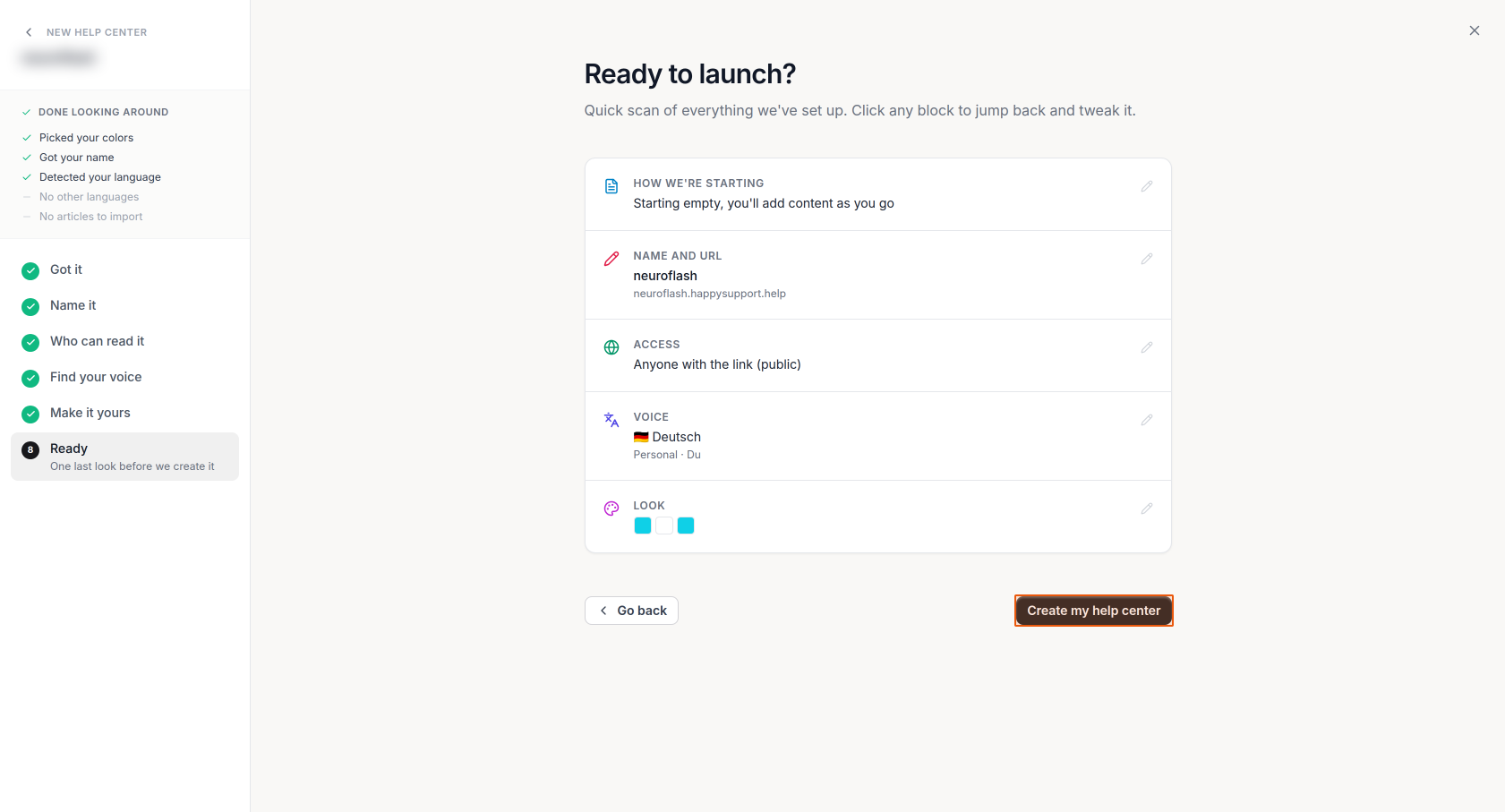
Review your configuration
Check the summary of your Help Center settings:- Starting content (typically "Starting empty, you'll add content as you go")
- Name and URL
- Access settings
- Language and tone preferences
- Color scheme
You can click the edit icon next to any section to make changes.
-
Launch your Help Center
Once you've reviewed all settings, click "Create my help center" to complete the setup.
After completing these steps, your new Help Center will be created and ready for you to start adding content.
 Powered by happysupport.ai