
How to connect your Git repo
Connect your Git repository to HappySupport using GitHub, GitLab, or Bitbucket to sync product releases and keep documentation up-to-date with your codebase.
Connecting your Git repository to HappySupport allows you to sync your product releases with your Help Center. This integration ensures your documentation stays up-to-date with your codebase.

Connect your Git provider
-
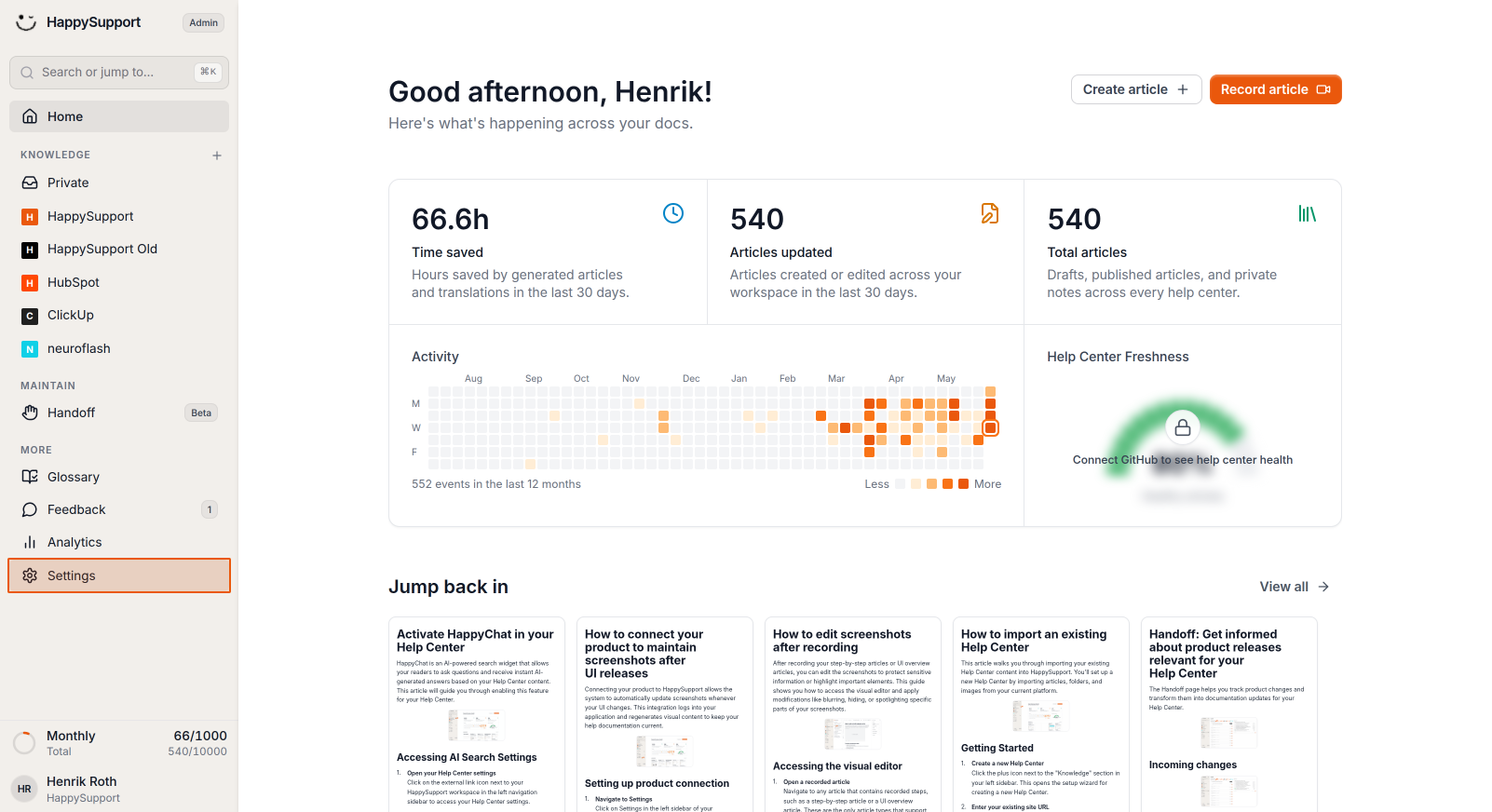
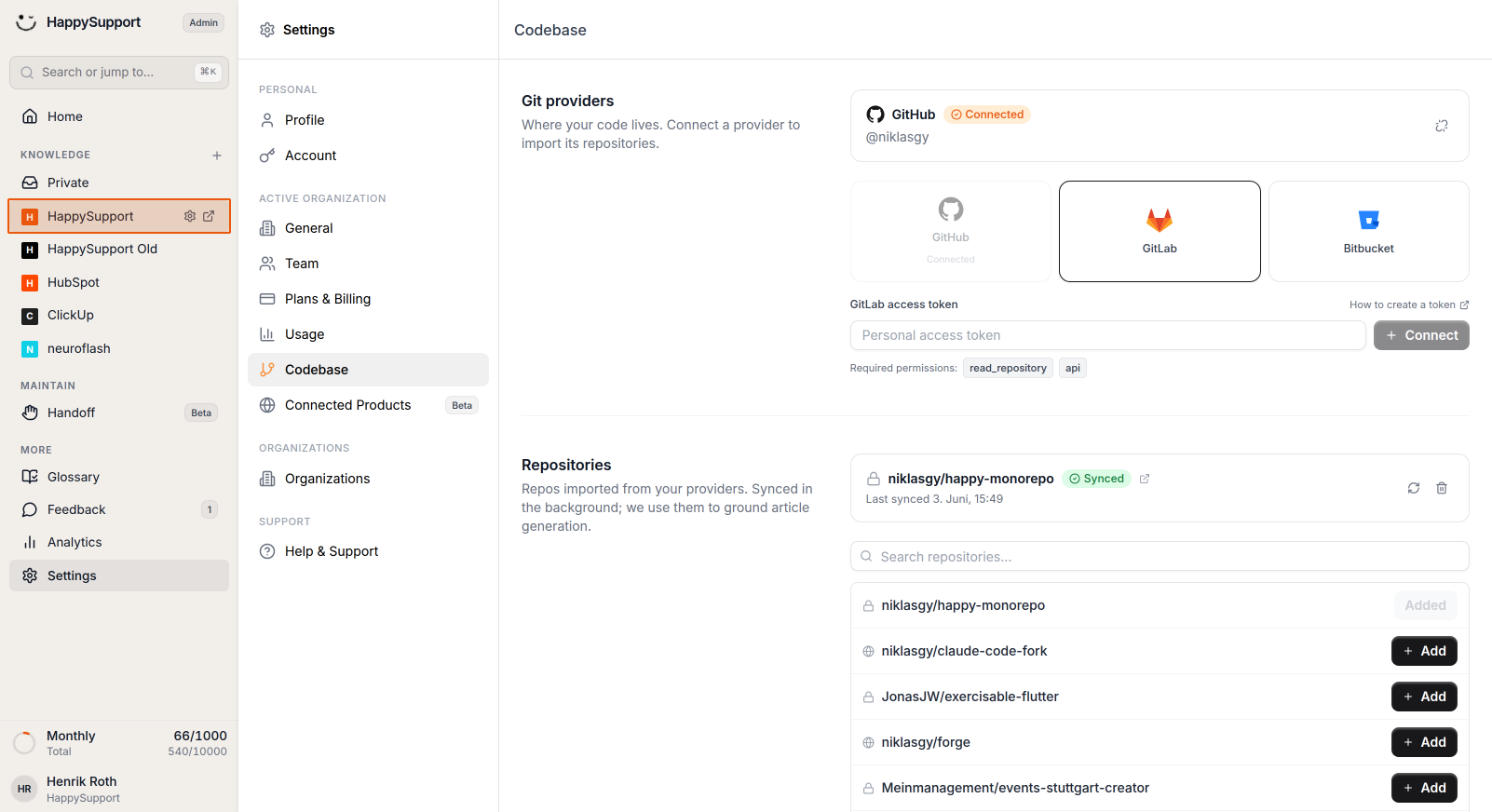
Access your organization settings
Navigate to the Settings section in your HappySupport admin interface by clicking on the gear icon in the left sidebar.
-
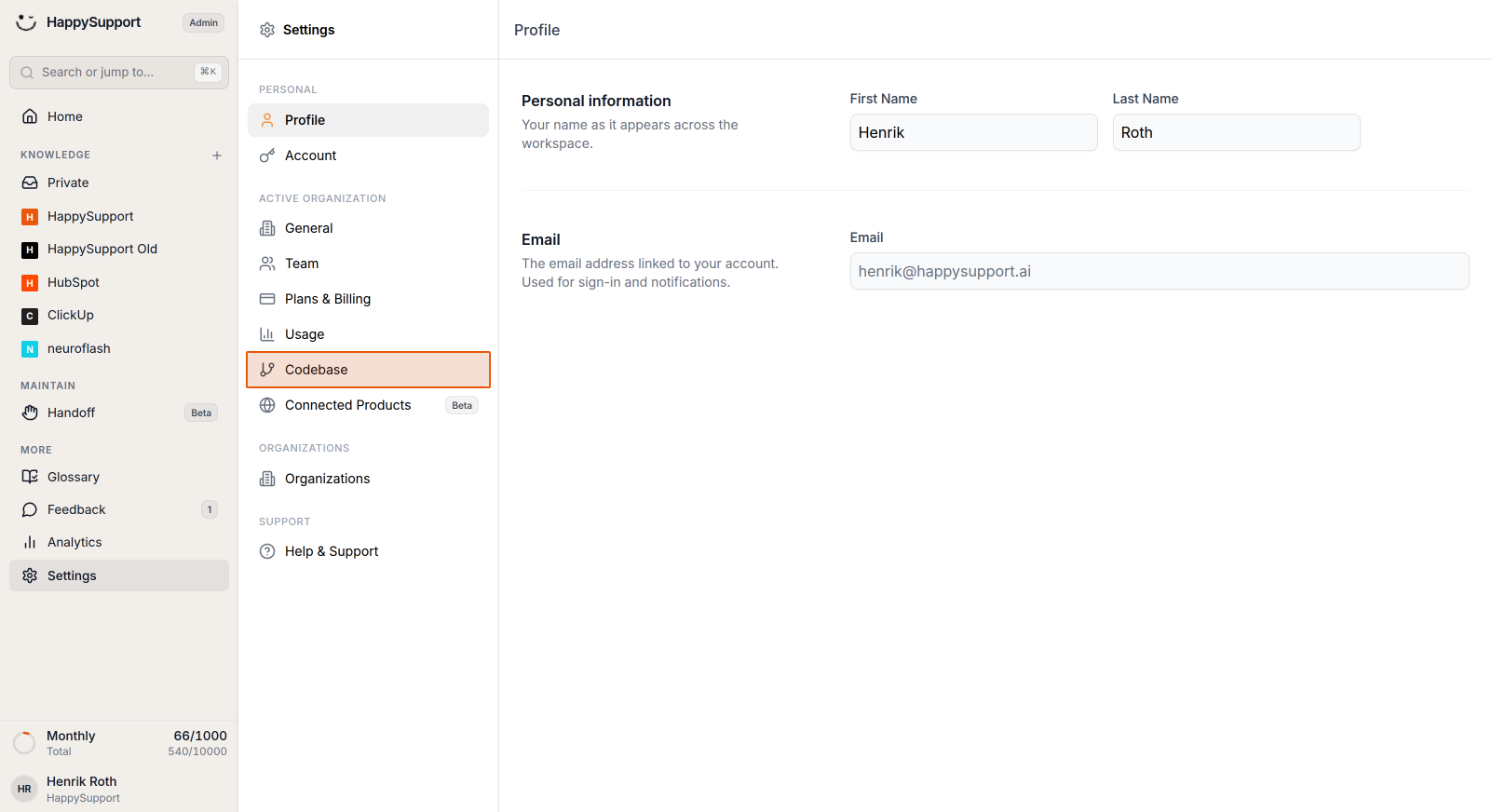
Open the Codebase settings
In the settings menu, click on Codebase to access your Git provider configuration options. -
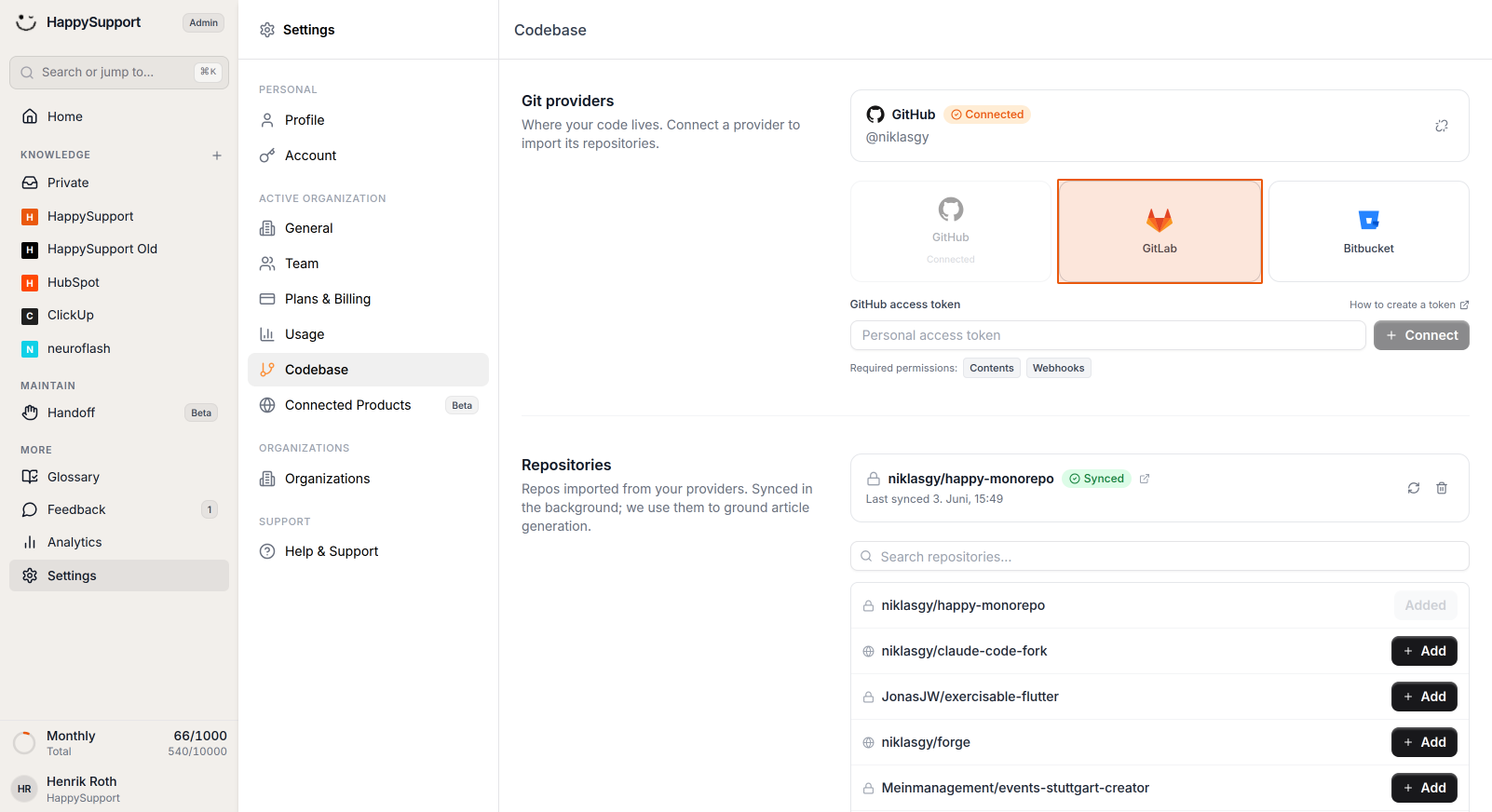
Select your Git provider
Choose your preferred Git provider from the available options (GitHub, GitLab, or Bitbucket). The interface will display provider-specific connection fields based on your selection.
-
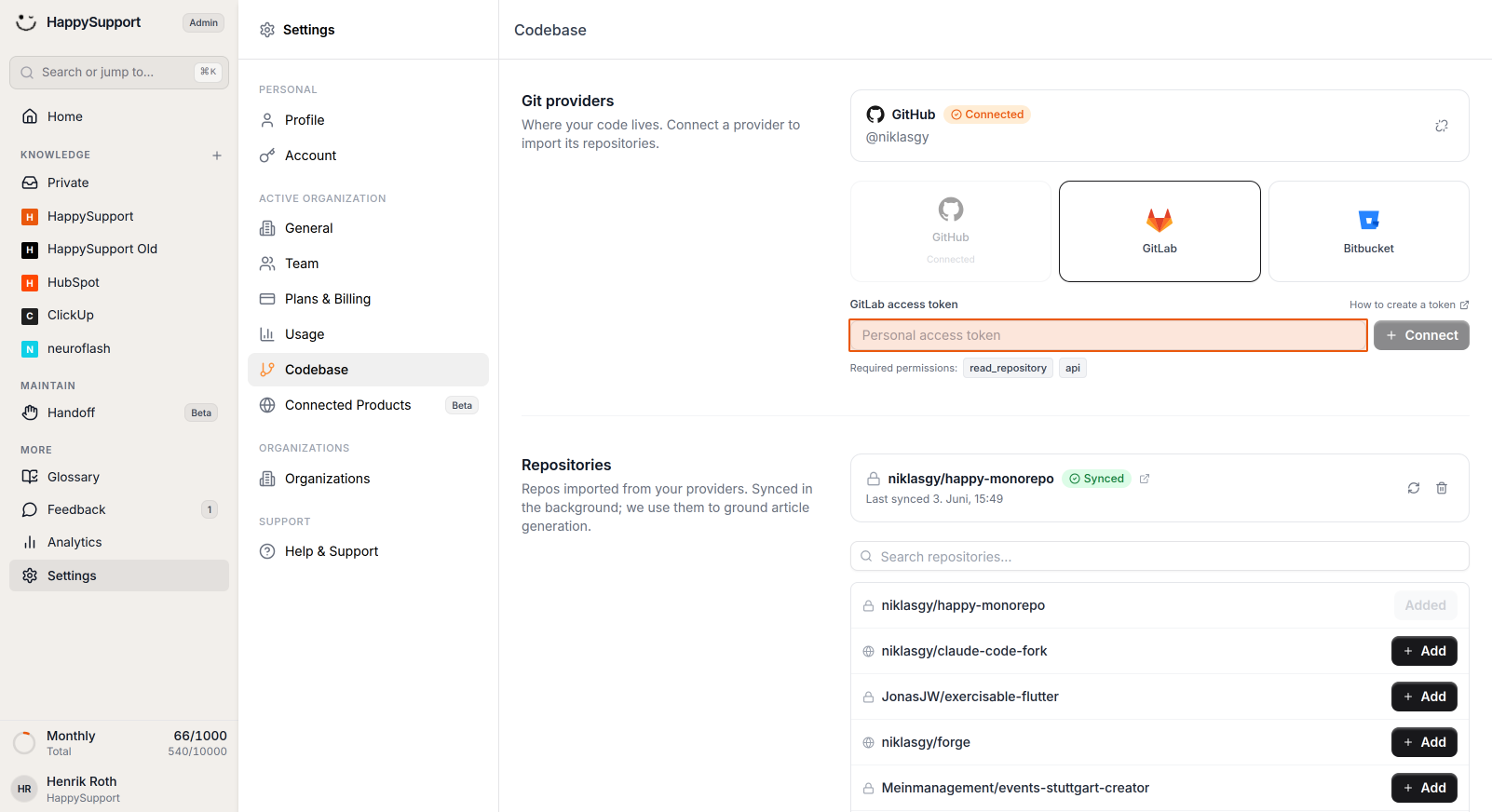
Authenticate with your personal access token
Enter your personal access token in the provided field and click Connect. This token authenticates your account and grants HappySupport access to your repositories.
Link repositories to your Help Center
-
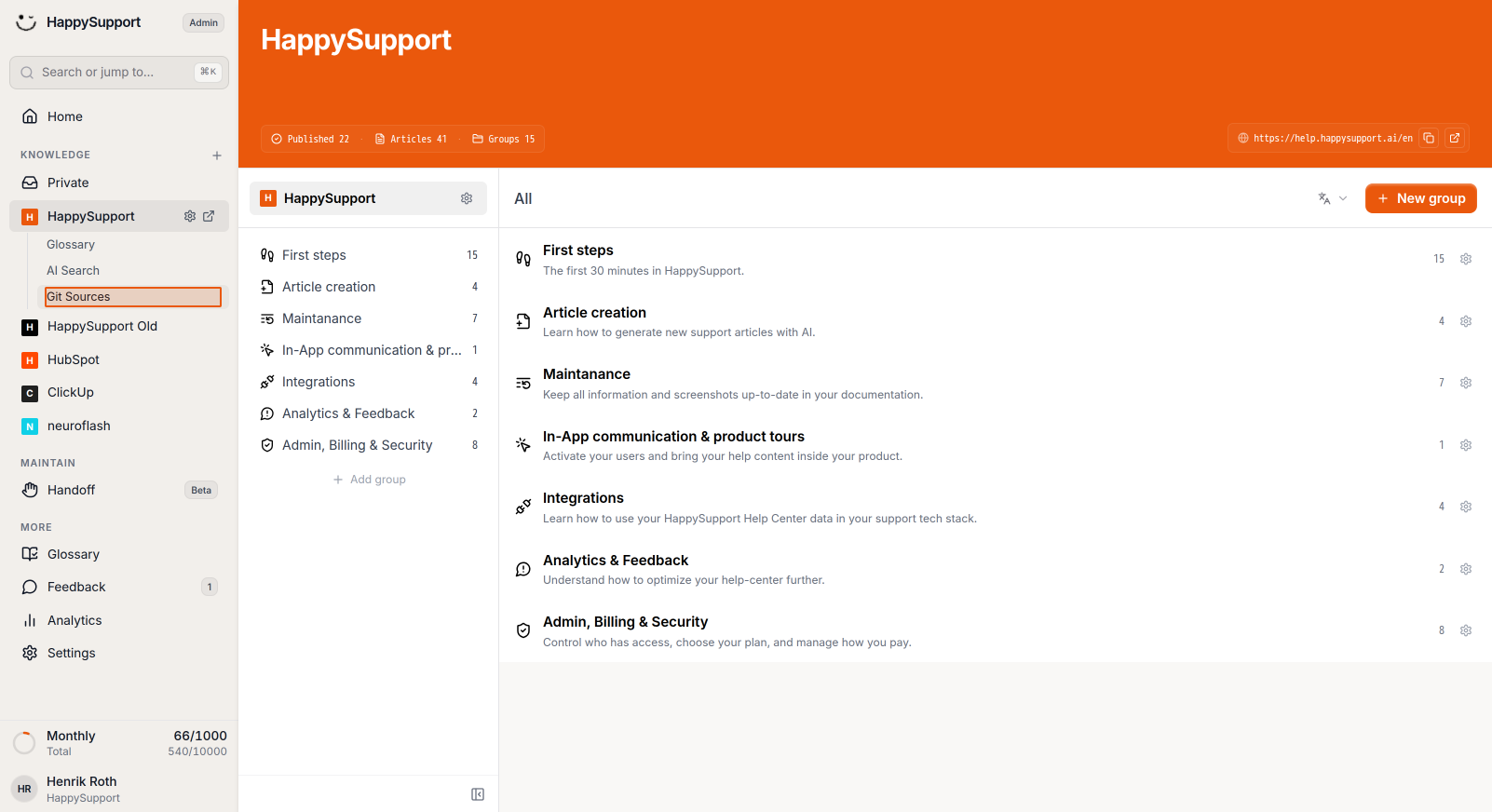
Navigate to your Help Center's Git Sources
From the left sidebar, select your Help Center under the Knowledge section, then click on Git Sources in the expanded menu.
-
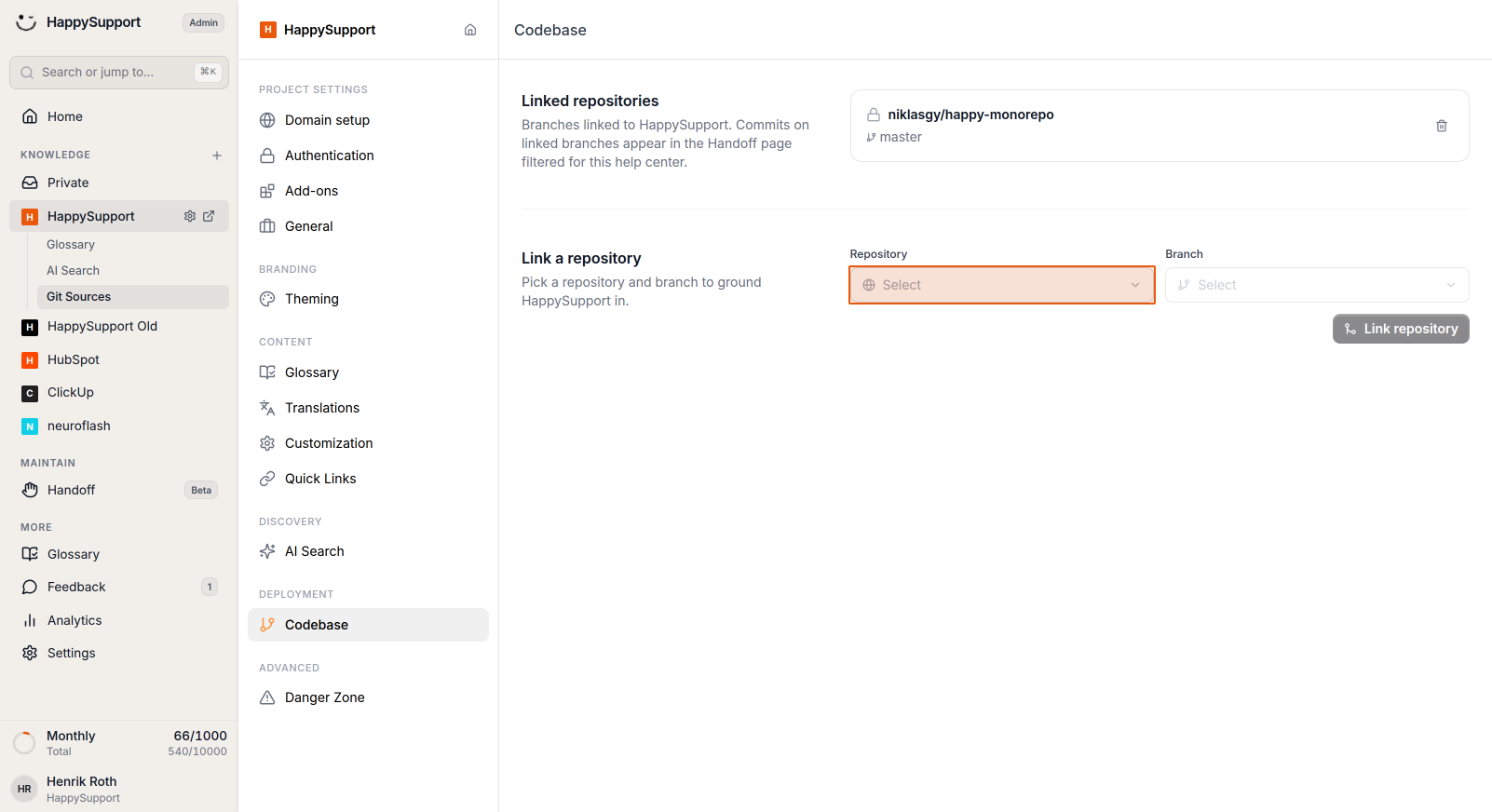
Add a repository to your Help Center
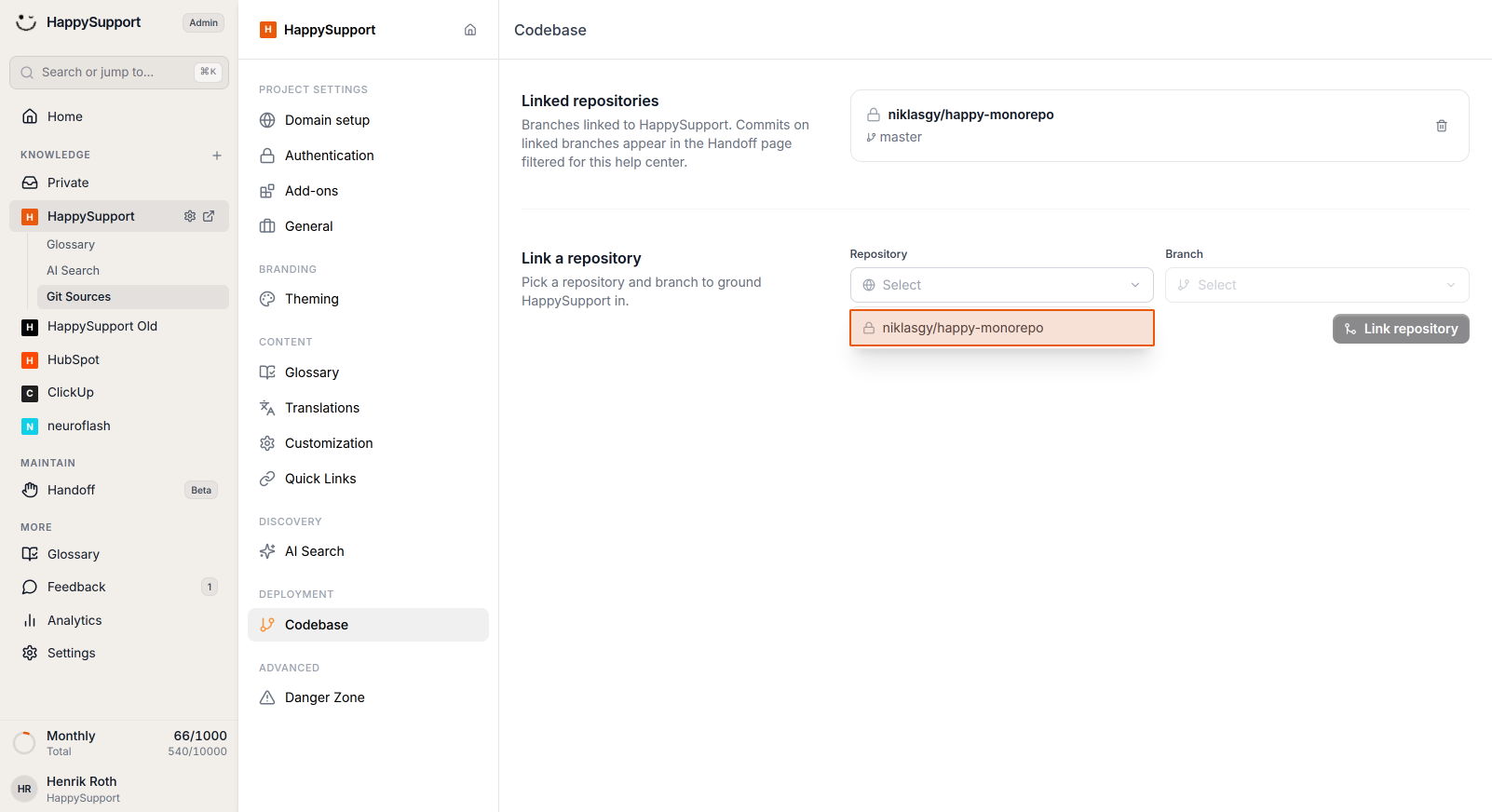
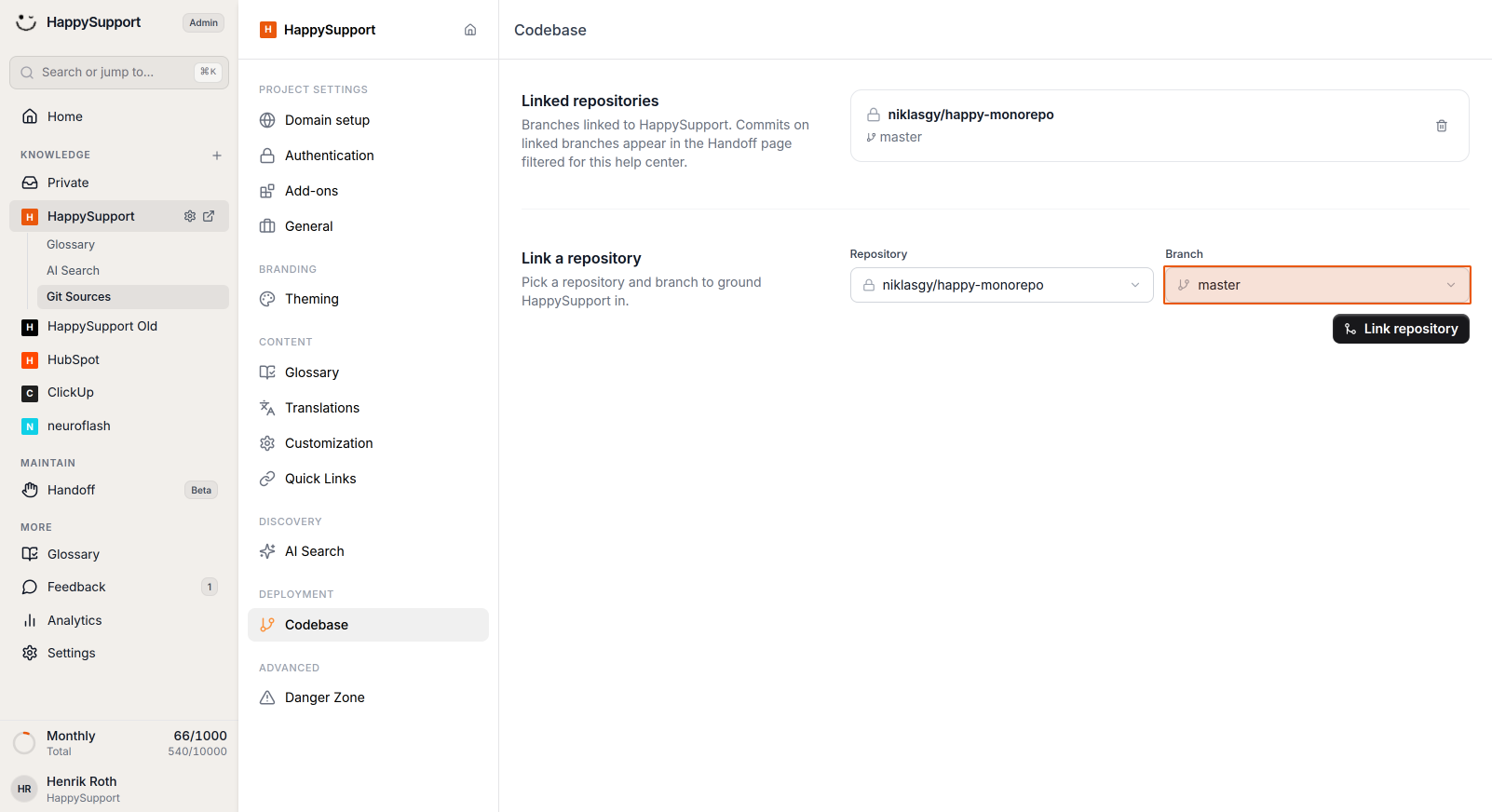
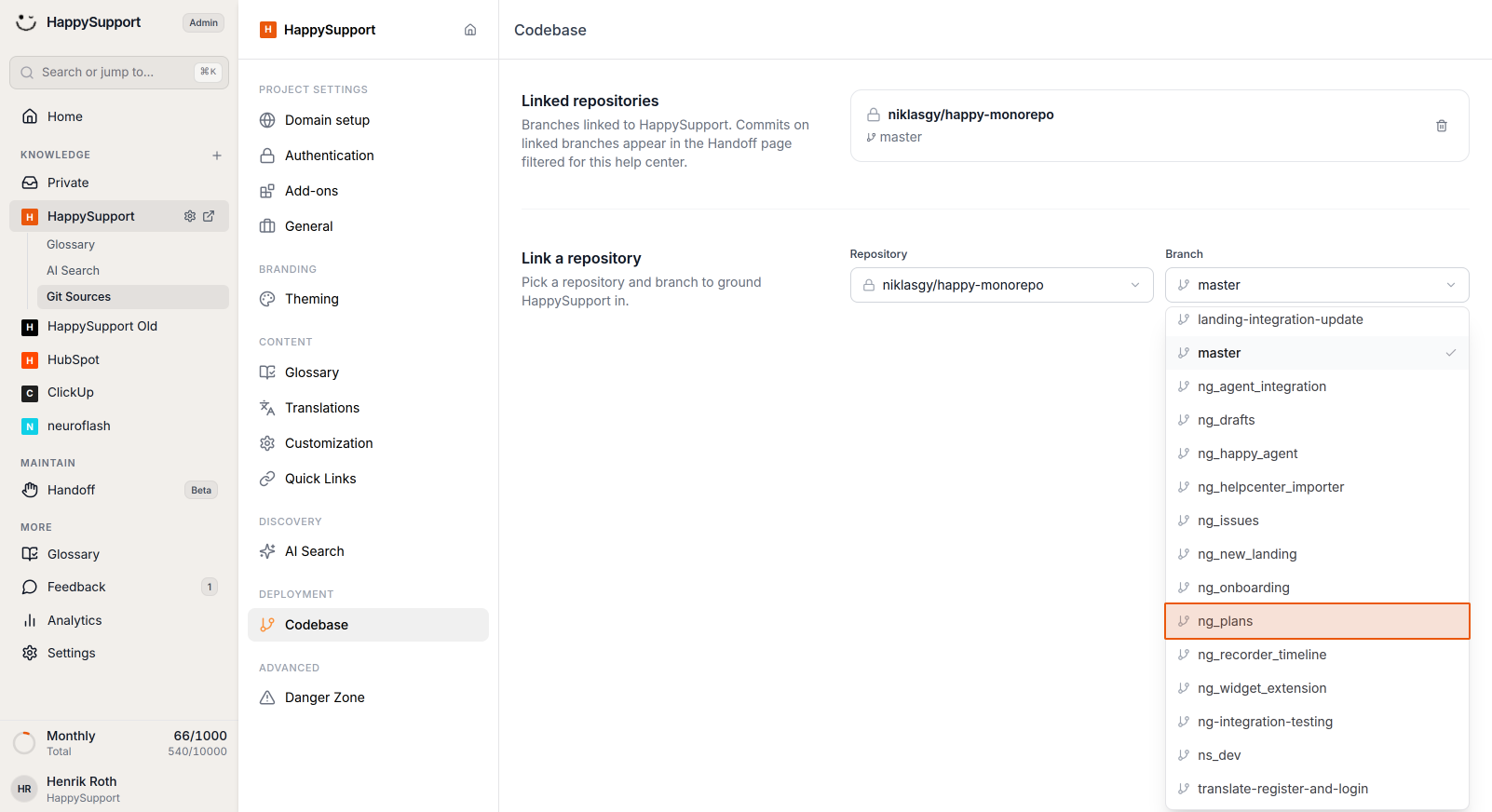
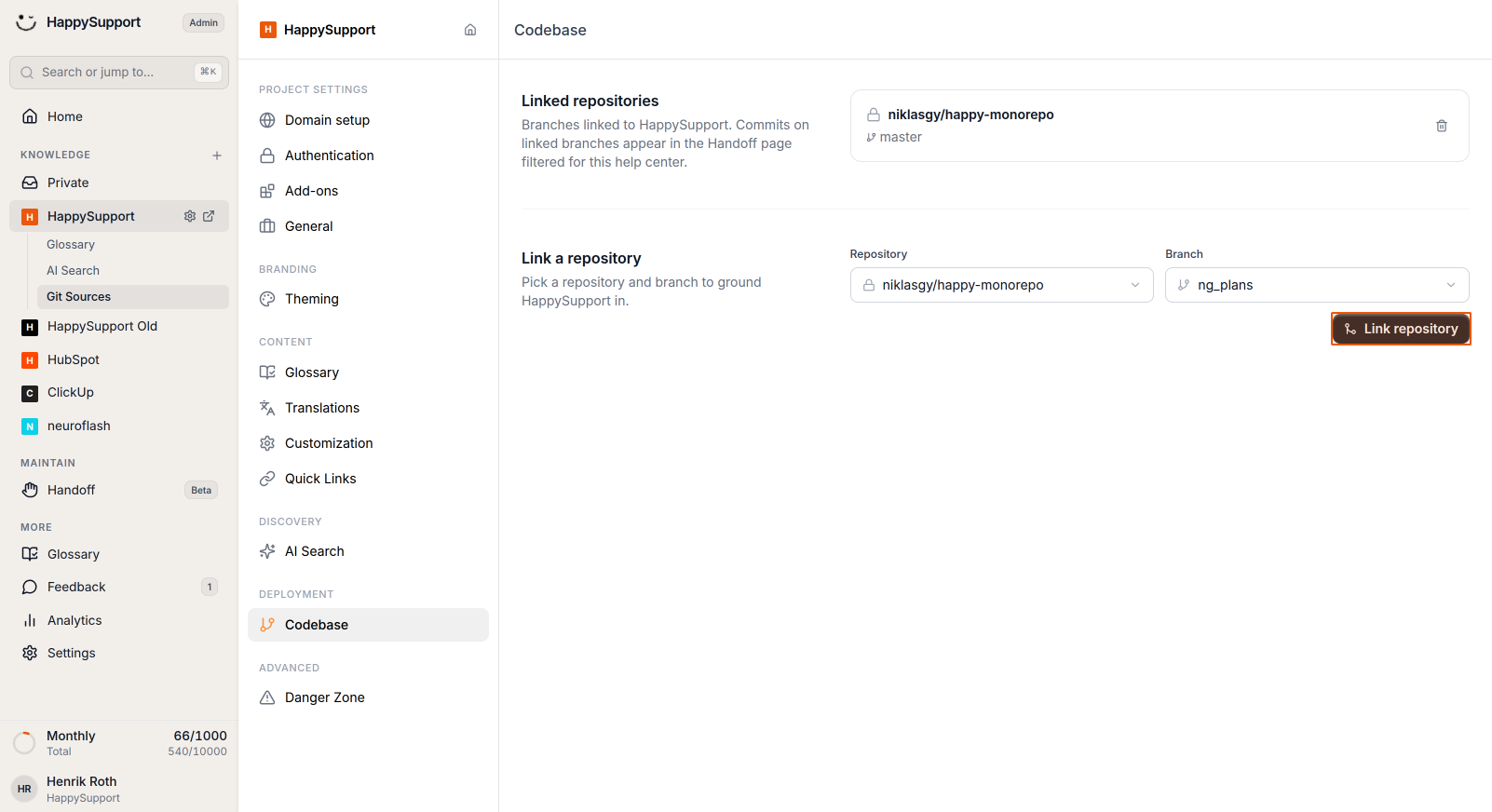
In the Codebase page:- Click the Repository dropdown and select the repository you want to link
- Choose the specific branch you want to connect from the Branch dropdown
- Click the Link repository button to establish the connection
-
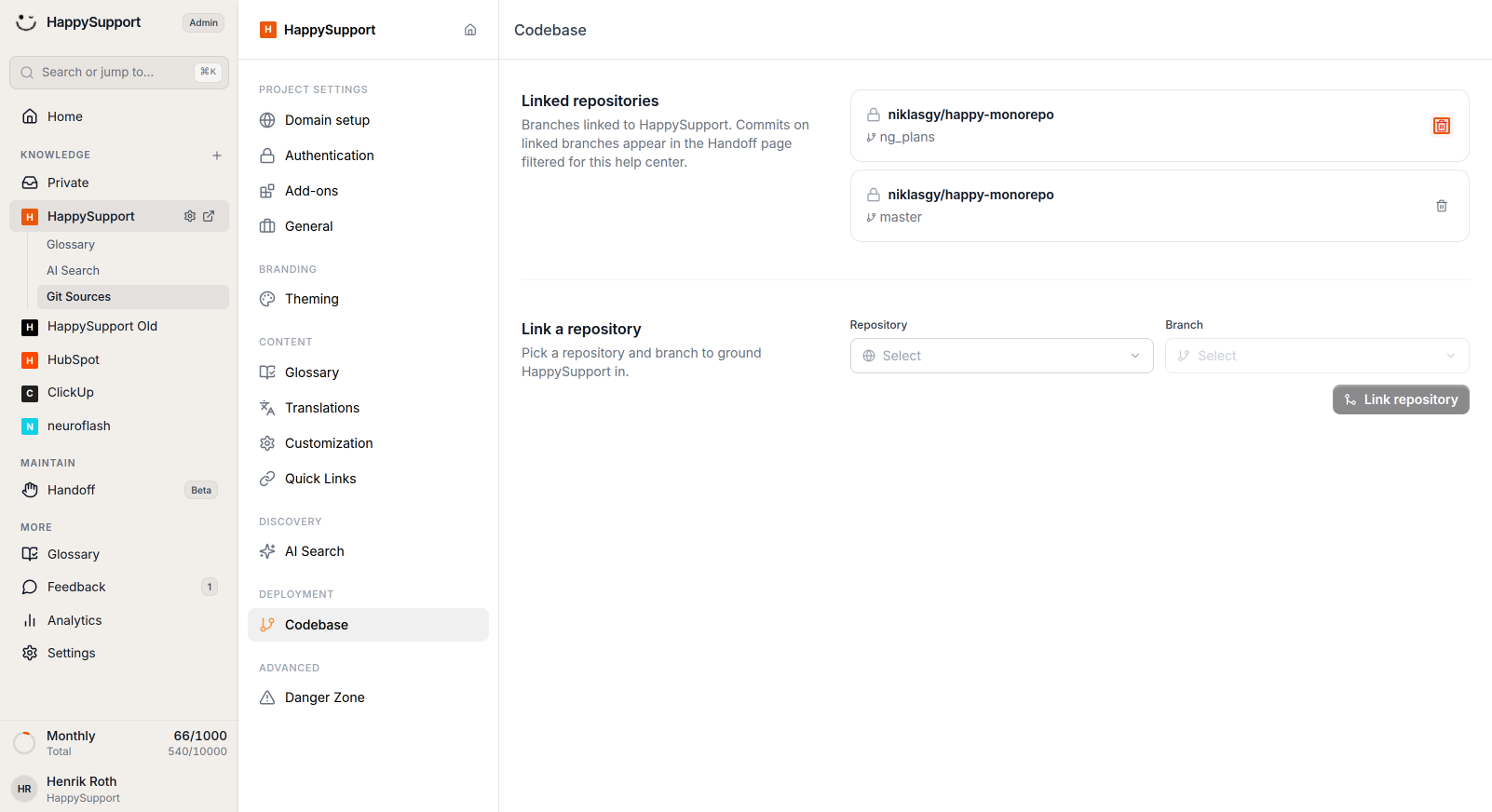
Manage linked repositories
You can view all linked repositories in the Linked repositories section. To remove a repository, click the trash icon next to the repository entry you want to delete.
After completing these steps, your Git repository is successfully connected to your Help Center. Any commits to the linked branches will now be tracked and can be referenced in your documentation workflow.
 Powered by happysupport.ai