
Handoff: Track product releases for Help Center updates
Track product releases and code changes from GitHub or GitLab on the Handoff page, then move them to your documentation queue
The Handoff page helps you track product changes and transform them into documentation updates for your Help Center.

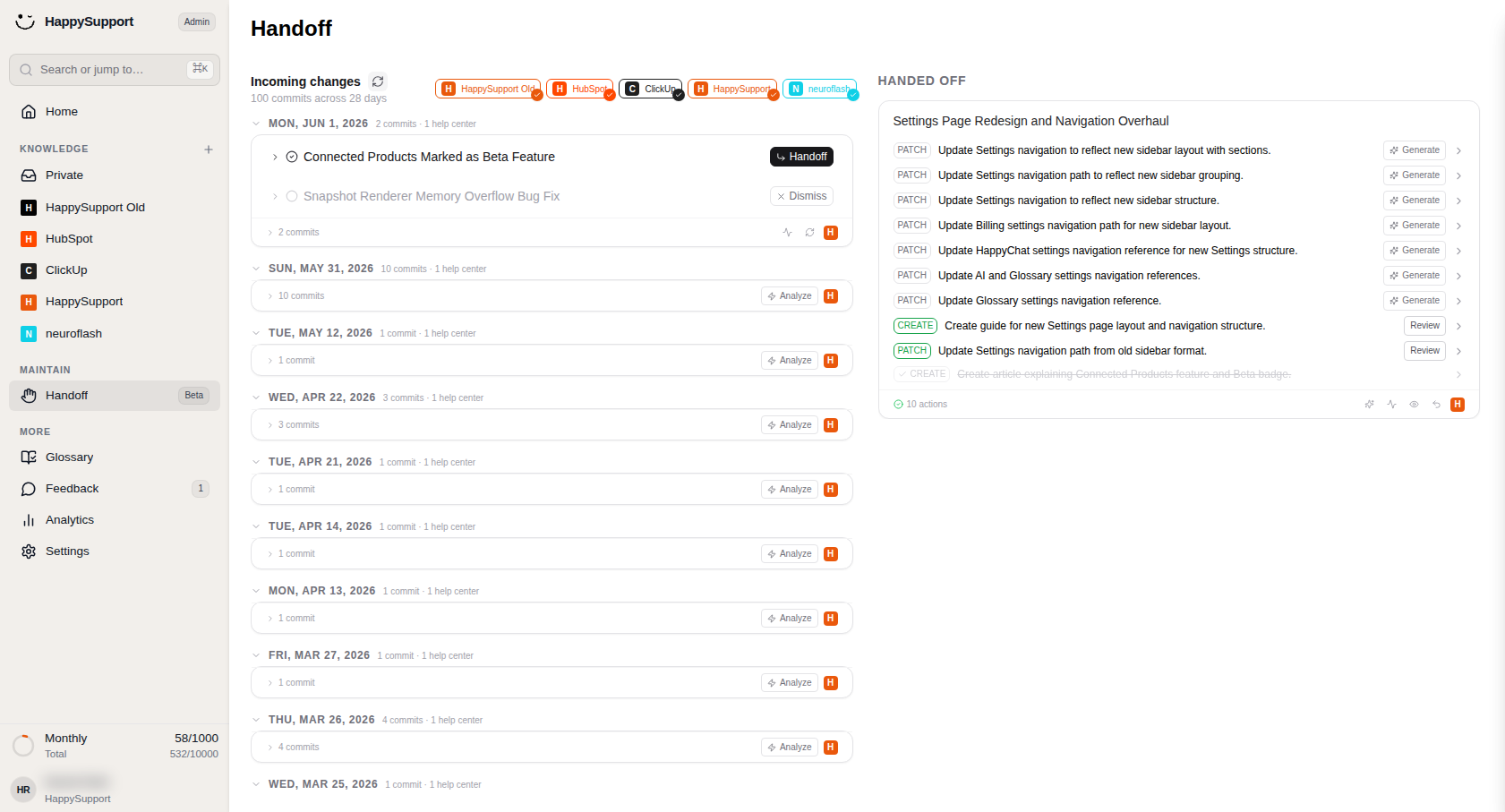
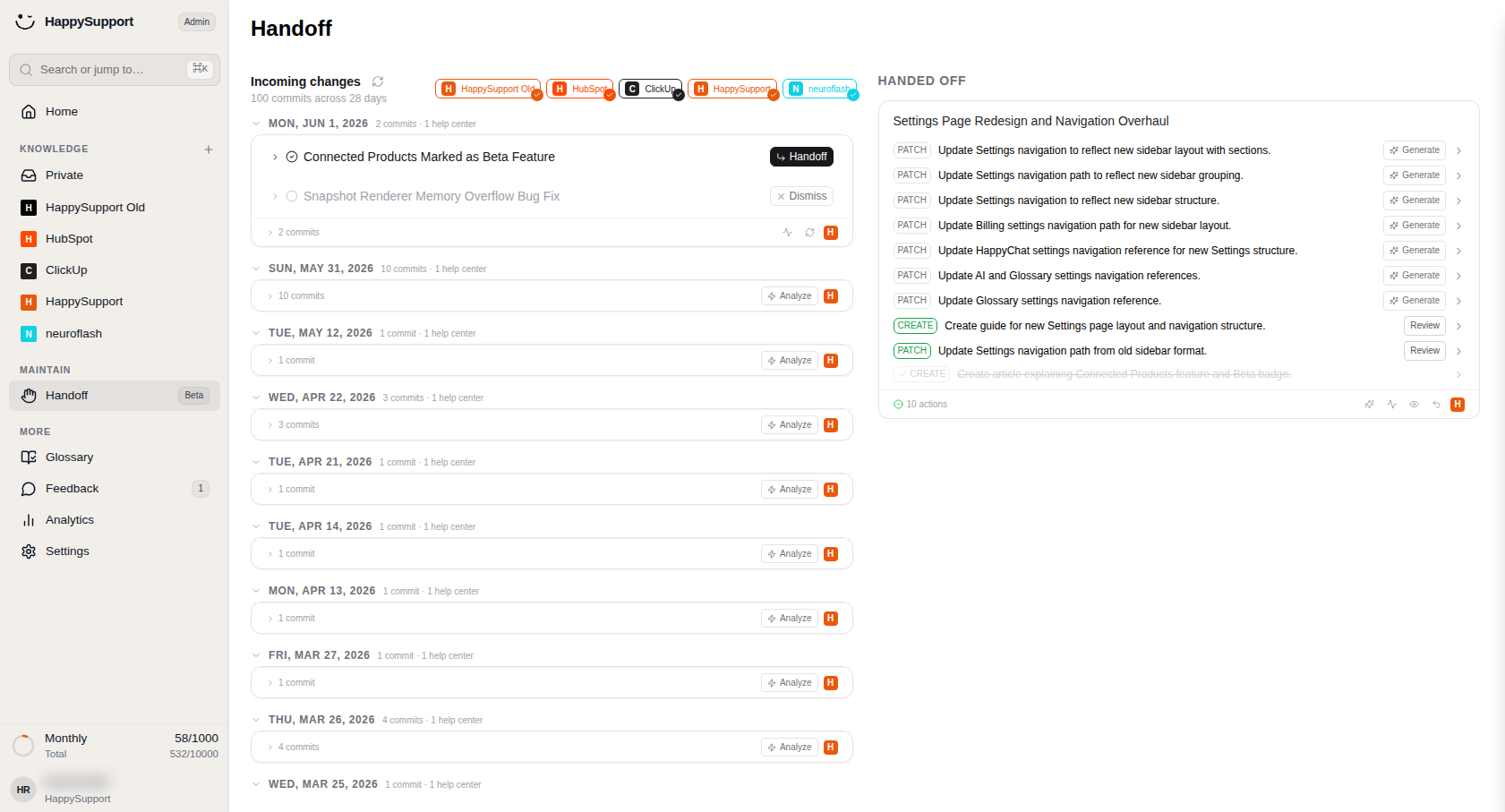
Incoming changes
This section displays all pending commits from your connected sources, organized by date. A summary at the top shows the total number of commits and the time span they cover.
Searching incoming changes
You can filter the list by typing free text or by PR/MR number. Press / to focus the search field, then enter your query. Supported formats for pull or merge request numbers:
!418#418PR 418MR 418
While a filter is active, a result count appears showing how many items match (for example, "1 result" or "5 results"). Press Escape or click the close button to clear the search and restore the full list.
Refreshing the list: Use the Refresh button to fetch newly ingested commits from your connected GitHub or GitLab sources.
Refresh can retrieve up to 90 days of commit history, but Handoff analyzes only the most recent 30 days.
Help Center badges: A row of colored badges represents each Help Center you created. You can use these to identify for which help center you got code changes into your queue. The badges are visually connected to indicate the flow of content through your handoff pipeline.
Date-grouped entries: Changes are grouped chronologically, with the most recent dates at the top. Each group shows the commit count and related Help Center items. Expand a group to see individual change entries with their titles and details.
Action buttons: For each change entry, you have several options:
- Handoff: Moves the selected change to the processing queue for documentation analysis
- Dismiss: Removes the change from your incoming queue without further action
- Analyze: Examines collapsed date groups to identify relevant documentation updates
Handed Off panel
This panel displays changes that have been processed and are ready for documentation work. Each handed-off item expands into a detailed task breakdown.
Task list: Individual tasks appear with status badges indicating the type of action required:
- PATCH: Updates to existing documentation
- CREATE: New content that needs to be written
- DELETE: Article needs to be deleted.
Each task row describes the specific update, such as navigation path changes or settings reference updates.
Action controls: On the right side of each task row, you'll find:
- Generate: Creates the documentation update automatically
- Review: Opens the task for manual inspection and approval
- Chevron icon: Expands the row to show additional details for that specific action
At the bottom of the panel, a counter displays the total number of actions available for the current handoff item.
 Powered by happysupport.ai