
Monitor Your Account Resource Usage and Limits
Monitor resource consumption across plan limits including article generation, active articles, help centers, glossary items, and team members in Settings.
The Usage page in Settings lets you monitor your account's resource consumption across all plan limits.

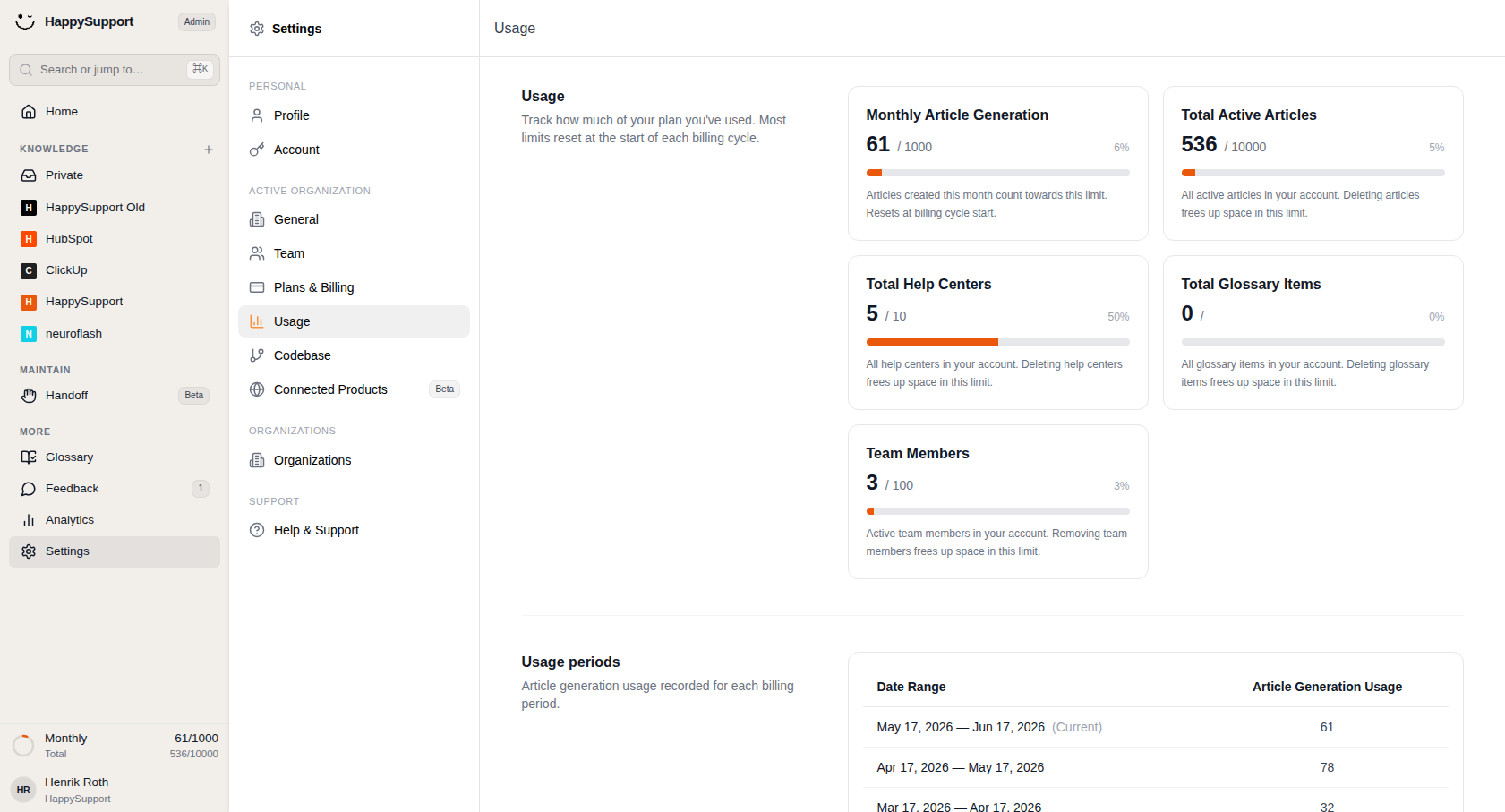
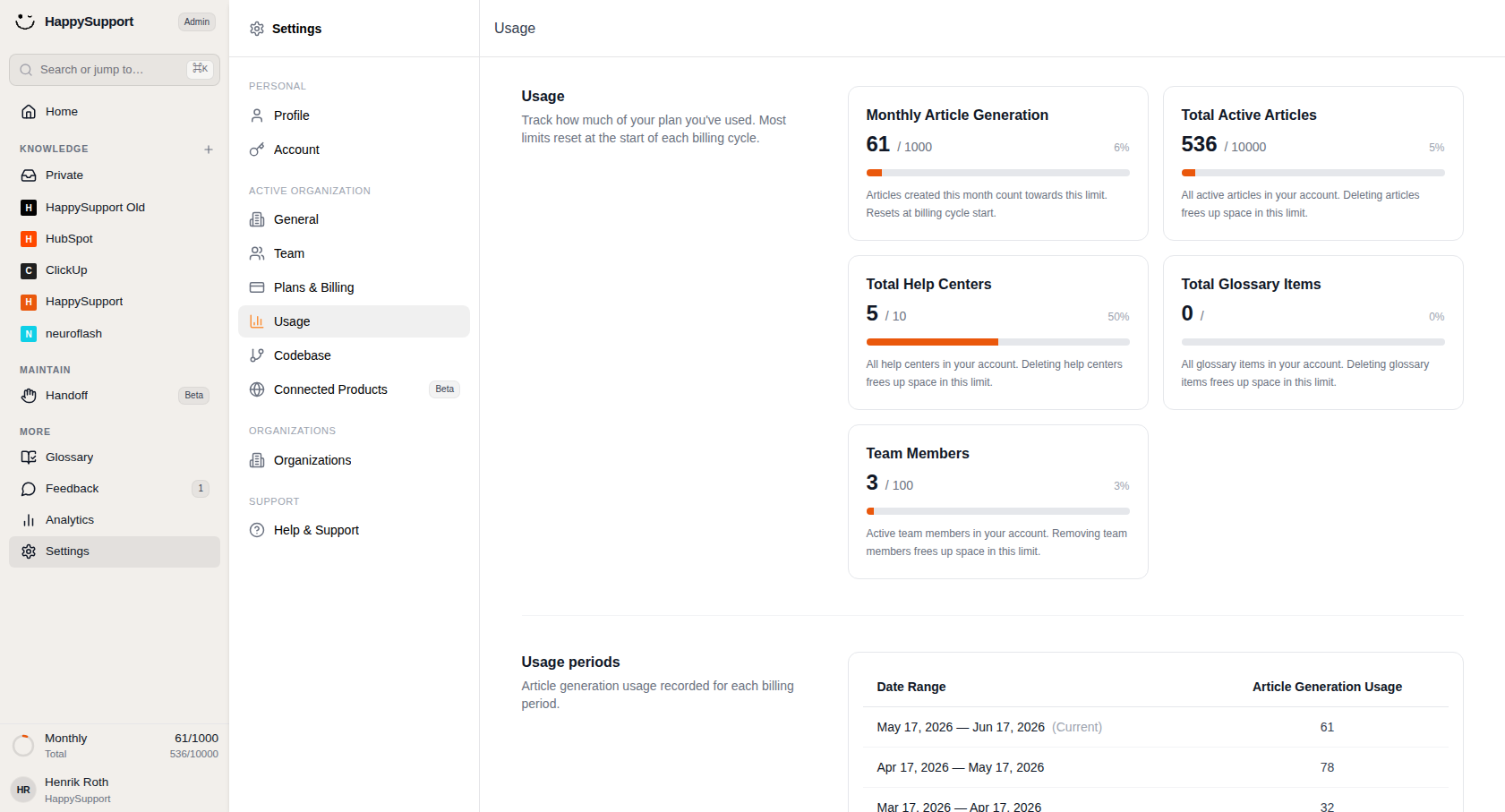
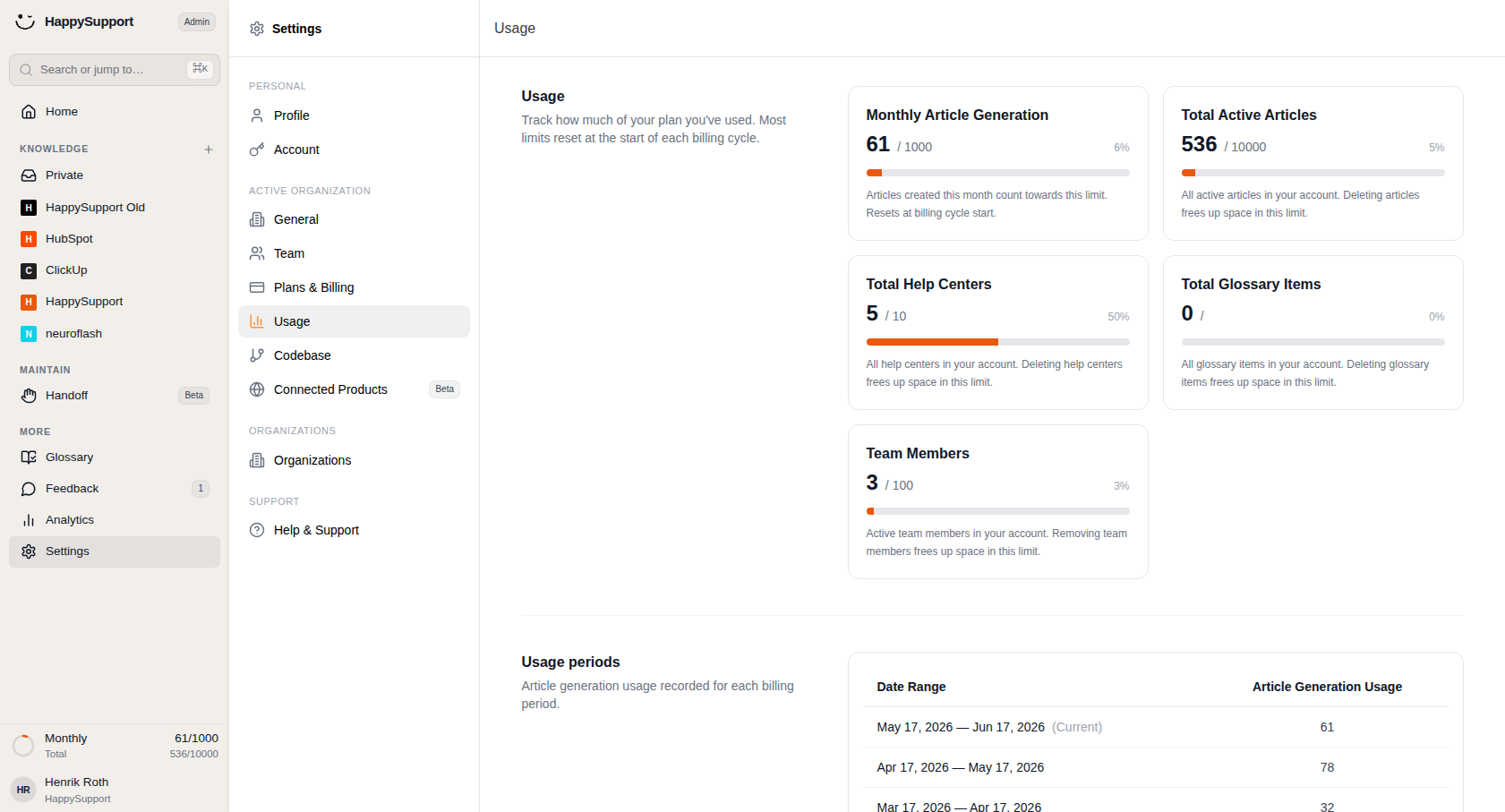
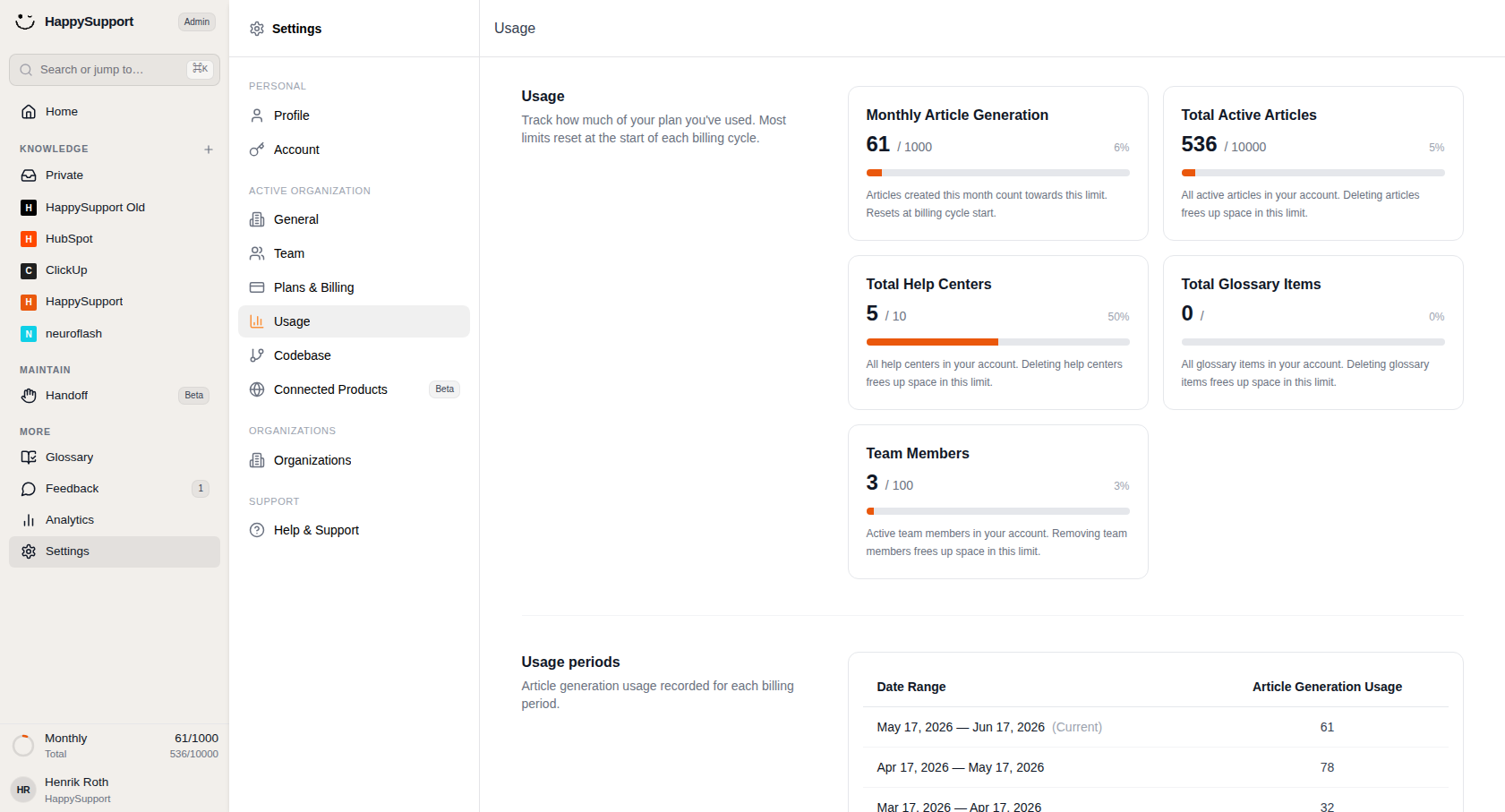
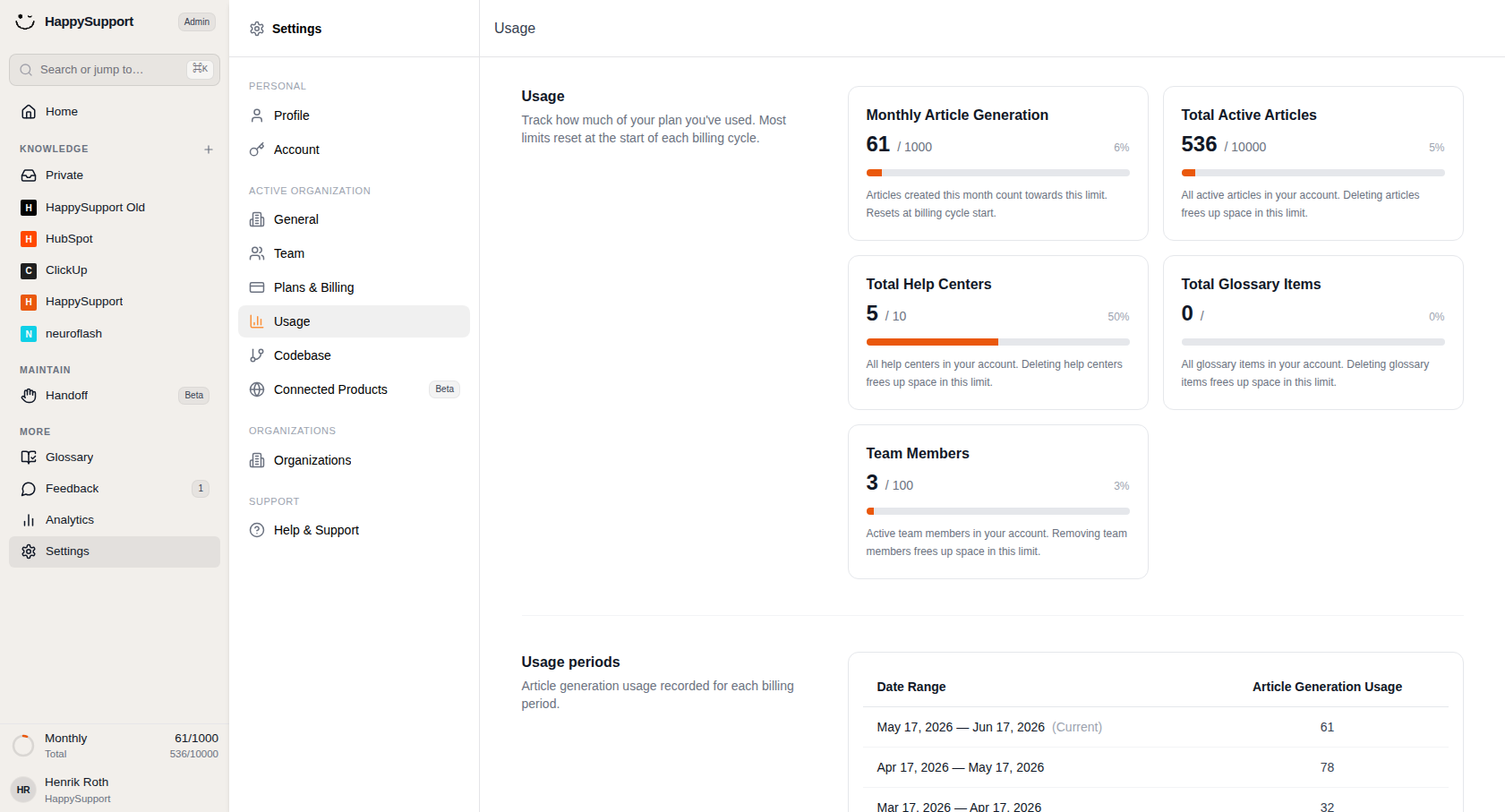
 Click Settings to open the workspace configuration area, where Usage is already selected.1/8
Settings Navigation
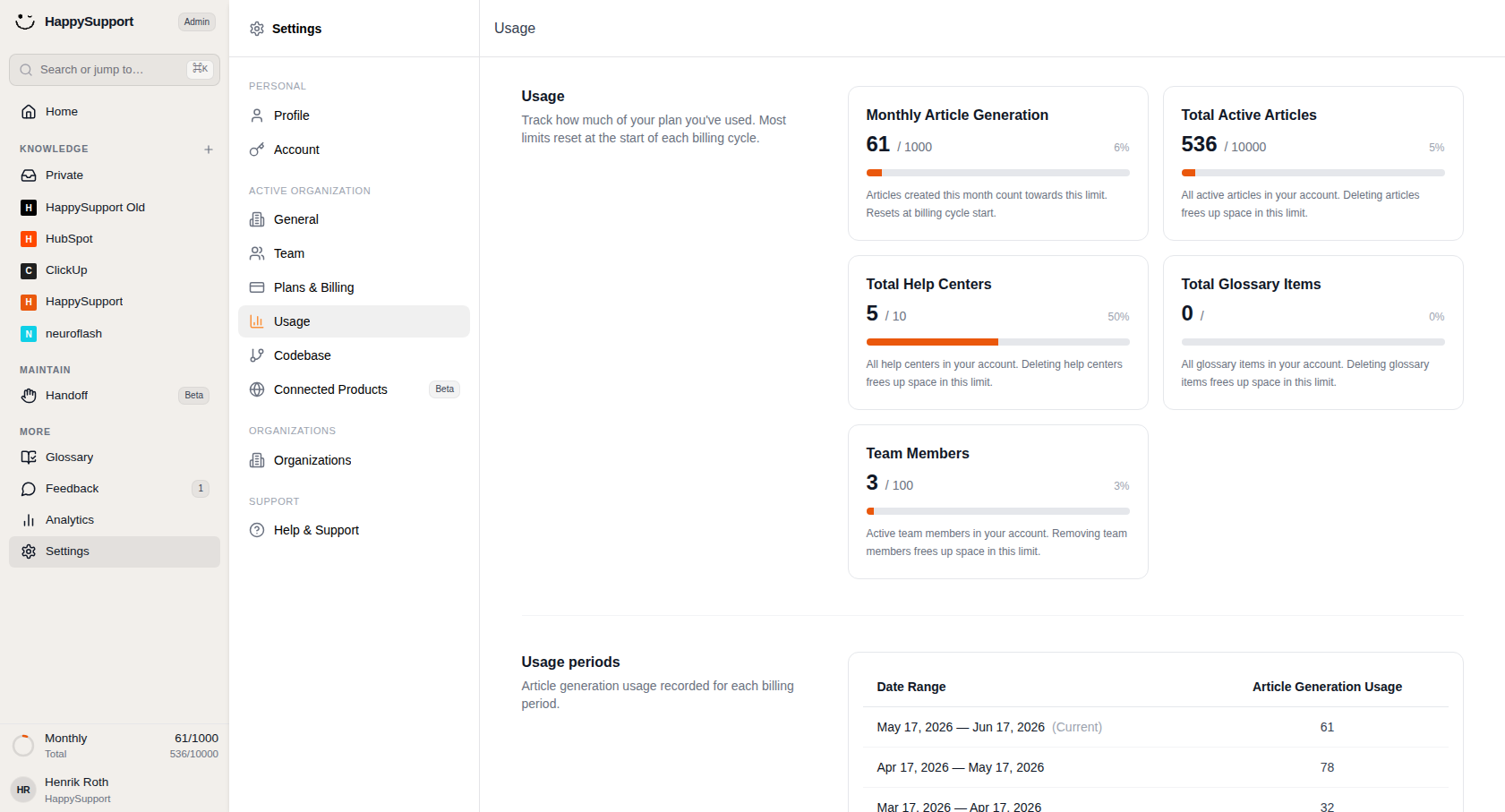
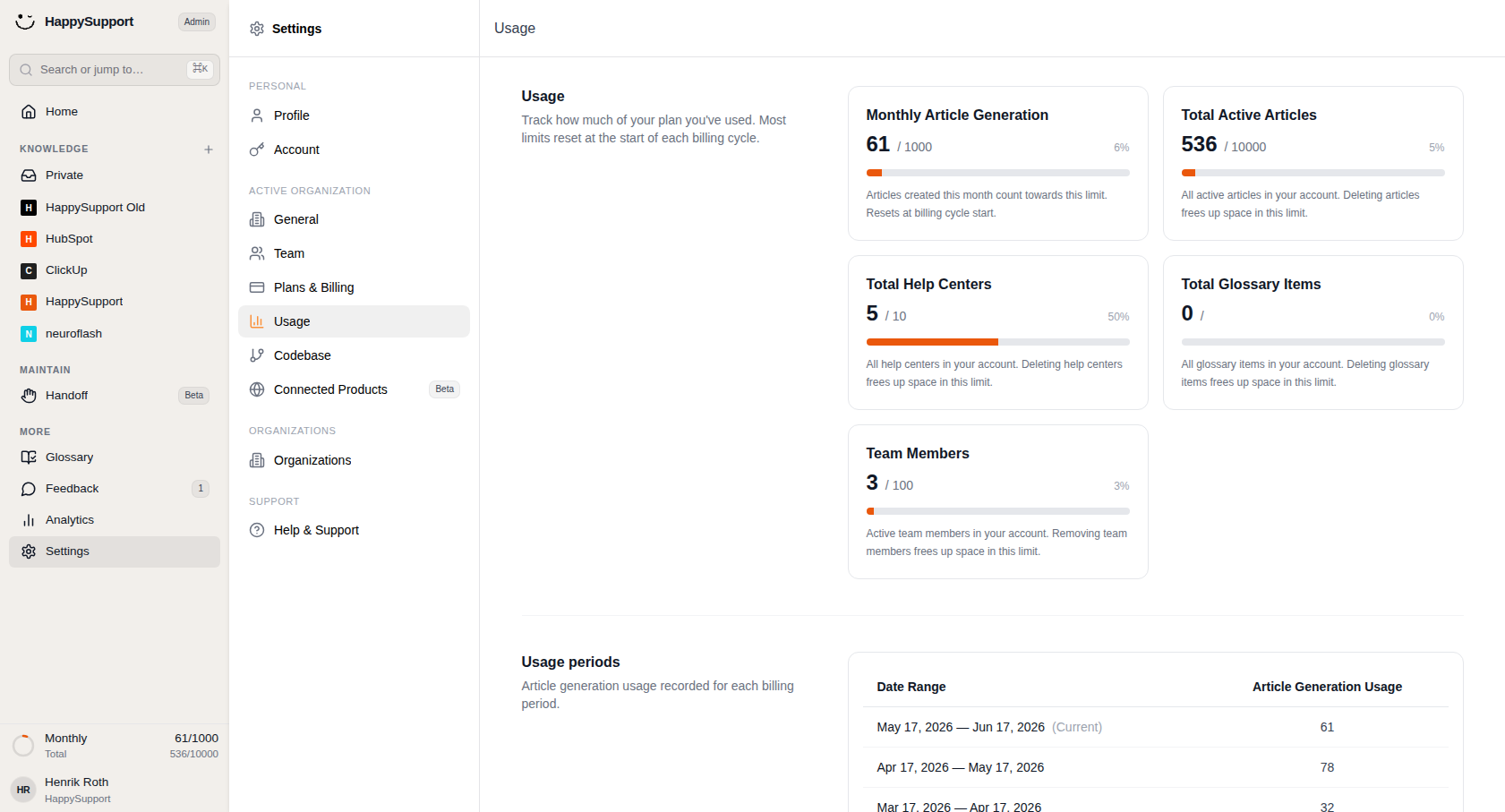
You can access the Usage page by selecting Settings in the main sidebar, then choosing Usage from the Active Organization section. The Usage entry appears with an orange bar-chart icon and highlights when active.
Usage Dashboard
The main content area displays your current plan consumption through a set of metric cards. Each card shows a resource type, the current count versus the maximum allowed, a percentage, and a visual progress bar.
Monthly Article Generation: Tracks how many articles you've created during the current billing cycle. This counter resets automatically when a new billing period begins.
Total Active Articles: Shows the total number of articles currently stored in your account. Deleting articles frees up space within this limit.
Total Help Centers: Displays how many Help Centers you've created relative to your plan's maximum. Removing Help Centers releases capacity.
Total Glossary Items: Indicates the number of glossary entries in your account. Deleting items frees up space here as well.
Team Members: Shows how many active team member seats are in use. Removing team members makes seats available again.
Usage Periods
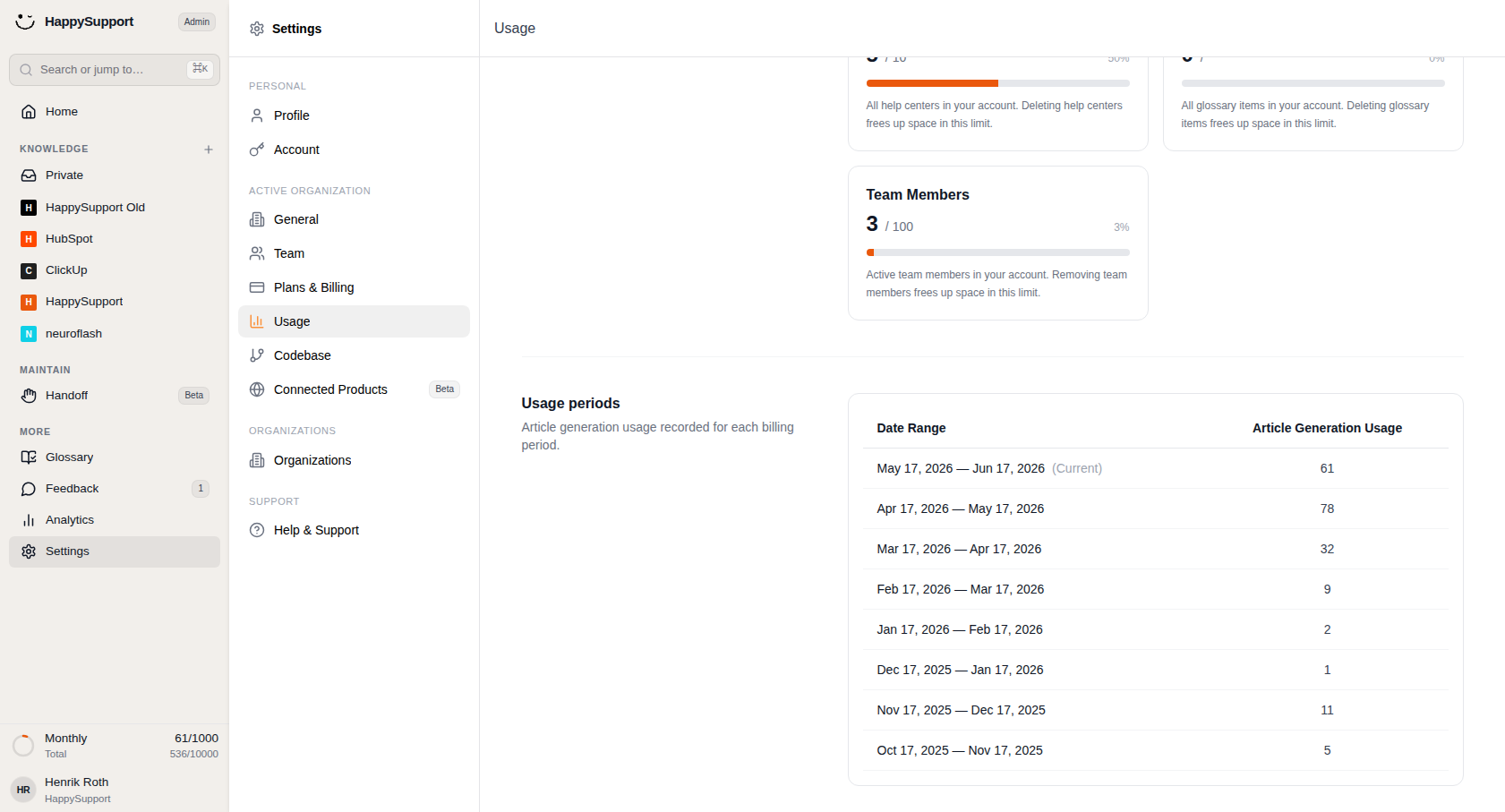
See how many articles were generated in each past billing period.
Below the metric cards, a table lists your article generation history across billing periods. The Date Range column shows each billing cycle, with the current period labeled accordingly. The Article Generation Usage column displays how many articles were created during that specific period, giving you a clear view of your usage trends over time.
 Powered by happysupport.ai