
How to Manage Your Help Center Knowledge Bases
Organize knowledge bases, groups, and articles using the Help Center management sidebar and content panels to structure and publish your documentation.
The Help Center management interface lets you organize knowledge bases, groups, and articles through a structured sidebar and content area.

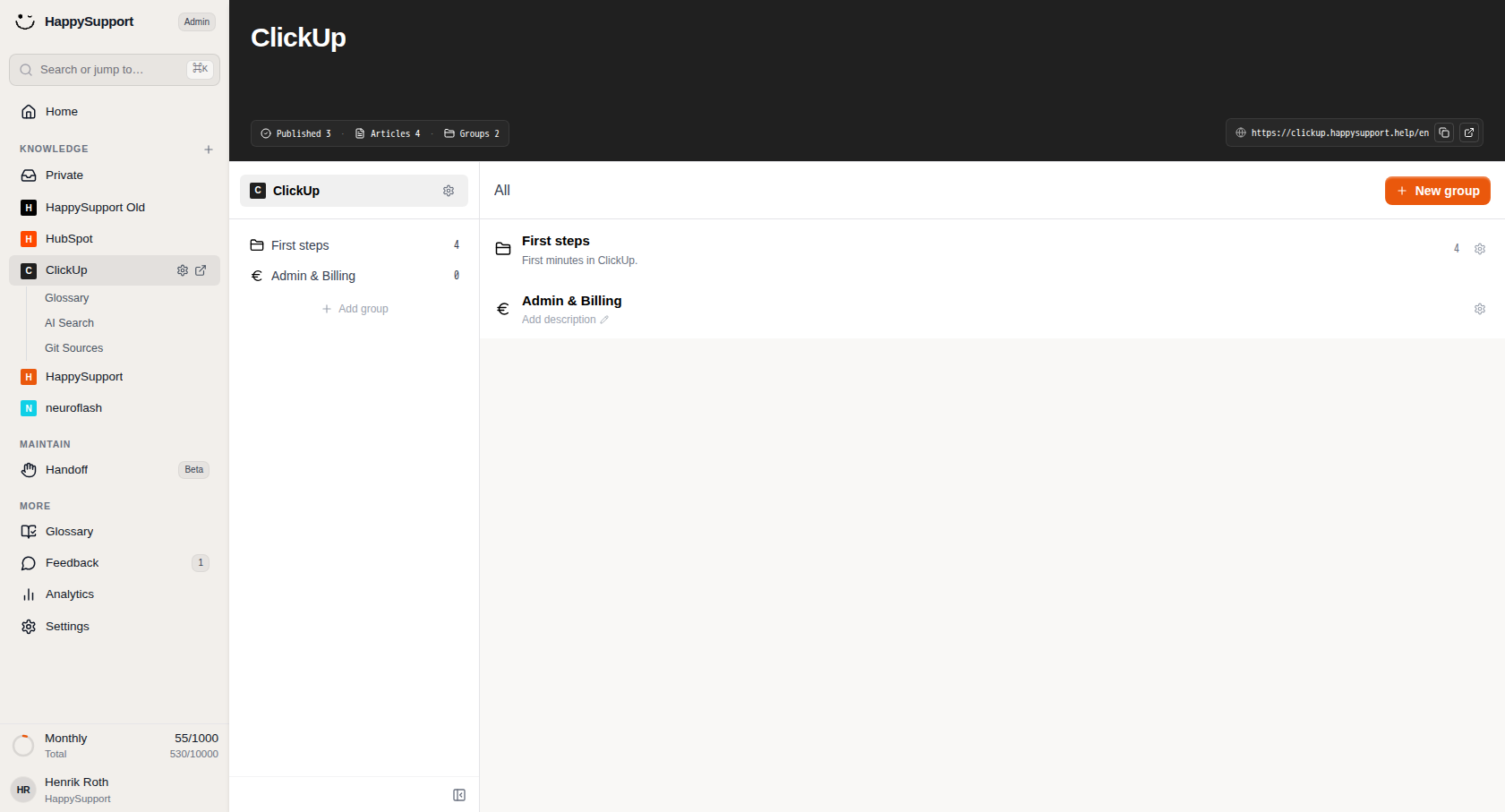
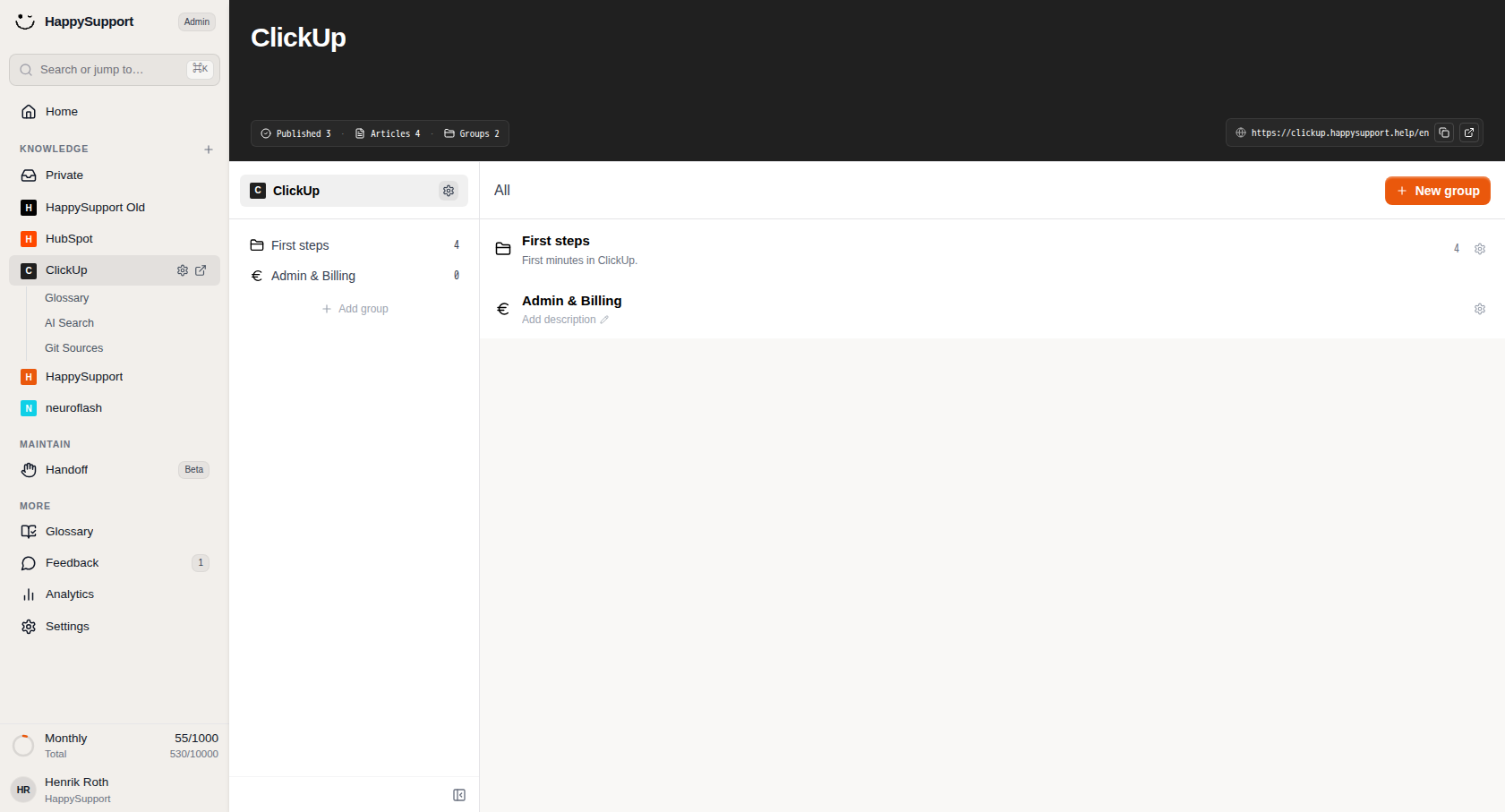
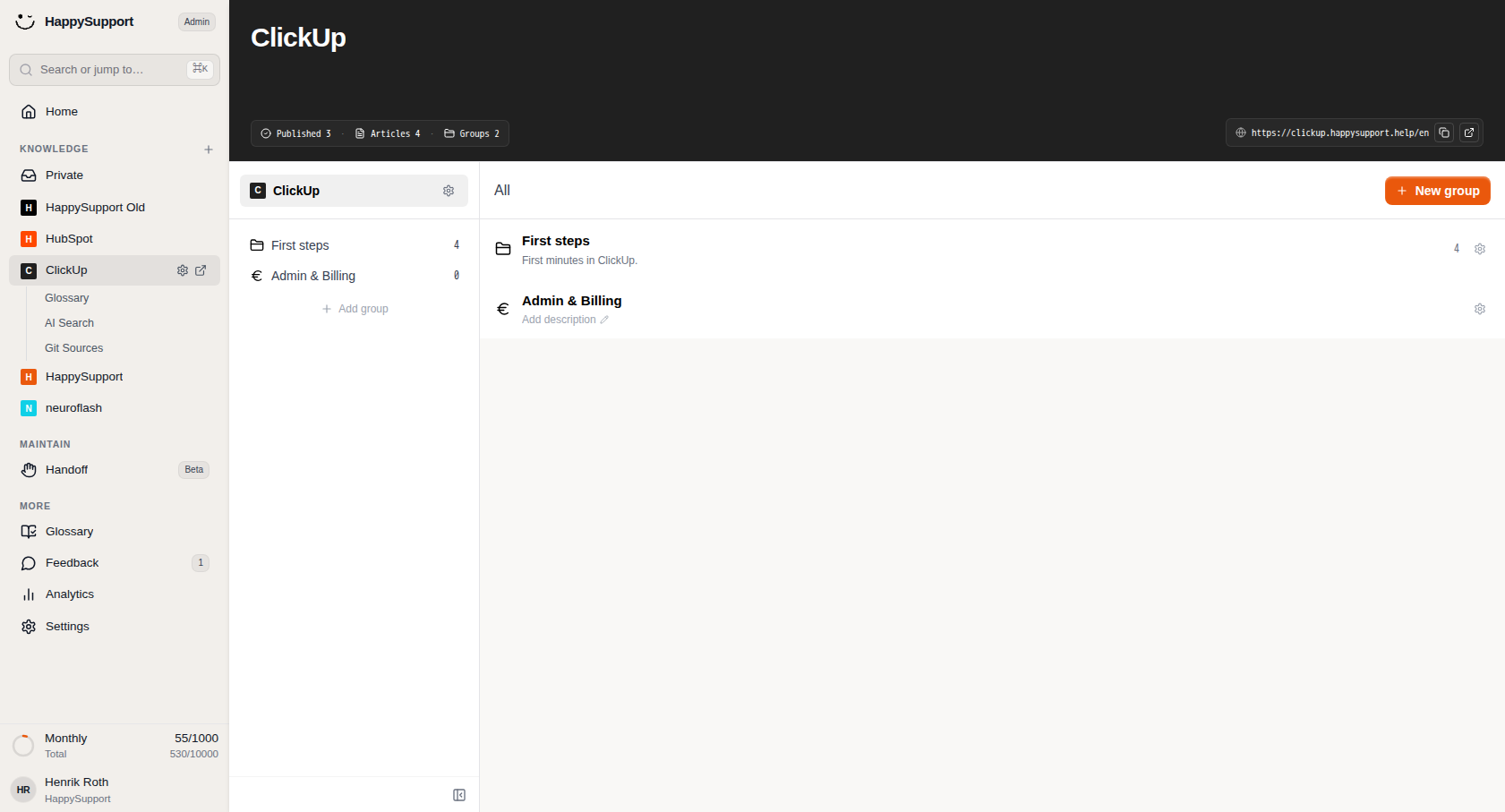
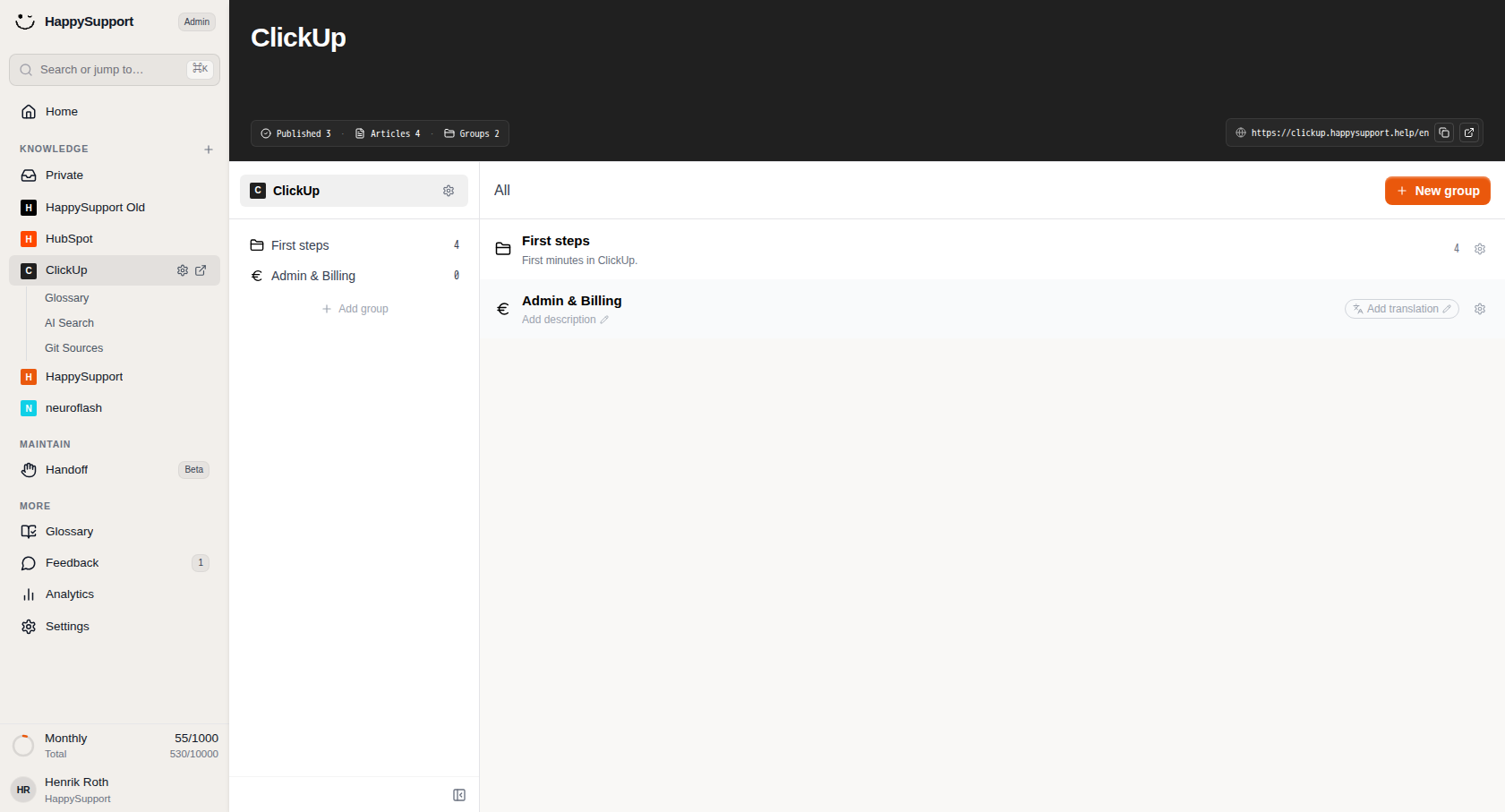 Use the sidebar to switch between your knowledge bases, tools, and settings.1/4
Navigation Sidebar
The sidebar on the left gives you quick access to all your knowledge bases and tools.
Search field: Use the search bar at the top (⌘K) to jump directly to any workspace, article, or setting.
Knowledge section: Lists all your knowledge bases. Click any entry to select it. The active workspace appears highlighted with a gear icon for settings and an external link icon to open the published Help Center.
Nested items: When you select a knowledge base, sub-items like Glossary, AI Search, and Git Sources appear indented below it.
Maintain and more sections: Access additional tools including Handoff, Feedback (with notification badges), Analytics, and Settings.
Usage indicator: At the bottom, you can monitor your monthly usage quota and total article count.
Knowledge Base Header
When you select a knowledge base, a header bar displays key information at the top of the content area.
Title and stats: Shows the knowledge base name along with counts for Published items, Articles, and Groups.
URL field: Displays the public URL of your Help Center. Copy or open the link directly.
Groups Panel
Browse and switch between your article groups to see what each one contains.
The narrow panel between the sidebar and main content area shows all groups within the selected knowledge base.
Group list: Each group displays an icon, name, and article count. Click a group to view its contents.
Add group: Use the link at the bottom to create a new group for organizing articles.
Settings icon: Click the gear icon next to the knowledge base name to access configuration options.
Group Details
Edit the description or add a translation for this group.
When you select a group, its row in the main content area shows editable options.
Description: Add or edit a description using the pencil icon next to "Add description."
Translation: Click "Add translation" to create localized versions of the group content.
Settings gear: Access group-specific settings from the icon on the right.
Content Area
The main content area displays articles within the selected group.
Empty state: When a group has no content, you see a centered prompt with two options: "New article" (orange primary button) to create content directly, or "New group" to add a sub-group for further organization.
New article button: Also available in the top-right corner of the content area, with a dropdown for additional options.
Breadcrumb navigation: The header shows your current location (for example, "All / Admin & Billing") with a back arrow to return to the previous level.
 Powered by happysupport.ai