
Activate HappyChat in your Help Center
HappyChat is an AI-powered search widget that allows your readers to ask questions and receive instant AI-generated answers based on your Help Center content. This article will guide you through enabling this feature for your Help Center.

Accessing AI Search Settings
-
Open your Help Center settings
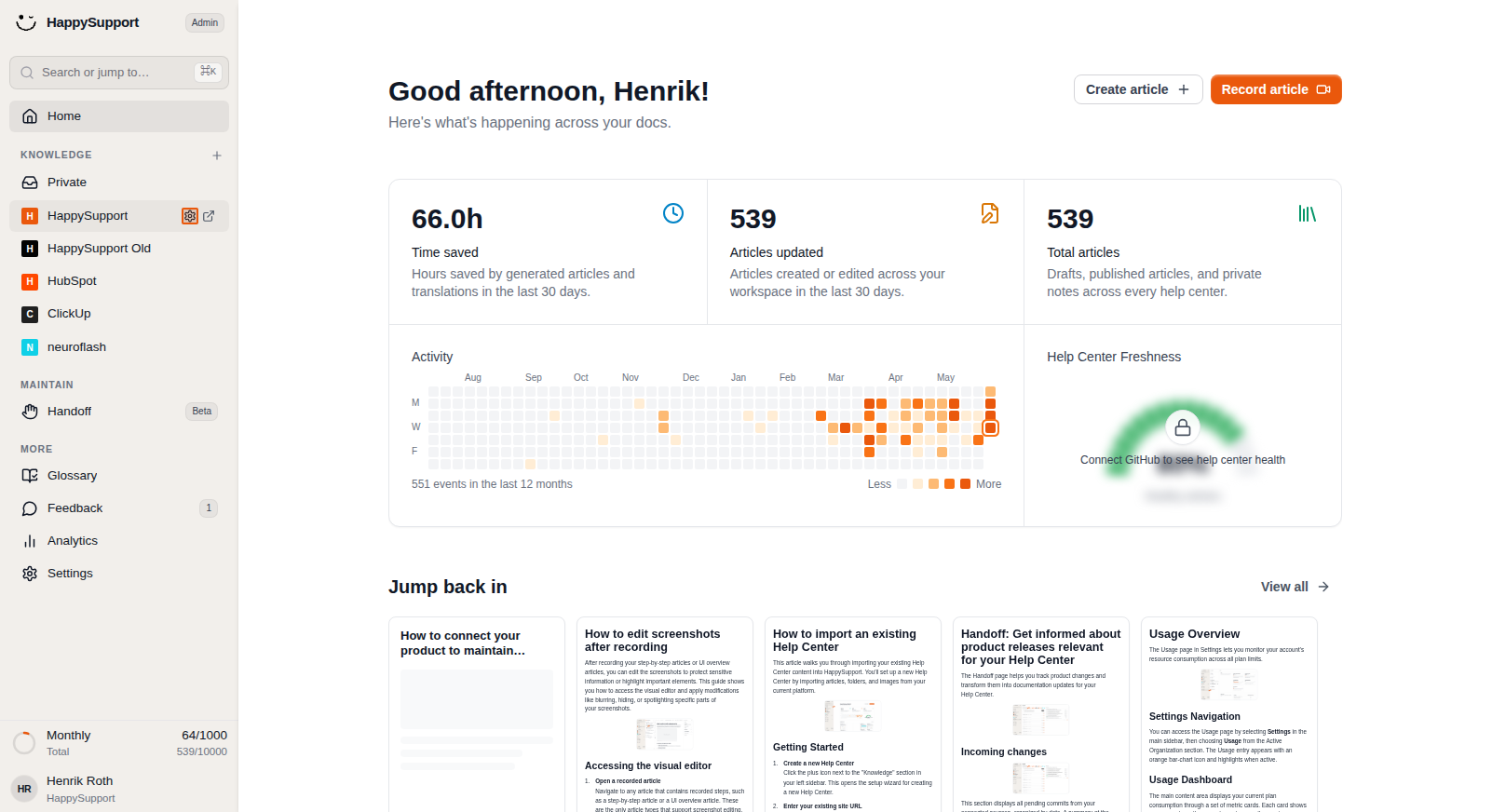
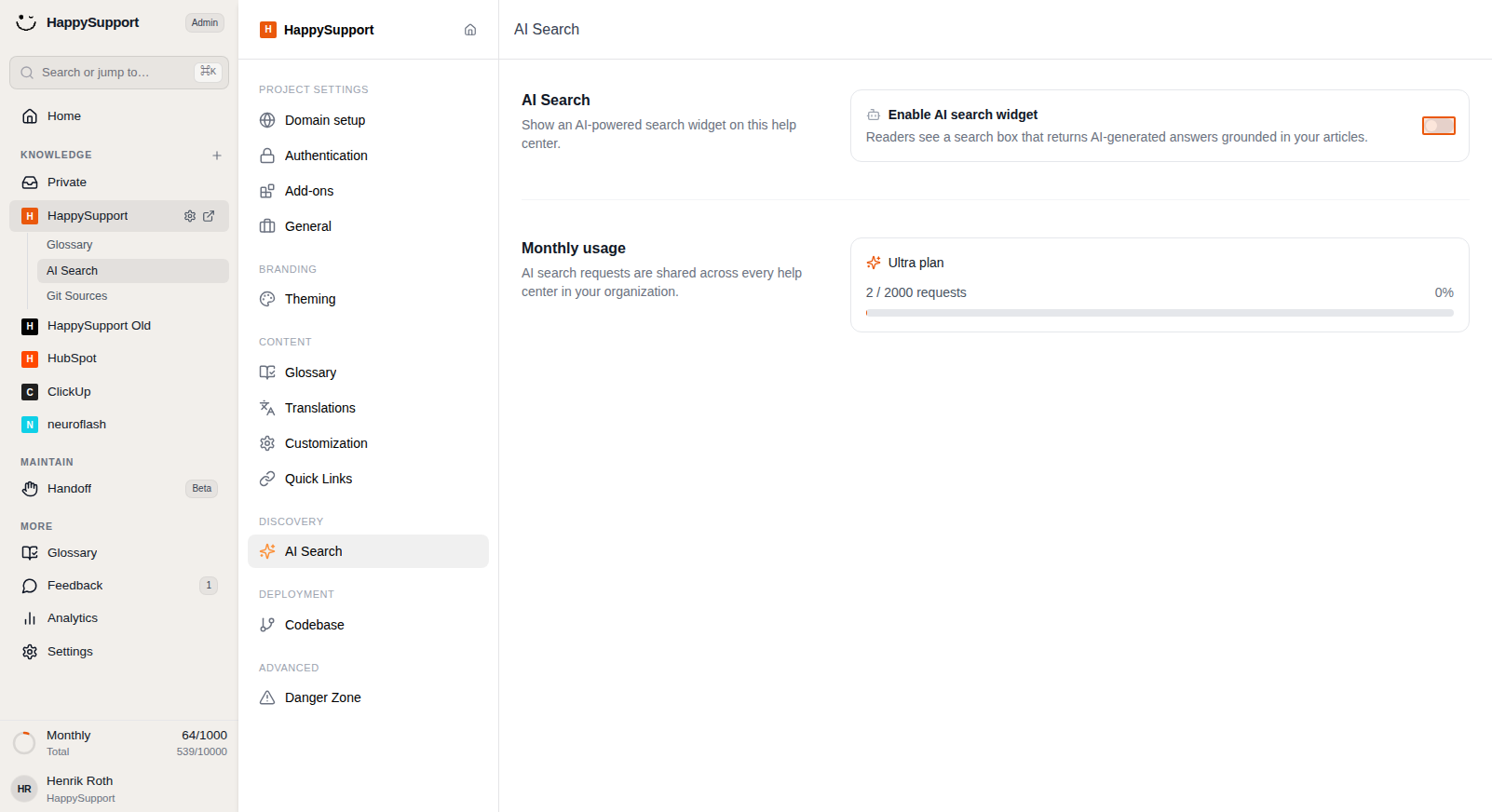
Click on the external link icon next to your HappySupport workspace in the left navigation sidebar to access your Help Center settings. -
Navigate to AI Search
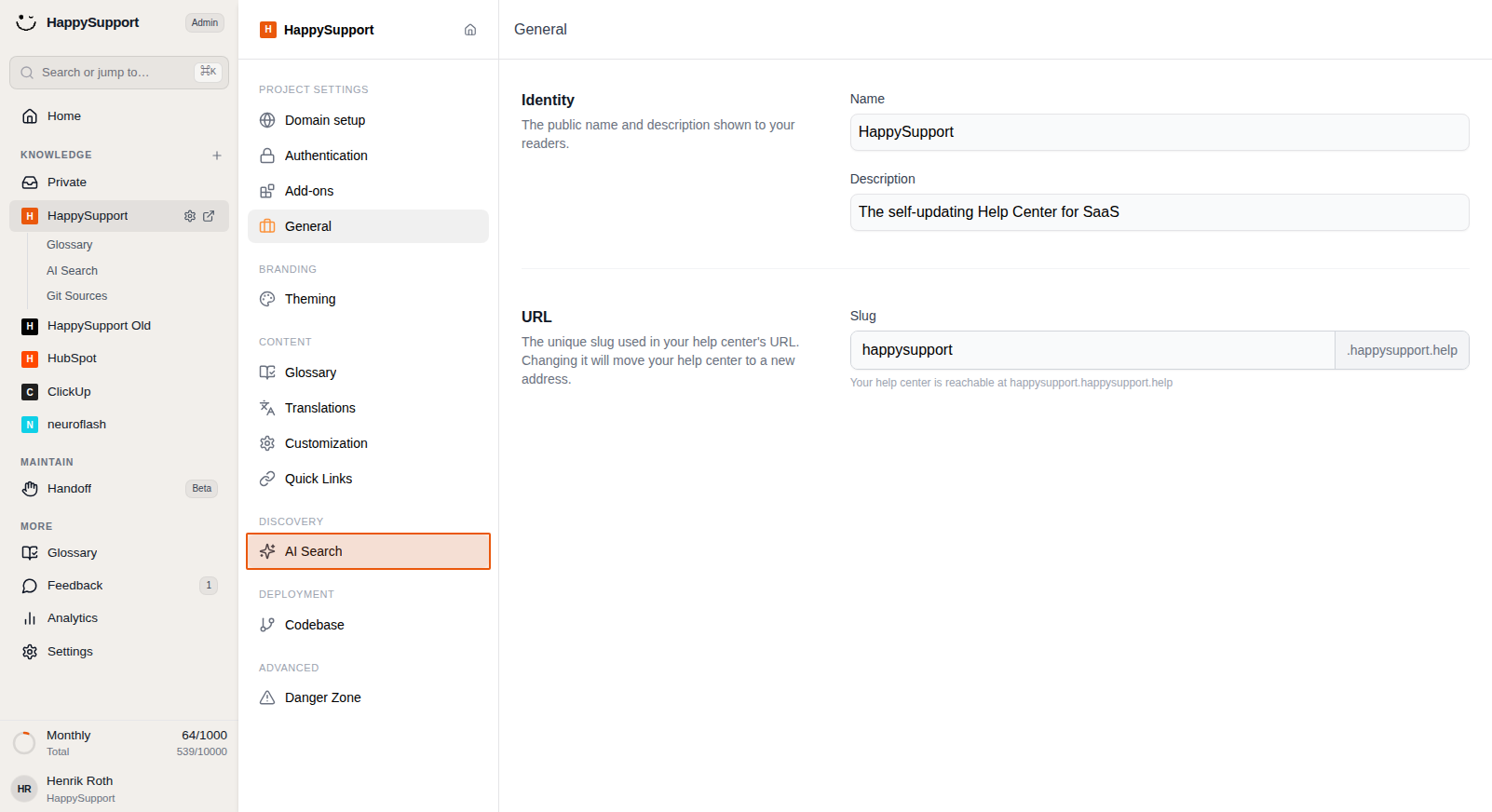
In the settings panel, locate and click on "AI Search" under the Discovery section. You can also access this directly from the Knowledge menu by clicking on "AI Search" under your HappySupport workspace.
Managing the AI Search Widget
-
Enable or disable the search widget
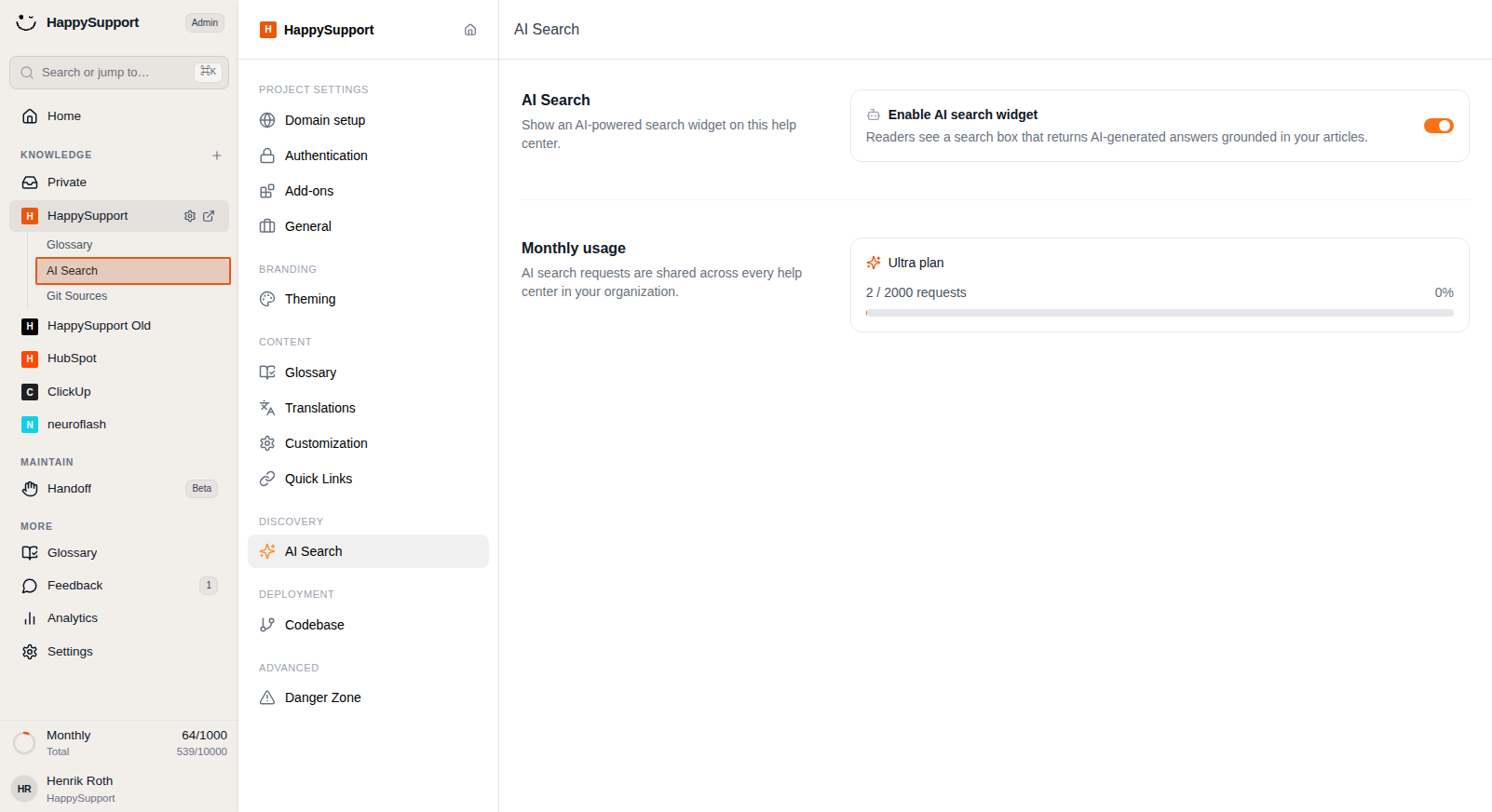
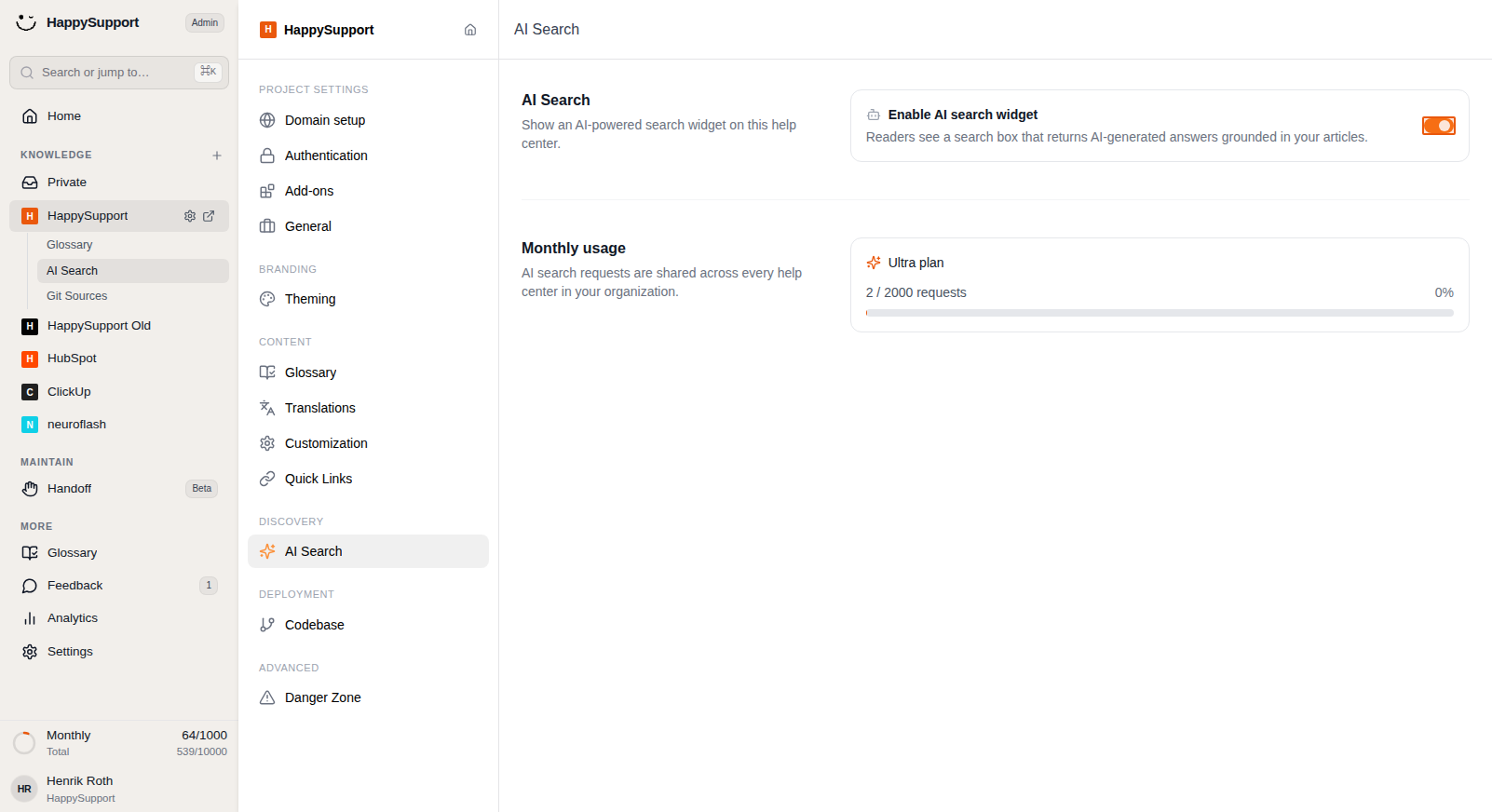
On the AI Search page, you'll find the "Enable AI search widget" toggle. Switch this on to activate HappyChat for your readers, or switch it off to disable it. When enabled, readers will see a search box that returns AI-generated answers grounded in your articles. -
Monitor your usage
Below the toggle, you can view your monthly AI search usage. The Ultra plan shows your current requests out of your total allowance (e.g., 2 / 2000 requests). Note that AI search requests are shared across every Help Center in your organization.
How HappyChat Works for Your Readers

-
The HappySearch widget
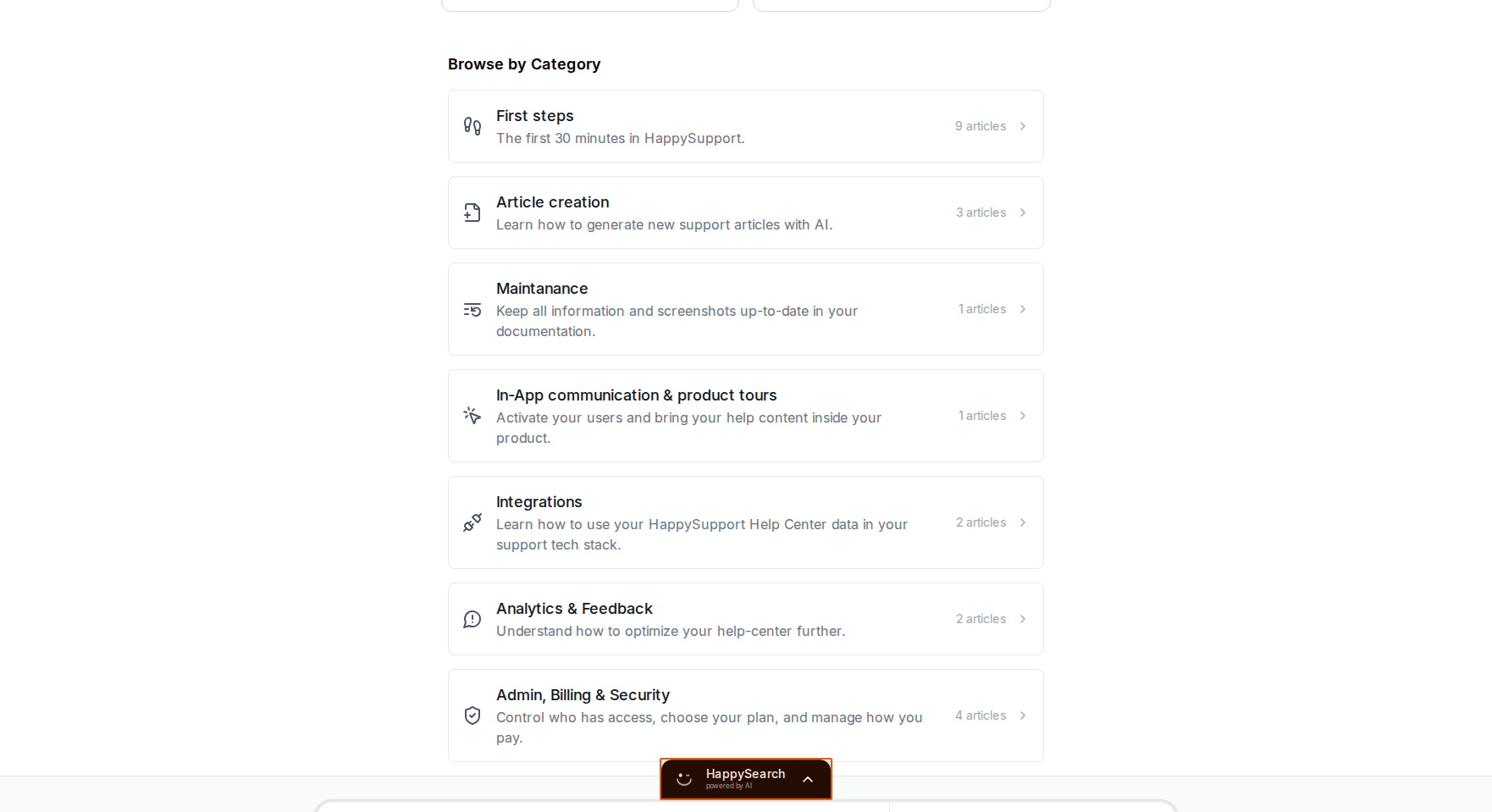
Once activated, your Help Center visitors will see a HappySearch widget at the bottom of their screen, powered by AI.
-
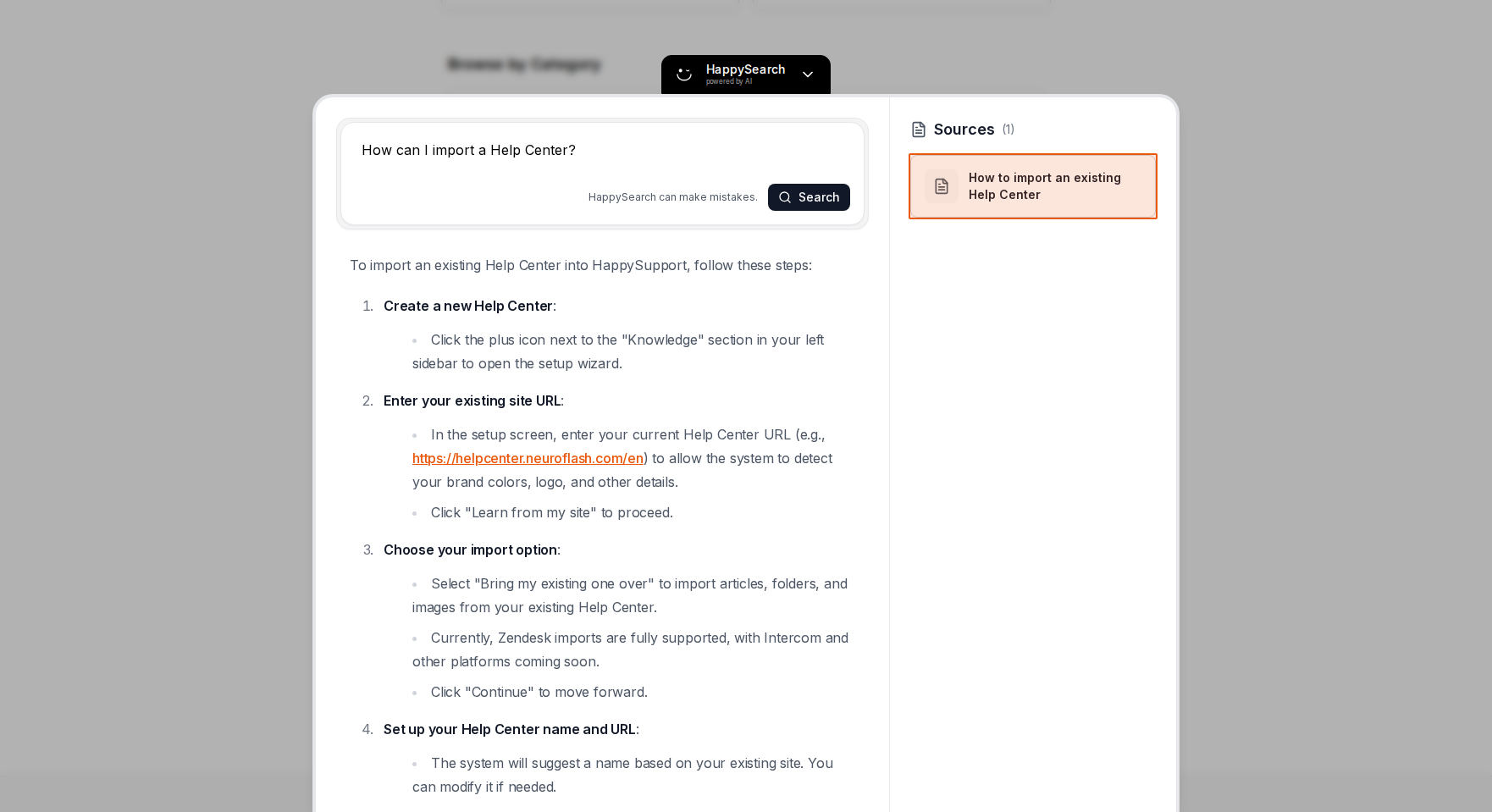
Asking questions
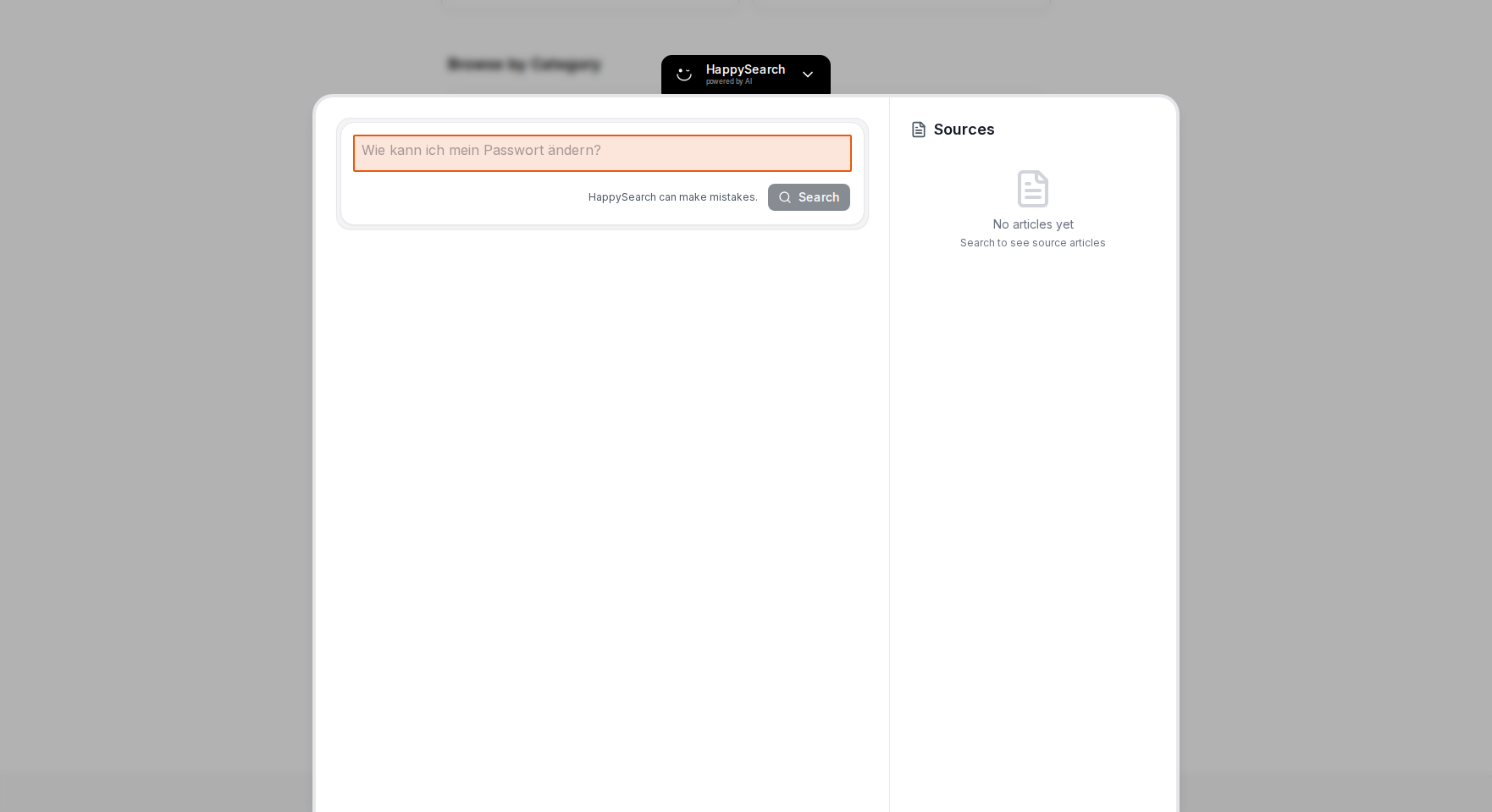
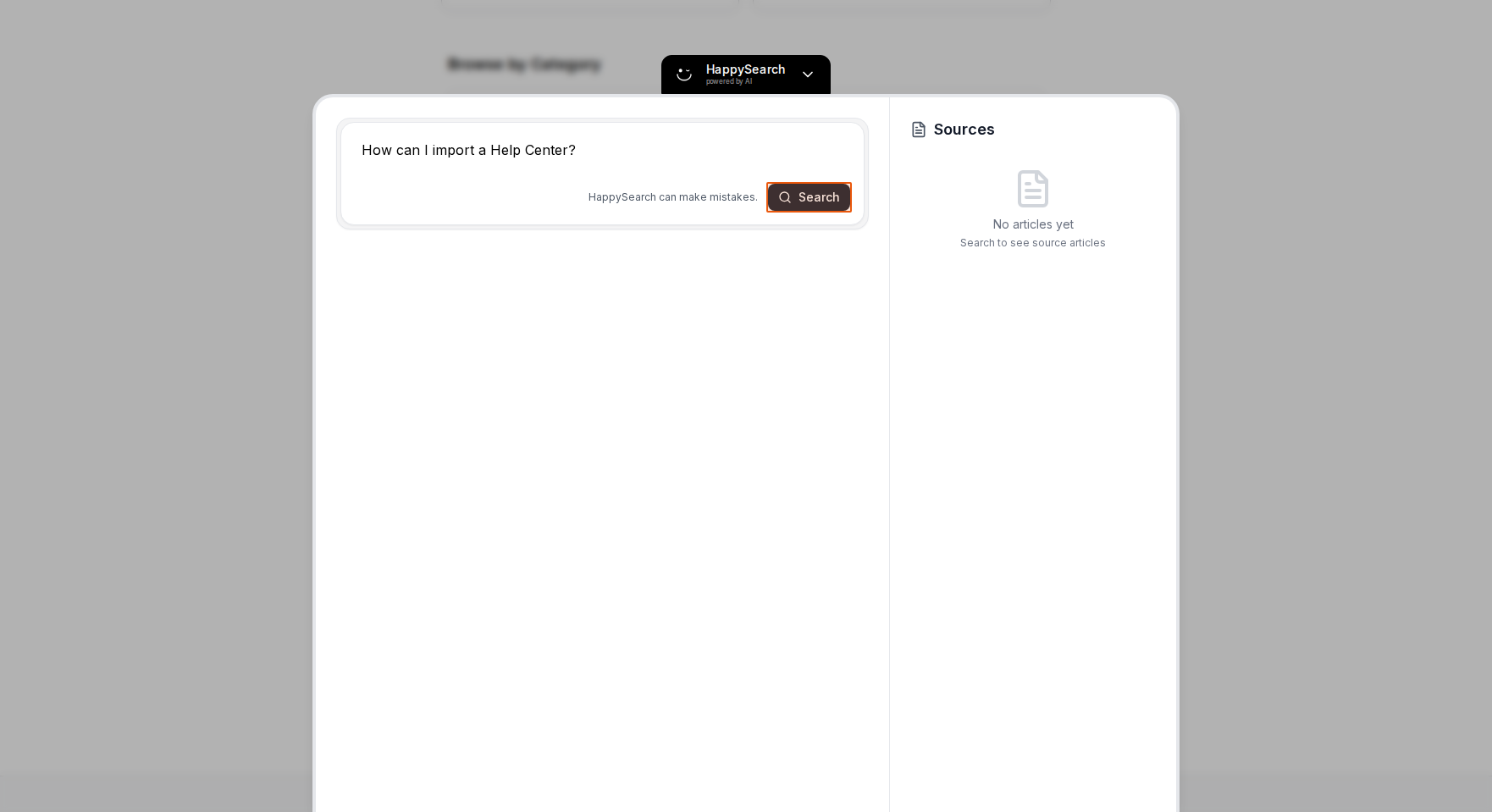
Users can click on the widget to expand it and type their questions directly into the search field. For example, they might ask "How can I import a Help Center?"

- Getting instant answers
After clicking the Search button, HappyChat provides an immediate AI-generated answer based on your Help Center content, complete with source articles that were used to generate the response.
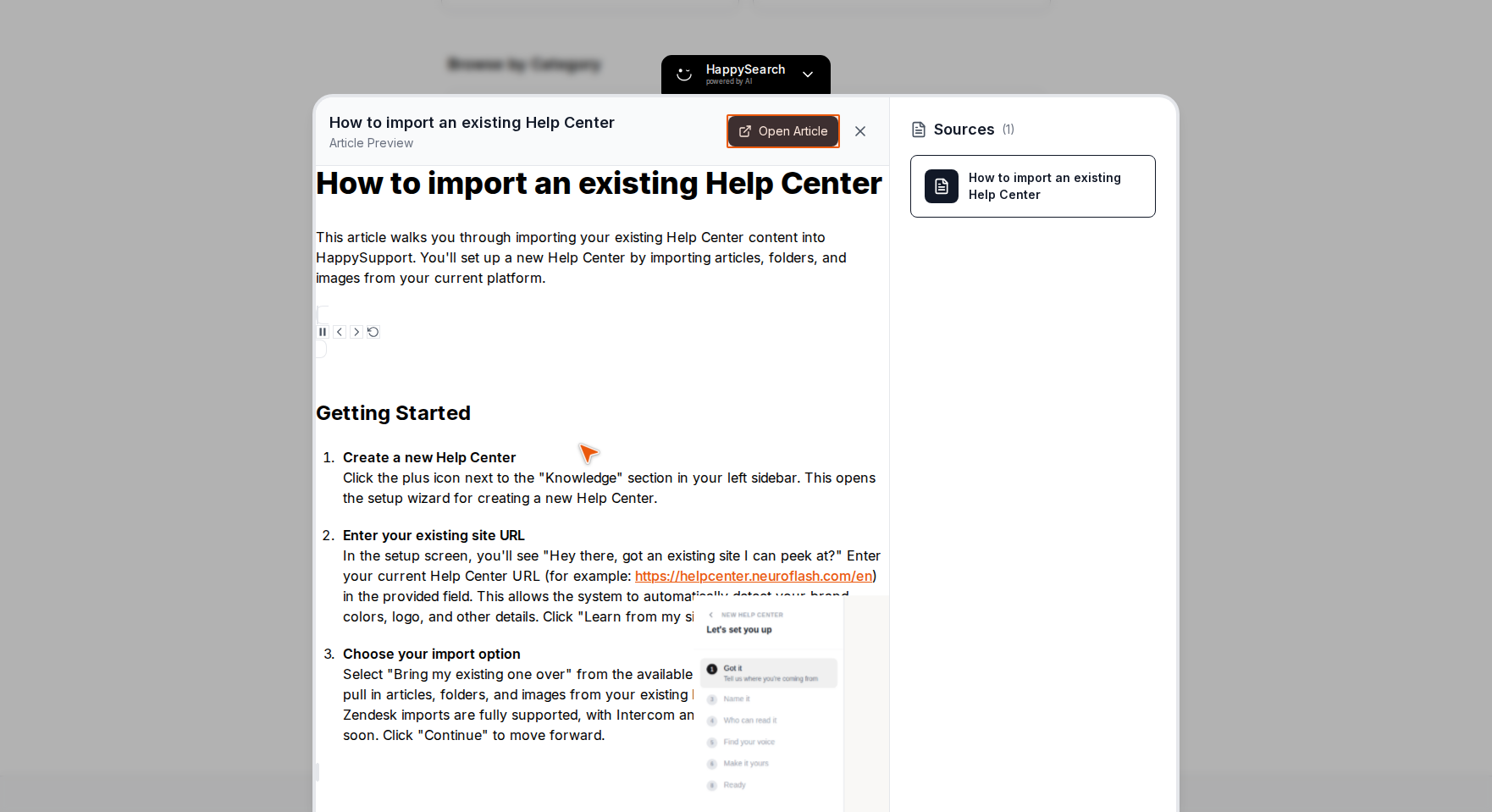
- Accessing full articles
Users can click on any source article listed in the results to preview it, and then click "Open article" to read the complete content.
With HappyChat enabled, your readers no longer need to browse through individual articles to find answers. They can simply ask their questions and receive immediate, accurate responses based on your existing Help Center content.