
How to create private articles
Create private articles in HappySupport's Private section and share them via direct links without making them publicly accessible in your Help Center.
Creating private articles in HappySupport allows you to share support content that isn't publicly accessible. This guide will walk you through creating a new private article and optionally sharing it with specific audiences.

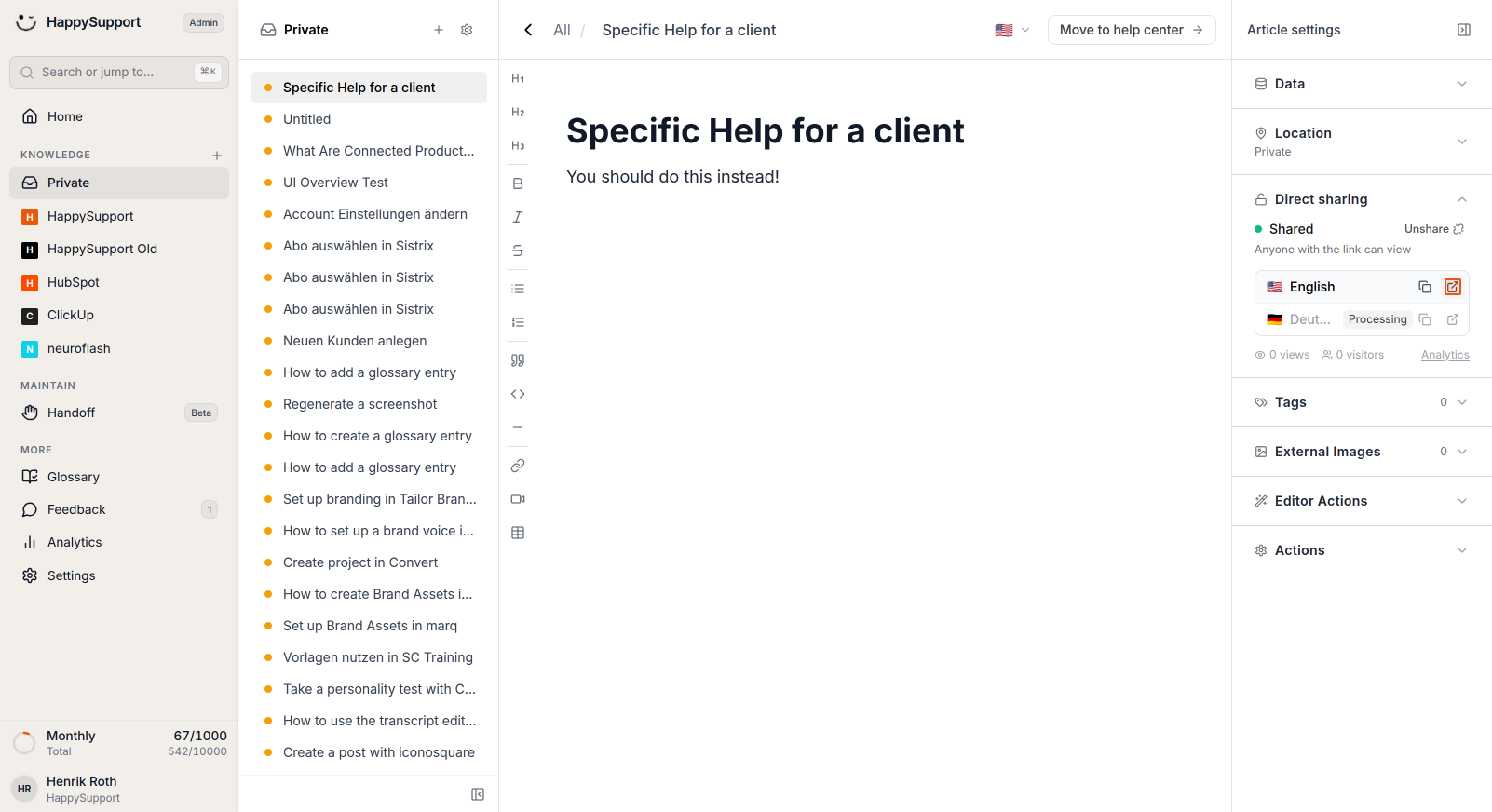
Creating a Private Article
-
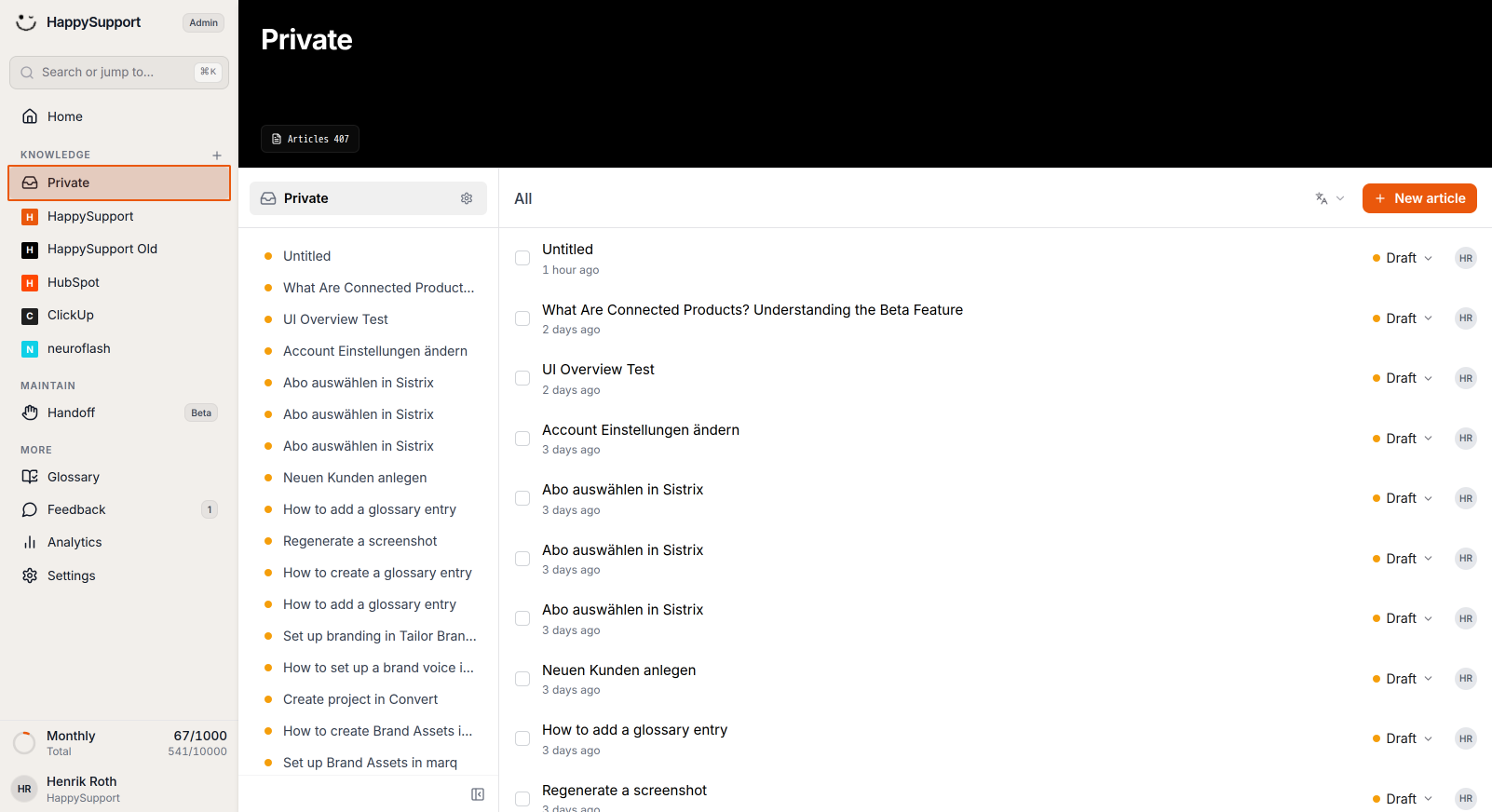
Navigate to the Private section
Click on "Private" in the left sidebar navigation under the Knowledge section. This is where all your private articles are stored and managed. -
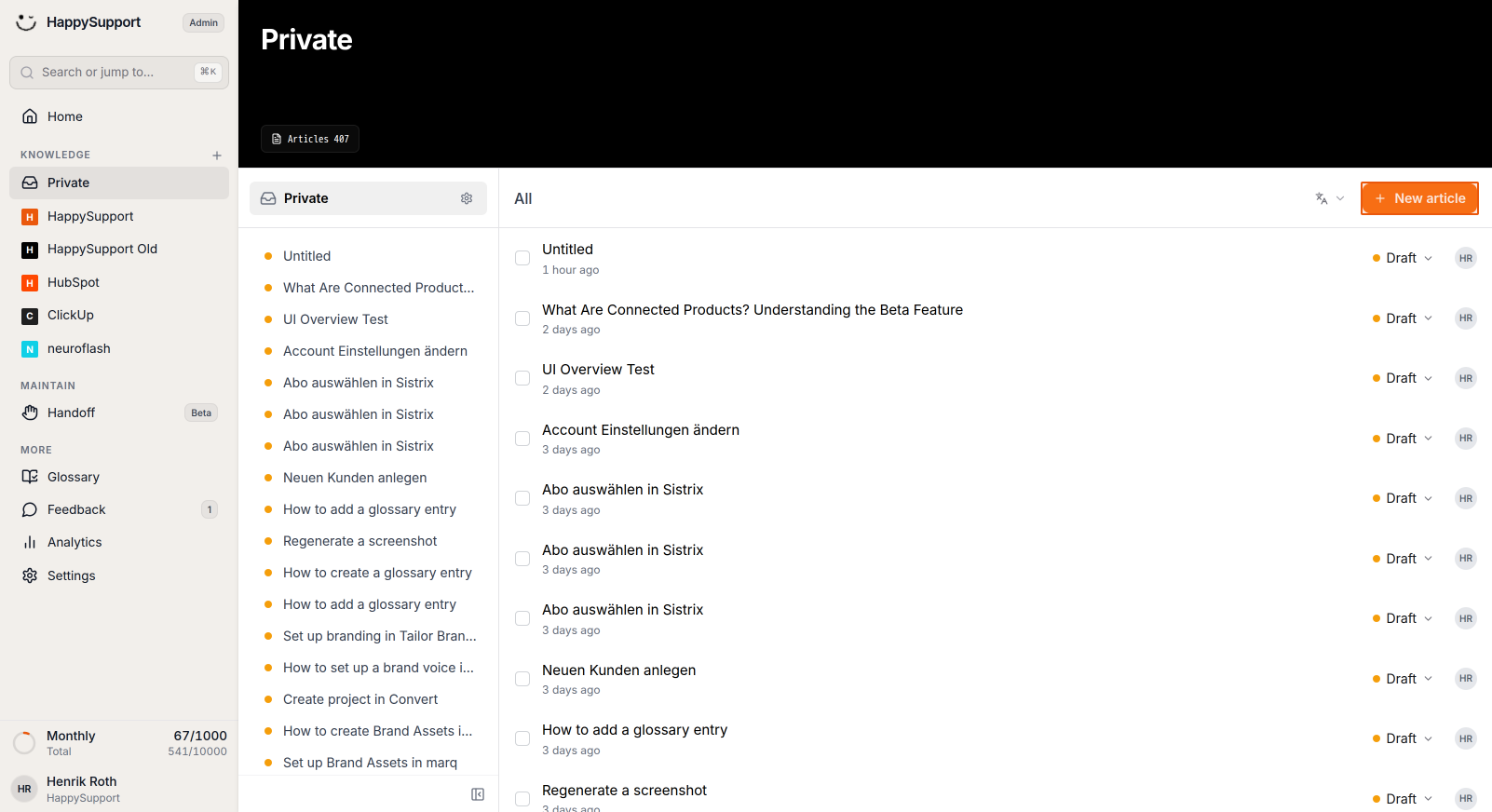
Create a new article
Click the orange "New article" button in the top-right corner of the main content area. This will open a new article editor. -
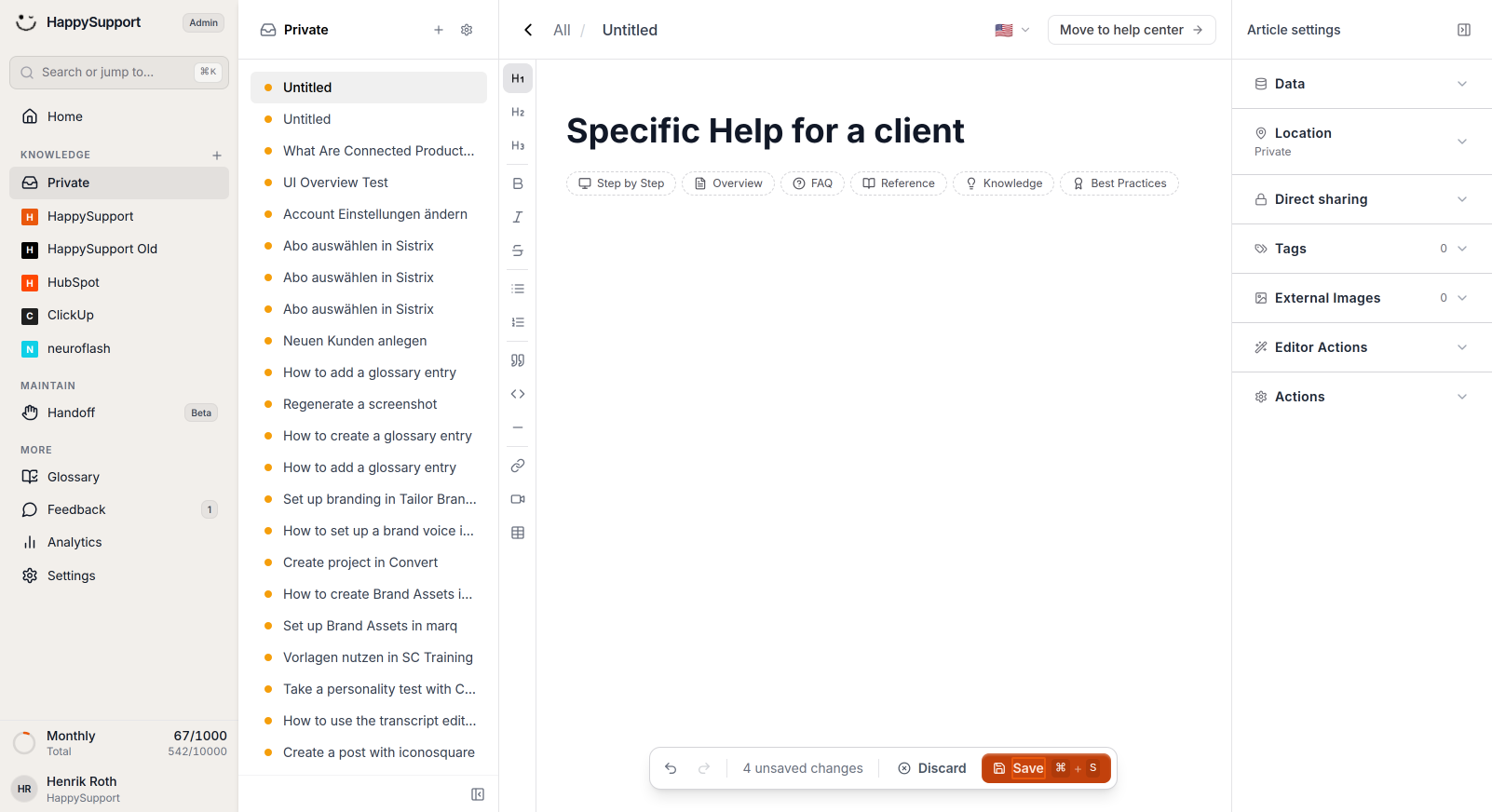
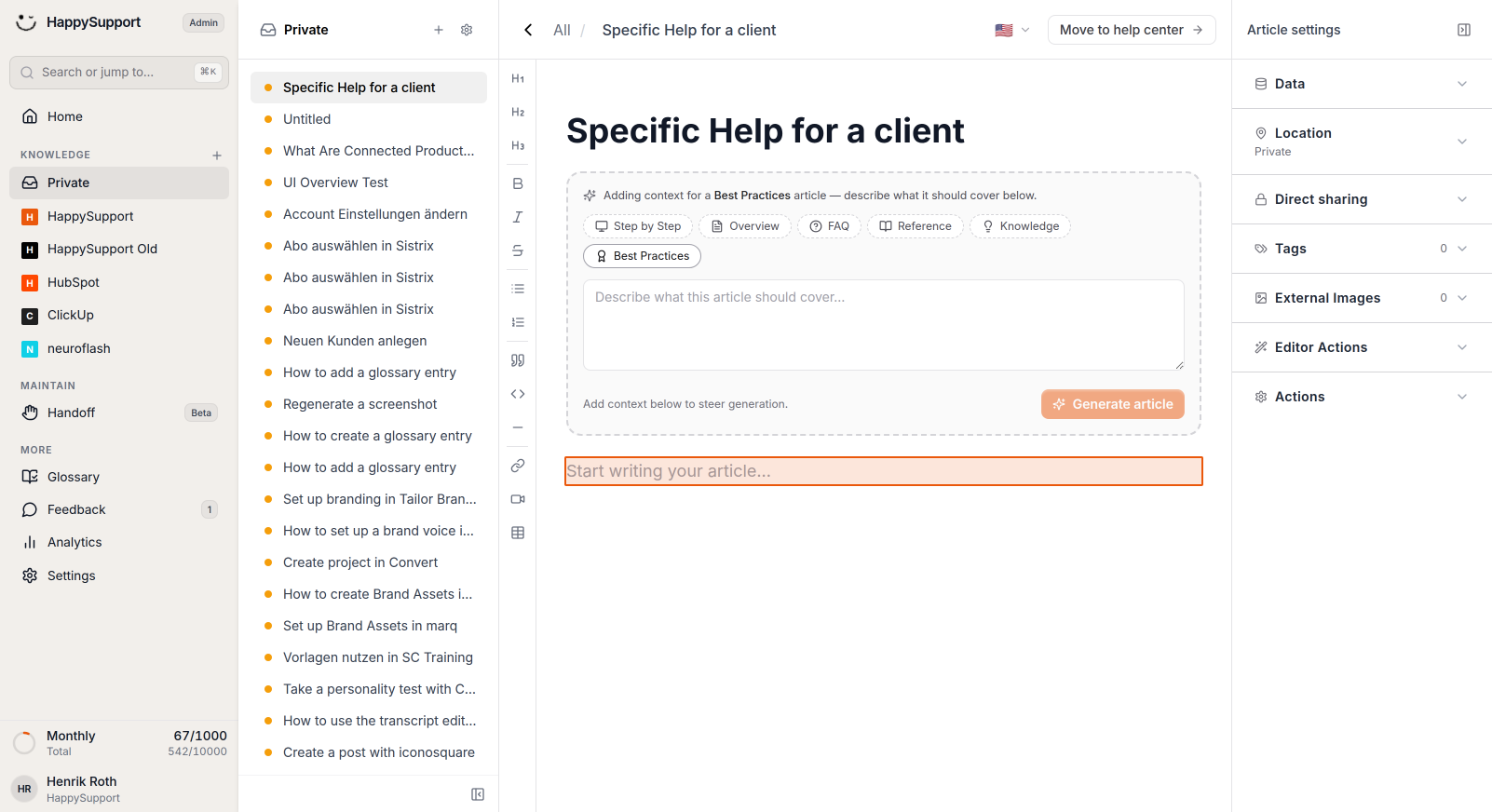
Start writing your article
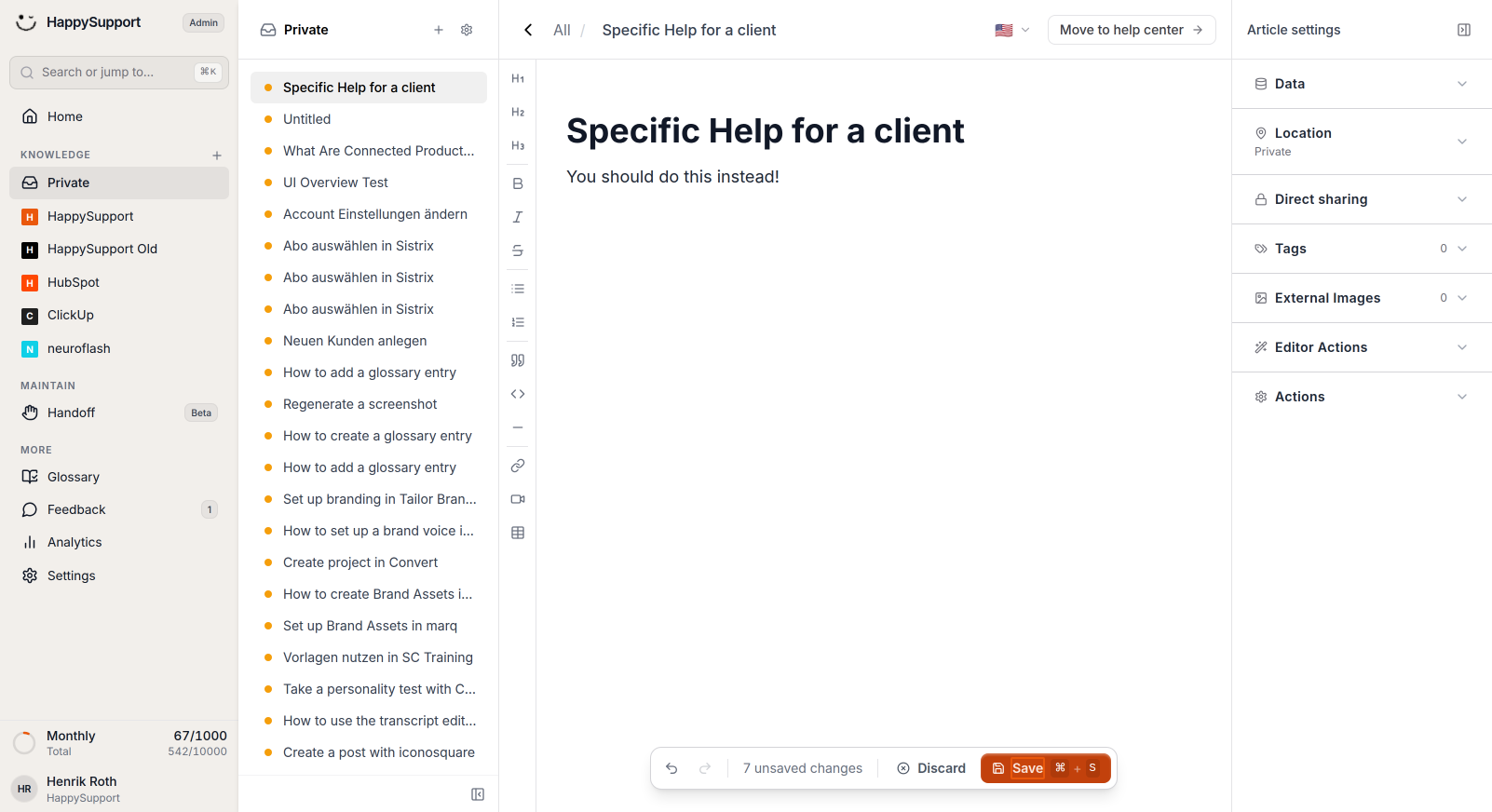
Begin typing your content in the main editor area. Add your article title and content as needed. Your changes will be automatically tracked, and you can save them by clicking the "Save" button that appears at the bottom of the editor.
Sharing Your Private Article
-
Access sharing options
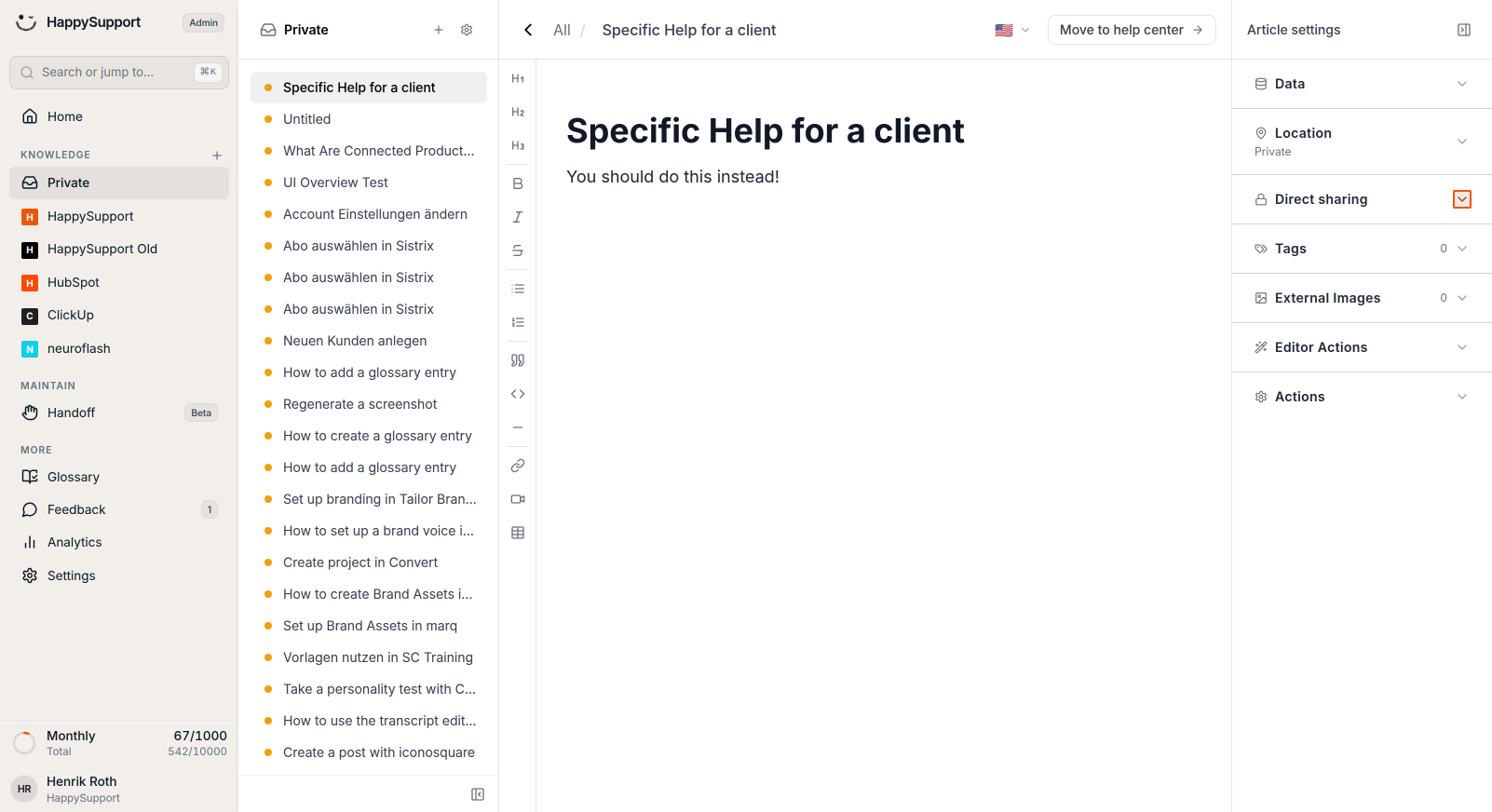
Once you've created your private article, you can share it by clicking on "Direct sharing" in the Article settings panel on the right side of the editor.
-
Enable sharing
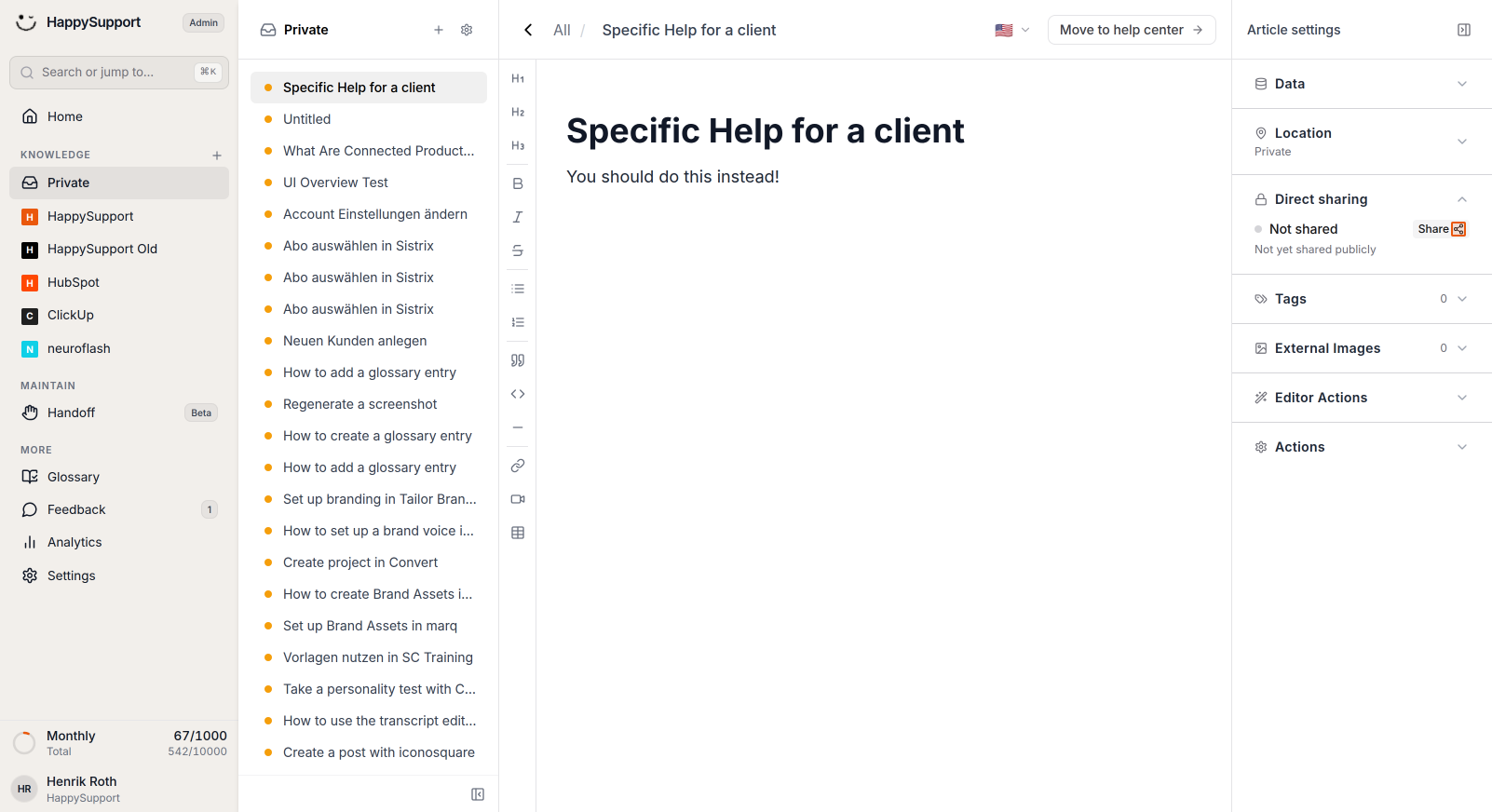
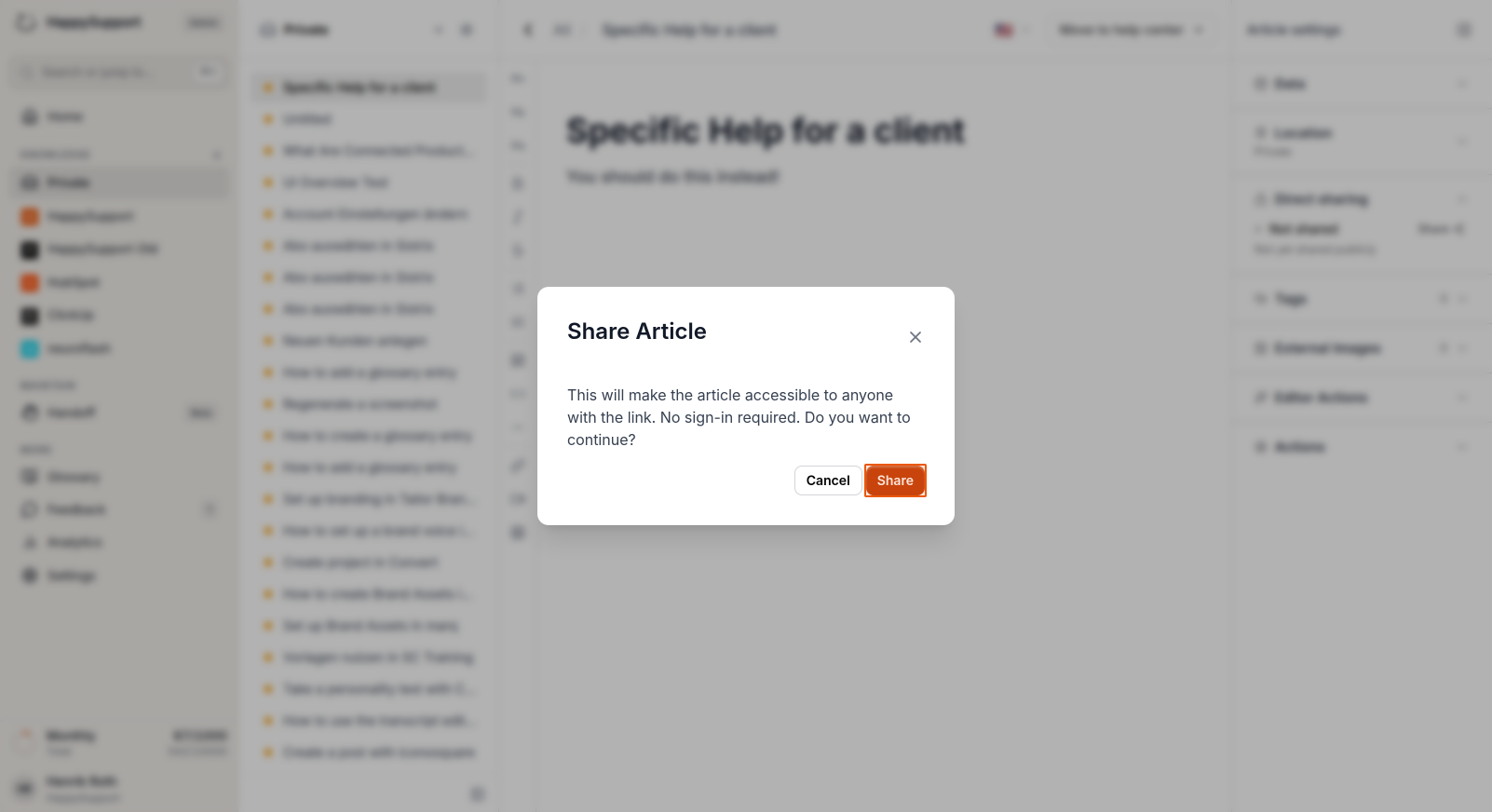
Click the "Share" button next to the "Not shared" status. A confirmation dialog will appear explaining that anyone with the link will be able to view the article without signing in. -
Confirm sharing
Click the orange "Share" button in the confirmation dialog to make your article accessible via a shareable link. -
Copy the share link
After sharing is enabled, you'll see language-specific sharing options. Click the copy icon next to the language version you want to share (for example, English) to copy the shareable link.
Your private article is now created and can be shared with specific people through the direct link, while remaining private within your knowledge base until you decide to publish it to the Help Center.
 Powered by happysupport.ai