
Create groups and sub-groups
Organize Help Center articles into main and sub-groups using the Create Group button to establish logical categories and improve navigation.
Groups help you organize your Help Center articles into logical categories, making it easier for users to find the information they need. This article shows you how to create both main groups and sub-groups within your Help Center.

Creating your first group
- Navigate to your Help Center
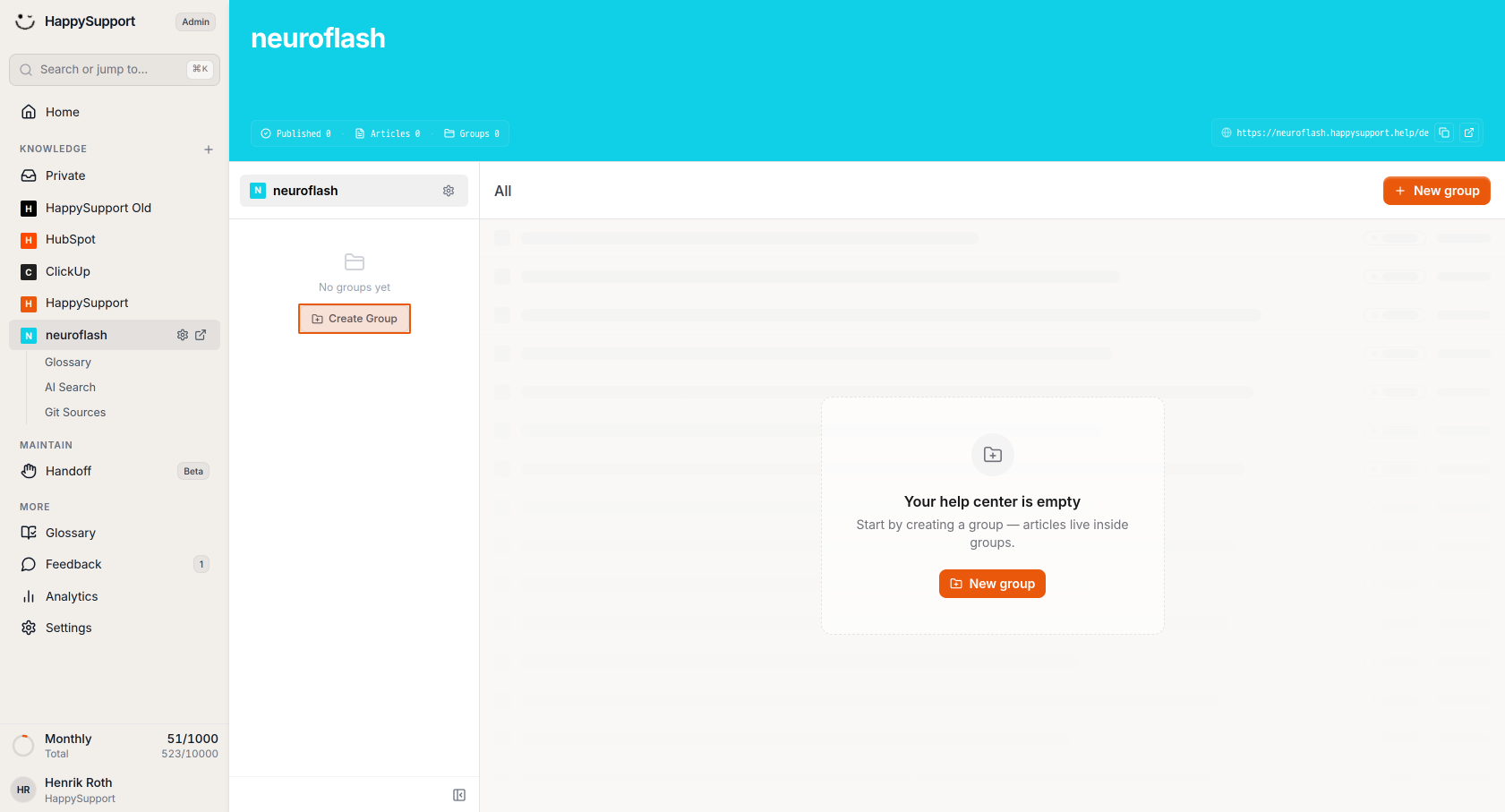
In the left sidebar, select your Help Center (in this example, "neuroflash") from the Knowledge section.
-
Start creating a group
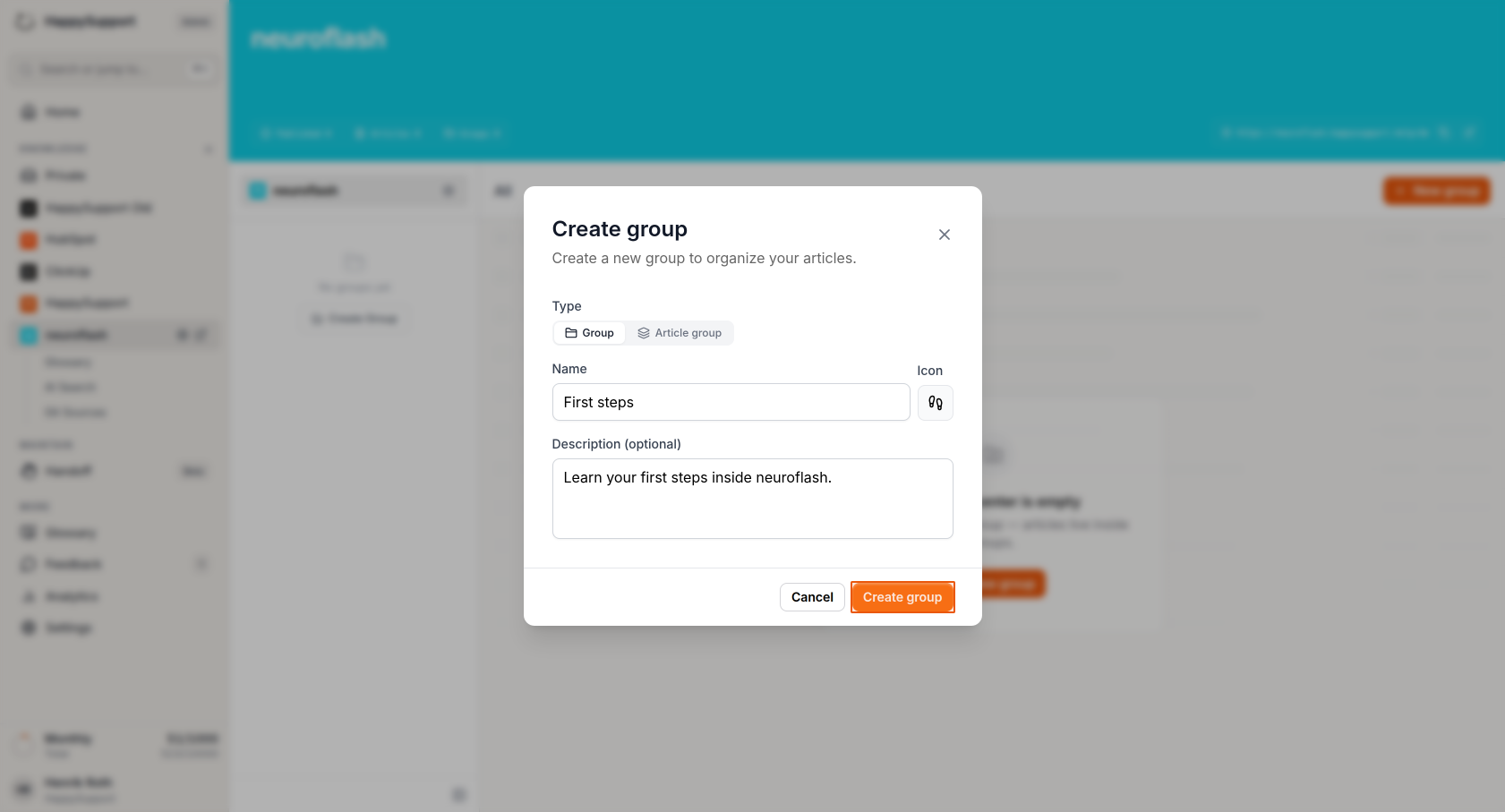
Click the "Create Group" button in the middle panel where it says "No groups yet". This opens the Create group dialog. -
Configure your group settings
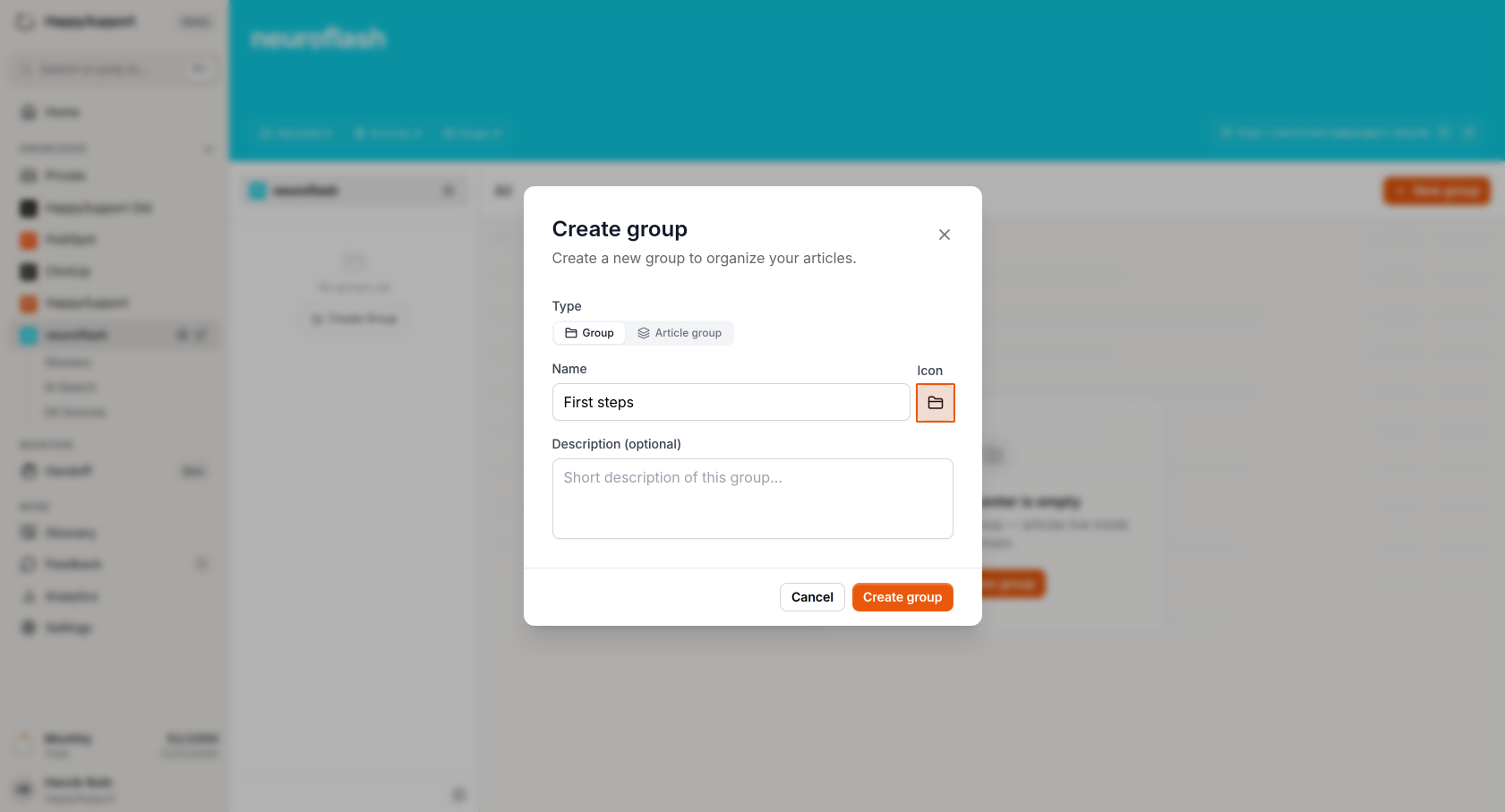
Fill in the following information:- Name: Enter a descriptive name for your group (e.g., "First steps")
- Icon: Click the icon selector to choose an icon that represents your group
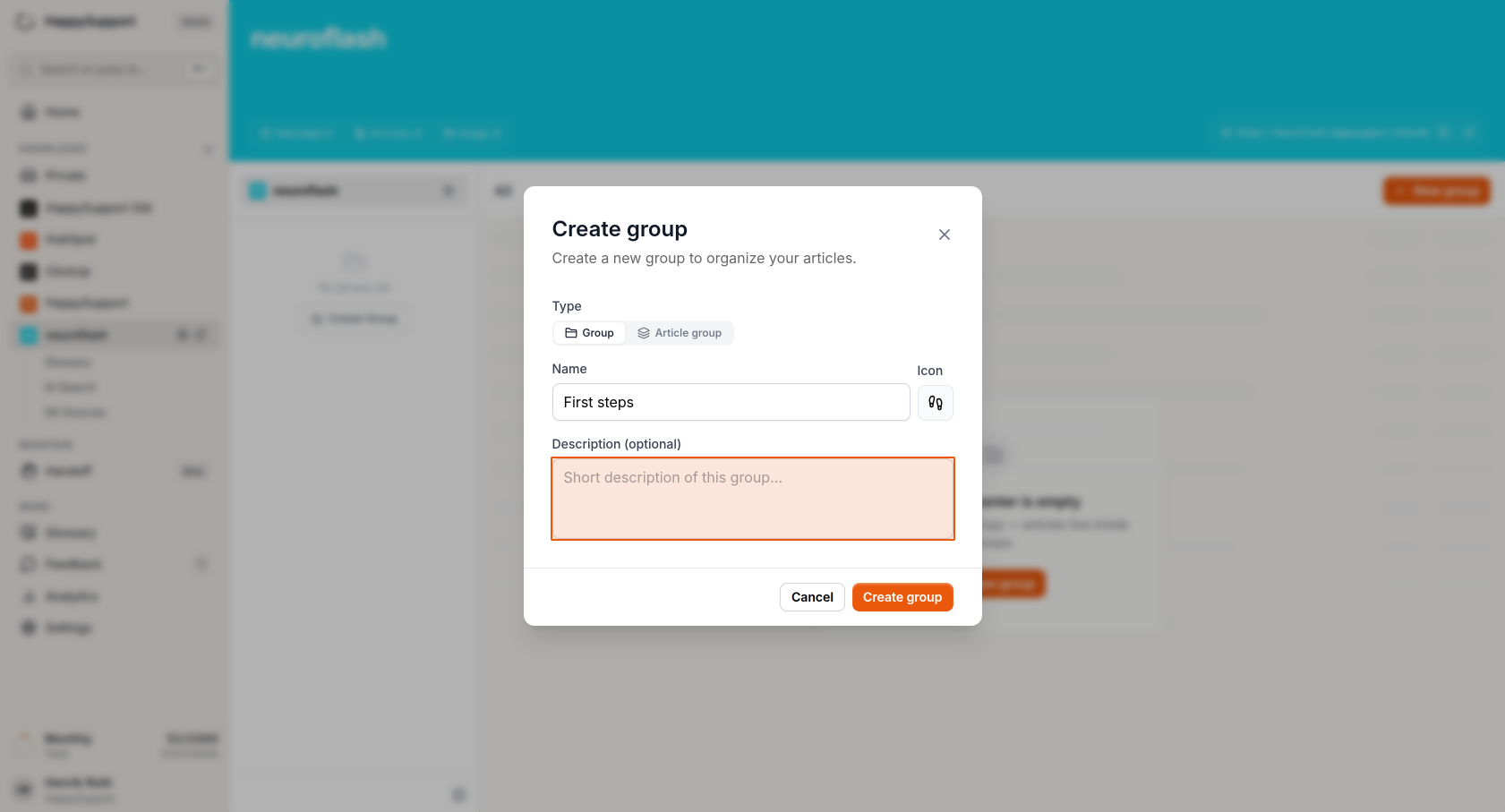
- Description: Add an optional description to explain what this group contains (e.g., "Learn your first steps inside neuroflash")
-
Select an icon
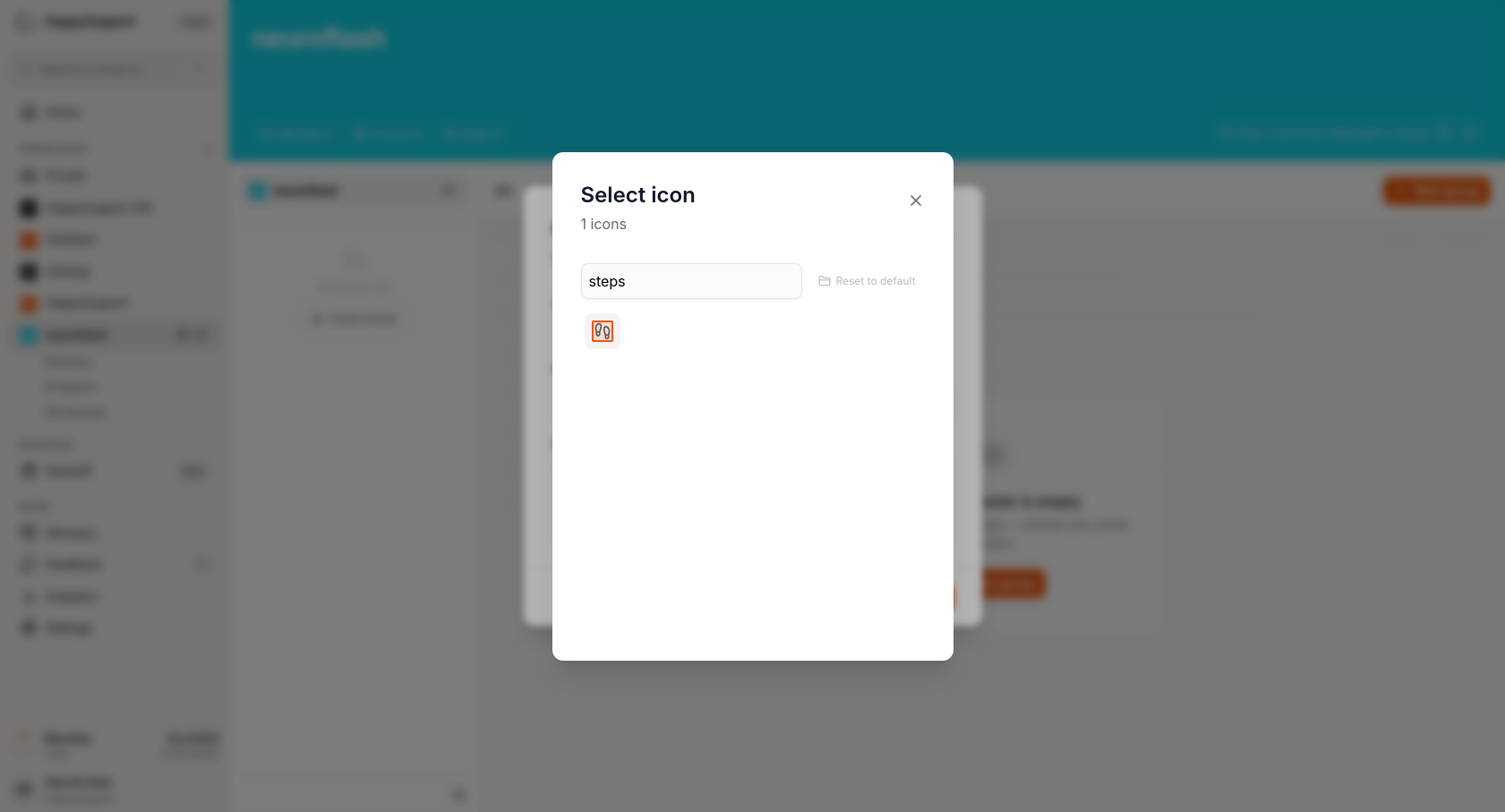
When you click the icon selector, you can search for relevant icons. Type a keyword like "steps" to find matching icons, then click on your preferred icon to select it. -
Create the group
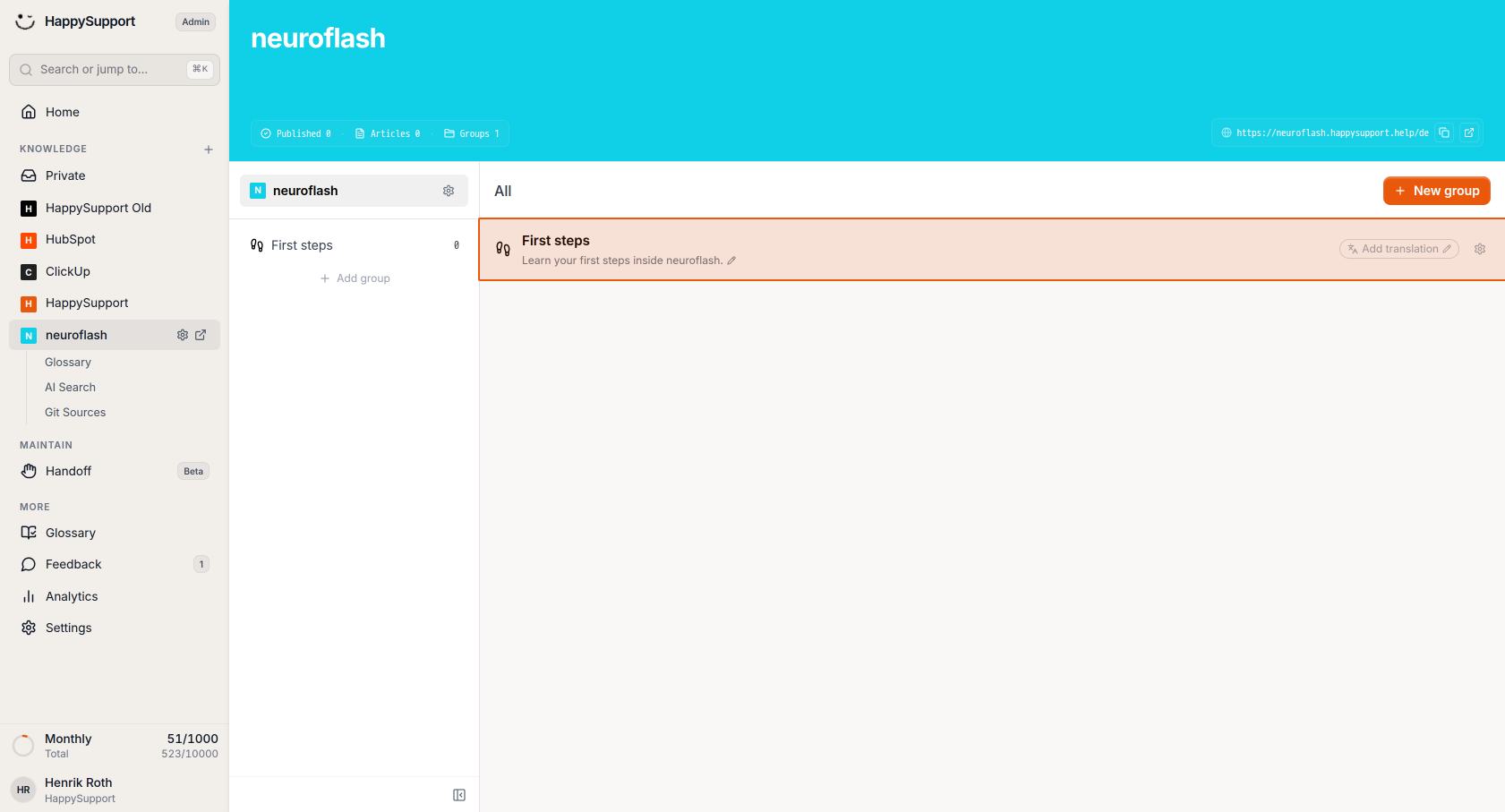
Once you've filled in all the necessary information, click the orange "Create group" button to create your new group.
Adding content to your group
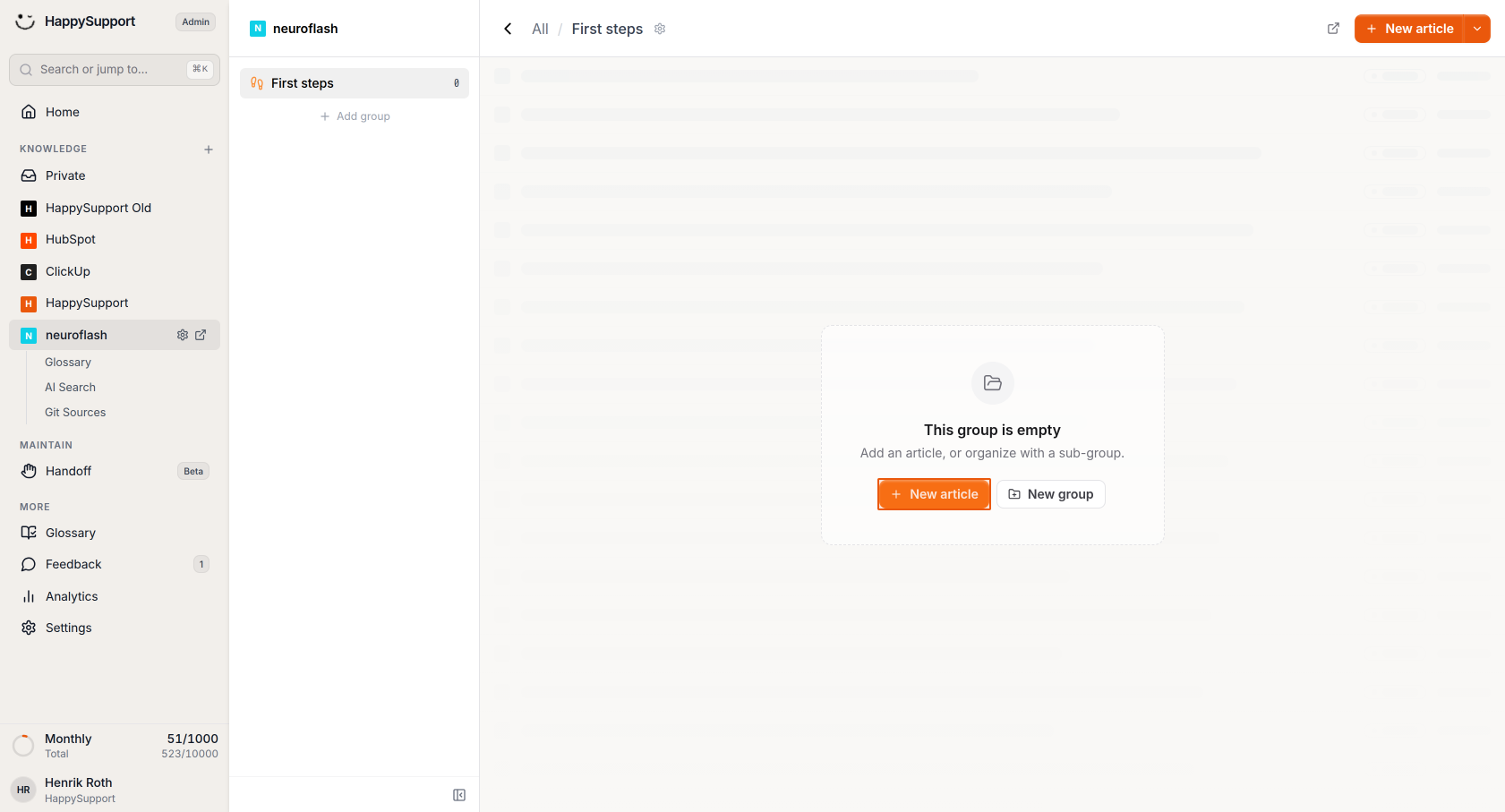
- Create articles within the group
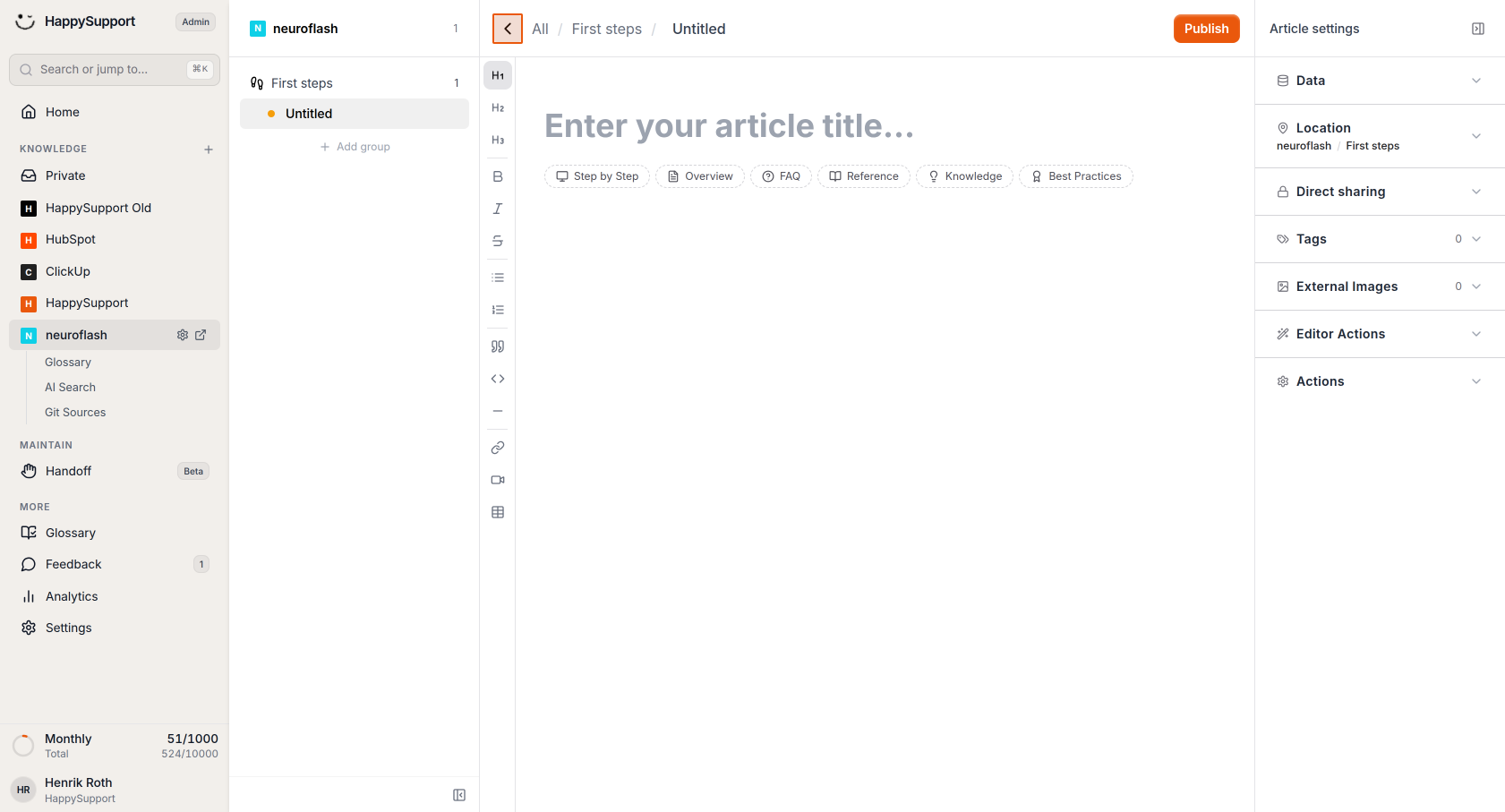
Click the "New article" button to start adding content to your group. This opens the article editor where you can write your help documentation.
Creating sub-groups
- Access the group creation options
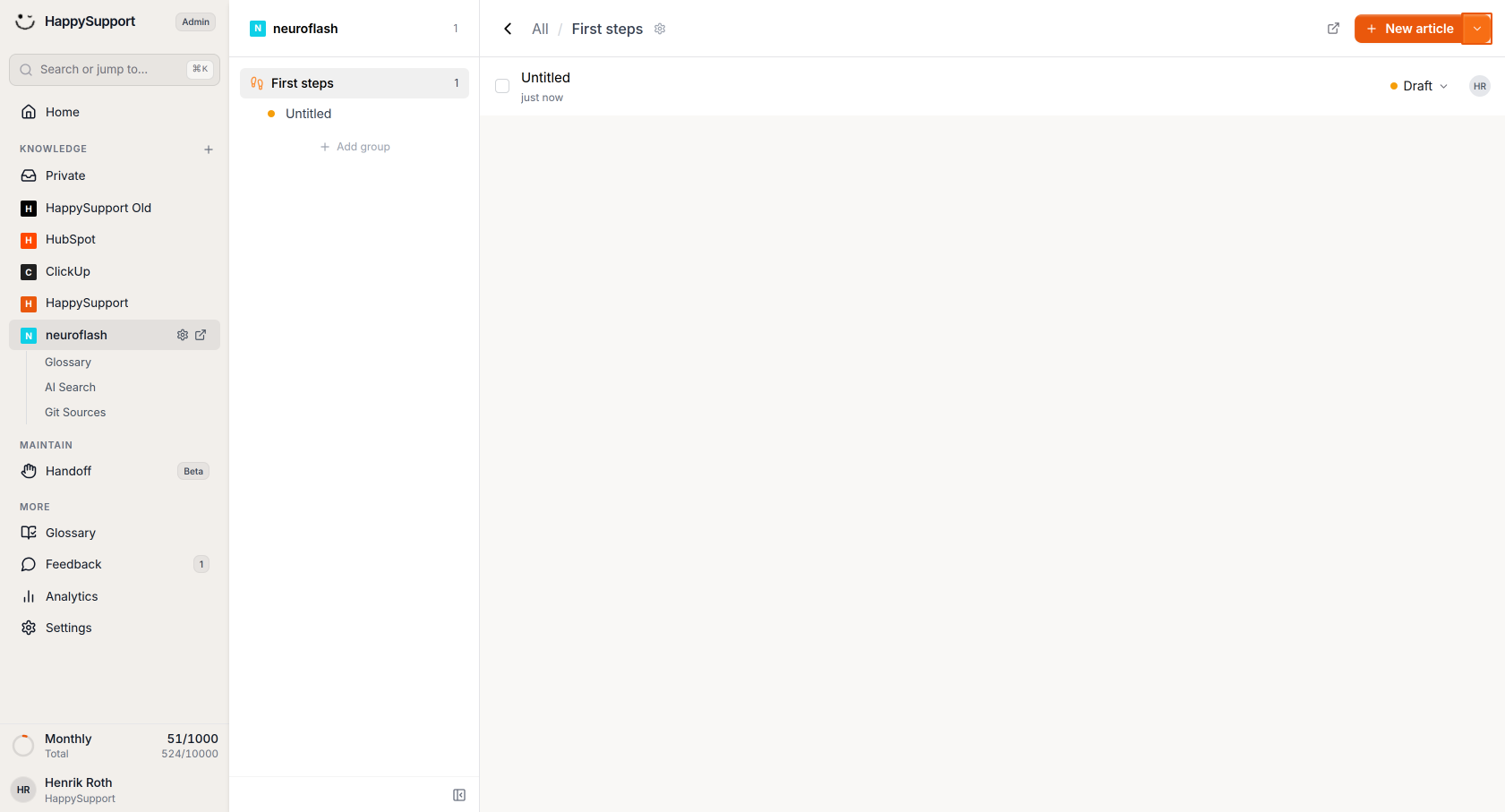
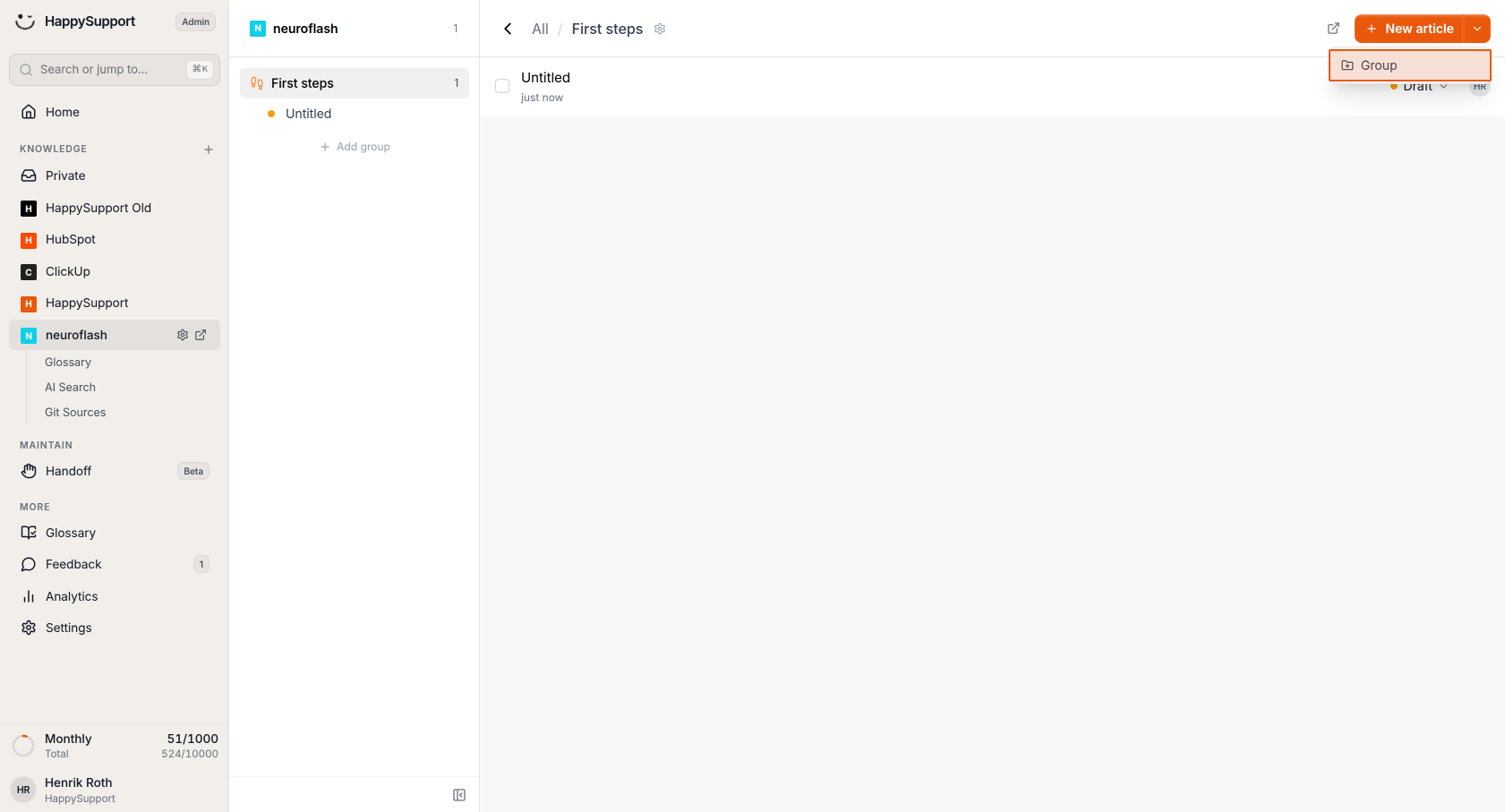
From within your main group, click the "New article" button's dropdown arrow and select "Group" from the menu to create a sub-group instead of an article.
-
Configure the sub-group
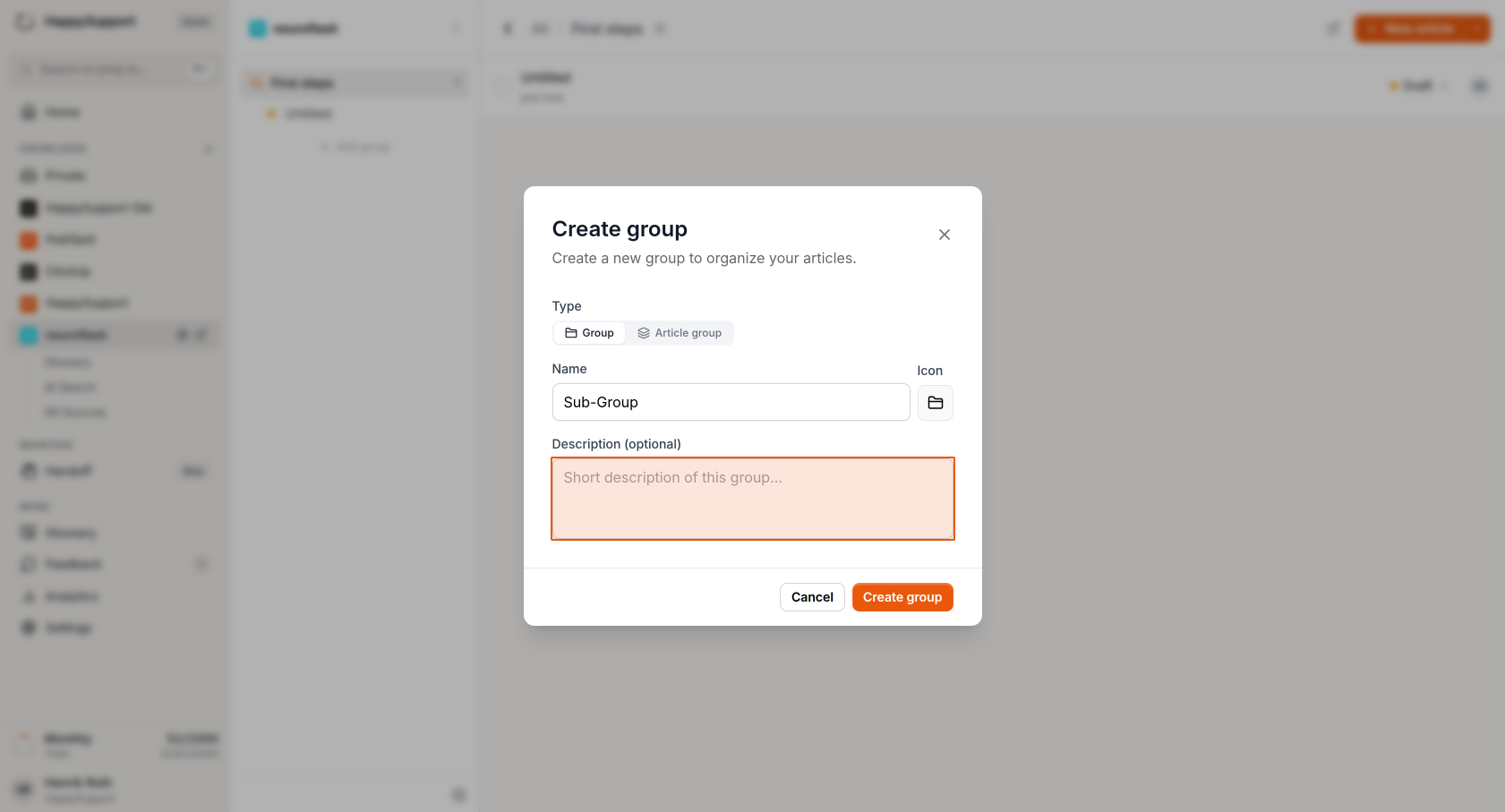
In the Create group dialog:- Name: Enter a name for your sub-group
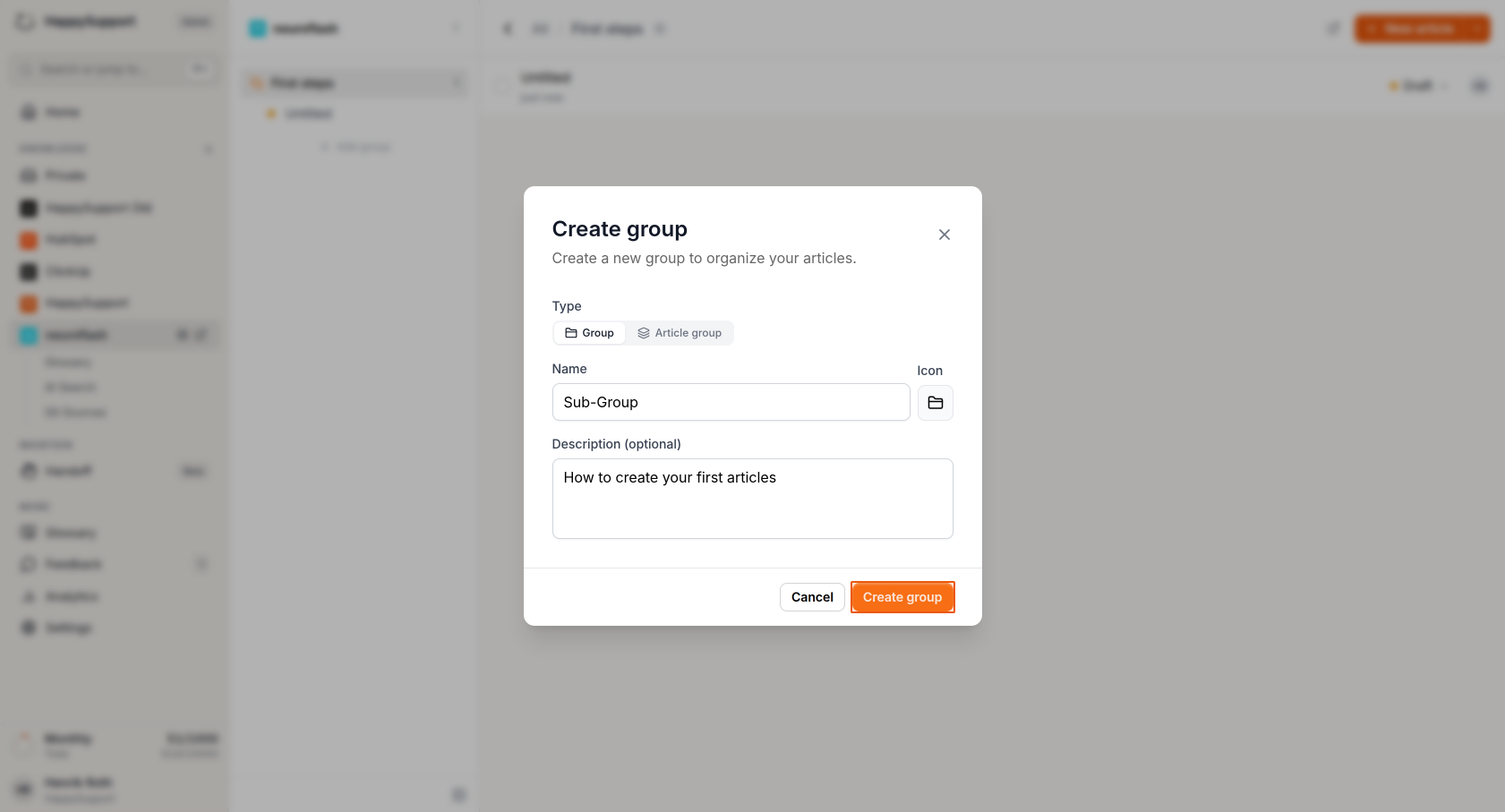
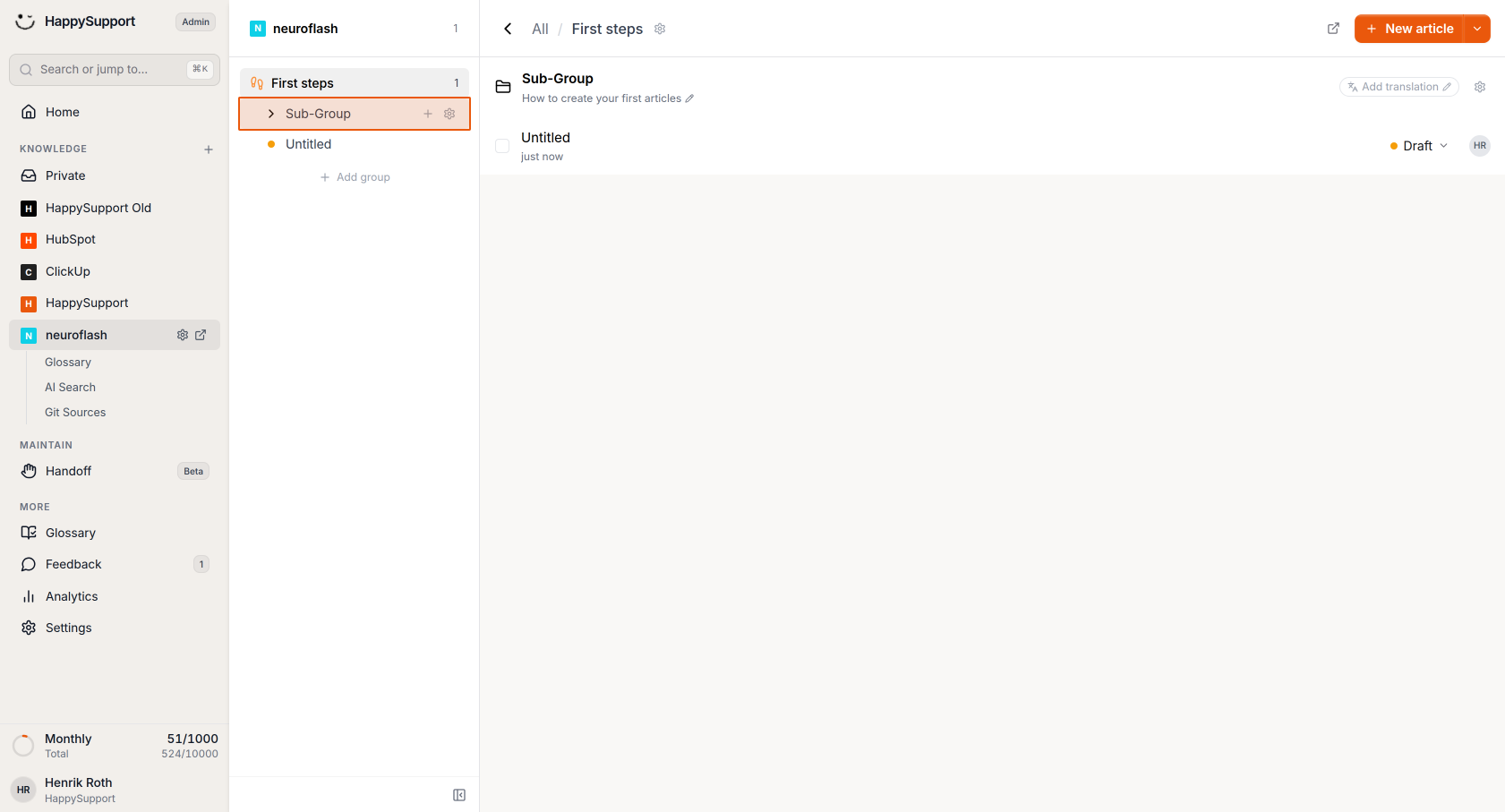
- Description: Add a description explaining the sub-group's purpose (e.g., "How to create your first articles")
-
Complete sub-group creation
Click the orange "Create group" button to create your sub-group within the main group. -
Add content to sub-groups
You can add articles or create additional nested groups within your sub-groups by clicking the plus icon next to the sub-group name in the navigation panel.
After completing these steps, you'll have a well-organized Help Center with groups and sub-groups that make it easy for users to navigate and find the information they need. You can continue adding articles and creating additional organizational structures as your Help Center grows.
 Powered by happysupport.ai