
How to edit screenshots after recording
Edit screenshots in recorded articles using the visual editor to blur, hide, or spotlight sensitive information and highlight key elements.
After recording your step-by-step articles or UI overview articles, you can edit the screenshots to protect sensitive information or highlight important elements. This guide shows you how to access the visual editor and apply modifications like blurring, hiding, or spotlighting specific parts of your screenshots.

Accessing the visual editor
-
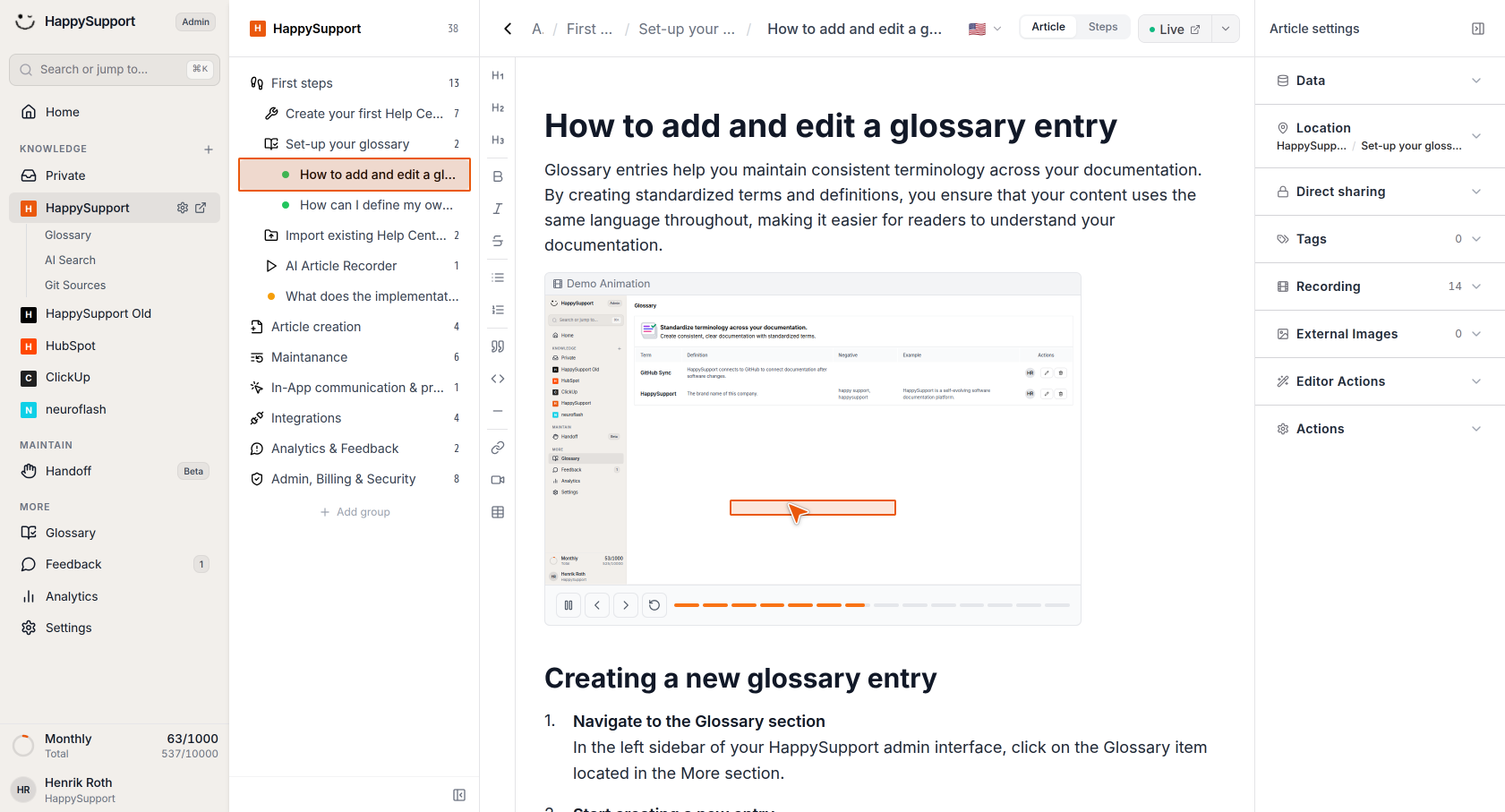
Open a recorded article
Navigate to any article that contains recorded steps, such as a step-by-step article or a UI overview article. These are the only article types that support screenshot editing.
-
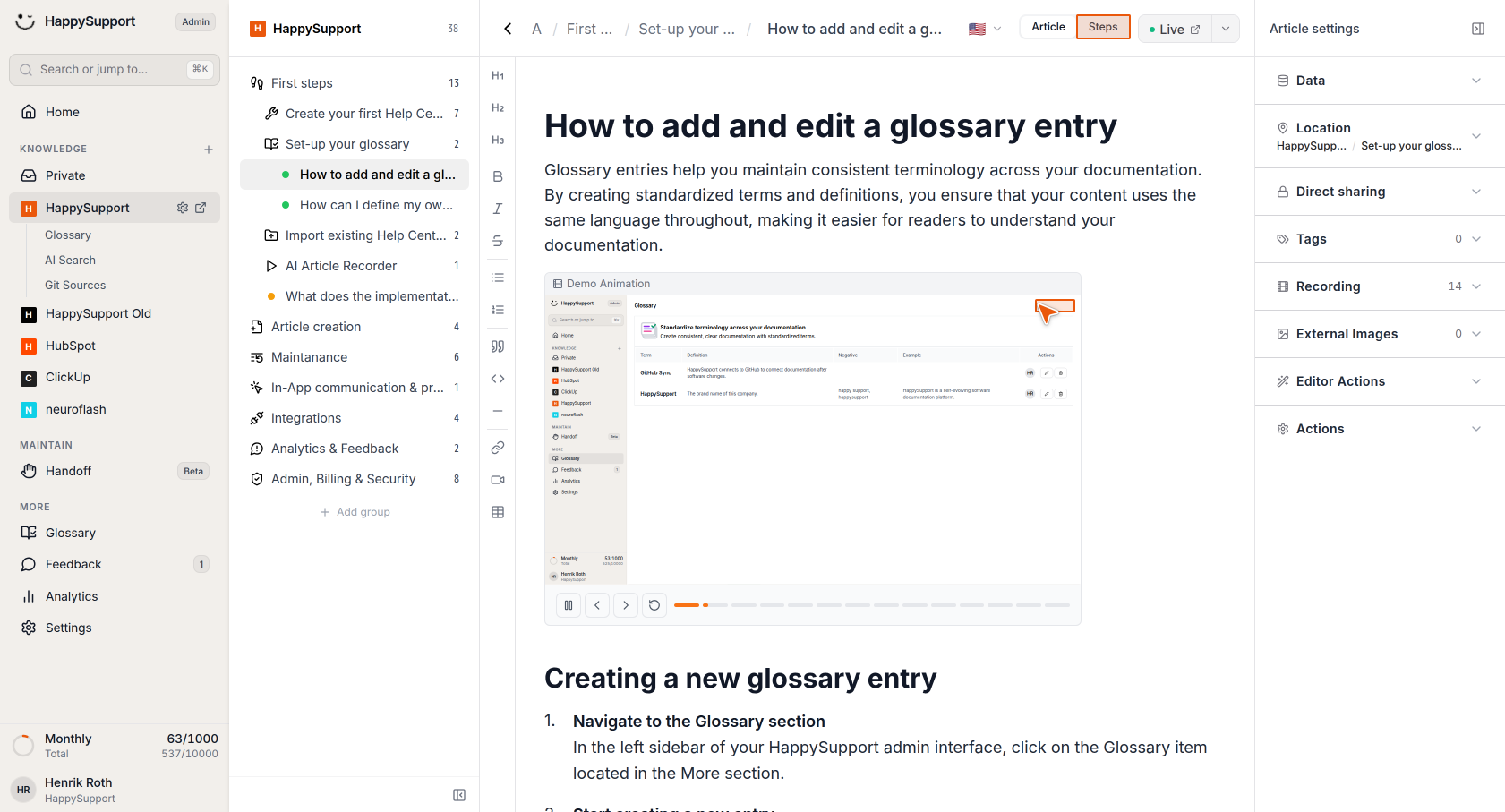
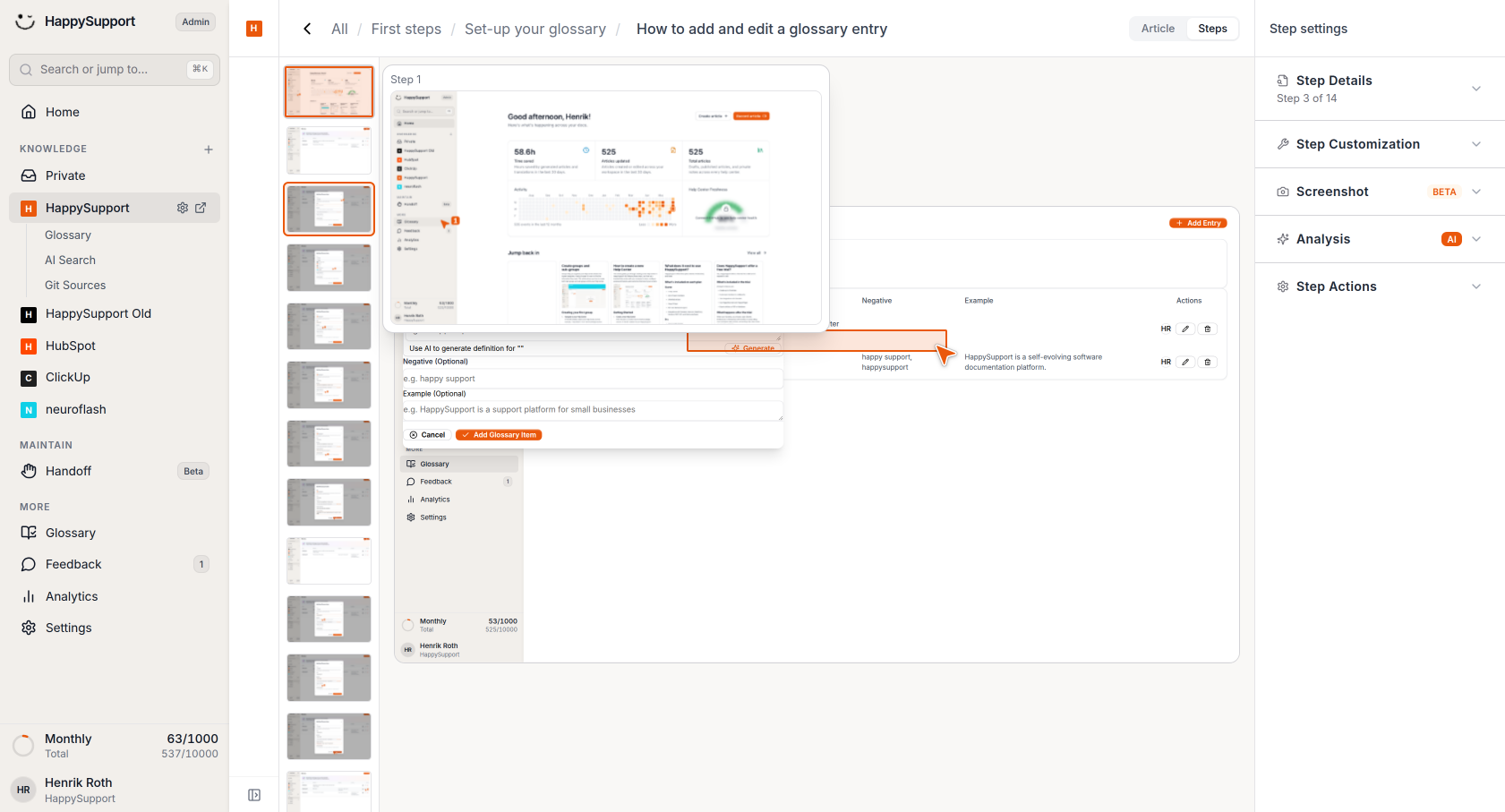
Switch to Steps view
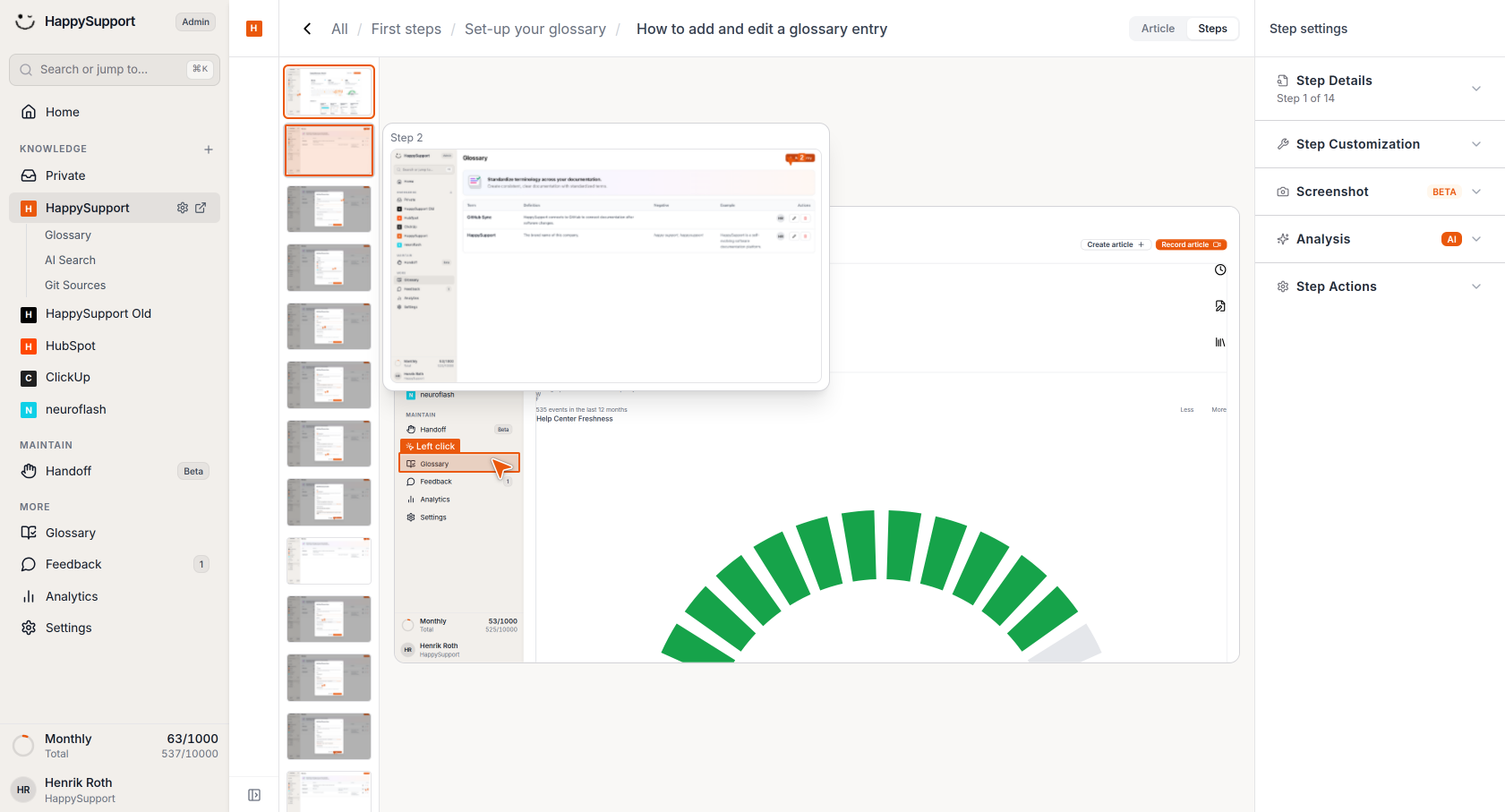
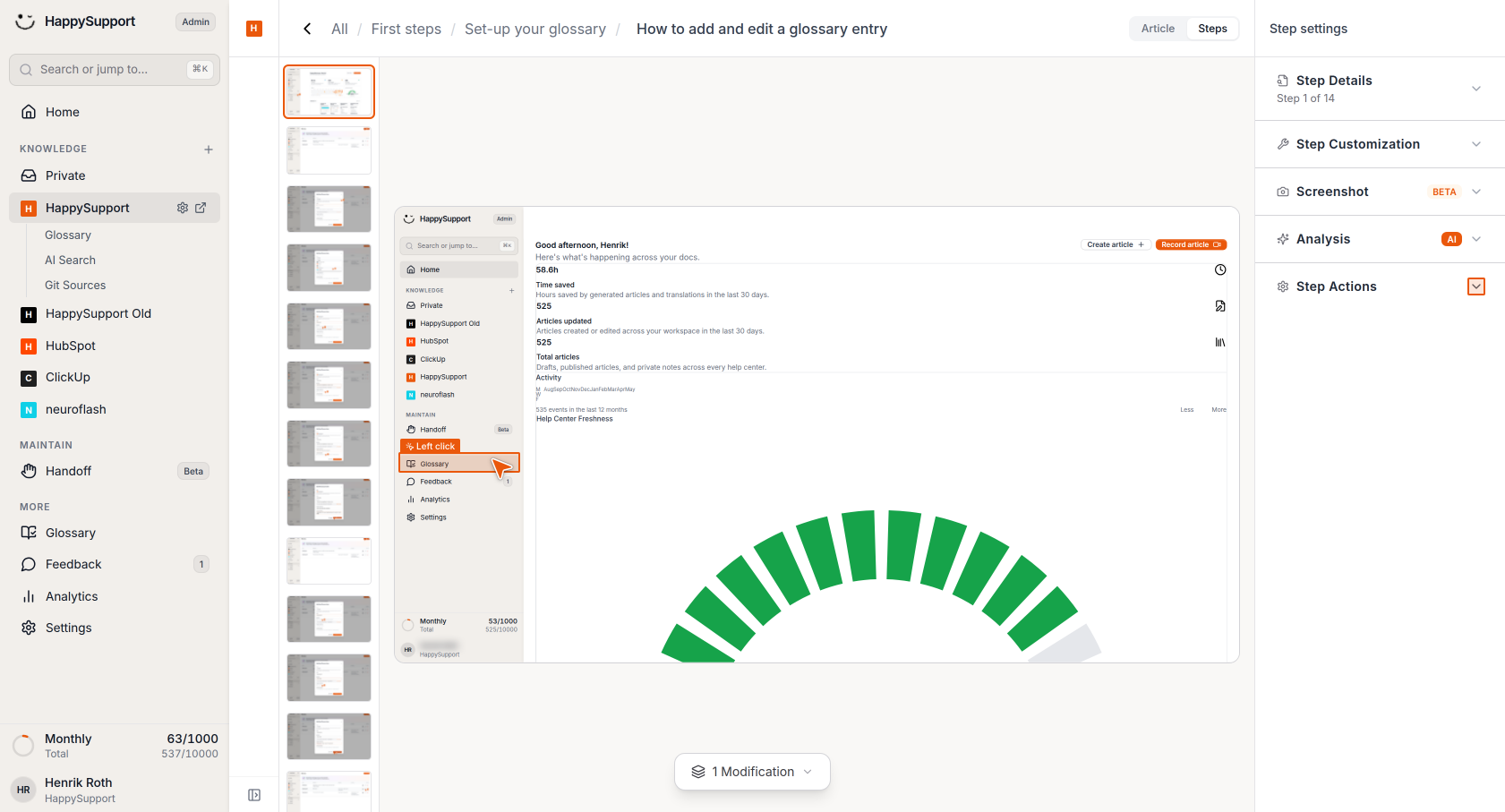
Click on the "Steps" option in the top toolbar to open the visual editor. This will display all your recorded screenshots in a vertical strip on the left side of the screen.
Editing screenshots
-
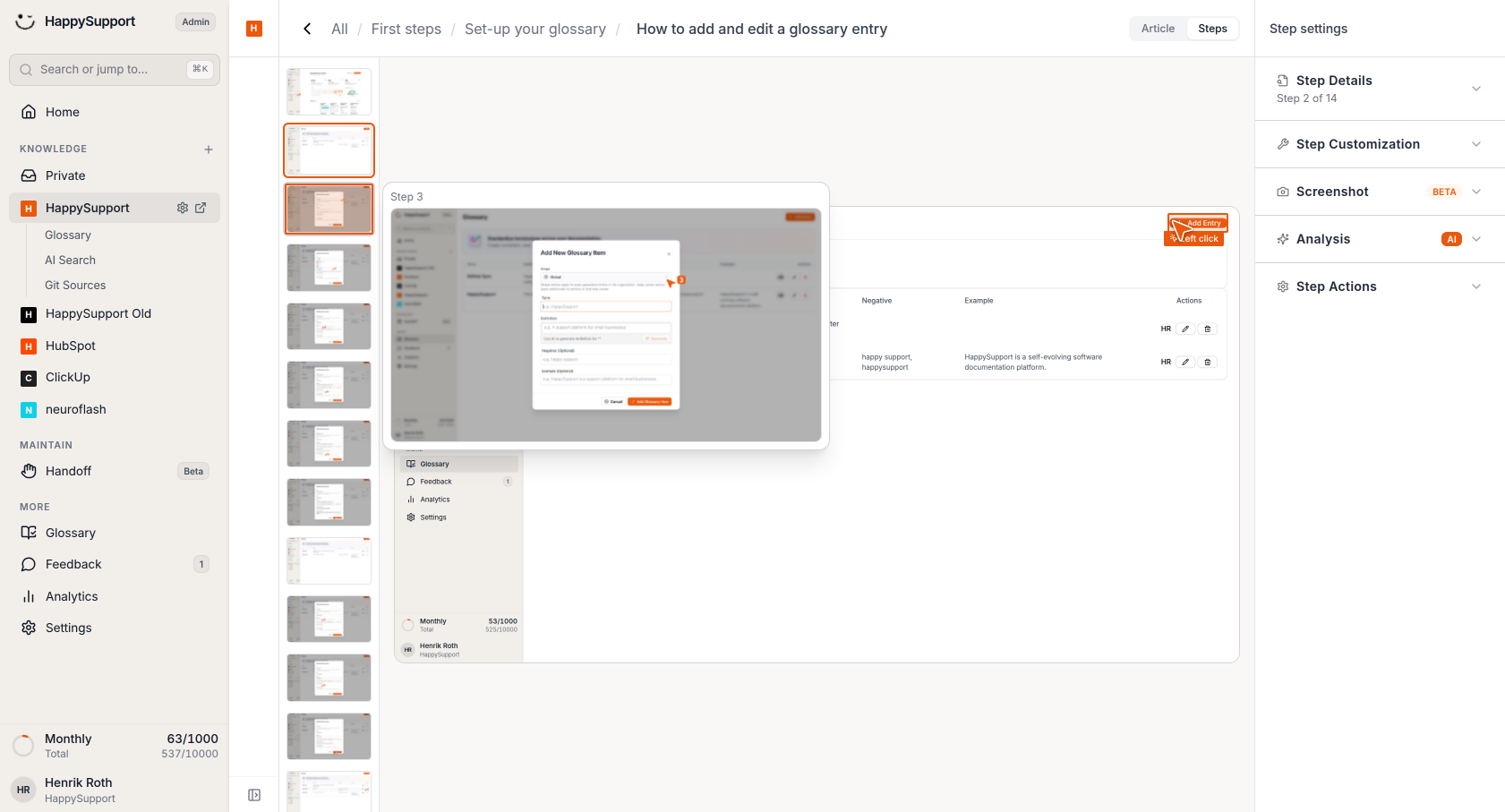
Navigate between steps
You can jump from step to step using the thumbnail strip on the left side of the visual editor. Click on any thumbnail to view and edit that specific screenshot. -
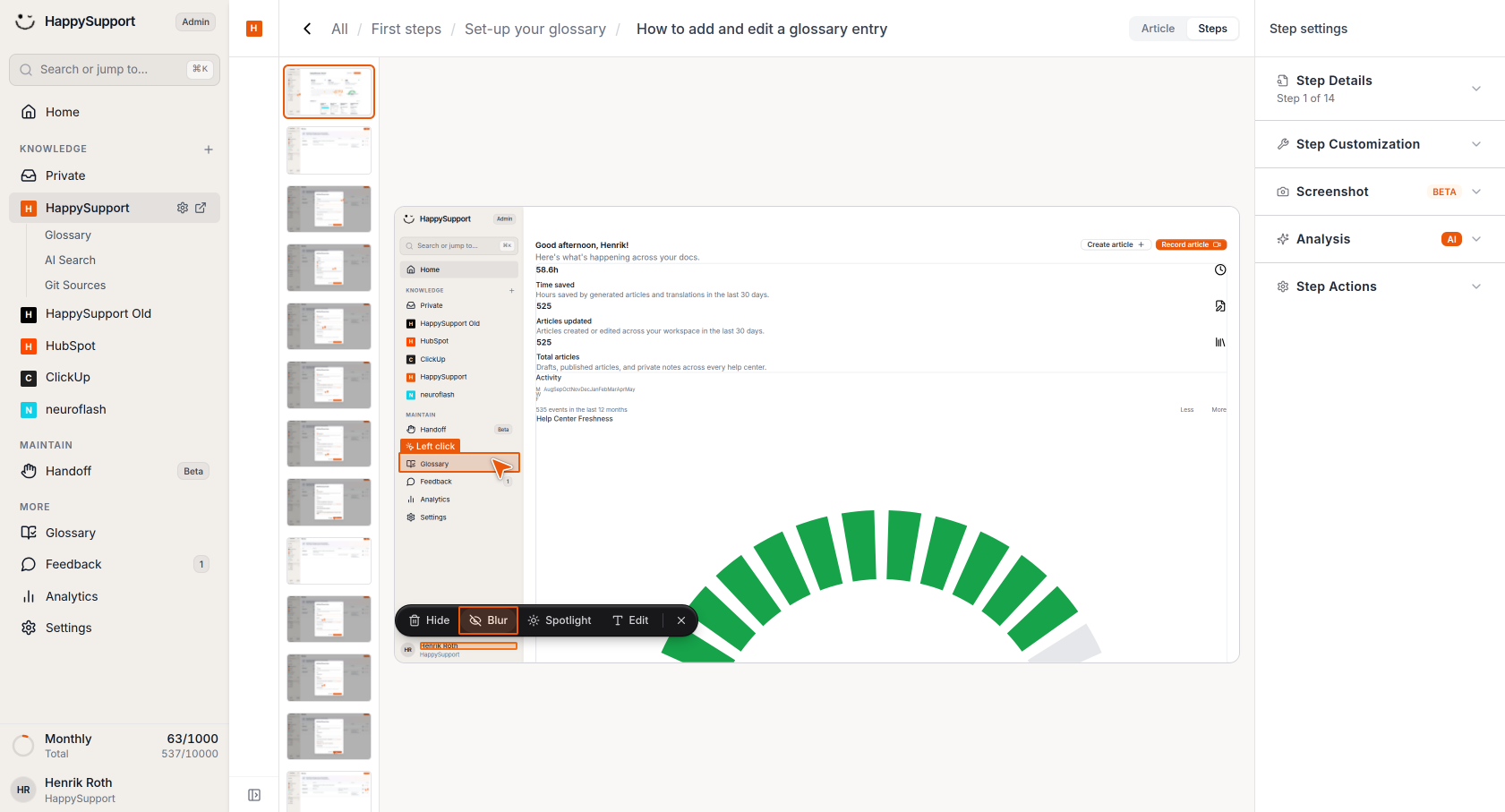
Select elements to modify
Hover your mouse over different elements in the screenshot. As you hover, you'll see various editing options appear in a floating toolbar: Hide, Blur, Spotlight, or Edit.
-
Apply modifications
Choose the appropriate modification for your needs:- Hide: Completely removes the selected element from view
- Blur: Obscures sensitive information while keeping the element visible
- Spotlight: Highlights the element to draw attention
- Edit: Allows you to modify the text content
-
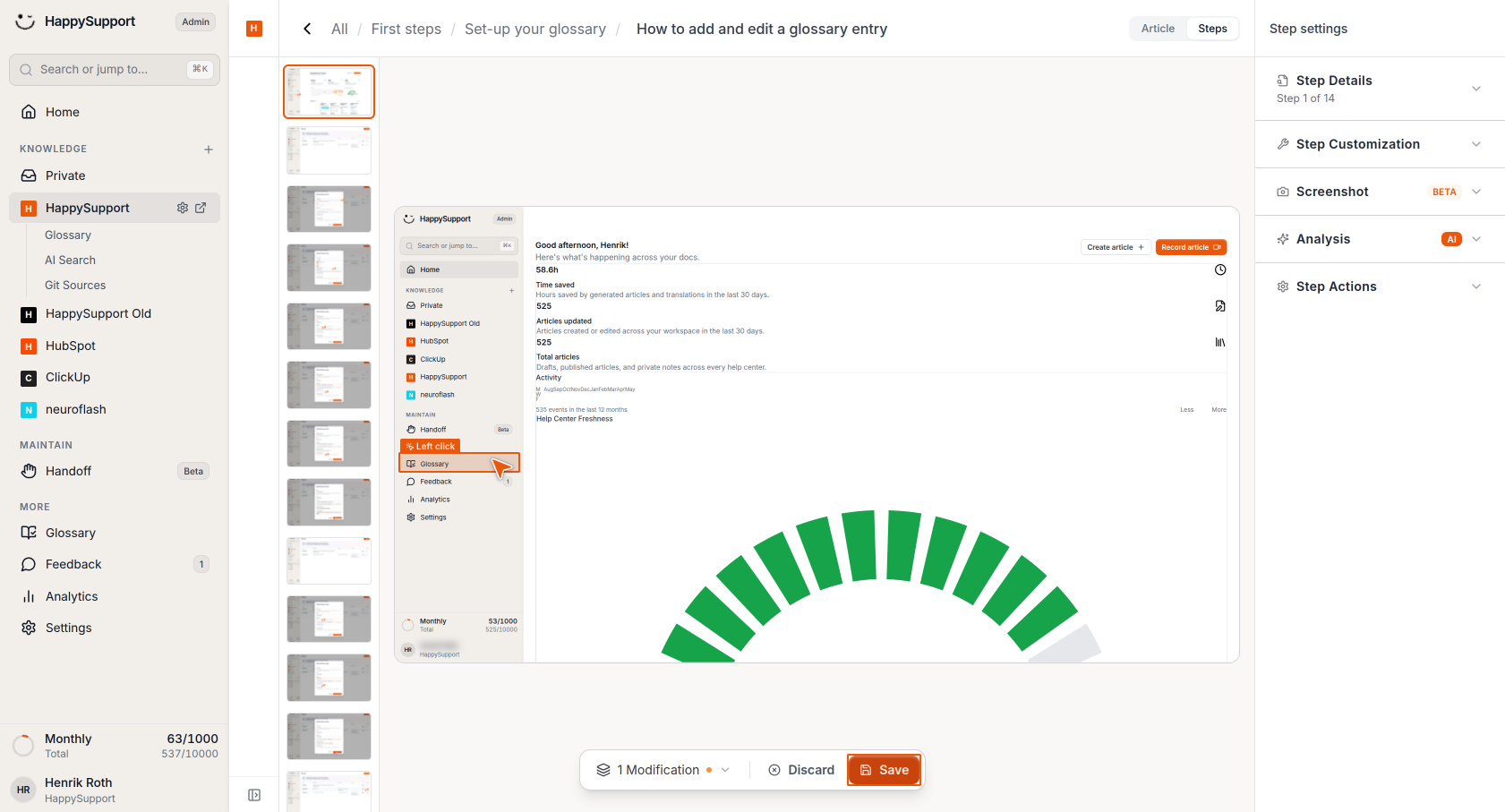
Save your changes
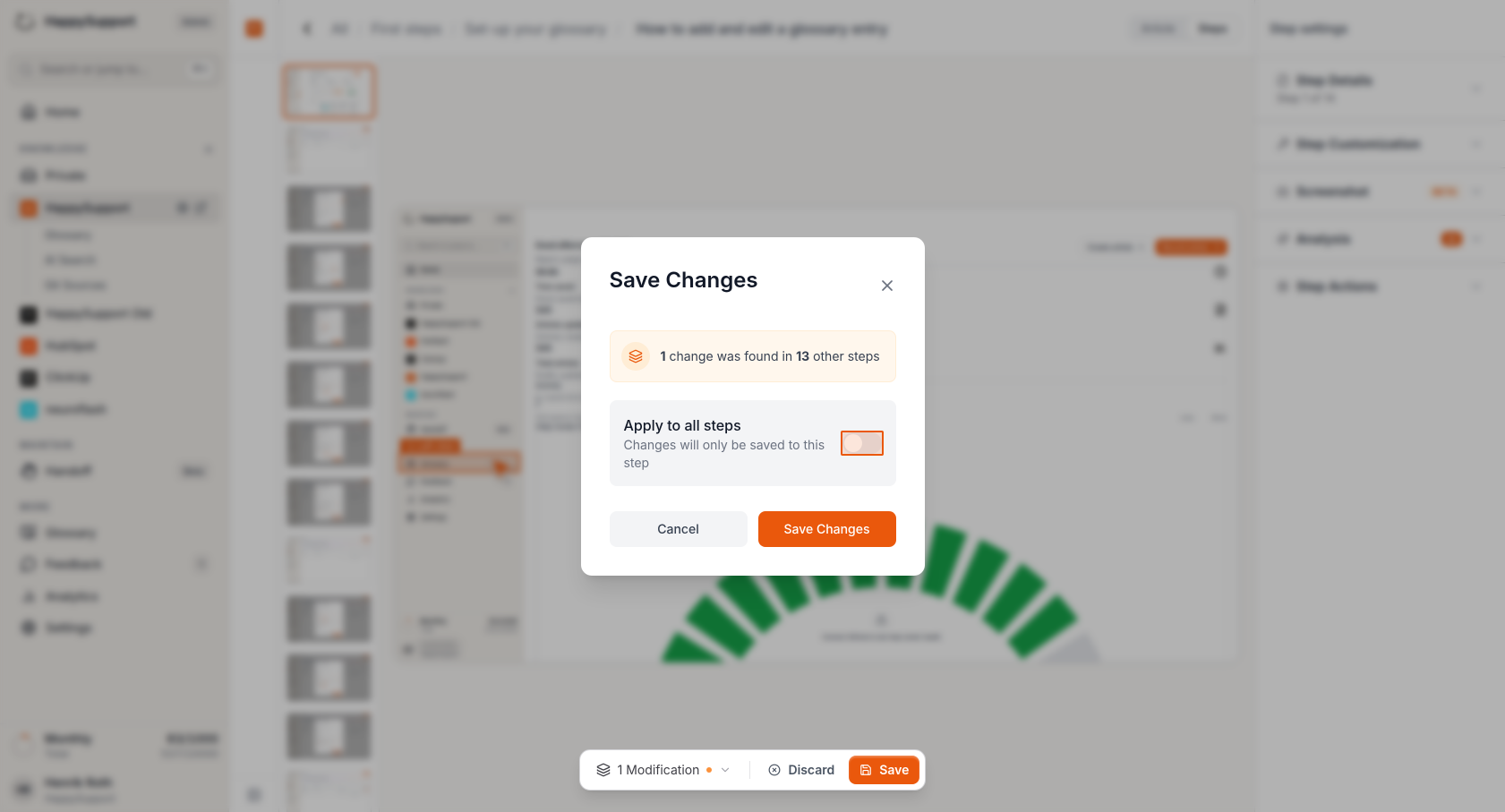
After making modifications, click the "Save" button at the bottom of the screen. You'll see a dialog asking if you want to apply the changes to all steps. -
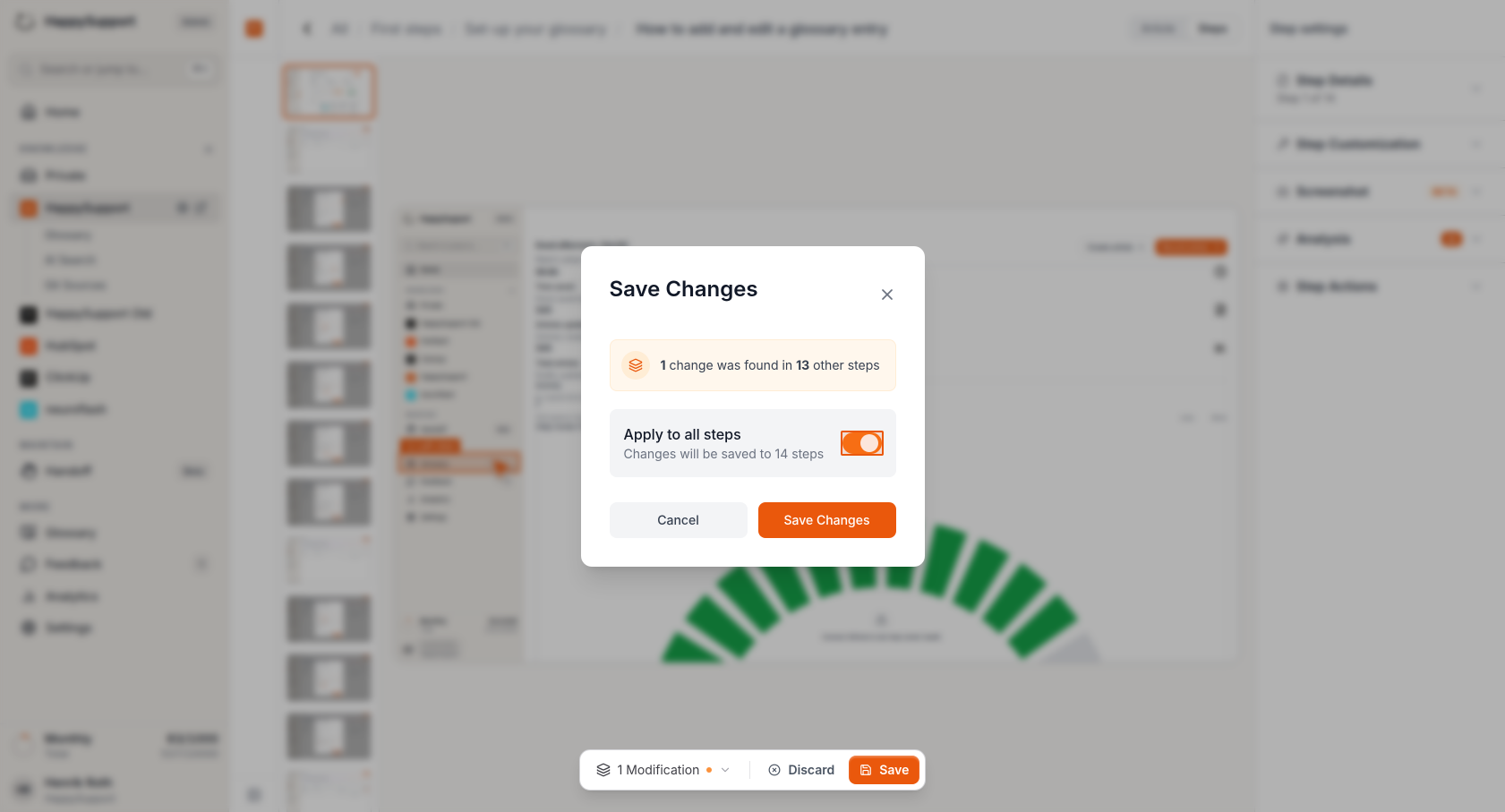
Apply changes across multiple steps
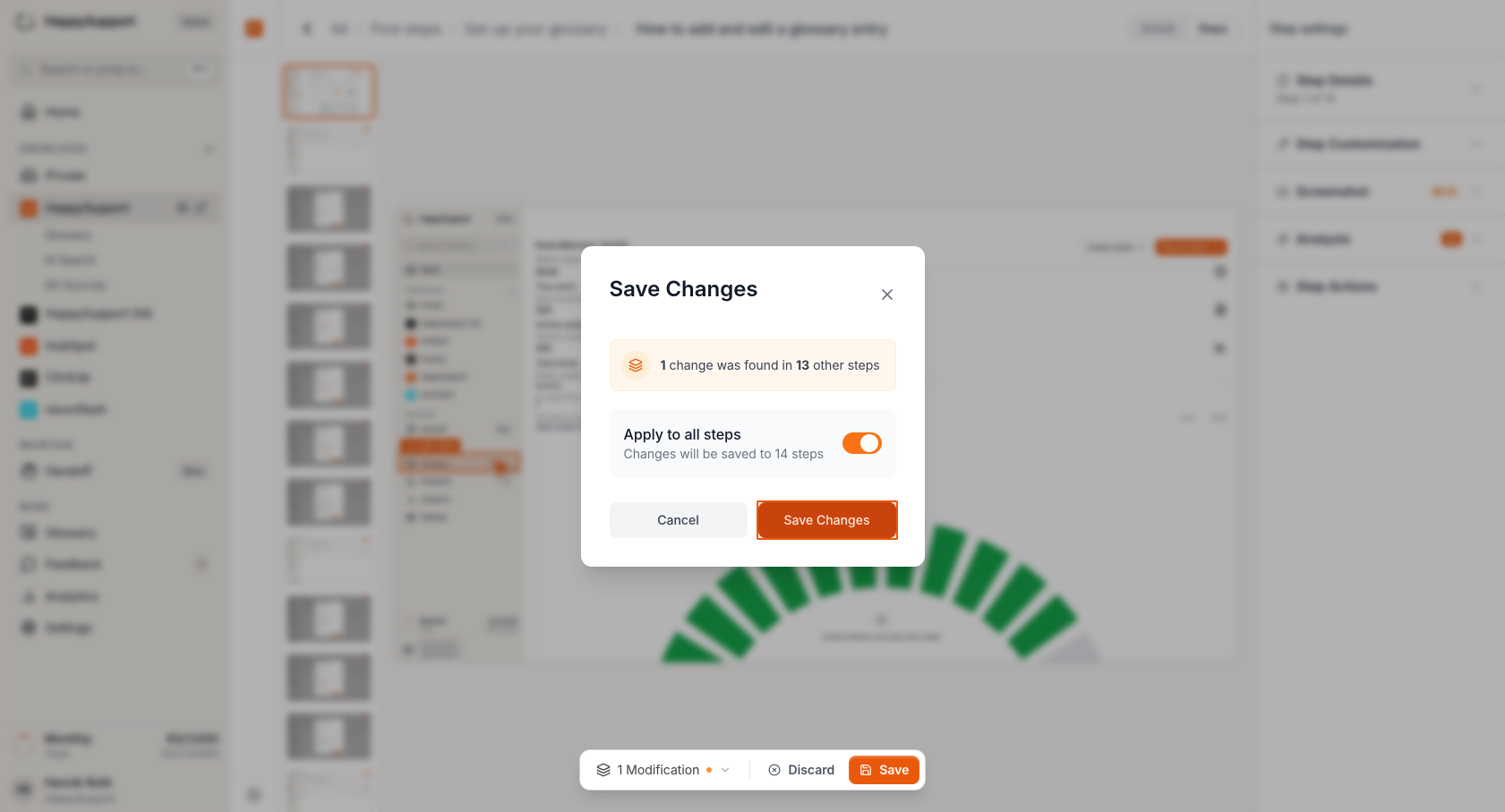
When the "Save Changes" dialog appears, you can toggle "Apply to all steps" to automatically apply the same modification to similar elements in other screenshots. The system will indicate how many steps contain the same element. -
Confirm your changes
Click "Save Changes" to finalize your edits. The system will process and apply your modifications to the selected steps.
After completing these steps, your screenshots will be updated with the applied modifications, protecting sensitive information while maintaining the clarity of your instructional content.
 Powered by happysupport.ai