
How to add a new glossary?
This guide walks you through adding a new glossary entry in HappySupport. By the end, you'll have created a glossary item that helps standardize terminology across your documentation.


Access the Glossary Section
-
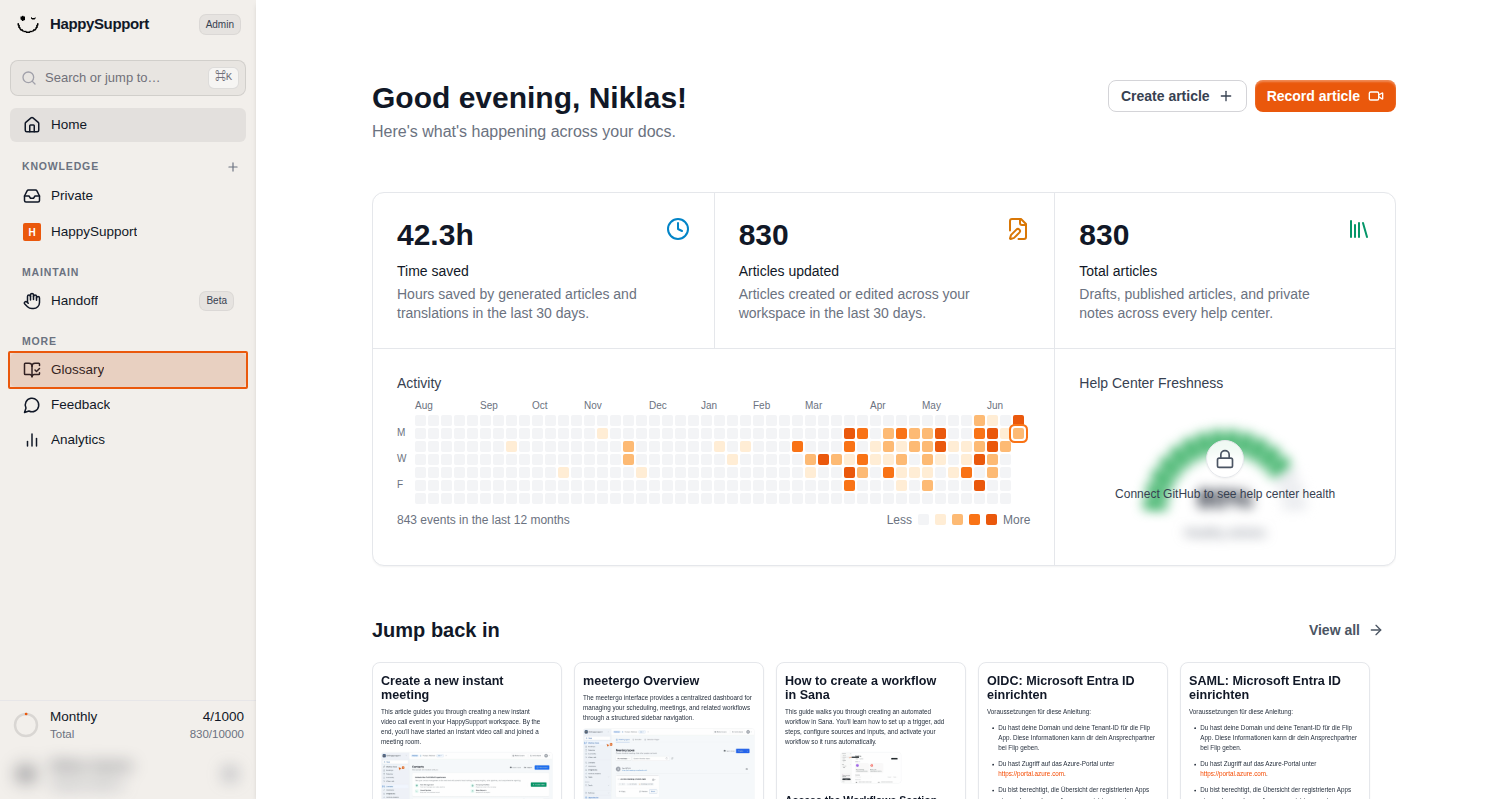
Open the Glossary page
In the left navigation sidebar, locate the More section and click on Glossary. This takes you to the glossary management page where you can view and manage all your terminology entries. -
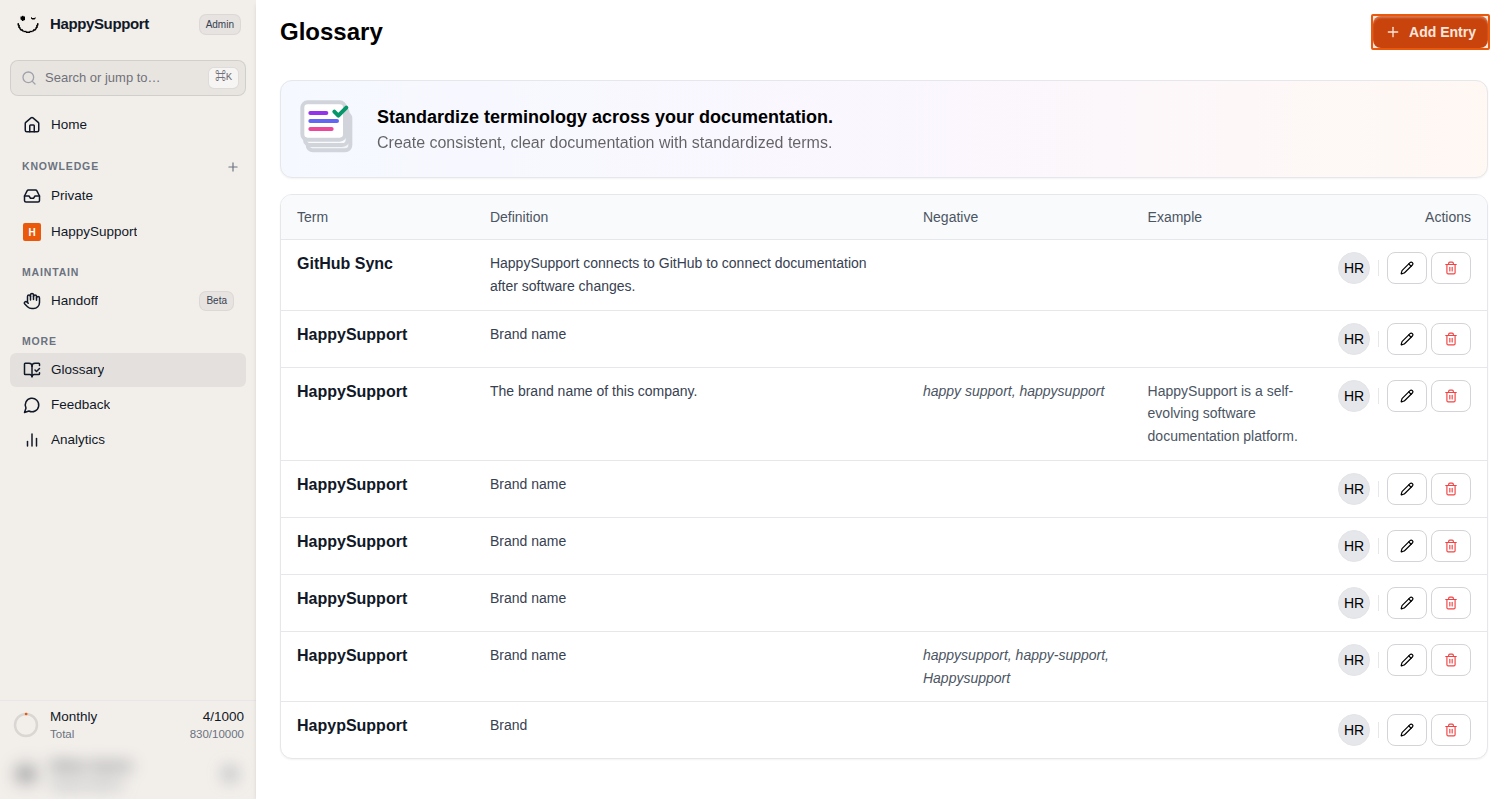
Start creating a new entry
Click the Add Entry button located at the top right of the Glossary page. This opens the Add New Glossary Item modal where you can define your new term.
Fill in the Glossary Details
-
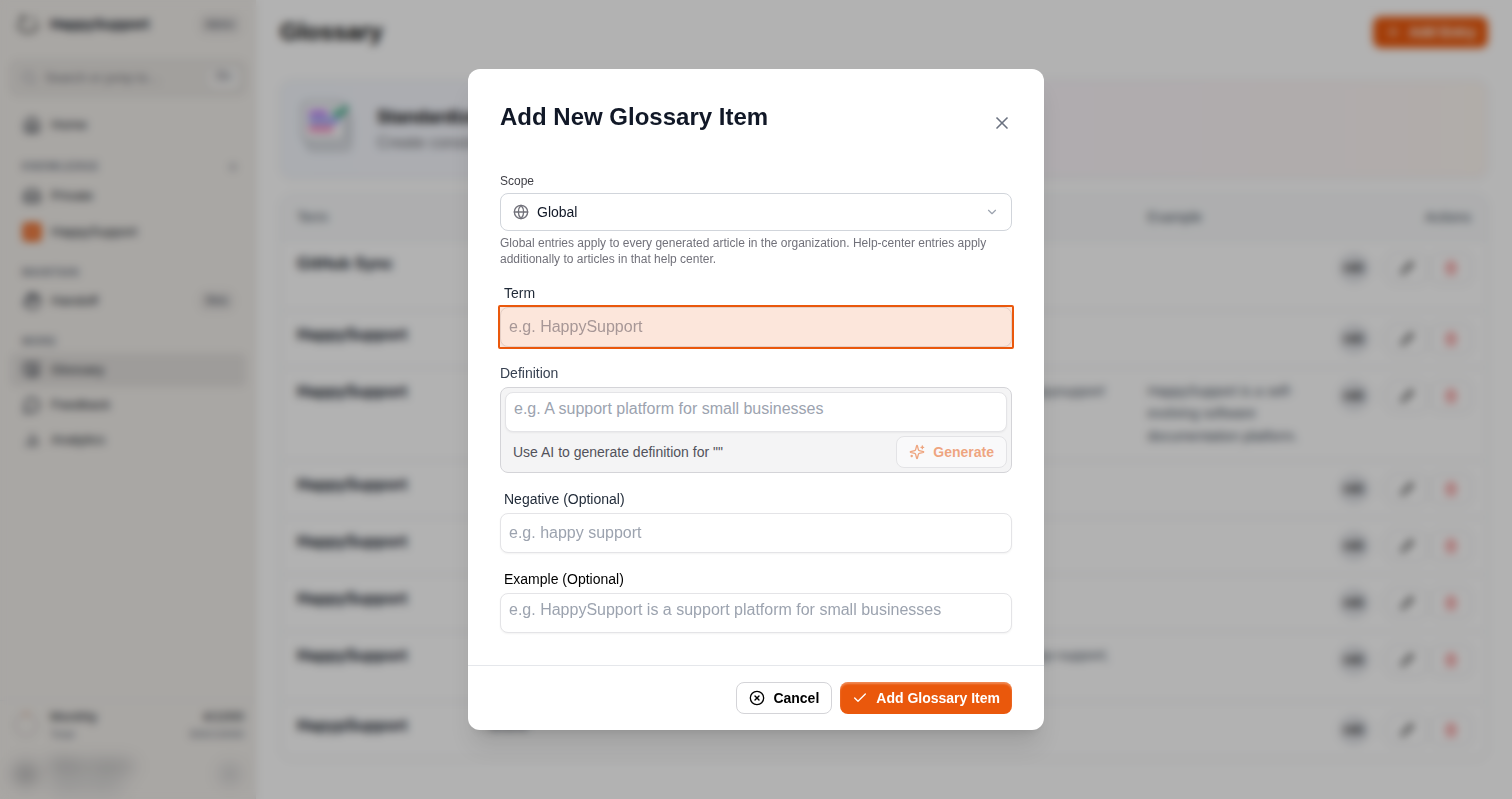
Configure the glossary entry
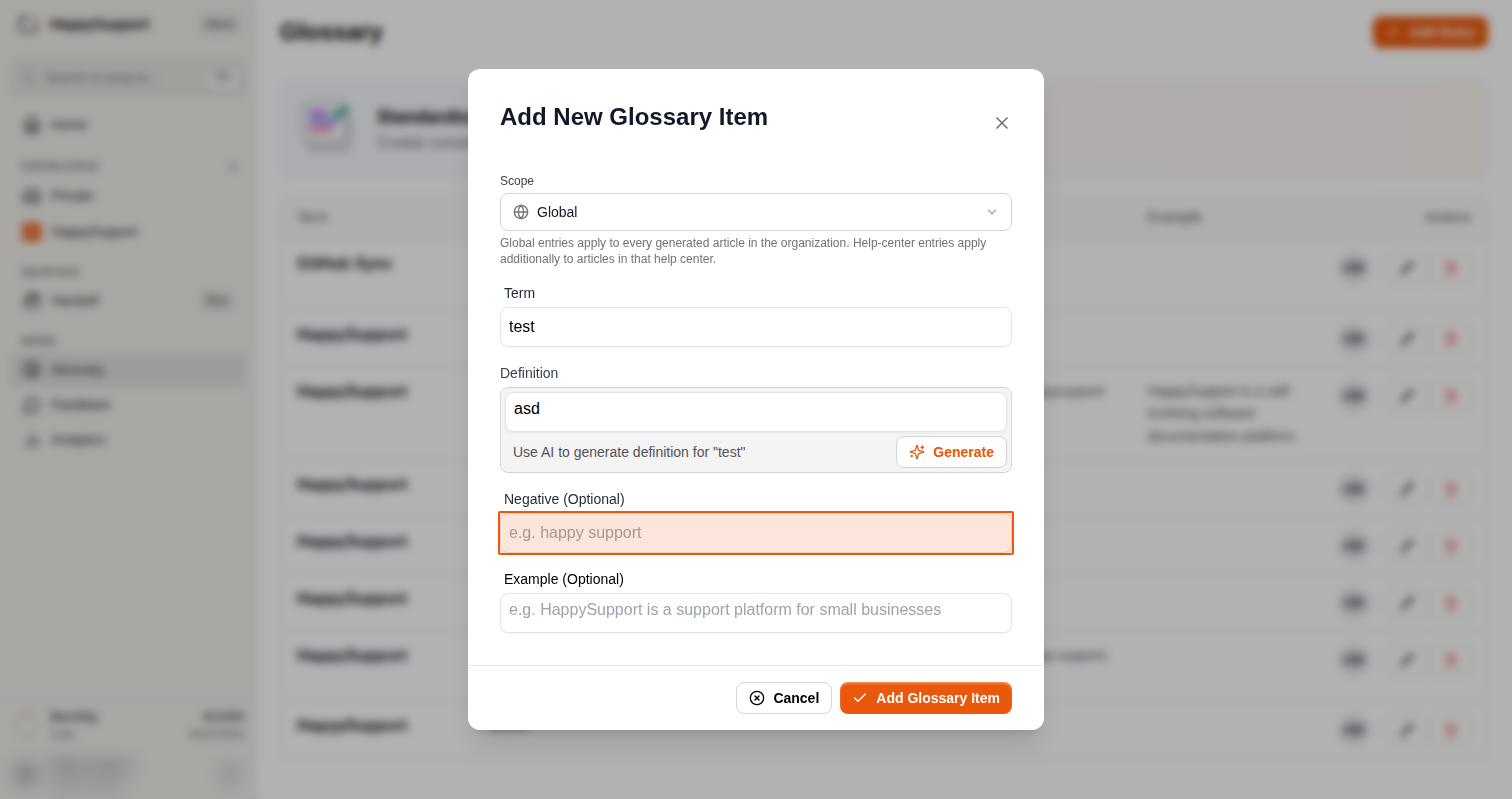
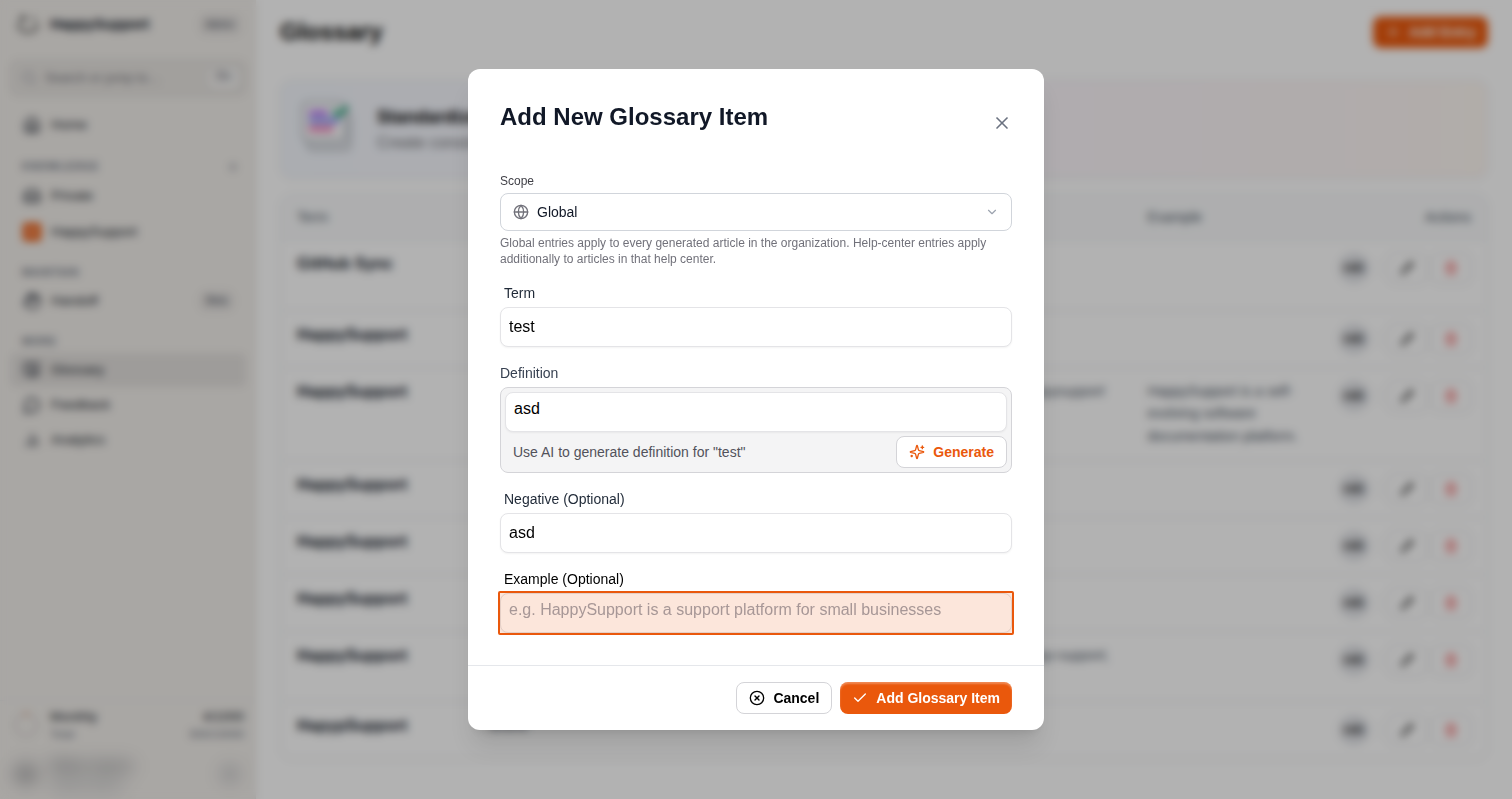
Complete the form fields in the modal window:- Scope: Select the scope from the dropdown. Choose Global if the entry should apply to every generated article in your organization, or select a specific Help Center if the term should only apply to articles in that Help Center.
- Term: Enter the term you want to define (e.g., the product name or technical term you want to standardize).
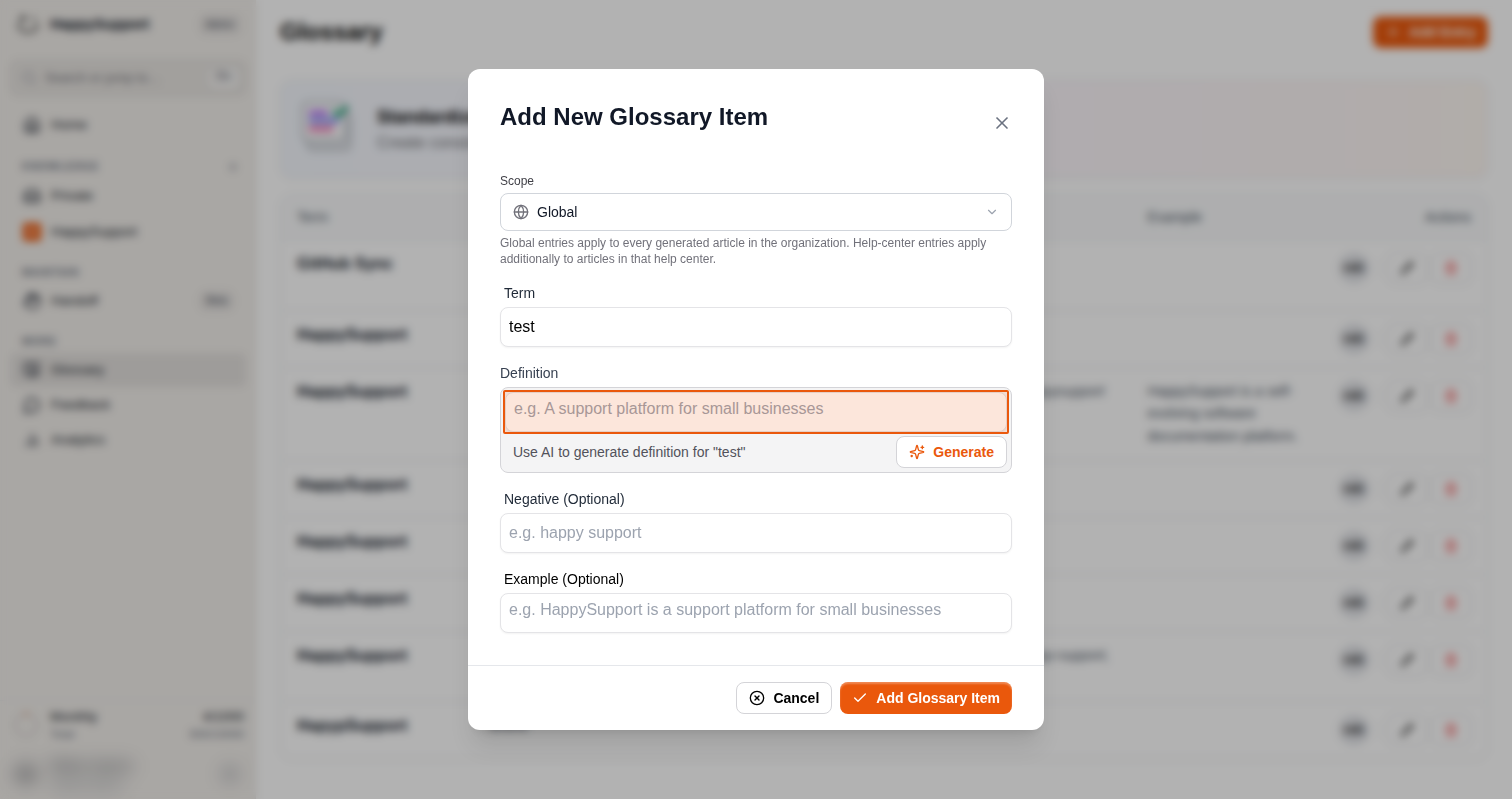
- Definition: Provide a clear definition for the term. You can also use the Generate button to let AI create a definition for you.
- Negative (Optional): Add any terms that should not be used or common misspellings to avoid.
- Example (Optional): Include an example sentence showing how the term should be used in context.
-
Save your glossary entry
Once you've filled in the required fields, click the Add Glossary Item button at the bottom right of the modal to save your new entry.
Your new glossary entry is now added and will help maintain consistent terminology across your documentation.
 Powered by happysupport.ai