
How to add and edit a glossary entry
Create standardized glossary entries with terms, definitions, and usage examples to maintain consistent terminology across your documentation.
Glossary entries help you maintain consistent terminology across your documentation. By creating standardized terms and definitions, you ensure that your content uses the same language throughout, making it easier for readers to understand your documentation.

Creating a new glossary entry
-
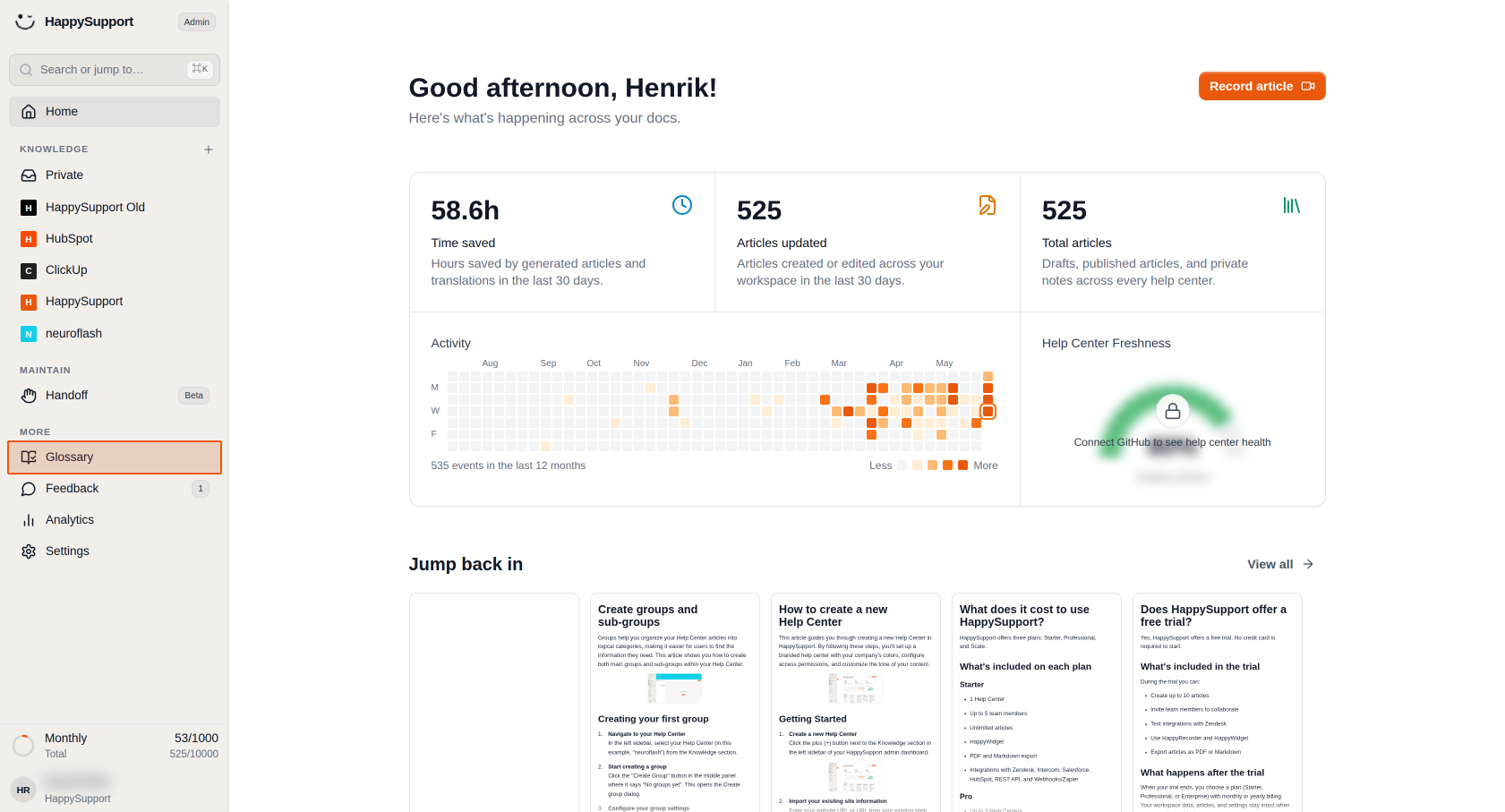
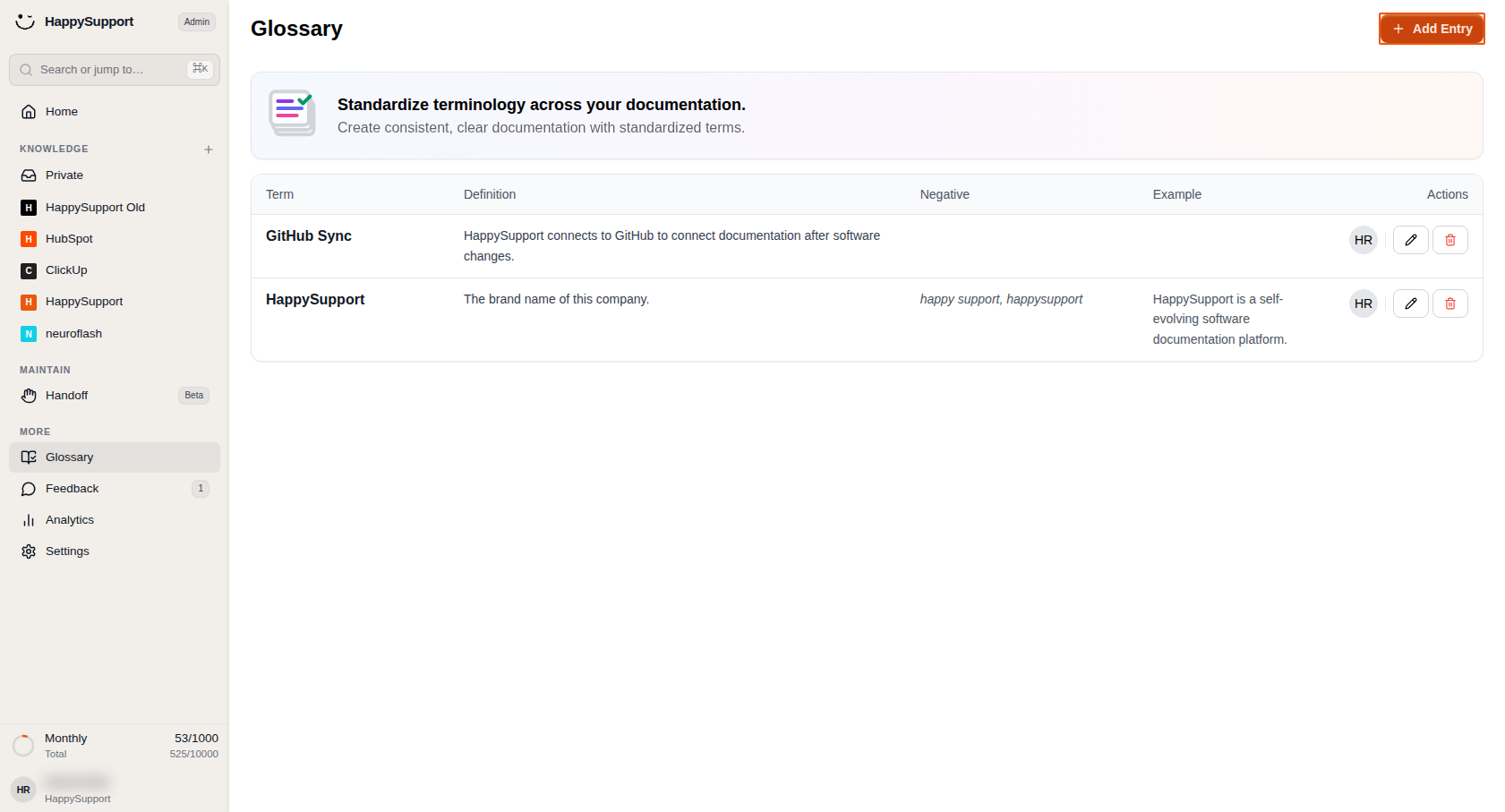
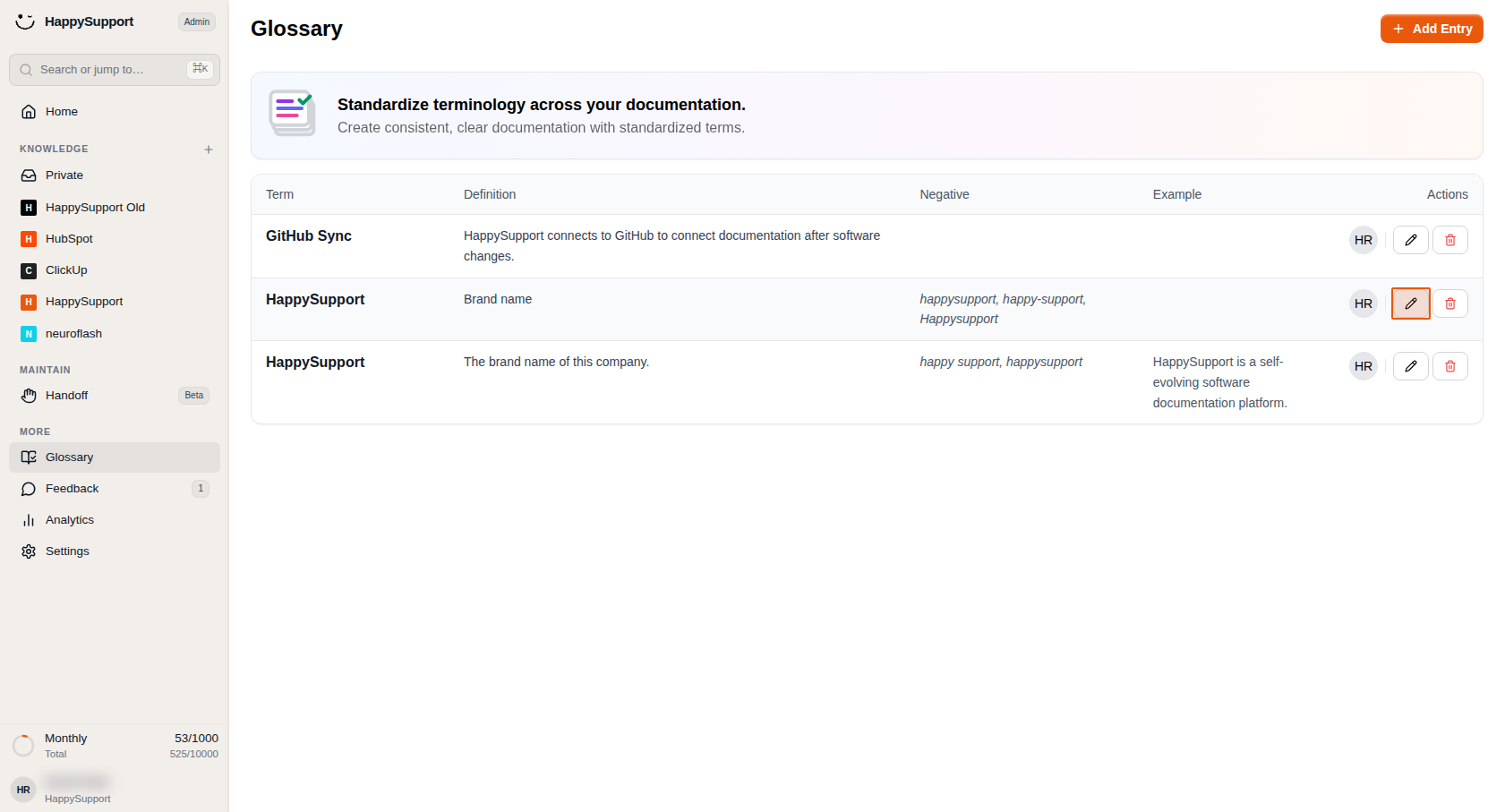
Navigate to the Glossary section
In the left sidebar of your HappySupport admin interface, click on the Glossary item located in the More section. -
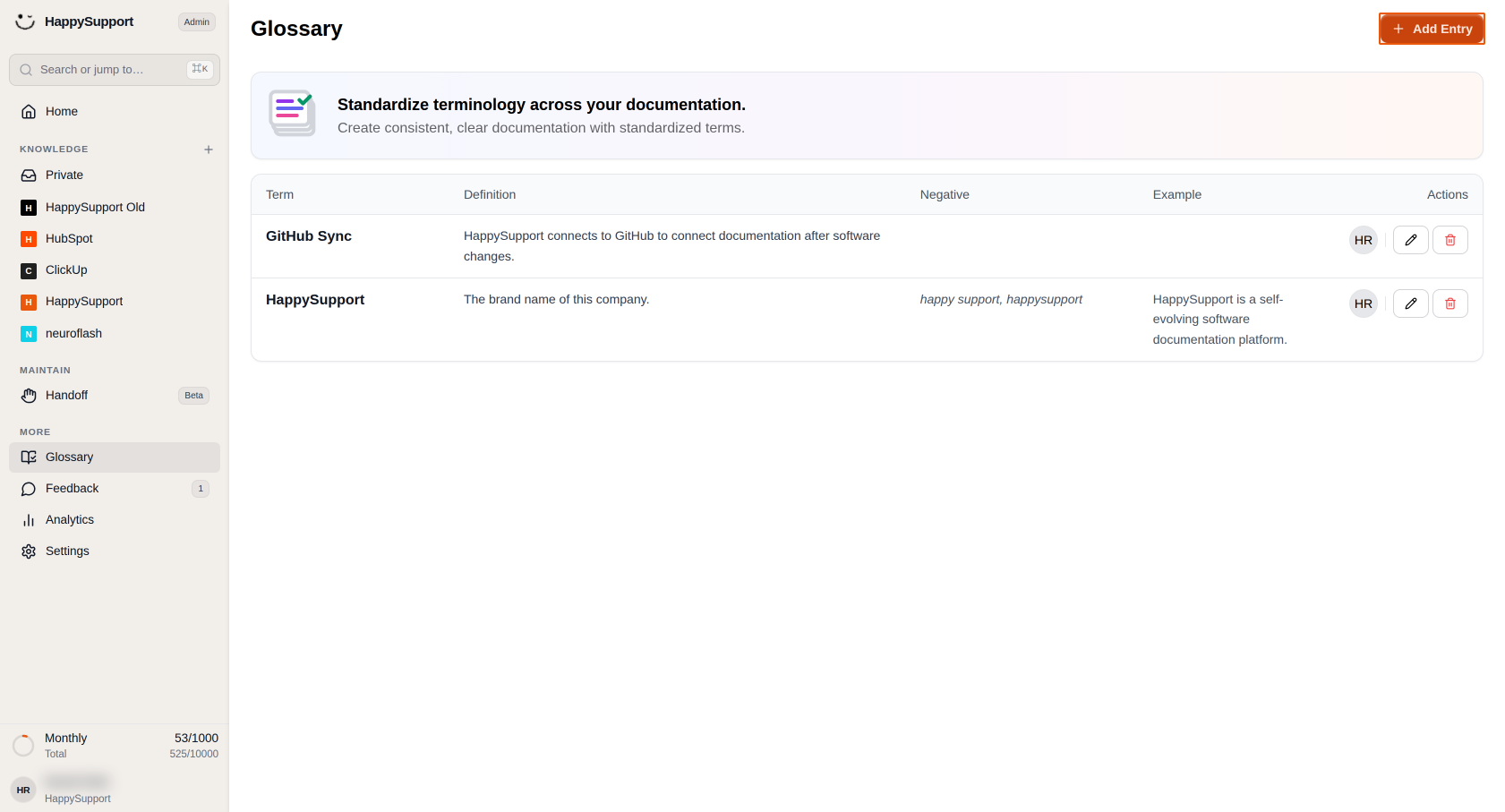
Start creating a new entry
Click the Add Entry button in the top-right corner of the Glossary page. -
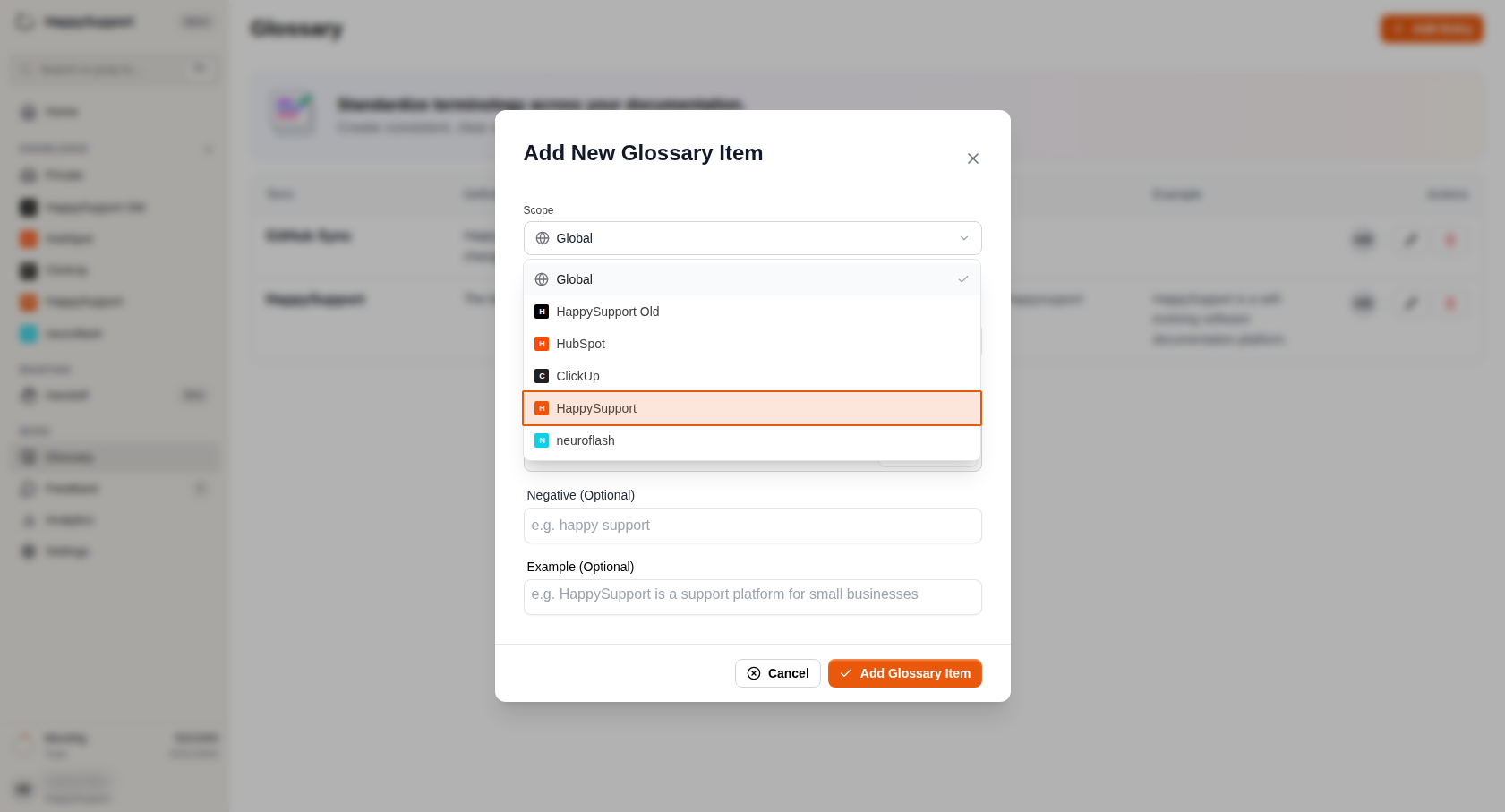
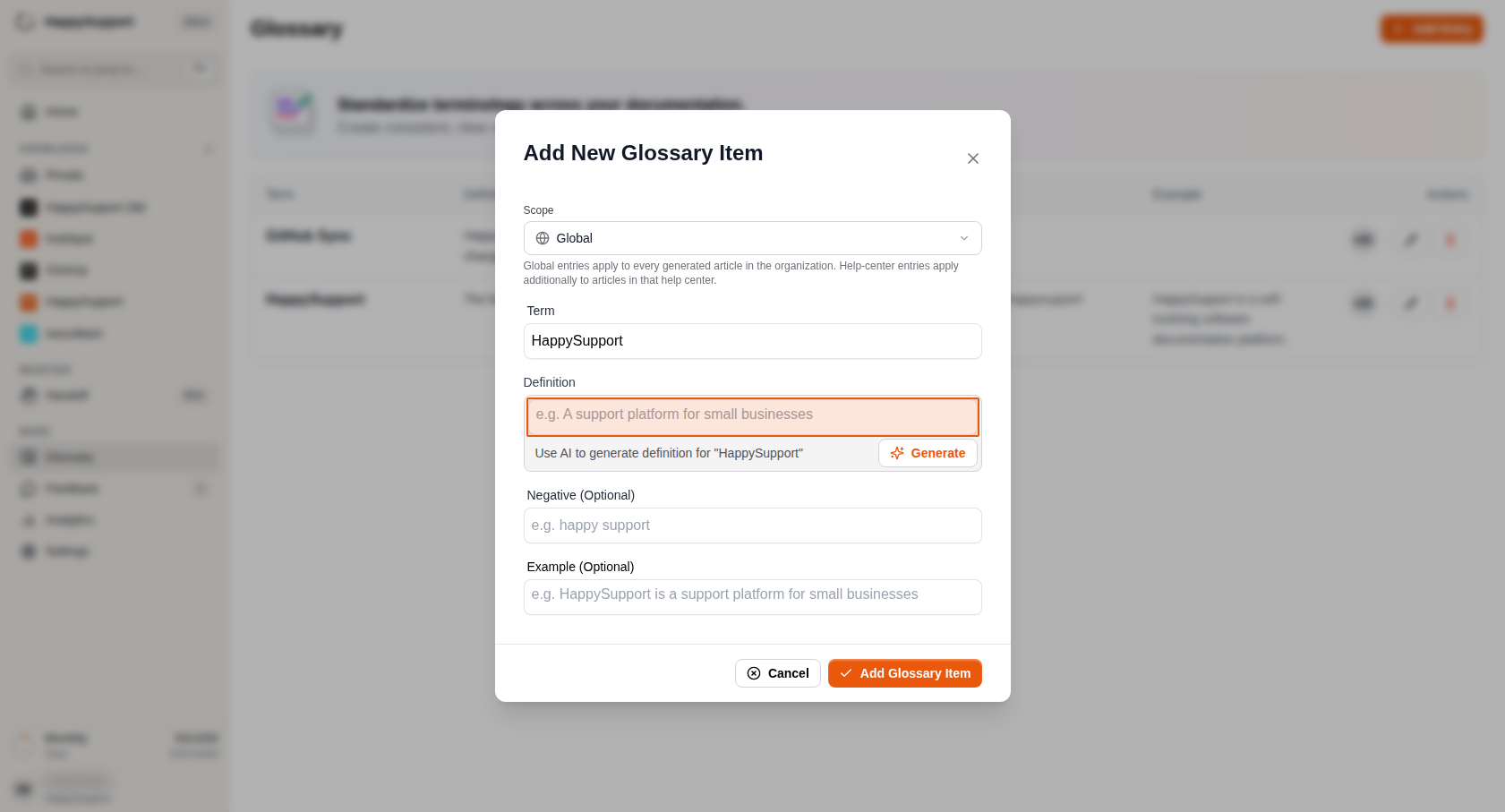
Select the scope for your entry
Click on the Scope dropdown field and choose where this glossary term should apply:-
Global: The entry will apply to every generated article in your organization
-
Specific Help Center: The entry will apply to articles in that specific Help Center
-
-
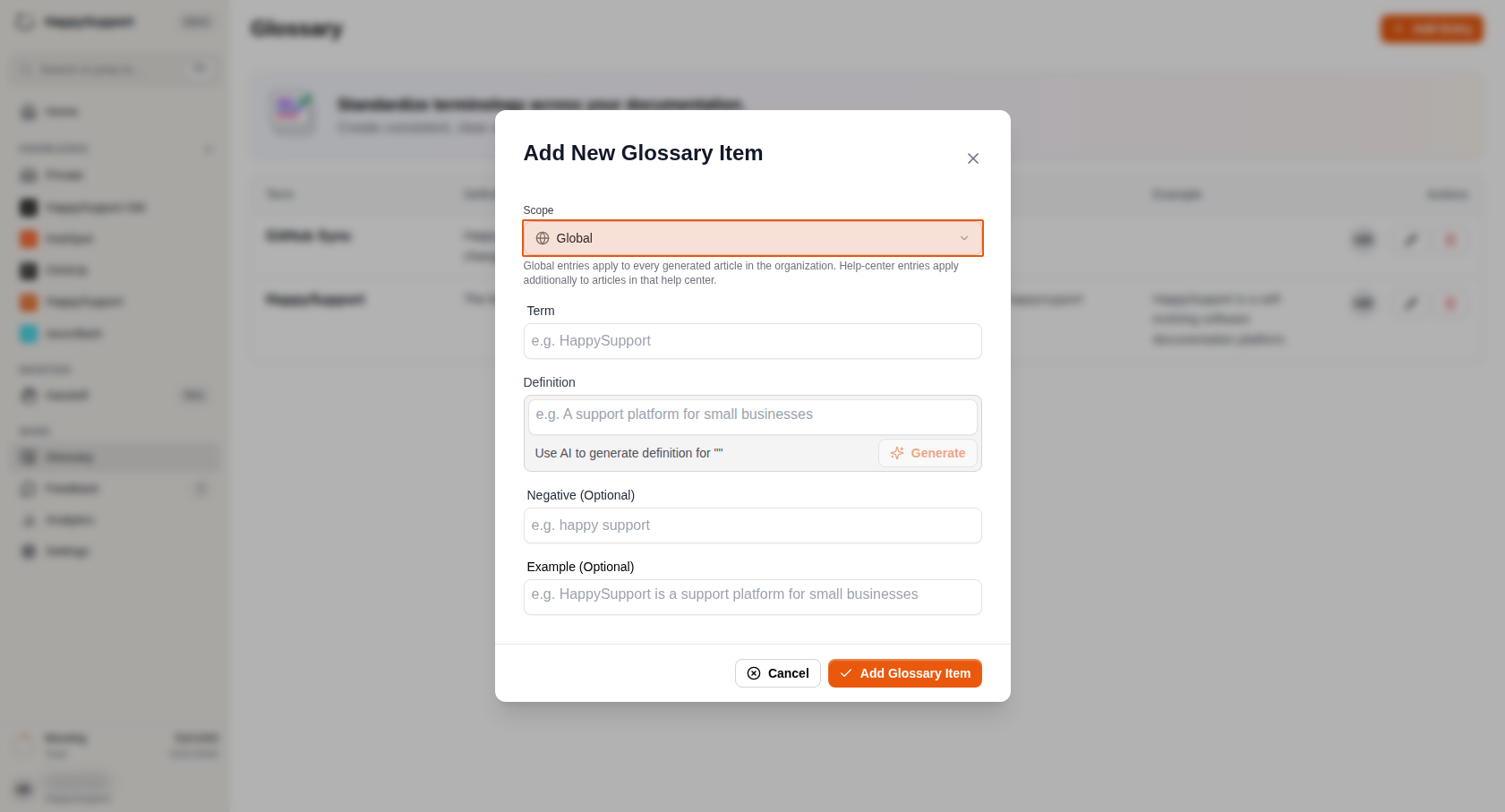
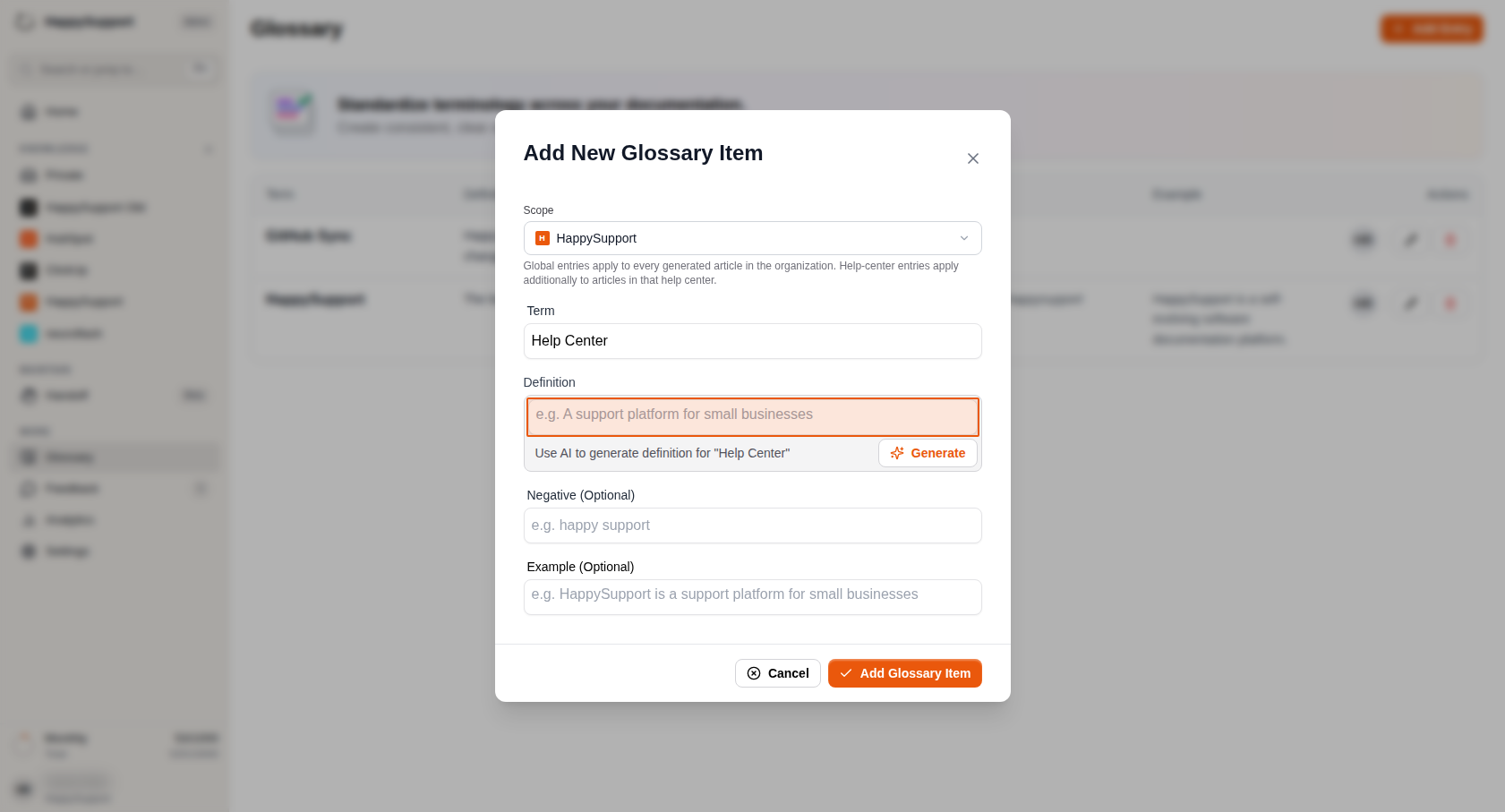
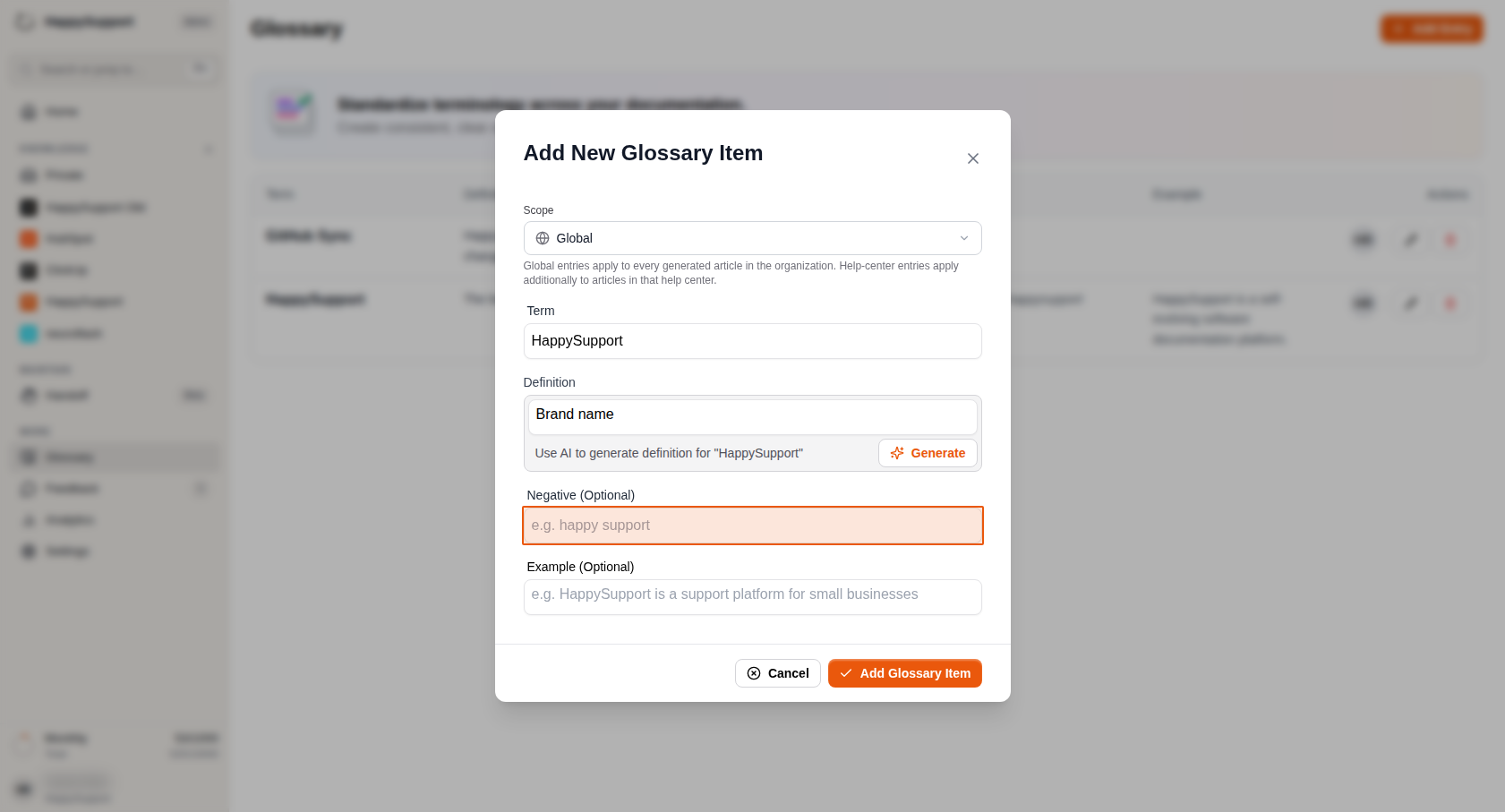
Fill in the glossary details
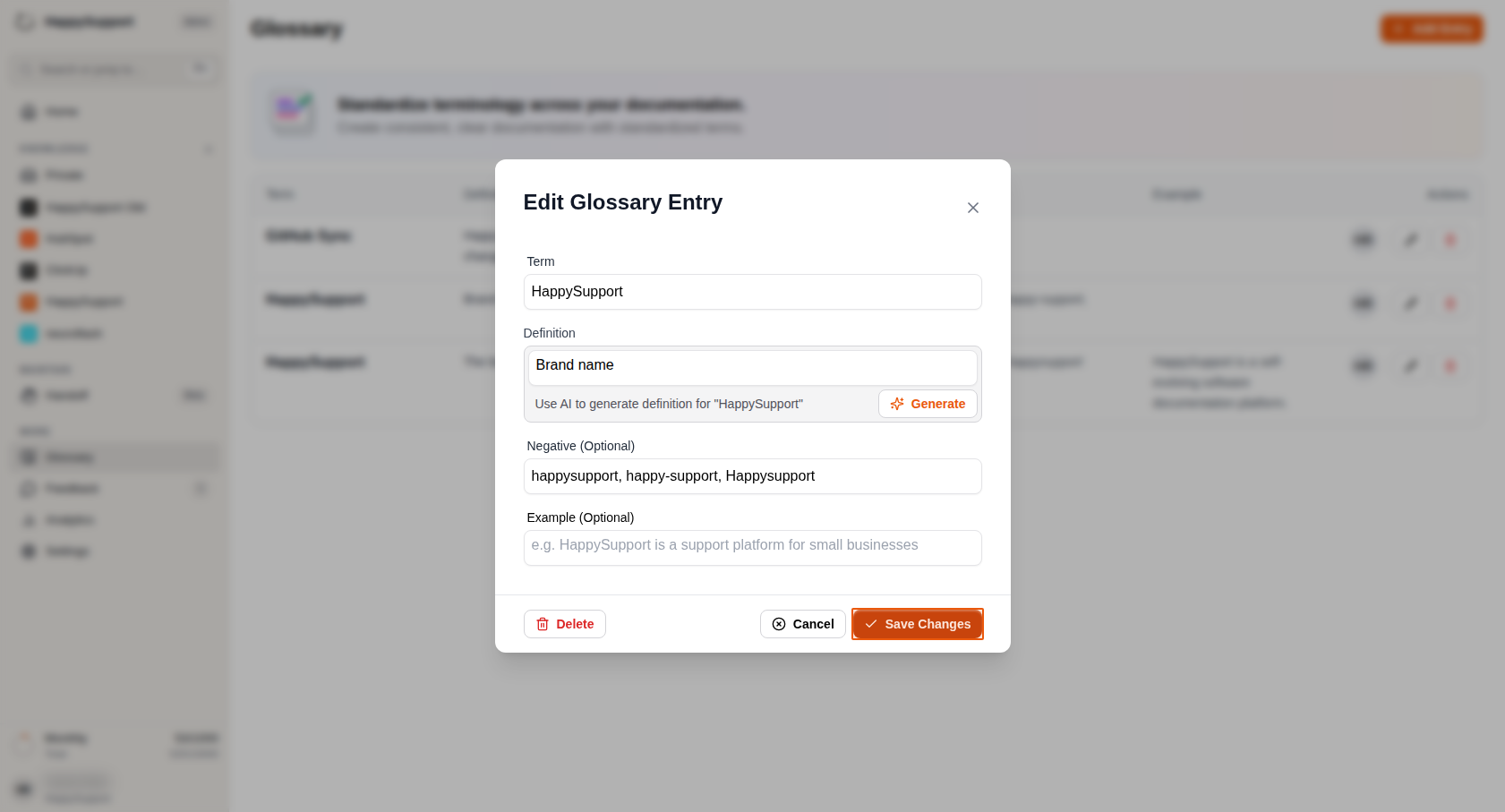
Complete the form with your glossary information:-
Term: Enter the exact term you want to standardize (e.g., "Help Center" or "HappySupport")
-
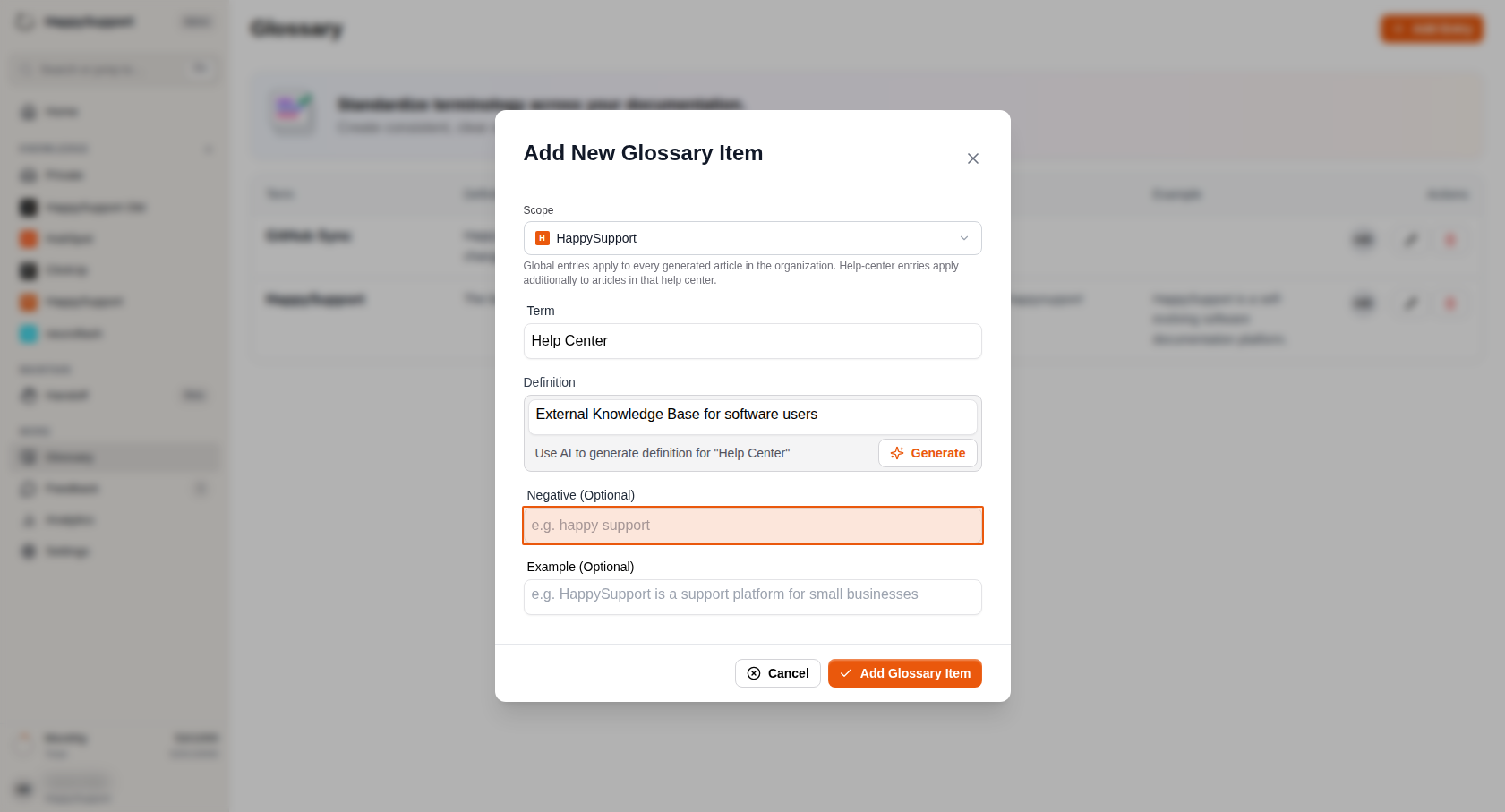
Definition: Type a clear definition for the term. You can also use the Generate button to create an AI-powered definition
-
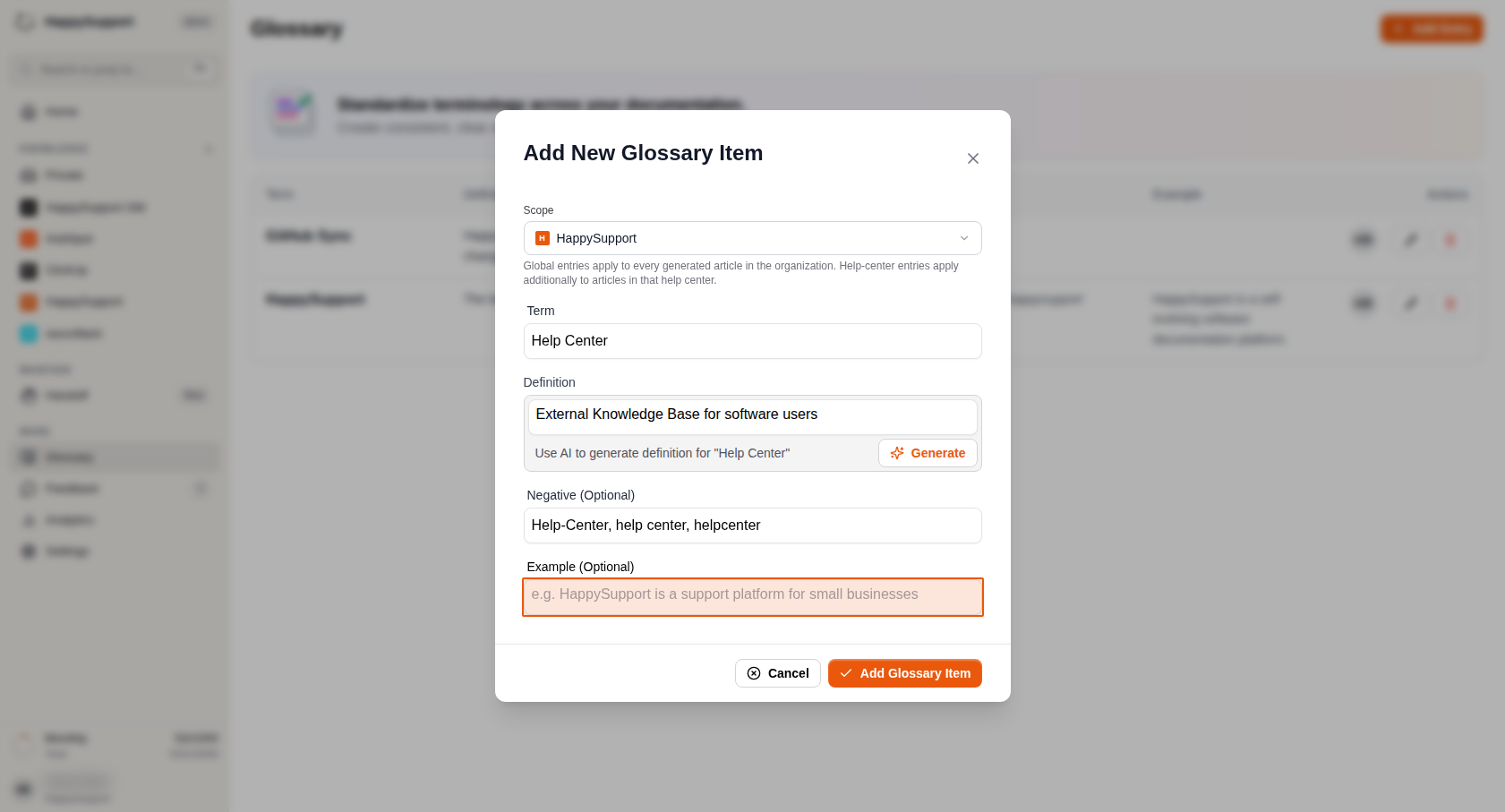
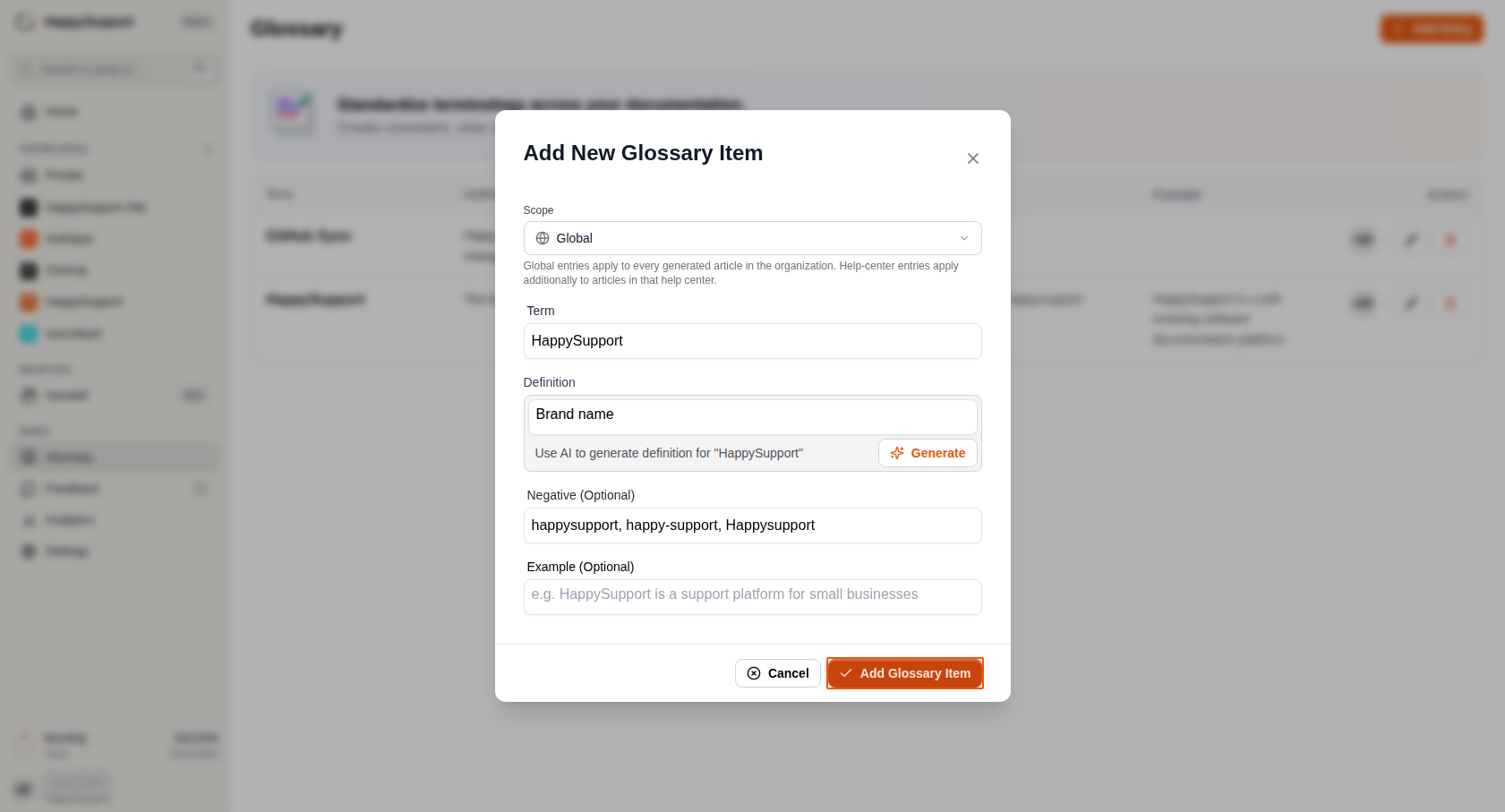
Negative (Optional): Add any variations or misspellings that should be avoided (e.g., "help-center, helpcenter" for "Help Center")
-
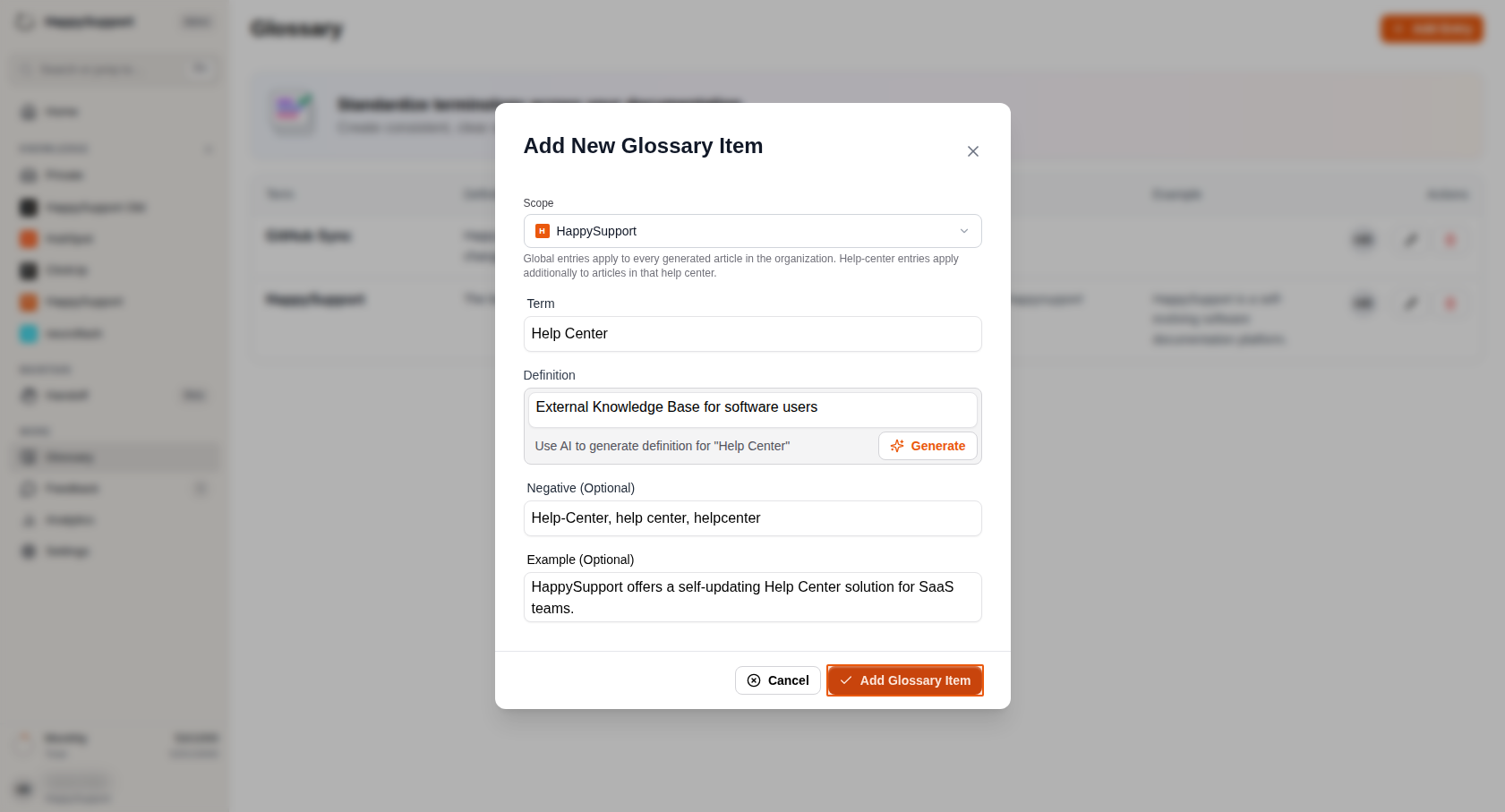
Example (Optional): Provide a sample sentence showing how to use the term correctly
-
-
Save your glossary entry
Click the Add Glossary Item button at the bottom right of the modal to create your entry.
Editing existing entries
-
Find the entry to edit
Locate the glossary term you want to modify in the main table.
-
Open the edit dialog
Click the pencil icon in the Actions column next to the entry you want to edit. -
Make your changes
Update any fields as needed - term, definition, negative examples, or usage examples. -
Save your updates
Click the Save Changes button to apply your edits to the glossary entry.
Your glossary entries are now active and will help maintain consistent terminology across all your documentation. The system will use these standardized terms when generating or updating articles, ensuring your content remains professional and uniform.
 Powered by happysupport.ai