
How to translate your Help Center
Configure translation languages in your Help Center settings to automatically translate articles into multiple languages for international users.
This article guides you through setting up automatic translations for your Help Center content. You'll learn how to add new languages and manage your translation settings to make your documentation accessible to international users.






Setting up translations
- Access the translation settings
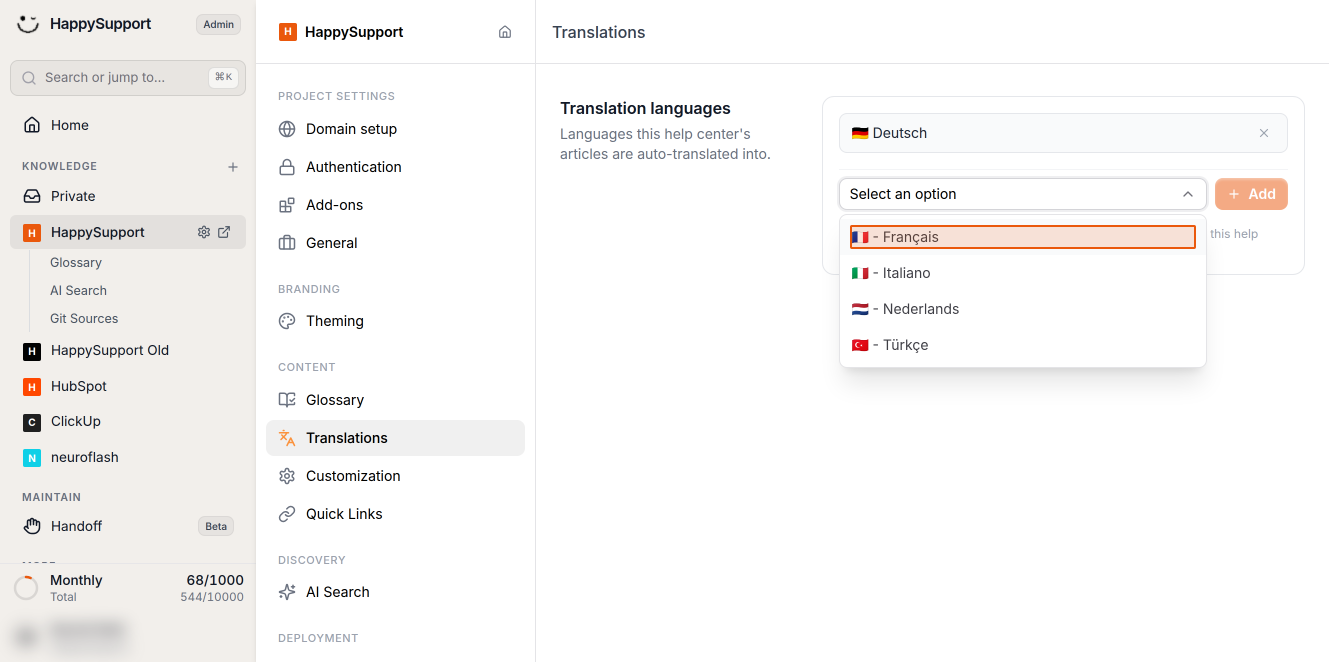
Navigate to your Help Center's admin panel and click on the external link icon next to your project name in the left sidebar. Then select Translations from the Content section in the project settings menu.
-
Add translation languages
In the Translation languages section, you'll see any currently active languages. To add a new language:- Click the Select an option dropdown
- Choose your desired language from the list (e.g., Français, Italiano, Nederlands, Türkçe)
- Click the Add button to confirm your selection
When you add a new language, all existing articles in your Help Center will be automatically translated into th
at language.
-
Manage multiple languages
You can add multiple translation languages to your Help Center. Each selected language appears as a separate entry with its flag icon. To remove a language, click the X icon next to it.
Viewing translated content
- Navigate to your articles
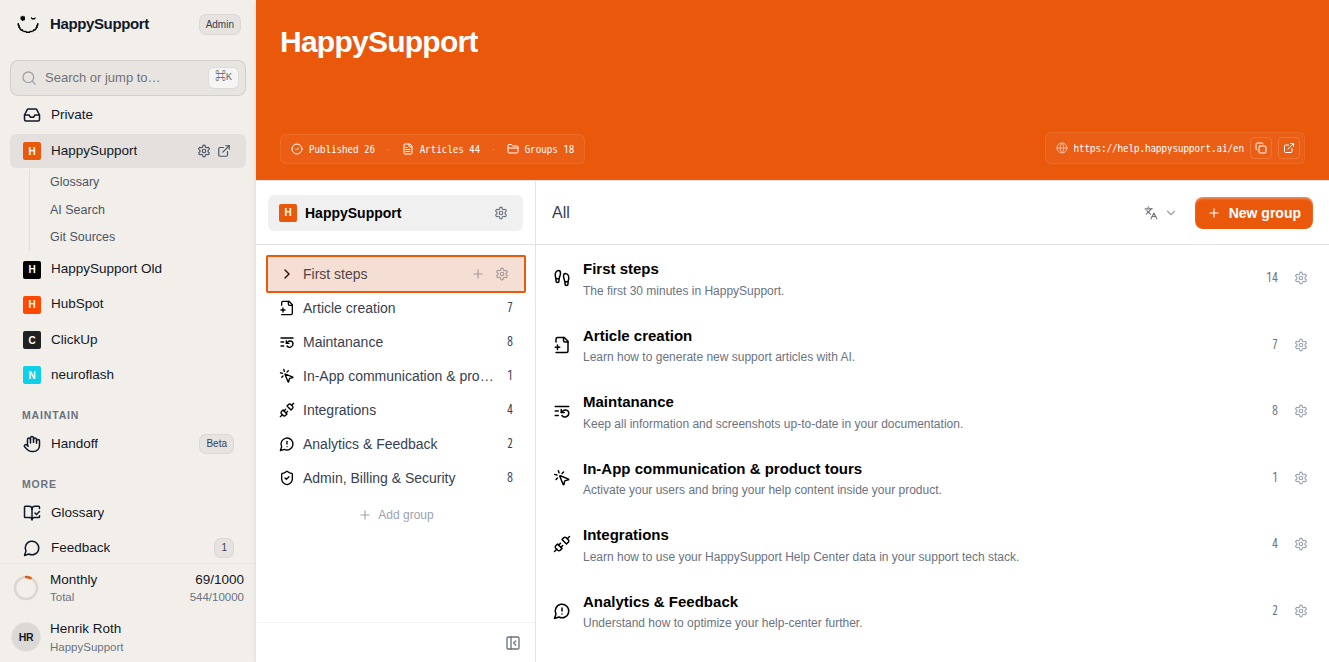
Click the home icon in the project header to return to your content overview. Select a group (like First steps) and then choose an article to edit.
-
Switch between language versions
In the article editor, click the language selector (flag icon) in the top toolbar. A dropdown will appear showing:- English (source) - Your original content language
- Other languages with their translation status (e.g., "Translating" for in-progress translations)
Select any language to view or edit the translated version of your article.
After completing these steps, your Help Center will automatically translate all content into your selected languages, making your documentation accessible to a global audience. The translation process happens in the background, and you'll see the status update as translations are completed. For English and German Help Centers, the interface itself is also localized, and each language version is accessible through its own URL path (like /en/… or /de/…). For more details, see [How do localization and multiple languages work?].
 Powered by happysupport.ai