
Customize the branding theme of your Help Center
Customize Help Center branding by uploading a logo, favicon, and choosing header background and text colors in the Theming section.
This article guides you through customizing the visual branding of your Help Center, including uploading a logo and favicon, setting your homepage URL, and choosing brand colors that match your company's identity.

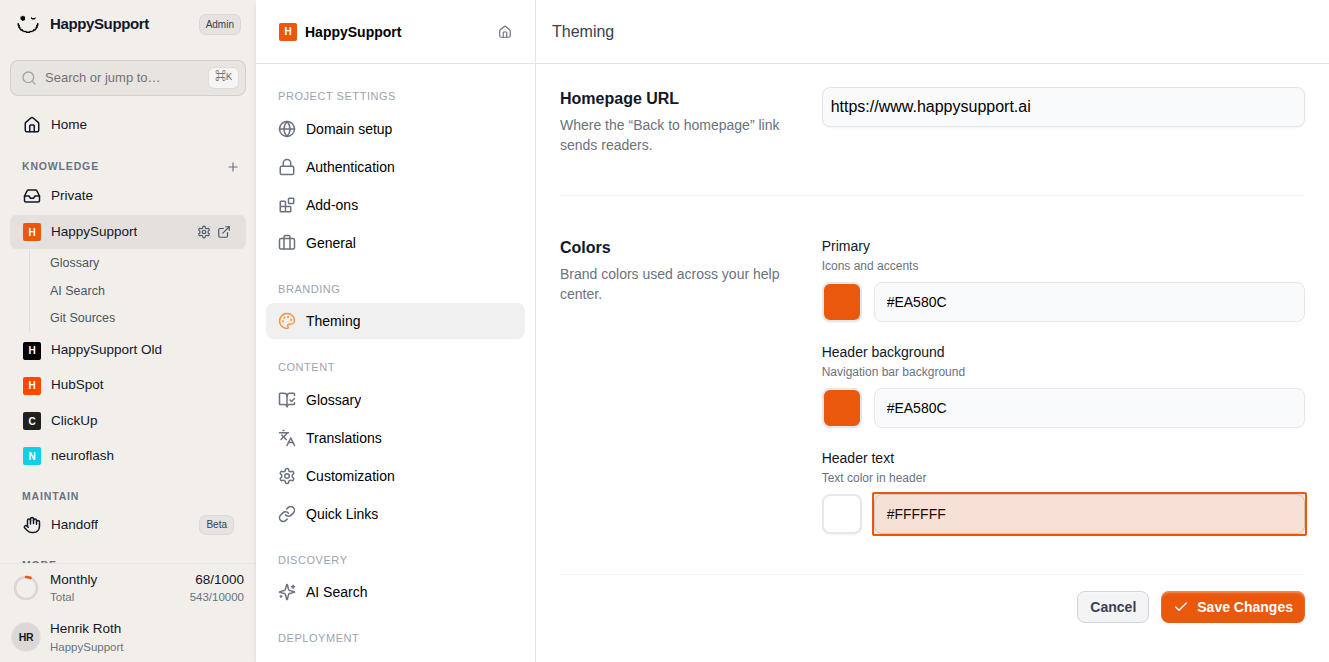
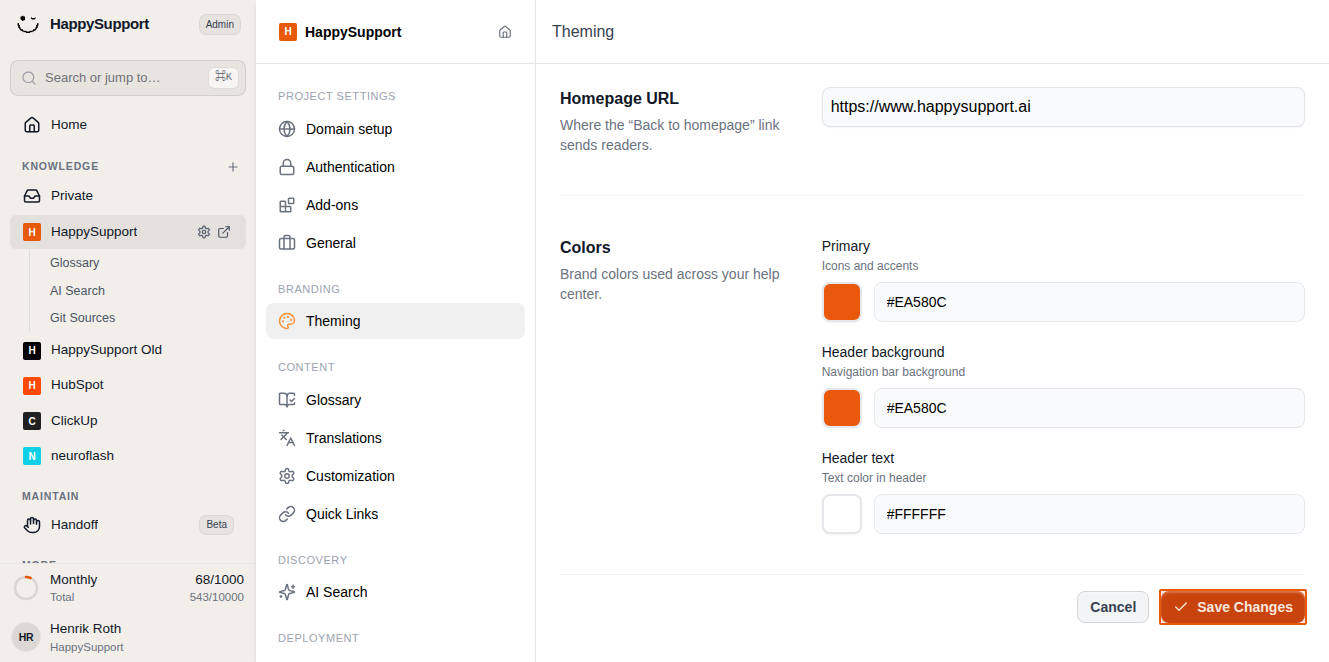
Access the branding settings
-
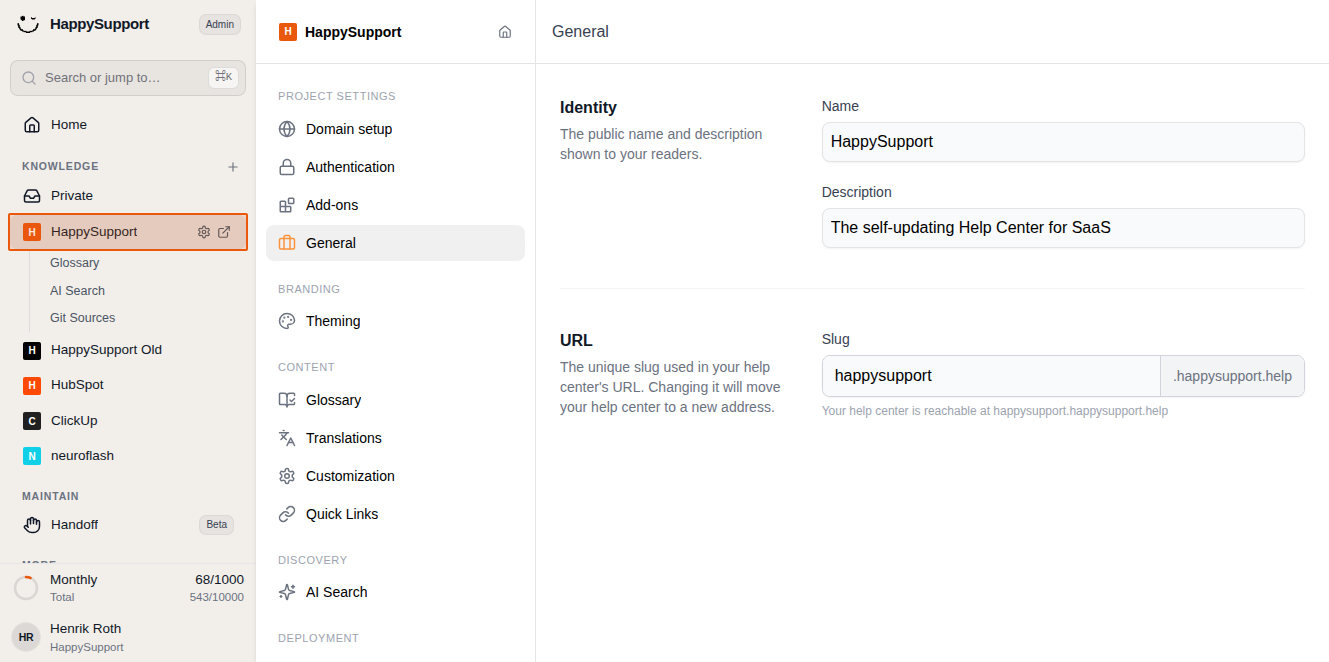
Navigate to your knowledge base
Click on your Help Center project in the left navigation sidebar under the Knowledge section. -
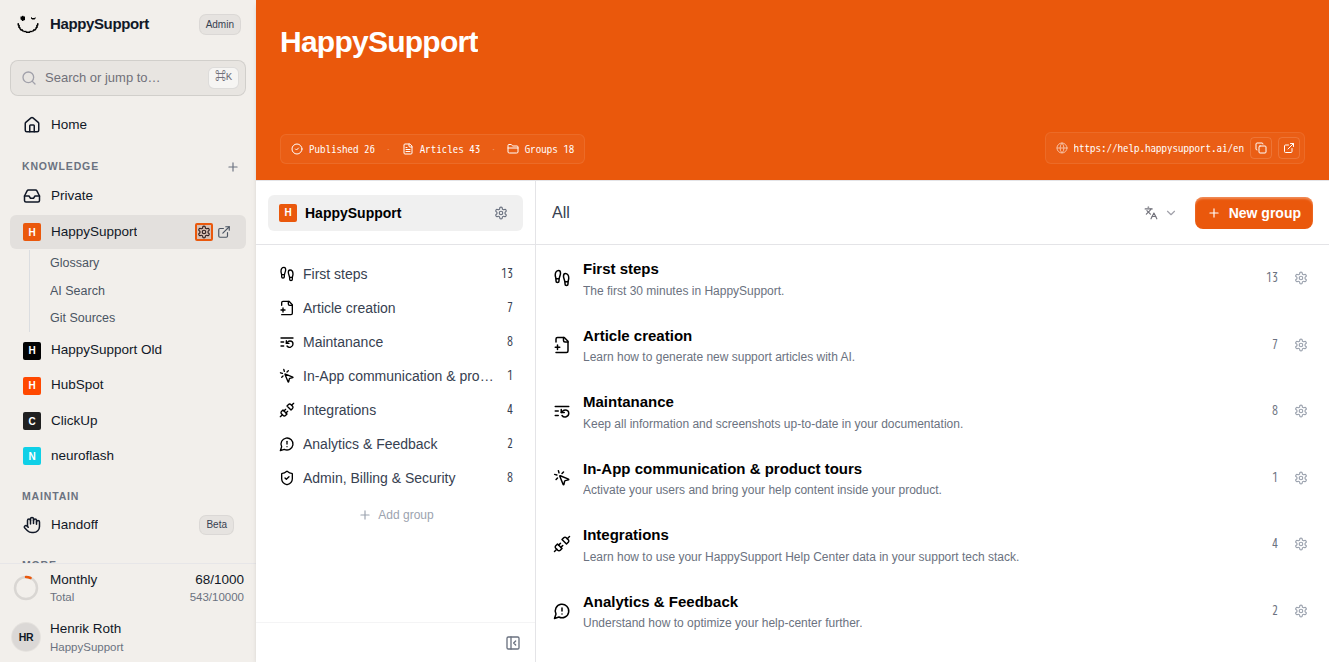
Open your Help Center
Click the external link icon next to your project name to view your current Help Center in a new tab. This lets you see how your branding appears to visitors before making changes. -
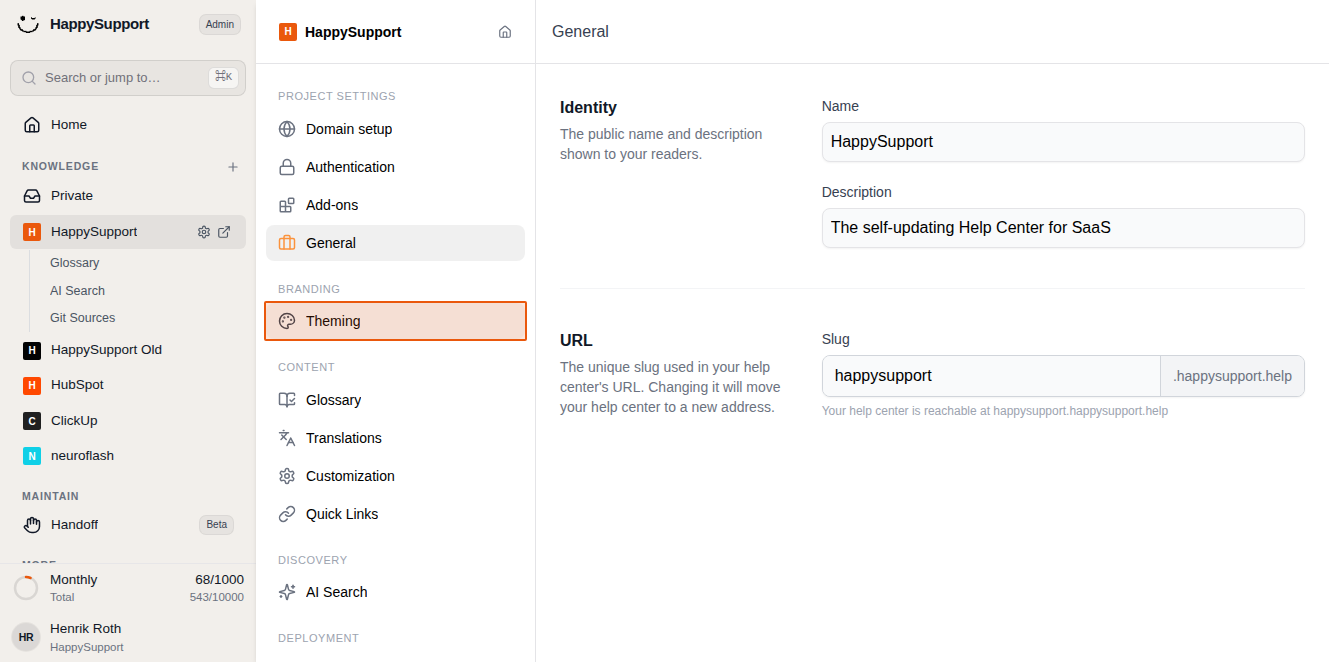
Access theme settings
Click on "Theming" under the Branding section in the middle settings panel to open the customization options.
Customize your branding elements
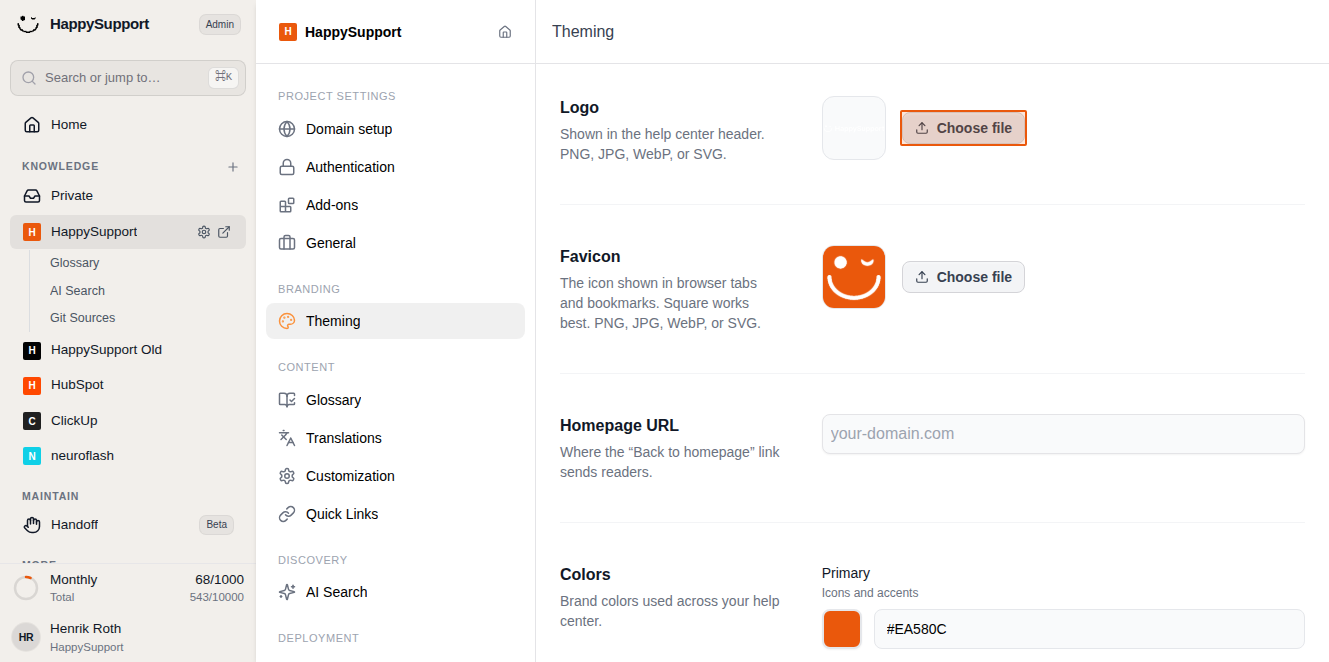
- Upload your logo
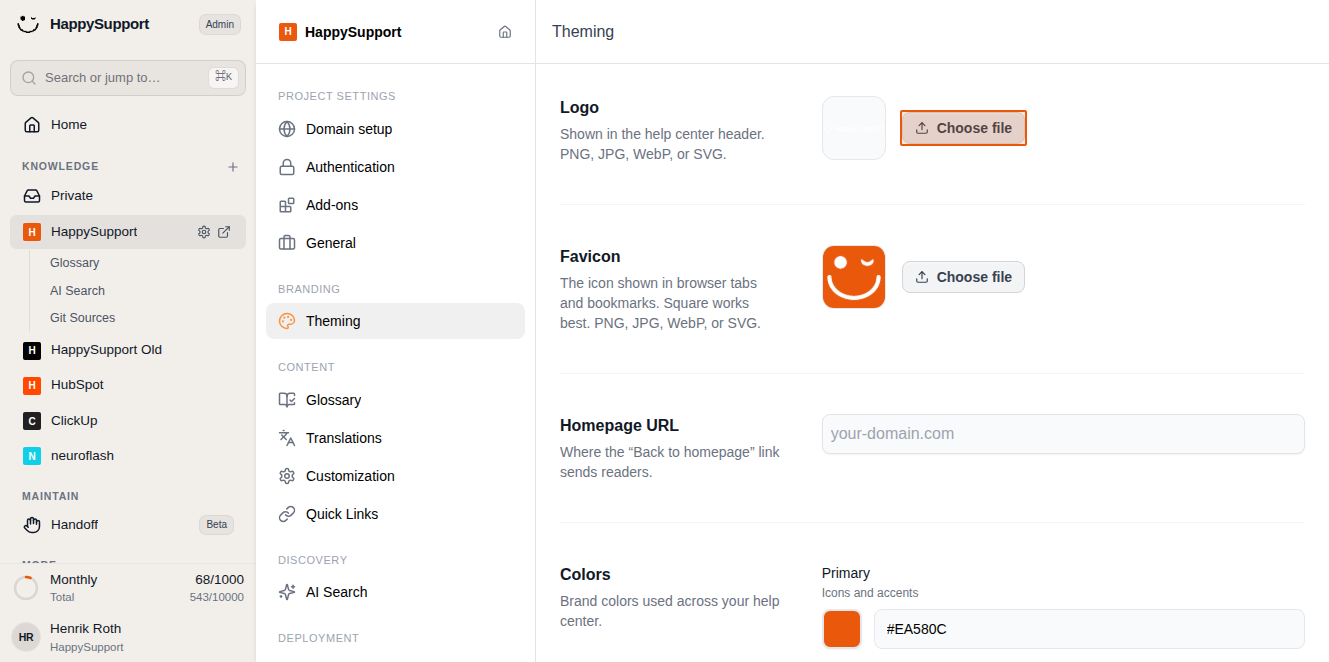
Click the "Choose file" button next to the Logo setting to upload an image that will appear in your Help Center header. Supported formats include PNG, JPG, WebP, or SVG.
-
Set your favicon
Click the "Choose file" button next to the Favicon setting to upload a square icon that displays in browser tabs and bookmarks. Square images work best, and the same file formats are supported. -
Configure your homepage URL
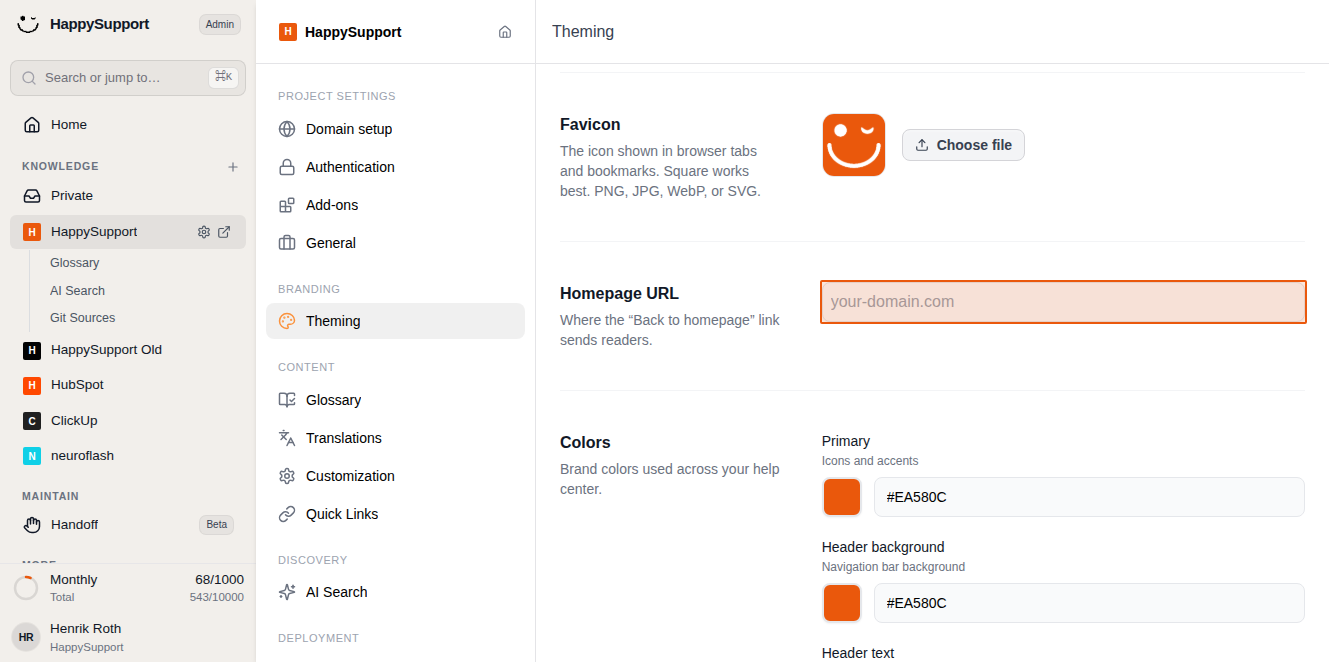
Click in the Homepage URL field and enter your company's main website address. This determines where visitors go when they click "Back to homepage" in your Help Center.
Define your brand colors
- Set the header background color
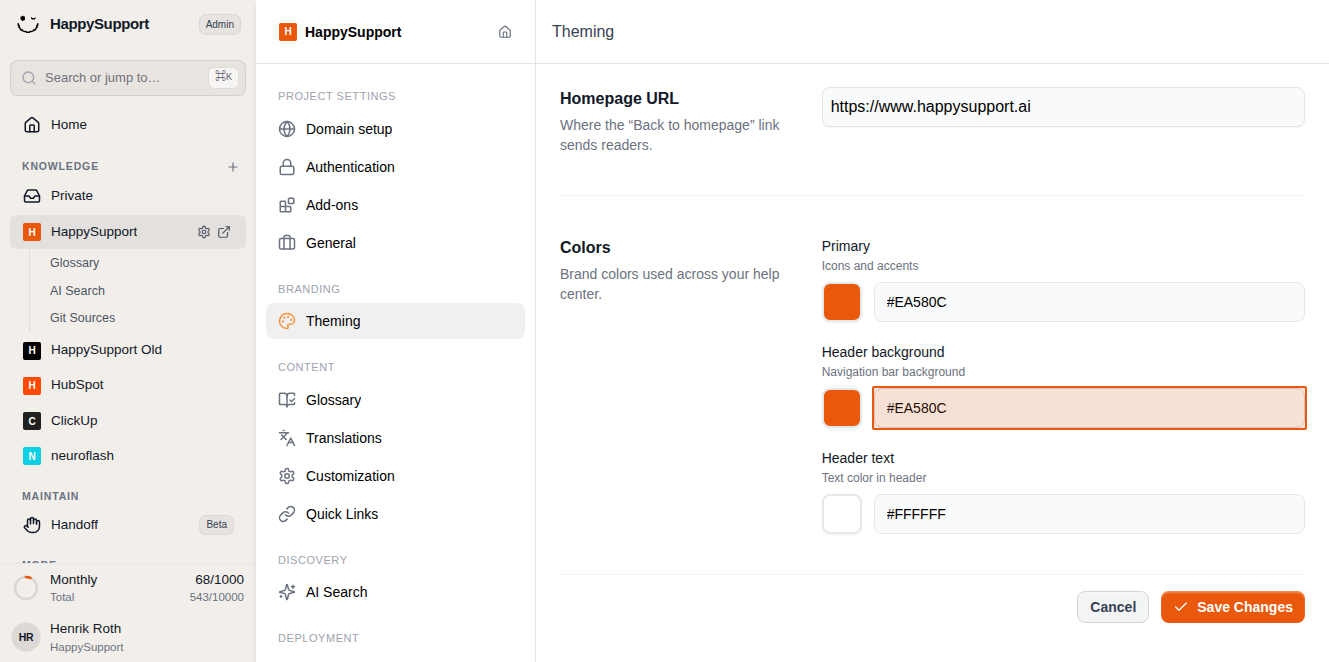
Click in the Header background field under the Colors section to modify the navigation bar background color. Enter a hex color value that matches your brand.
- Adjust the primary color
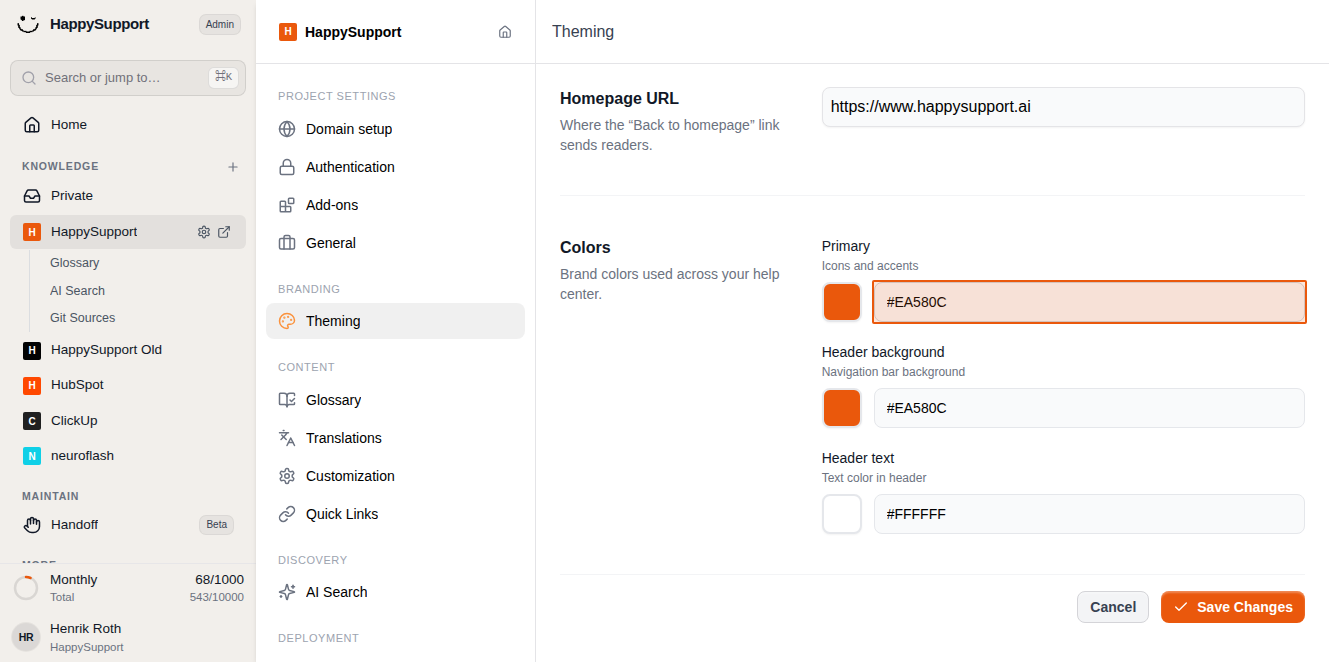
Click in the Primary field to change the color used for icons and accents throughout your Help Center. This should typically match your main brand color.
-
Configure header text color
Click in the Header text field to set the text color that appears in your navigation bar. Choose a color that provides good contrast with your header background. -
Save your changes
Click the "Save Changes" button at the bottom right to apply all your branding customizations to your Help Center.
Your Help Center now reflects your brand identity with custom colors, logos, and navigation settings. Visitors will see these changes immediately when they access your Help Center.
 Powered by happysupport.ai