
Customize your Help Center home page
Customize your Help Center home page identity, name, description, and quick links to improve navigation and direct visitors to key resources.
Learn how to personalize your Help Center's appearance and add quick links to improve navigation for your visitors.

Update your Help Center identity
-
Access your Help Center settings
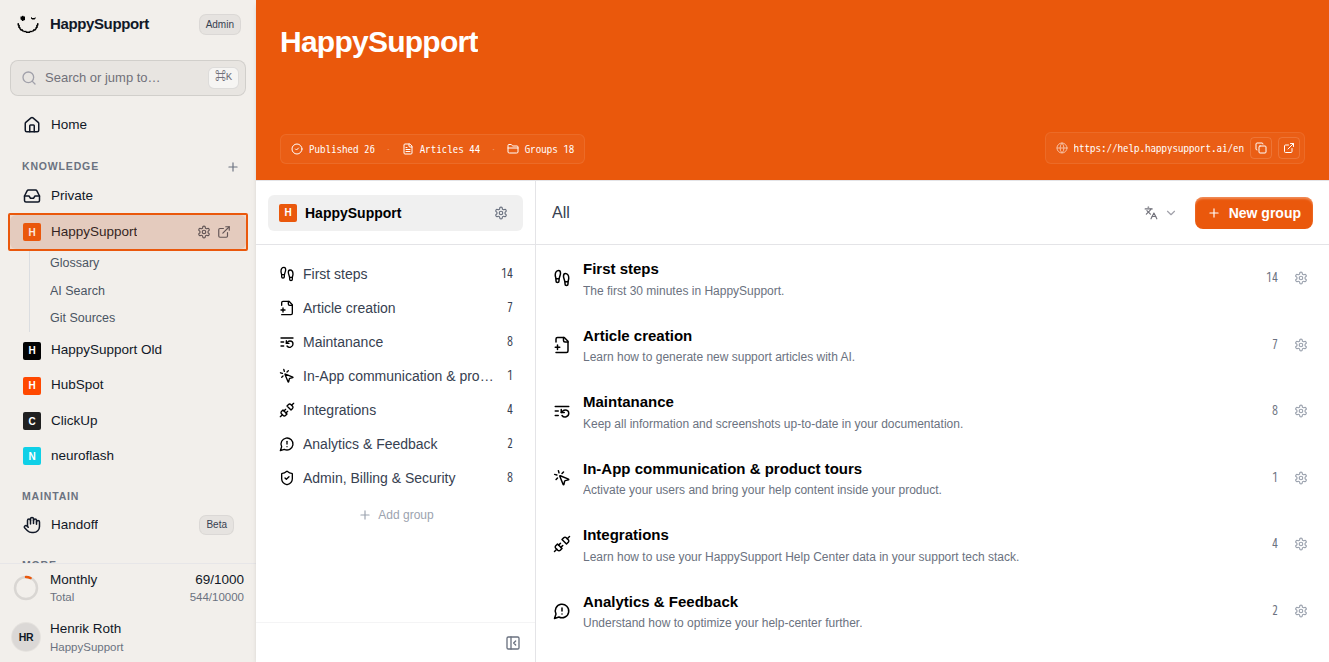
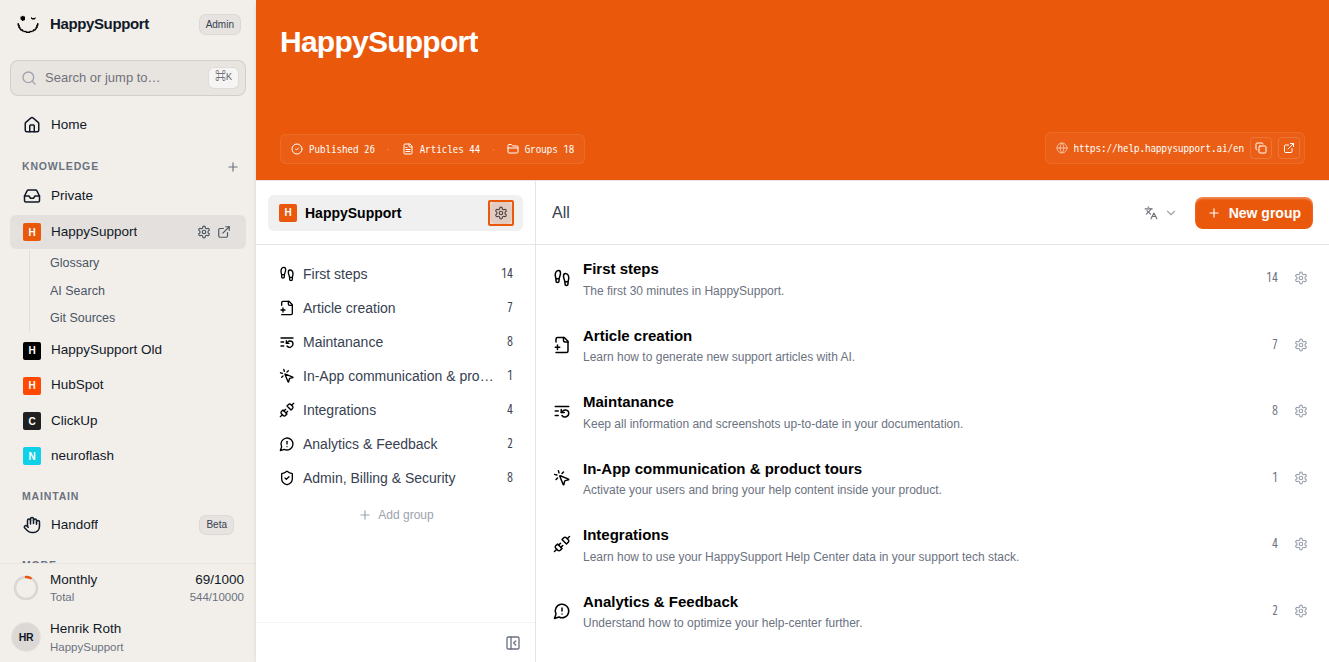
Navigate to your Help Center by clicking on your Help Center name in the left sidebar. Then click the gear icon next to your Help Center's name to open the settings panel. -
Edit your Help Center details
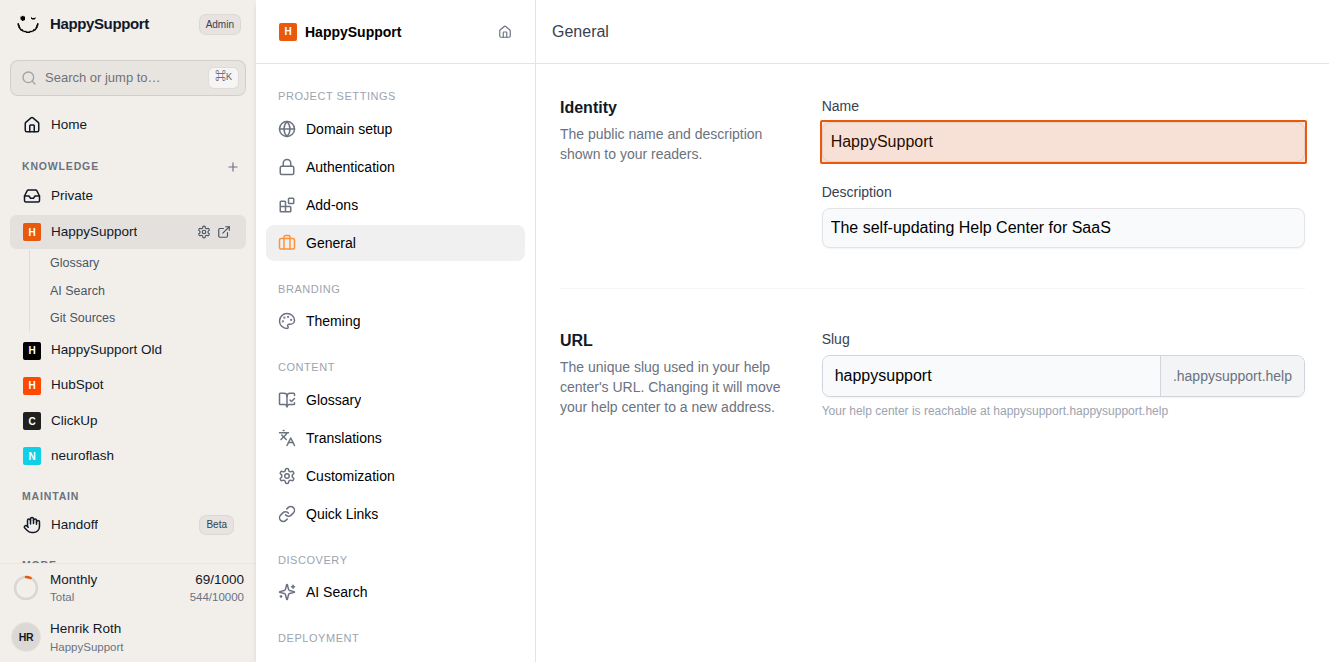
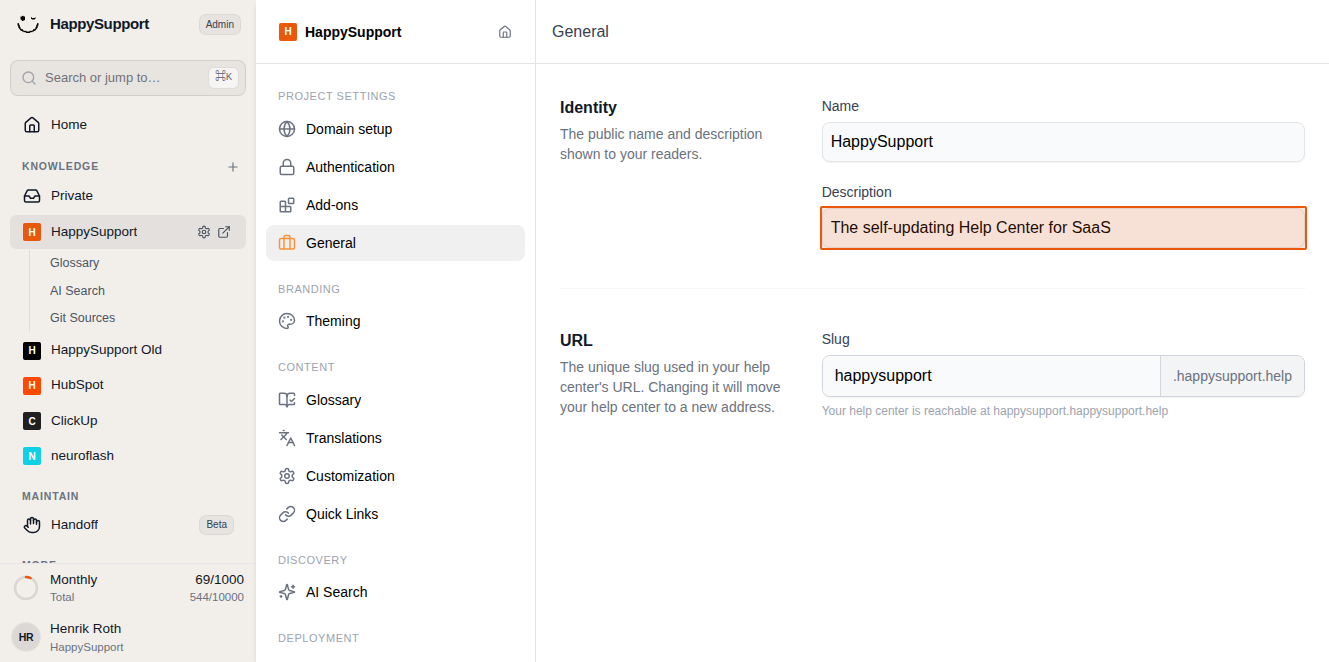
In the General settings page, you'll find the Identity section where you can customize how your Help Center appears to visitors:- Name: Enter the public name for your Help Center
- Description: Add a tagline or brief description that tells visitors what your Help Center offers
Add quick links to your homepage
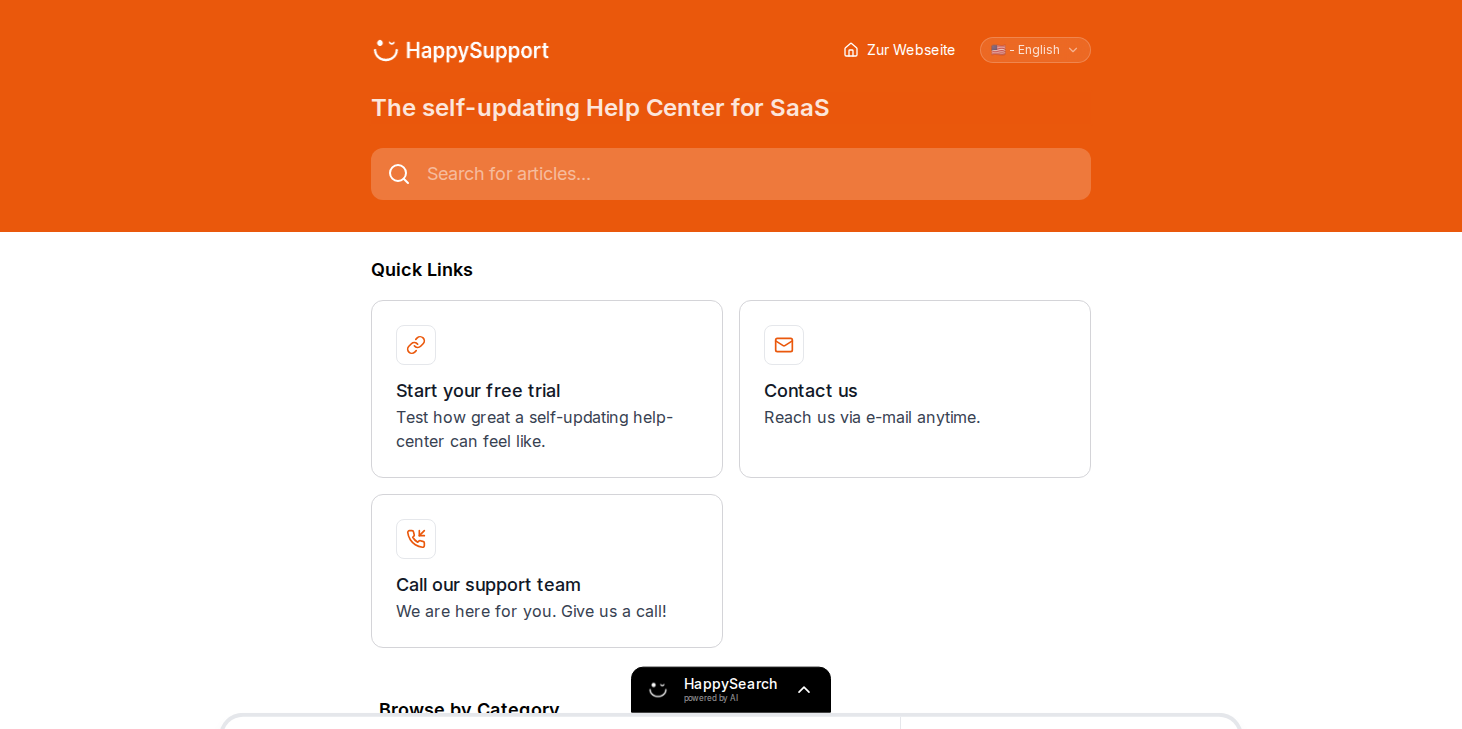
Quick links provide easy access to important resources directly from your Help Center's homepage. These appear as prominent cards that visitors can click to navigate to key areas.
-
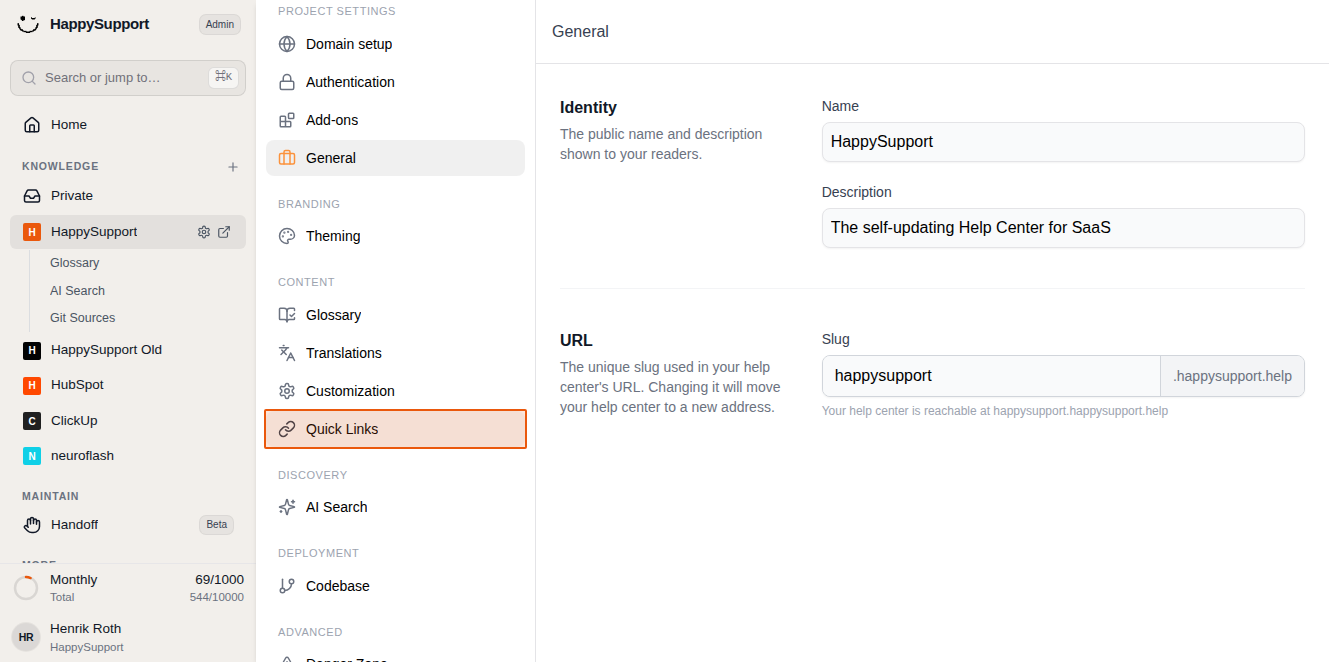
Navigate to Quick Links settings
In the project settings sidebar, click on "Quick Links" under the Content section. -
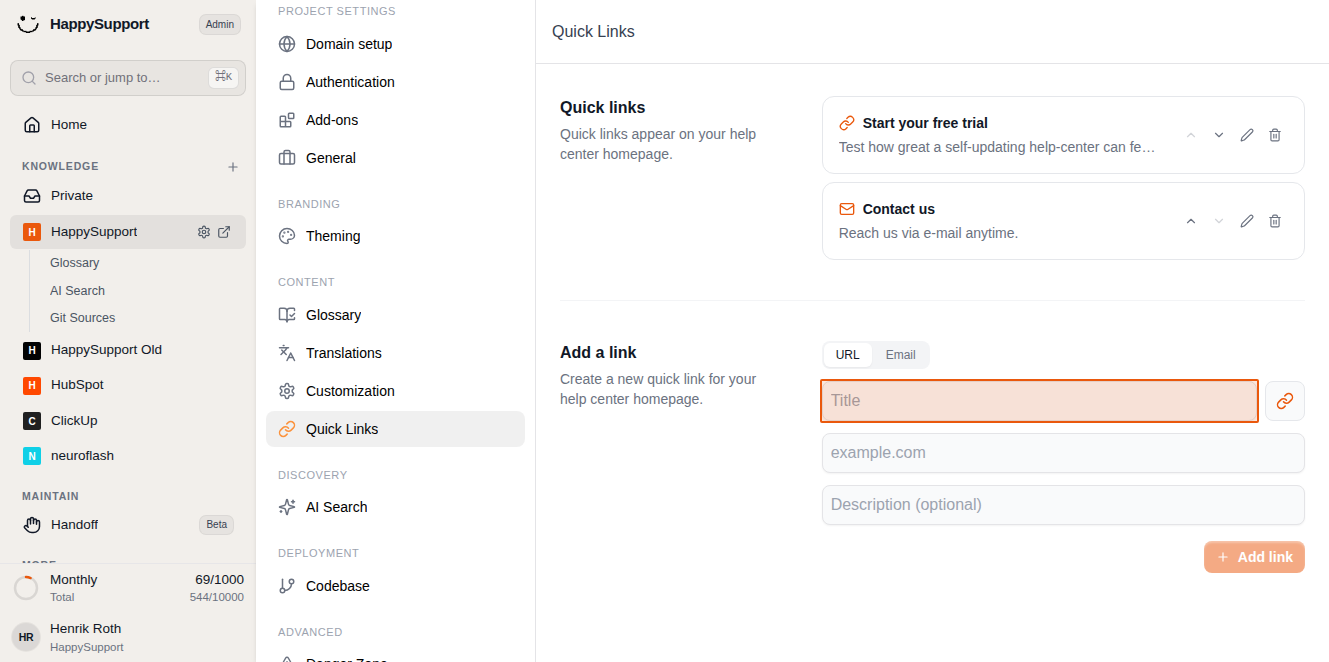
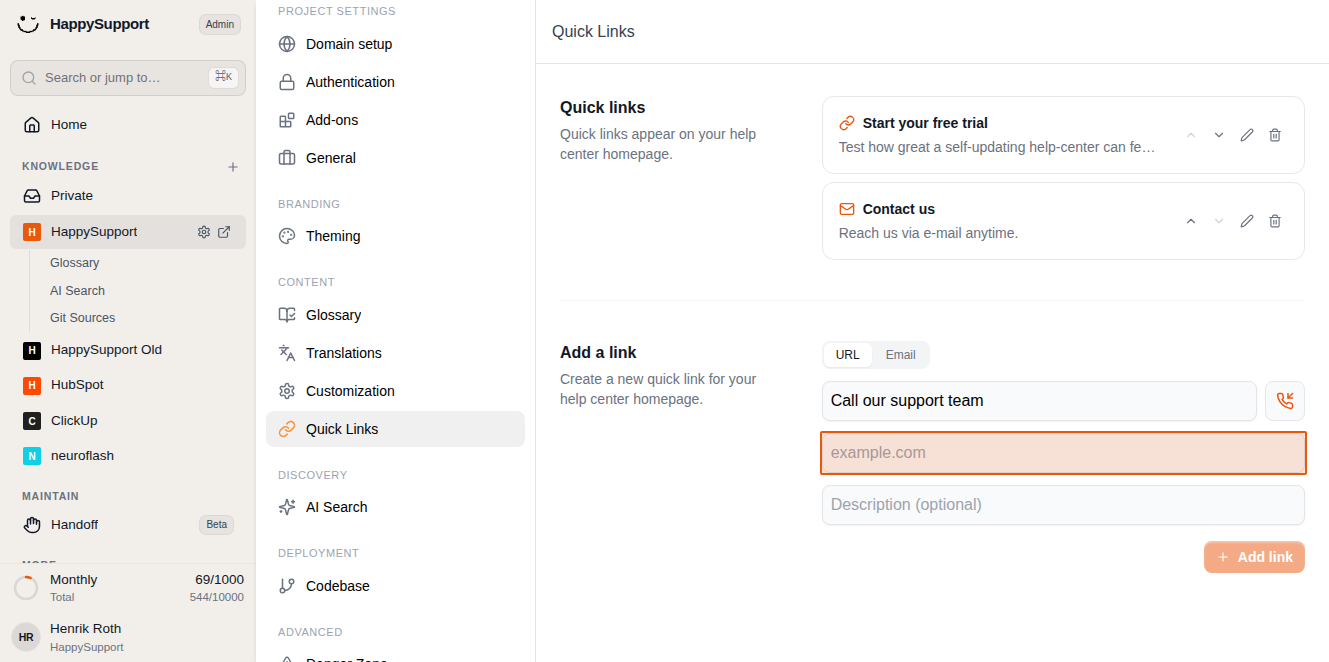
Create a new quick link
Decide first whether you want to create an URL quick link or an e-mail quick link. Click inside the Title field in the "Add a link" section and enter a descriptive title for your link, such as "Call our support team".
-
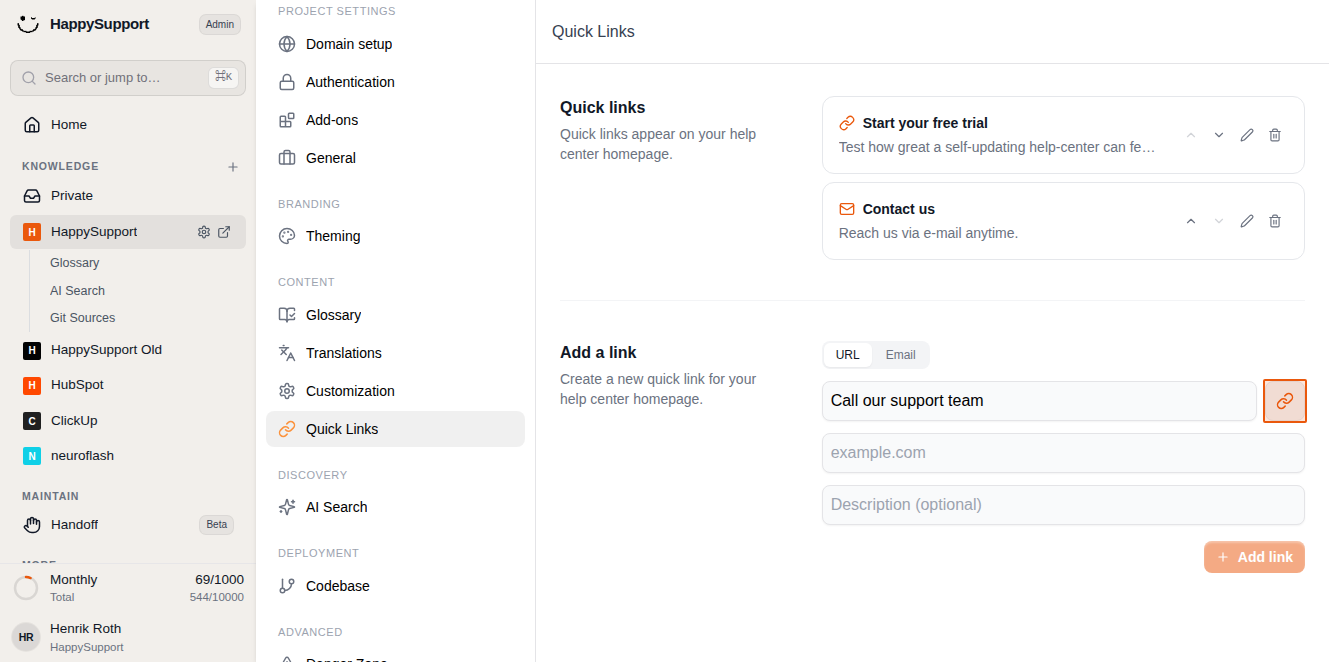
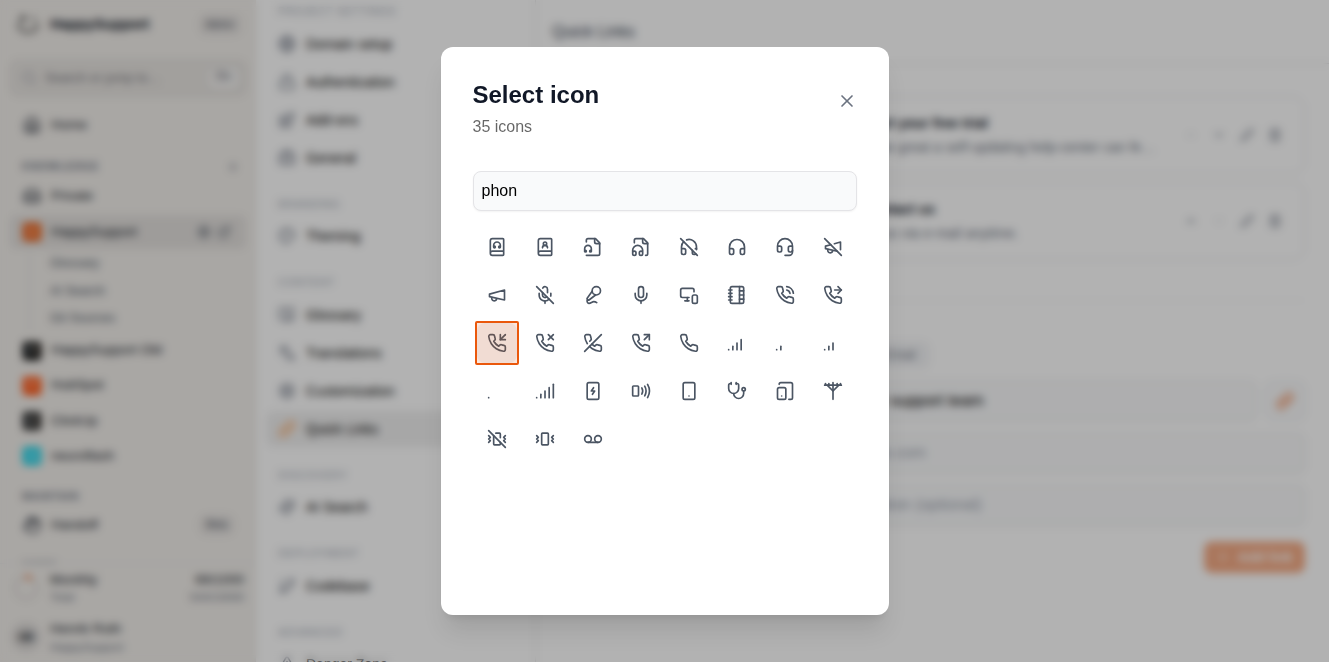
Choose an icon
Click the chain-link button next to the title field to open the icon selector. Search for relevant icons by typing keywords and select the one that best represents your link. -
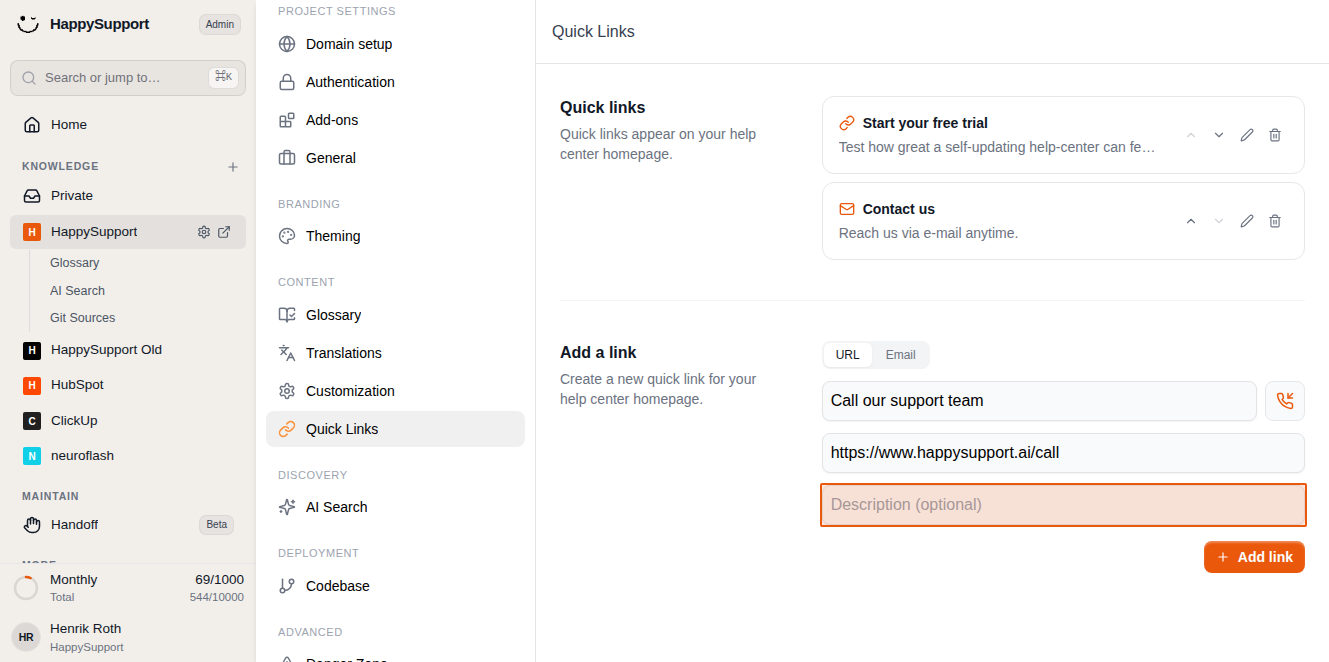
Add the destination URL or e-mail
In the URL field, enter the complete web address where the quick link should direct visitors or the e-mail. -
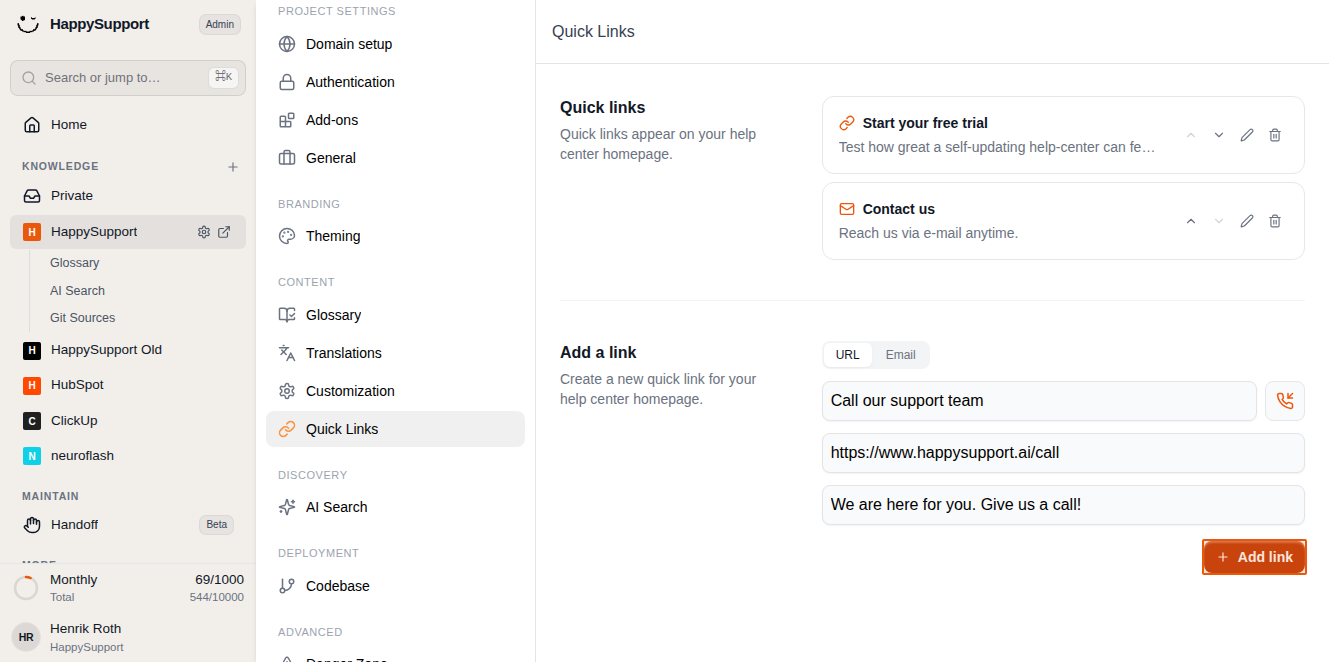
Include a description
Add a brief description in the optional field to provide more context about the link. This helps visitors understand what they'll find when they click. -
Save your quick link
Click the "Add link" button to create your new quick link. It will immediately appear in the list above and on your Help Center's homepage.
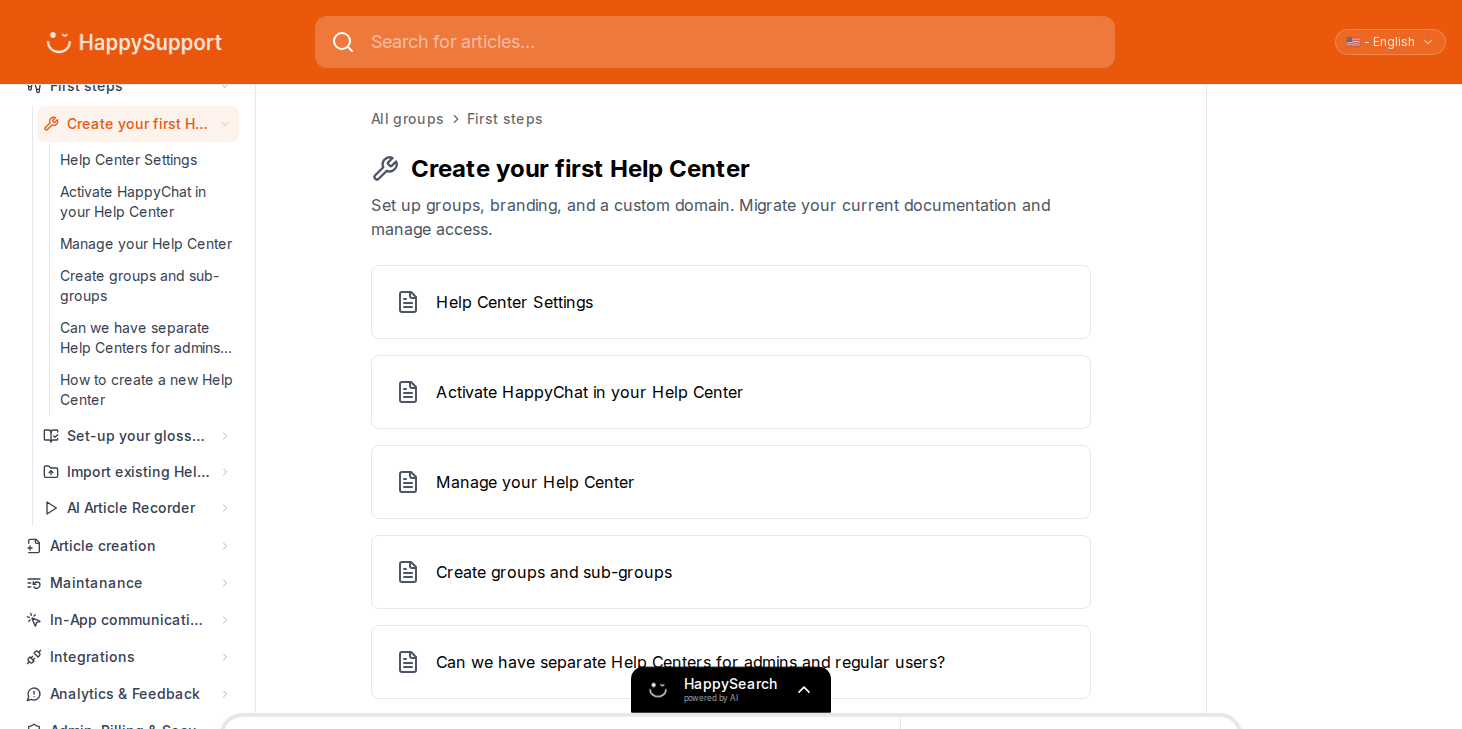
Your quick links are now configured and will display prominently on your Help Center homepage, making it easier for visitors to access important resources and take key actions like contacting support or starting a trial.
 Powered by happysupport.ai