
How to share an article with a direct link
Generate a shareable public link for your article using Direct sharing settings so anyone can view it without signing in.
This article explains how to share an article in HappySupport, making it accessible to anyone with a link. Once shared, users can view your article without needing to sign in.

Sharing your article
-
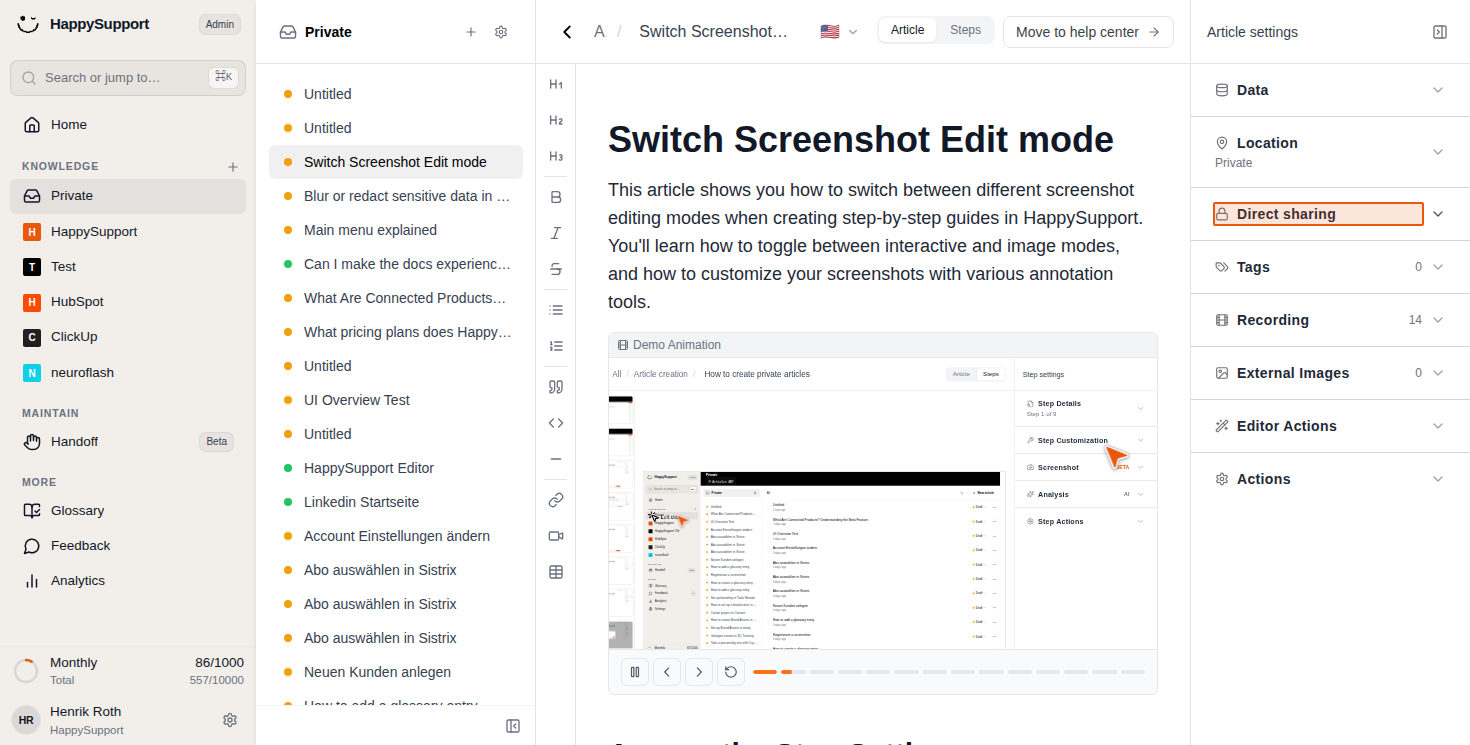
Open the Direct sharing settings
Click on "Direct sharing" in the Article settings panel on the right side of your screen. This will expand the sharing options. -
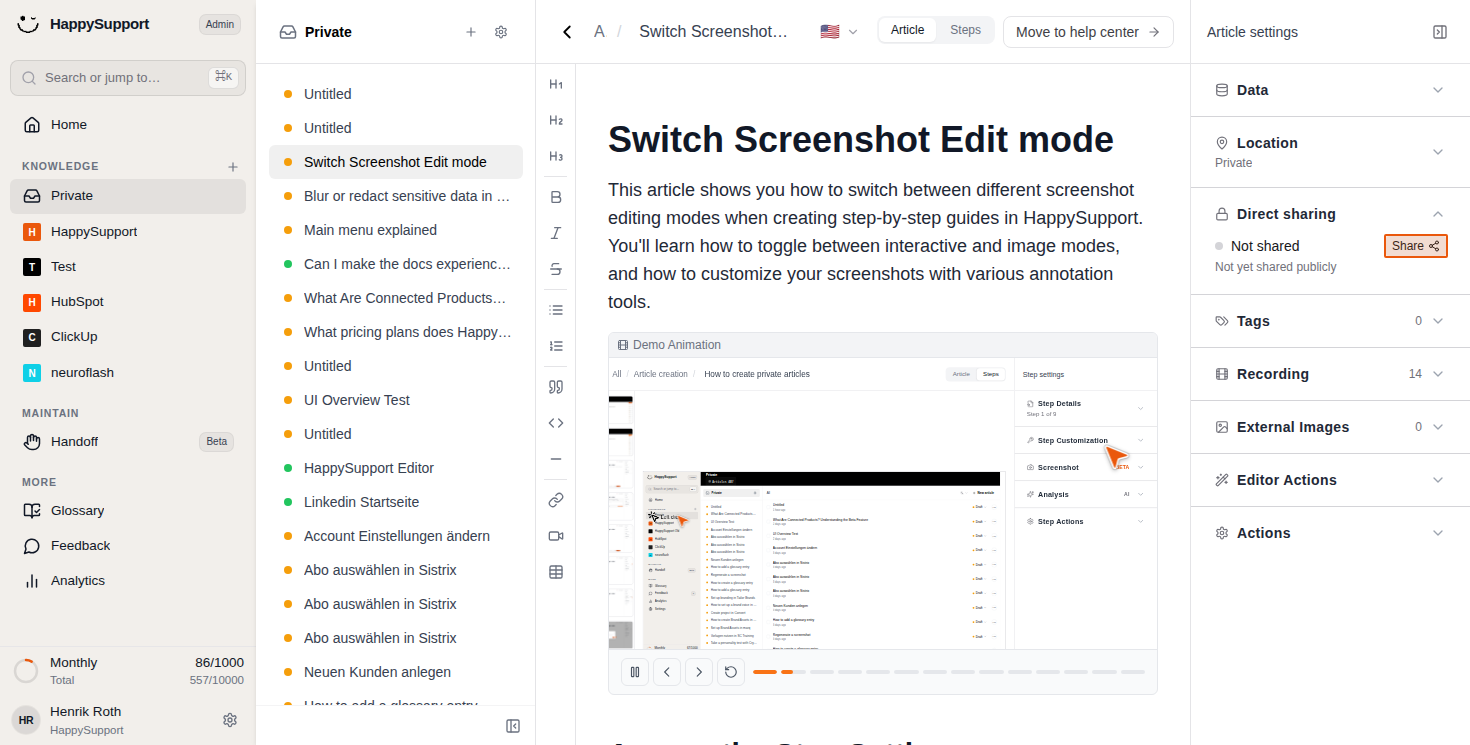
Initiate the sharing process
Click the "Share" button located next to the "Not shared" status. This button appears when your article is currently private. -
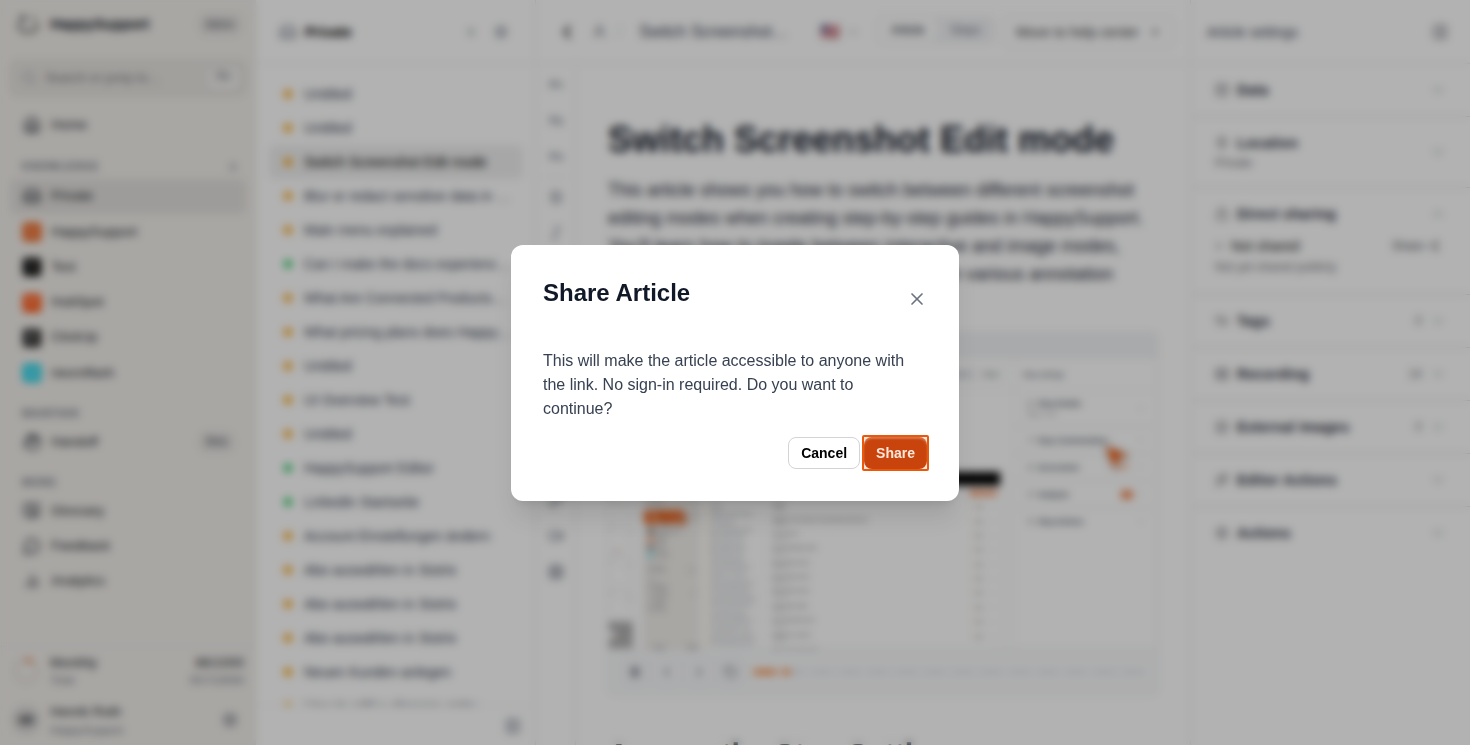
Confirm the sharing action
A confirmation dialog will appear explaining that your article will be accessible to anyone with the link. Click the orange "Share" button to proceed with sharing your article. -
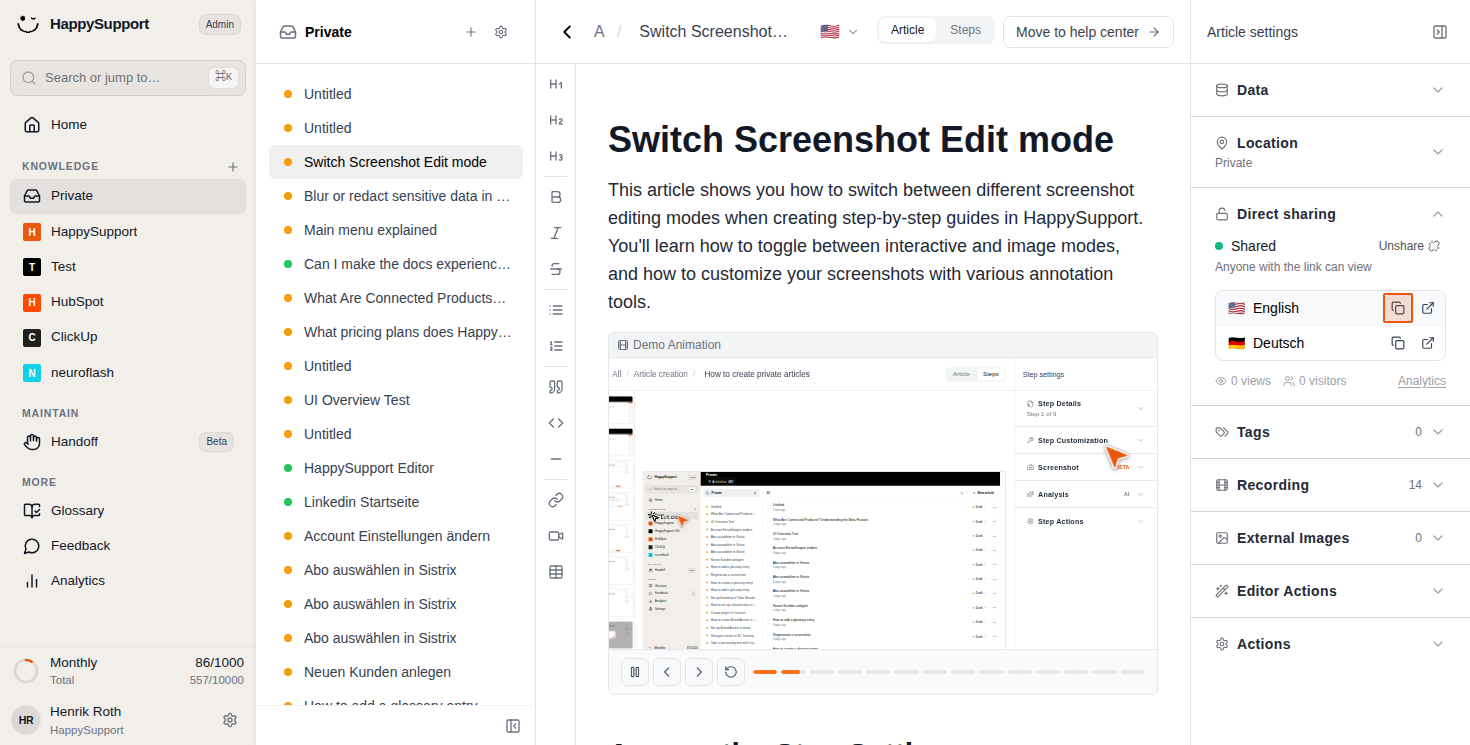
Copy the share link
Once your article is shared, you'll see language-specific sharing options. Click the copy icon next to the language version you want to share (for example, English). This copies the direct link to your clipboard.
Your article is now shared and can be accessed by anyone with the link. The sharing status in your settings will show "Shared" with a note that "Anyone with the link can view."
Now you can share this link via e-mail or any other communication channel with your customers.
 Powered by happysupport.ai